

In this article you will learn how to turn WiFi On and Off using an Android app. See the following procedure.
Step 1
First create an Andorid Application Project.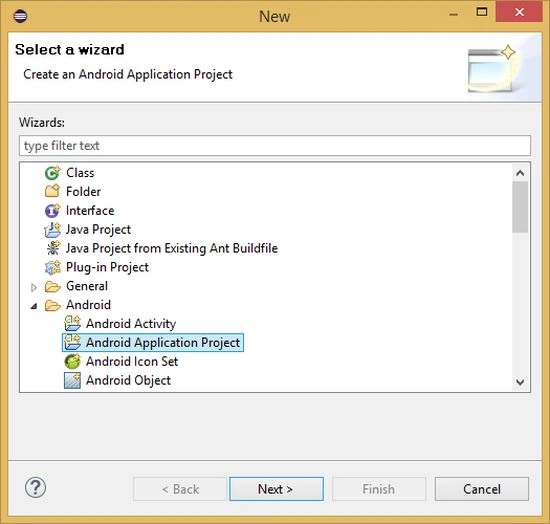
Step 2
Provide a name for the project and select SDK Requirements.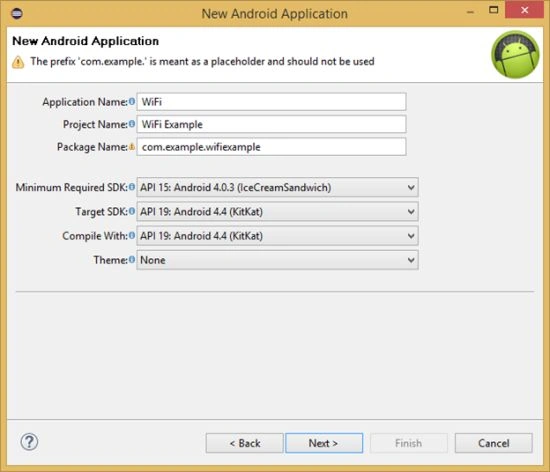
Step 3
Now configure the Android project as you choose. 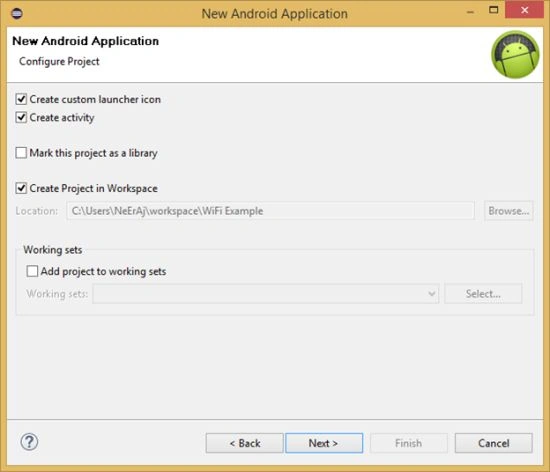
Step 4
Create an icon for the Android project.
Step 5
Select Activity for Android Project.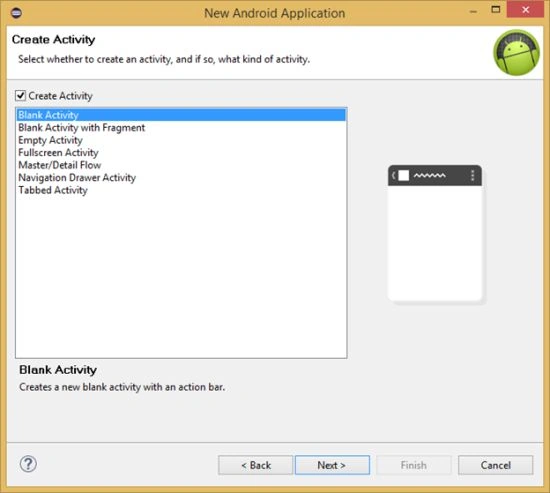
Step 6
Select an Activity name and Layout name.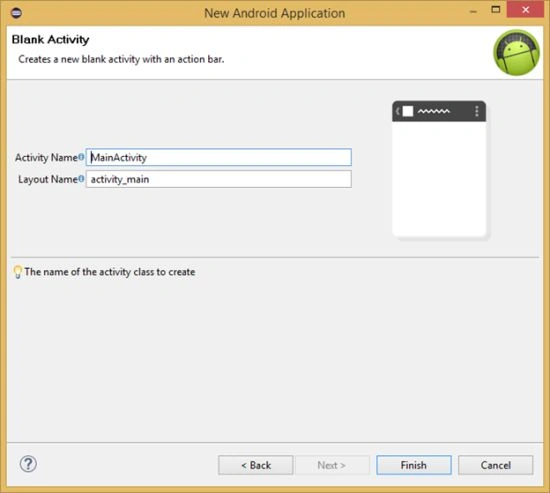
Step 7
Then open the activity_main.xml file.
Drag a Switch Element and one TextView Element to the Graphical Layout of activity_main.xml.
Activity_main.xml file code
- <RelativeLayout
- xmlns:android="http://schemas.android.com/apk/res/android"
- xmlns:tools="http://schemas.android.com/tools"
- android:layout_width="match_parent"
- android:layout_height="match_parent"
- android:paddingBottom="@dimen/activity_vertical_margin"
- android:paddingLeft="@dimen/activity_horizontal_margin"
- android:paddingRight="@dimen/activity_horizontal_margin"
- android:paddingTop="@dimen/activity_vertical_margin"
- tools:context="com.example.wifiexample.MainActivity" >
- <Switch
- android:id="@+id/switch1"
- android:layout_width="wrap_content"
- android:layout_height="wrap_content"
- android:layout_marginLeft="27dp"
- android:layout_marginTop="72dp"
- android:text="Switch" />
- <TextView
- android:id="@+id/textView1"
- android:layout_width="wrap_content"
- android:layout_height="wrap_content"
- android:layout_alignRight="@+id/switch1"
- android:layout_below="@+id/switch1"
- android:layout_marginRight="49dp"
- android:layout_marginTop="88dp"
- android:text="TextView" />
- </RelativeLayout>
Now go to the AndroidManifest.xml file and add two user permissions as in the following:
- <uses-permission android:name="android.permission.ACCESS_WIFI_STATE"/>
- <uses-permission android:name="android.permission.CHANGE_WIFI_STATE"/>
Then open the MainActivity.java file and write some code:
- package com.example.wifiexample;
- import android.app.Activity;
- import android.content.Context;
- import android.net.wifi.WifiInfo;
- import android.net.wifi.WifiManager;
- import android.os.Bundle;
- import android.view.Menu;
- import android.view.View.OnClickListener;
- import android.view.MenuItem;
- import android.view.View;
- import android.widget.Switch;
- import android.widget.TextView;
- import android.widget.Toast;
- public class MainActivity extends Activity {
- Switch s;
- WifiManager wm;
- TextView t;
- @Override
- protected void onCreate(Bundle savedInstanceState) {
- super.onCreate(savedInstanceState);
- setContentView(R.layout.activity_main);
- wm=(WifiManager)getSystemService(Context.WIFI_SERVICE);
- s=(Switch)findViewById(R.id.switch1);
- t=(TextView)findViewById(R.id.textView1);
- s.setOnClickListener(new OnClickListener() {
- @Override
- public void onClick(View v) {
- // TODO Auto-generated method stub
- if(s.isChecked())
- {
- wm.setWifiEnabled(true);
- getwifi();
- Toast.makeText(MainActivity.this, "WIFI is ON", 3000).show();
- }
- else{
- wm.setWifiEnabled(false);
- getwifi();
- Toast.makeText(MainActivity.this, "WIFI is OFF", 3000).show();
- }
- }
- });
- getwifi();
- }
- public void getwifi()
- {
- if(wm.isWifiEnabled()){
- s.setChecked(true);
- Toast.makeText(this, "WIFI is ON", 3000).show();
- WifiInfo w = wm.getConnectionInfo();
- t.setText("BSSID : " + w.getBSSID() + "\n");
- t.append("RSSID : " + w.getRssi() + "\n");
- t.append("SIGNAL : " + w.getLinkSpeed() + "\n");
- t.append("SSID : " + w.getSSID() + "\n");
- }
- else
- {
- t.setText("Not Connected");
- }
- }
- @Override
- public boolean onCreateOptionsMenu(Menu menu) {
- // Inflate the menu; this adds items to the action bar if it is present.
- getMenuInflater().inflate(R.menu.main, menu);
- return true;
- }
- @Override
- public boolean onOptionsItemSelected(MenuItem item) {
- // Handle action bar item clicks here. The action bar will
- // automatically handle clicks on the Home/Up button, so long
- // as you specify a parent activity in AndroidManifest.xml.
- int id = item.getItemId();
- if (id == R.id.action_settings) {
- return true;
- }
- return super.onOptionsItemSelected(item);
- }
- }
Now run the app in a real Andorid phone because the AVD does not support this app.
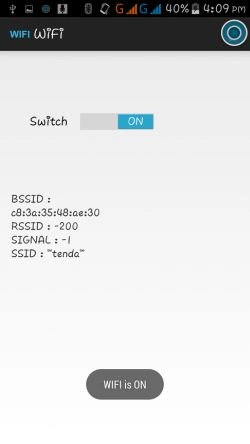
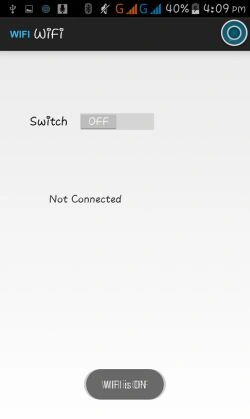
Enjoy.
Neeraj KumarPosted Jul 30, 2015, 5:44 PM
Thank you Rakesh Chavda & Mohammed Ibrahim
Mohammed IbrahimPosted Jul 30, 2015, 5:39 PM
good
RakeshPosted Jul 30, 2015, 12:52 PM
Good work
Neeraj KumarPosted Jul 30, 2015, 8:04 AM
Thank you Pankaj Kumar Choudhary , Gopi Chand , Rajeesh Menoth , Nilesh Jadav , Sibeesh Venu & Santhakumar Munuswamy
Santhakumar MunuswamyPosted Jul 30, 2015, 6:24 AM
Thanks for nice article
Sibeesh VenuPosted Jul 30, 2015, 5:03 AM
Nice Share
Nilesh JadavPosted Jul 30, 2015, 12:04 AM
Nice one sir
Rajeesh MenothPosted Jul 29, 2015, 11:44 PM
Nice one..
Gopi ChandPosted Jul 29, 2015, 10:28 PM
Excellent work
Pankaj Kumar ChoudharyPosted Jul 29, 2015, 9:46 PM
Nice Explain Neeraj...........