

Introduction
This article explains how to make Windows 8 Metro app web links open in Desktop IE. Windows 8 opens web links from Metro Style apps in the Metro version of Internet Explorer. If we are a Desktop user and we don't like the behavior, we can configure IE to always use the Desktop version.
Some basic steps to make Windows 8 Metro app web links open in Desktop IE.
Step 1
First, we have to move on to the Start window screen in Windows 8.
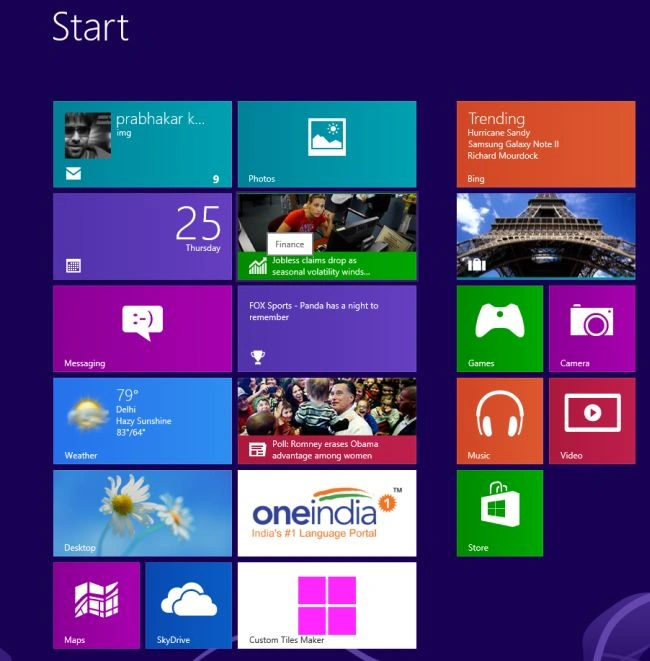
Step 2
Then we have to open the Windows 8 Desktop.
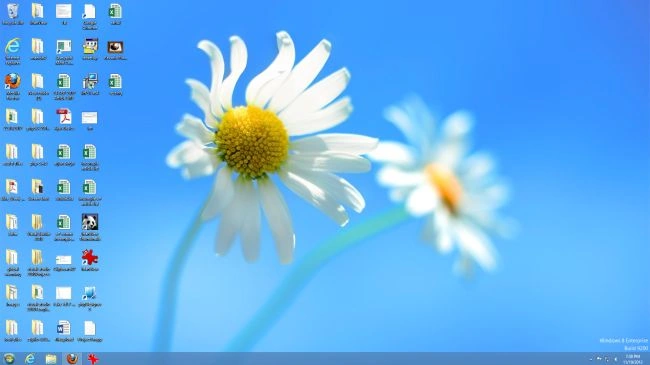
Step 3
We can press shortcut key Win+C for the search screen.

Step 4
After this process, we can type in the search column "inetcpl.cpl" and hit Enter.
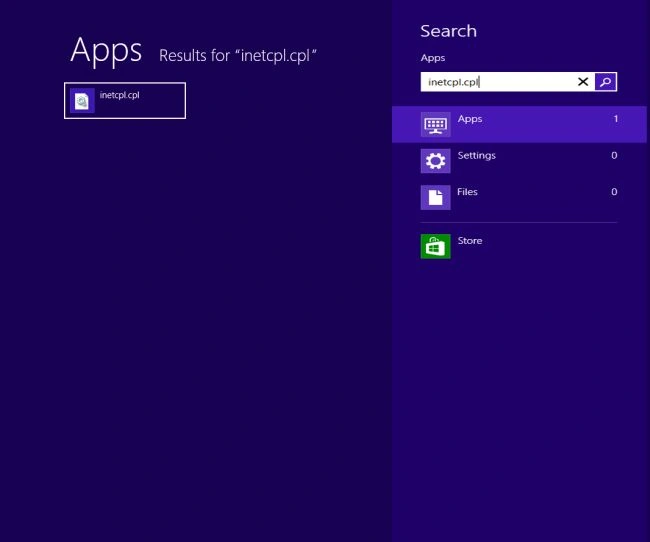
Step 5
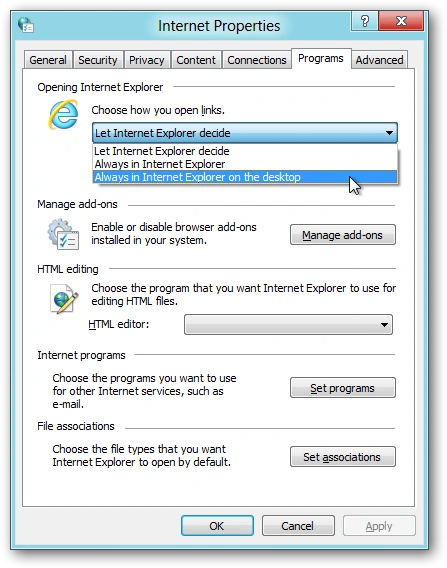
The Internet Properties window opens.
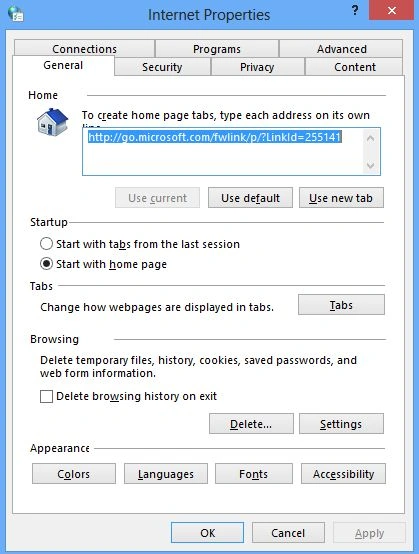
Step 6
Then click on the Programs tab and change the "Choose how you open links" option to Always in Internet Explorer on the Desktop.
Step 7
Click OK and we are set.
Summary
In this article, we learned about Metro App Web Links Open in Windows 8 Desktop IE.
Mukesh KumarPosted Oct 19, 2015, 1:06 AM
Nice One Sir