

This configuration will help you to manage the form templates of InfoPath forms. You can store and configure them, which makes it easy to store the forms and use them from different Web Applications.
How to configure?
Let’s open Central Admin of SharePoint on your machine. On your Windows desktop screen, click Start >> Administrative Tools >> SharePoint 2013 Central Administration.
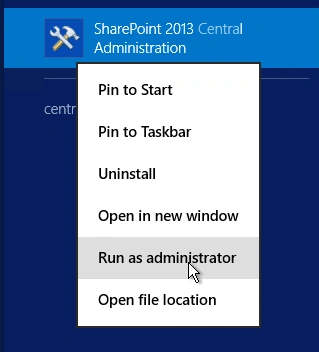
- Run it as an administrator to have the elevated privileges.
- You will see the screenshot given below.
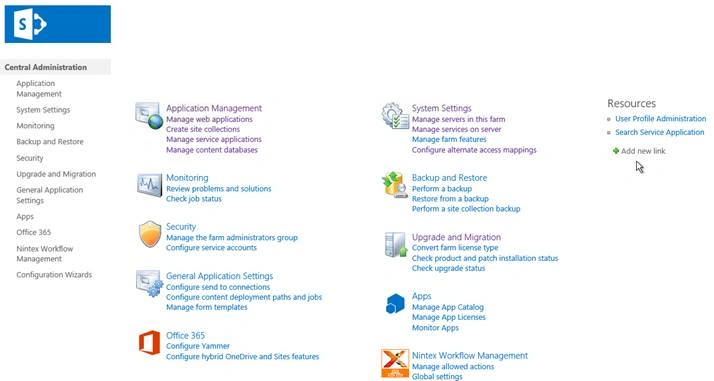
- Central Admin is configured under the categories given above.
- Click General Application Settings.
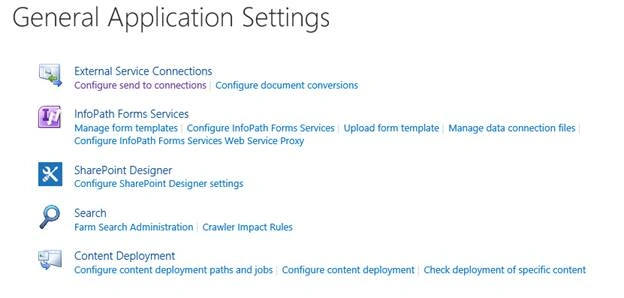
- Go to InfoPath Forms Services.
- Click Manage form templates.
- You will see the screen given below.
Configure
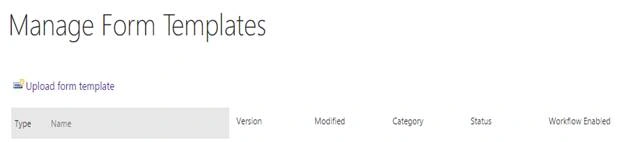
Here, you can see all the form templates present with their versions, modified at what time, category, status and Workflow enabled option is present or not.
Thus, let’s upload a file as our template.
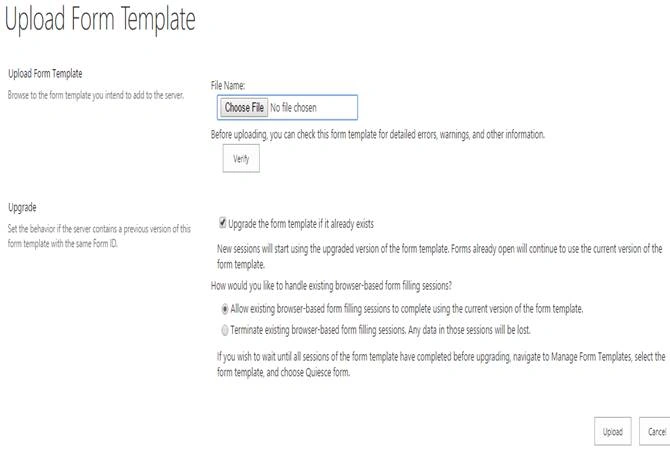
Configuration
- Upload Form Template
Here, you can upload a template and validate, if there is no error as the compatibility with the Server. - Upgrade
If you have a template, which is already present, you can upgrade the template here.
Choosing the first option, you can choose select and if the form is already present it will overwrite.
In the next option, it gives you an option to choose if you would like the Browser based forms to open using the same current version of the form template or break all the connections and create a new one.
Once you complete the configuration, click Upload and the form template will be uploaded.
Once uploaded, you can configure the option given below.
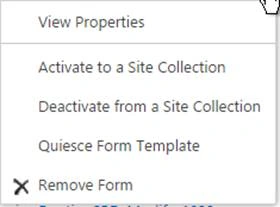
- View Properties
- Activate it to a site collection.
- Deactivate from a site collection.
- You can also make the Quiesce form template, so that if the users are not using, it will not be available to them.
- You can remove the form template too.
This configuration assists admins to have the control on the form templates at one location and the forms can be managed and used from one center.
In this article, we saw how to manage form templates of InfoPath Forms Services in connection in SharePoint 2013 Central Administration. There are more articles to come on Central Administration. Until then, keep reading and keep learning.
Join the conversation! Your thoughts help the community grow.