

Here, you can include a new path to your web application or insert it through explicit or wildcard entries. This helps you to decide what will be the path of creating websites in the site collection.
How to manage the path
Let’s open Central Admin of SharePoint on your machine. On your Windows desktop screen, click Start >> Administrative Tools >> SharePoint 2013 Central Administration.
- Run it as an administrator to have elevated privileges.
- You will see the screenshot given below.

- Central Admin is configured under the categories given below.
- Click on Application Management.
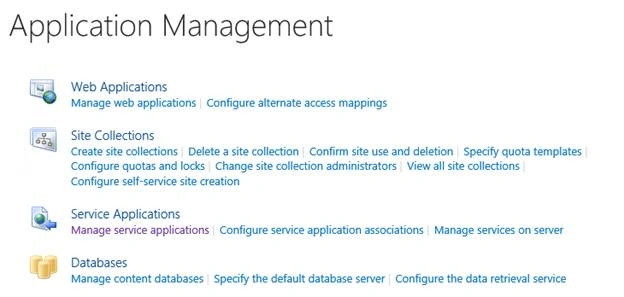
- Go to Web Applications >> Manage web applications.
- You will see the screen, given below.

- Here, we can see various options to work with the web applications.
- Let’s see them from left to right in different parts of the article.
We have four categories where the events have been categorized.
- Contribute
- Manage
- Security
- Policy
In this part, we will see “Managed Paths” under "Manage” category.
Manage Paths
- Select the web application and click on "Manage Paths".
- You will see the screen below.

Features
- Include Paths
Here, you can delete the paths by viewing them on the preview screen below and delete them accordingly. As we can see, our web application has two paths - one is root and the other is sites.
- Add a New Path
Similarly, you can add a new path by either wildcard inclusion or explicit inclusion. Once you add a path, by clicking on "check URL", you can validate if the path is already defined or not.
If the path is new, it will accept the inclusion and you will be able to add a new path to the web application. Once configured, this new path will reflect on all the site collections under this web application.
In this article, we saw how to manage the paths of the web application. There are more features under managing the web applications which we will see in the next article.
Until then, keep reading and keep learning !!
Join the conversation! Your thoughts help the community grow.