

In this article, I’m going to explain how we can change databasesin existing Azure Mobile Services. The server of the new database will bethe same. For creating databases you will need to create a server for the database. For creating databases as well as server you can refer to my below given article:
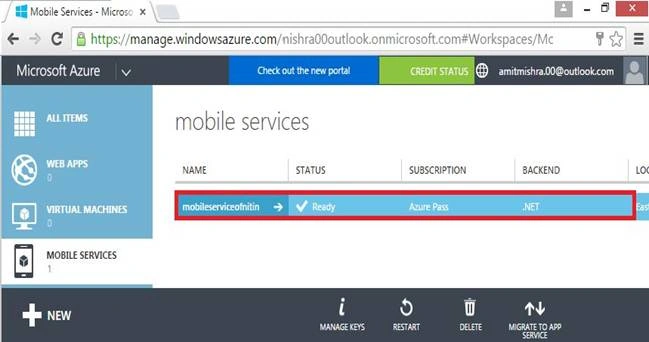
In the following figure, I have a mobile service, click on it.
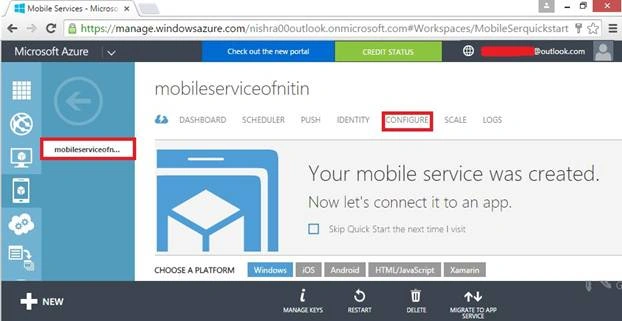
To change the database of this mobile service, click on “CONFIGURE”.
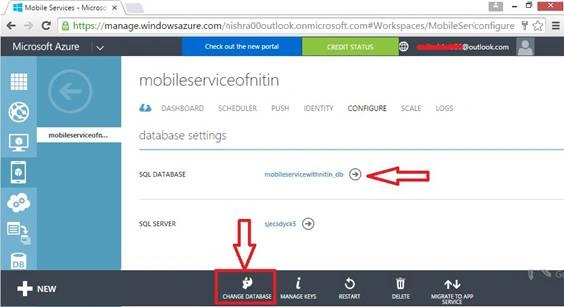
So, here in the following figure you can see SQL Database and SQL Server.
Click on to “ChangeDatabase” in the bottom of the window.
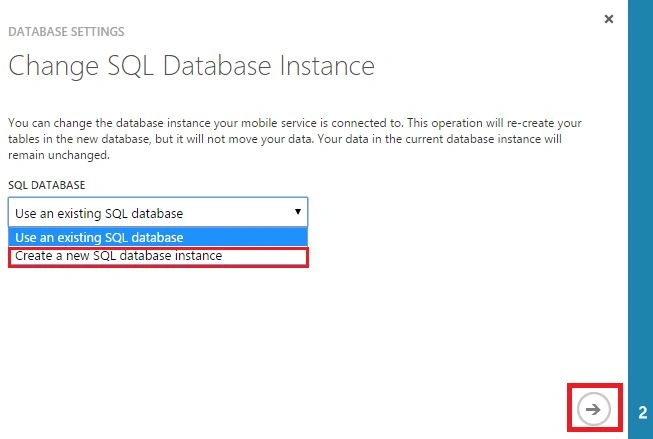
If you have more databases in your server then you can choose which you want to change, in this condition you must have to choose existing database. In my view I don’t have any existing databases so I’m going to choose a new SQL Database instance option.
For further information, click on the arrow.
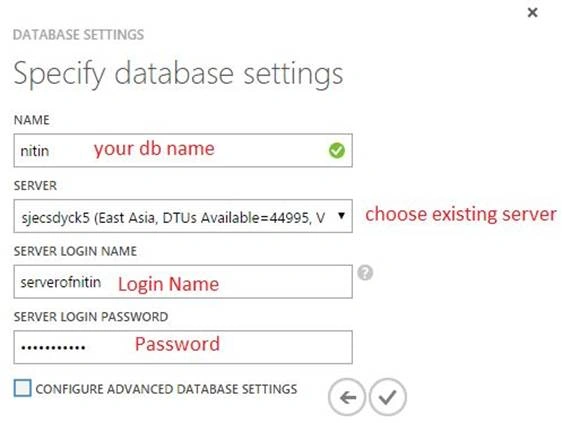
In the following screenshot, give the database name and choose the server, my server is to be existing.
Give the server login name and password (Server login name and password would be that which you used at the time of creation your server)
Click on to check button.

So here I have successfully changed my database.
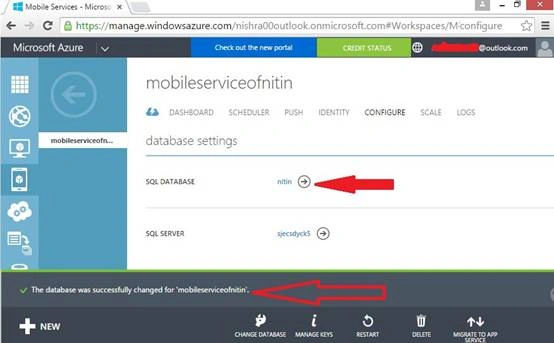
So the benefit of changing the database is that we can use our best database in our existing mobile service.
I hope you enjoyed this article. Stay tuned with me for more articles on Azure and other Microsoft technologies.
Thanks.
NitinPosted Apr 10, 2016, 1:20 AM
Good one
Rahul Kumar SaxenaPosted Apr 9, 2016, 12:26 PM
Good One Nitin Pandit.. Always keen to learn from you...
Vignesh ManiPosted Apr 9, 2016, 11:22 AM
Nice
Kuppurasu NagarajPosted Apr 9, 2016, 10:21 AM
Nice article..
Gowtham RajamanickamPosted Apr 9, 2016, 4:26 AM
very good one..
Ammar ShaukatPosted Apr 9, 2016, 3:24 AM
This is older portal of Azure...! mean this has no meaning for us..