

Here, we will see how the Central Admin controls the management of the Web Application. I would recommend you read the other articles of this series.
- Manage Web Applications On SharePoint 2013 Central Administration - Part One
- Manage Web Applications In SharePoint 2013 Central Administration - Part Two
- Manage Web Applications In SharePoint 2013 Central Administration - Part Three
- Manage Web Applications In SharePoint 2013 Central Administration - Part Four
- Manage Web Applications In SharePoint 2013 Central Administration - Part Five
- Manage Web Applications In SharePoint 2013 Central Administration - Part Six
- Manage Web Applications In SharePoint 2013 Central Administration - Part Seven
- Manage Web Applications In SharePoint 2013 Central Administration - Part Eight
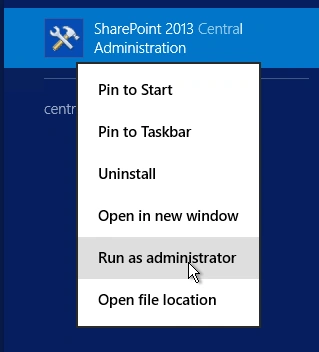
- Run it as an administrator to have the elevated privileges.
- You will see the screenshot given below.
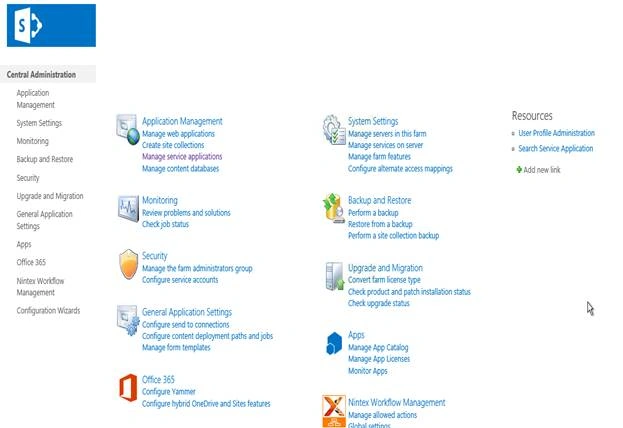
- Central Admin is configured under the categories given below.
- Click on Application Management.
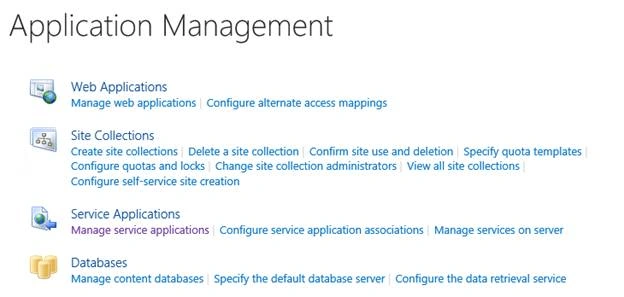
- Go to the Web Applications >> Manage Web Applications.
- You will see the screen, given below.
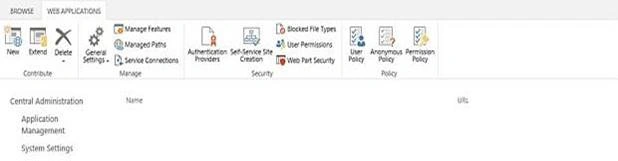
- Here, we can see the various options to work with the Web Applications.
- Let’s see them from left to right in the different parts of the article.
We have four categories, where the events have been categorized.
- Contribute
- Manage
- Security
- Policy
In this part, we will see “SharePoint Designer” under "Manage” category.
SharePoint Designer
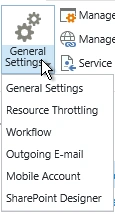
- Select the Web Application and click on "SharePoint Designer".
- You will see the screenshot, given below.
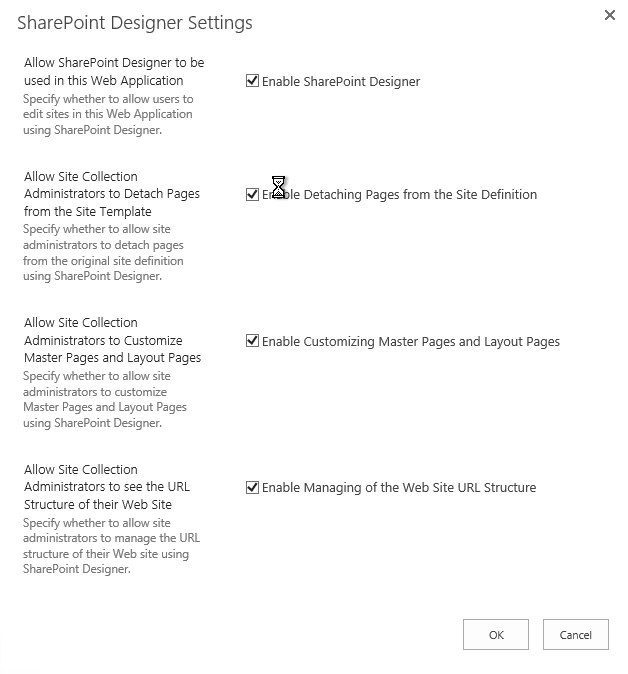
- Allow SharePoint Designer to be used in this Web Application.
You can allow or disallow SharePoint designers to be used in all the sites to edit the Web Application. - Allow Site Collection Administrators to Detach Pages from the Site Template.
You can specify, if you want the users to detach the page from the site template definition added by the administrators. - Allow Site Collection Administrators to Customize Master Pages and Layout Pages.
You can enable or disable the option to allow the site collection administrators to customize their master pages and layouts of the site. - Allow Site Collection Administrators to see the URL Structure of their Website.
Similarly, you can allow or disallow the site collection admins to manage the URL structure of the Website, using SharePoint Designer.
Once you configure these settings, these settings on SharePoint Designer will reflect on all the site collections under this Web Application.
In this part of managing the Web Application, we saw how to manage SharePoint Designer of the Web Application. There are more features under managing the Web Applications, which we will see in the next article.
Until then, keep reading and keep learning.
Join the conversation! Your thoughts help the community grow.