

Introduction
Microsoft Power Platform-consisting of Power Apps, Power Automate, Power Pages, Power BI, and Dataverse—uses solutions to package, transport, and manage components across environments such as Dev → Test → UAT → Production. A solution ensures consistency, governance, and clean ALM (Application Lifecycle Management).
The two key types of solutions are:
Unmanaged Solutions
Managed Solutions
What is a Solution?
A solution is a container that includes components like:
Dataverse tables
Columns, forms, views
Canvas and model-driven apps
Power Automate flows
Environment variables
Custom connectors
Security roles
Power Pages website components
Solutions make your implementation portable, secure, and structured.
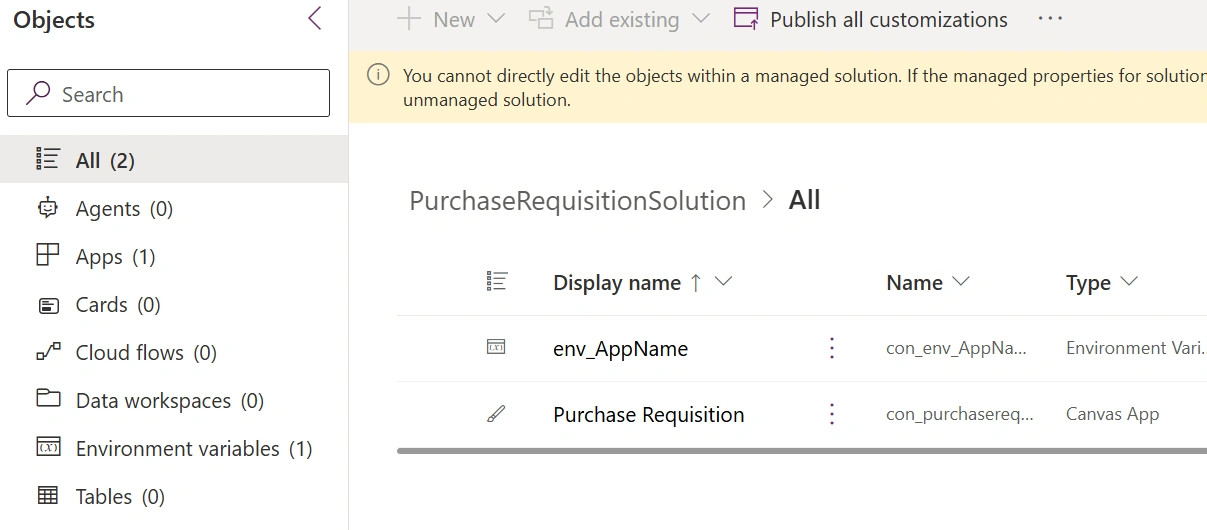
Types of Solutions
1. Unmanaged Solutions (Development Version)
The editable version of a solution—used in development/Sandbox environments.
Characteristics
Fully editable
Components can be added or removed
Ideal for development
When deleted, components remain
Stored in the default solution layer
Used In:
Development or POC purpose.
2. Managed Solutions (Deployment Version)
A locked, sealed version of the solution—used in Test and Production environments.
Characteristics
Components cannot be edited
Safe for production
When deleted, components from the solution are also removed
Supports version upgrades
Used In:
Test/ UAT
Production
Managed vs Unmanaged – Quick Comparison
| Feature | Unmanaged | Managed |
|---|---|---|
| Editable | Yes | No |
| For Development | Yes | No |
| For Production | No | Yes |
| Delete removes components | No | Yes |
| Safe change control | Low | High |
| Allows direct customization | Yes | No |
How to Create Managed and Unmanaged Solutions
Many developers misunderstood that you could create a managed solution directly. This is not possible. Power Platform only allows you to create unmanaged solutions. You get a managed solution only when you export it as managed.
When exporting a solution from DEV, you get two options:
Export as Unmanaged
Used for backup or version control
Editable in target environment
Export as Managed
Used for deployment
Protected and sealed package
Step 1: Create an Unmanaged Solution (Always starts as unmanaged)
Select your DEV environment
Go to Solutions
Click New Solution
Fill the details:
Name
Publisher
Version
Click Create
Every solution you create is ALWAYS Unmanaged .
Step 2: Add Components to Your Unmanaged Solution
Inside the solution, you can add:
Tables
Columns
Apps (Canvas / Model-driven)
Flows
Views / Forms
Environment variables
Security roles
This is your development area .
Step 3: Export the Solution
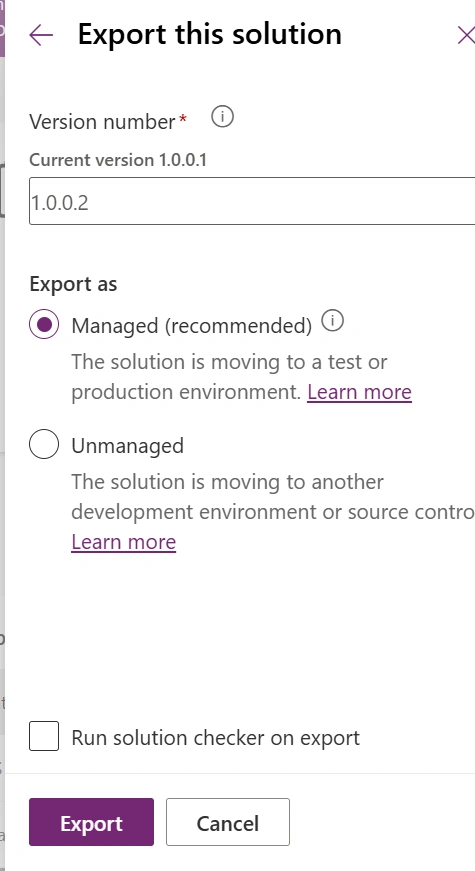
When development is complete:
Open your solution
Click Export
Power Platform offers two export types:
Export as Unmanaged (Editable Version)
Use it for:
Backup
Sharing editable copy
Source control
Export as Managed (Locked Version)
Use it for:
UAT
Production
ISV distribution
Select Managed for production deployment
Download the ZIP file
Step 4: Import the Solution into Target Environment
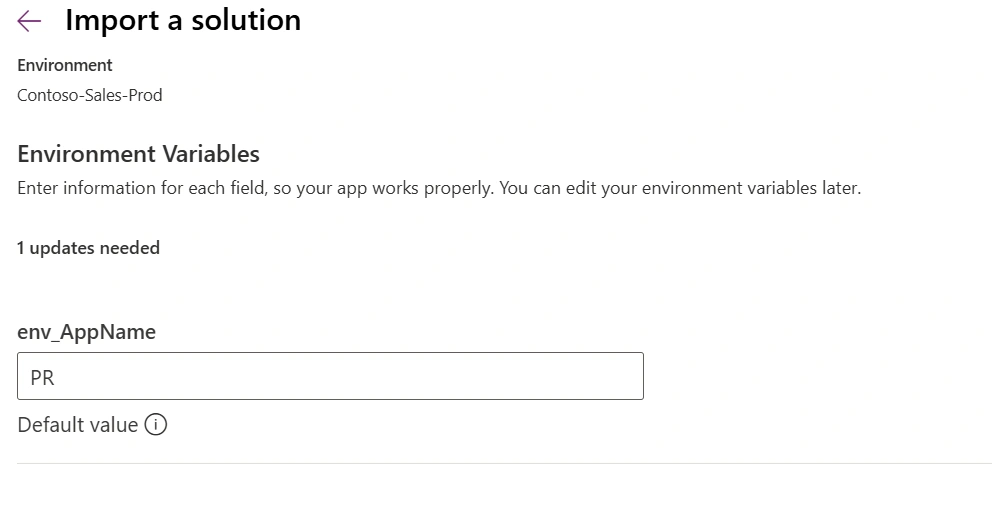
In UAT or PROD:
Go to Solutions
Click Import
Upload your exported solution
Click Import
If it was managed , all components are locked.
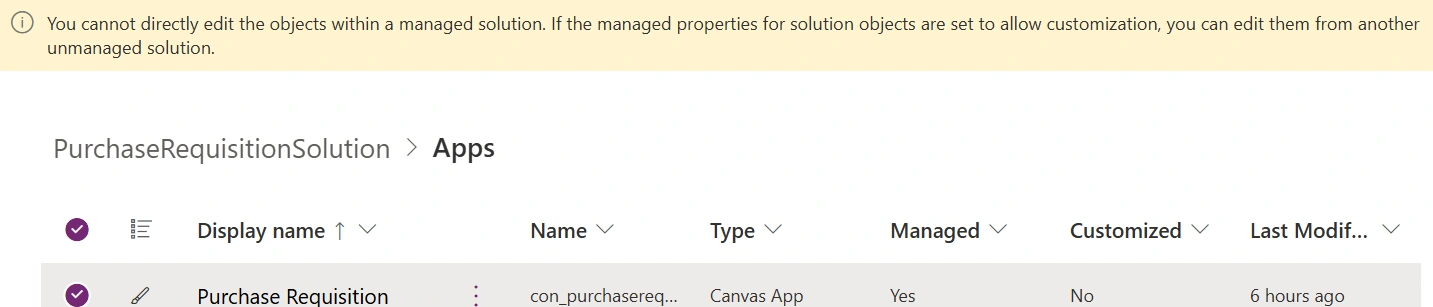
Conclusion
Managed and unmanaged solutions play a crucial role in maintaining structure, integrity, consistency, and quality across the Power Platform environments. When used correctly, they provide a clean ALM process, safe deployments, protection from accidental changes, and ease of upgrade and maintenance.
Join the conversation! Your thoughts help the community grow.