

Introduction
This article will help you to understand the managed and crawled properties in SharePoint online which is useful for the Sharepoint search.
To demonstrate the managed and crawled property, we have used the same list which is created in this article Create and Use Site Content Type in Content Type Hub
During the crawl of content, SharePoint performed below actions on columns/site columns of the lists/libraries.
- If a column is a list/regular column, a crawled property is created.
- If a column is a site column and it contains any value, a crawled property and managed property created.
According to MSDN:
- A crawled property is content and metadata that is extracted from an item, such as a document or a URL, during a crawl.
- Crawled Properties are generated automatically by SharePoint while crawling the published content.
Naming convention for all Site column types:
- Space is removed from site column name
- For publishing HTML and Multiline of Text, the following prefix is added to the site column internal name: ows_r_<four letter code>
- For metadata column, the following prefix is added to the site column internal name: ows_taxId_
- For all other site column types, the following prefix is added to the site column internal name: ows_q_<four letter code>_
Crawled Properties of my site column
|
Column Name
|
Type
|
Crawled Properties
|
|
EmpName
|
Single Line Text
|
ows_q_TEXT_EmpName
|
|
EmpAddress
|
Multi Line Text
|
ows_r_MTXT_EmpAddress
|
|
EmpPhoneNumber
|
Number
|
ows_q_NMBR_EmpPhoneNumber
|
|
EmpRole
|
Choice
|
ows_q_CHCS_EmpRole
|
|
EmpIsActive
|
Yes/No
|
ows_q_BOOL_EmpIsActive
|
|
EmpJoiningDate
|
DateTime
|
ows_q_DATE_EmpJoiningDate
|
|
EmpLeavingDate
|
DateTime
|
ows_q_DATE_EmpLeavingDate
|
|
EmpManagerName
|
Person or Group
|
ows_q_USER_EmpManagerName
|
Naming convention for list Column
The column name prefix with ows_ for the list column.
Note
To distinguish between site columns and list columns simply, Check if the crawled property starts with ows_q_<4 Letters of your column type>_ is a site column otherwise ows_<your Internal field name> is your list column.
Limitation of Crawled property
- Crawled property cannot be created, and it is automatically created by the SharePoint Search engine.
- We do not have any control when the crawled property is available in SharePoint Online as crawling happens automatically based on the defined crawl schedule. However, it can take from a couple of mins to hours.
Managed Properties
- To include the content and metadata of crawled properties into the search index, we will map crawled properties to managed properties.
- Managed property is created by SharePoint based on crawled property of site columns.
Naming conventions for managed properties for the site column
- Spaces are removed from the site column name
- For site columns of type Managed Metadata, the following prefix is added to the site column name internal name: ows_taxId
- For all other site column types, the following suffix is added to the site column name internal name: OWS <four letter code>
Managed Properties of my site columns:
|
Column Name
|
Type
|
Crawled Properties
|
|
EmpName
|
Single-Line Text
|
EmpNameOWSTEXT
|
|
EmpAddress
|
Multi-Line Text
|
EmpAddressOWSMTXT
|
|
EmpPhoneNumber
|
Number
|
EmpPhoneNumberOWSNMBR
|
|
EmpRole
|
Choice
|
EmpRoleOWSCHCS
|
|
EmpIsActive
|
Yes/No
|
EmpIsActiveOWSBOOL
|
|
EmpJoiningDate
|
DateTime
|
EmpJoiningDateOWSDATE
|
|
EmpLeavingDate
|
DateTime
|
EmpLeavingDateOWSDATE
|
|
EmpManagerName
|
Person or Group
|
EmpManagerNameOWSUSER
|
Note
Managed properties for the list column is not created automatically.
Limitation of Managed Properties
- The new managed property can only be of type Text or Yes/No, and it can't be refinable or sortable.
- To create a new refinable or sortable managed property in SharePoint Online, we must use an existing unused managed property and rename it by using an Alias. They're quite a few managed properties available for this purpose. They have names such as “RefinableString00” and “RefinableDate19.”
Search Schema Mapping level in SharePoint Online.
In SharePoint online, there are three different mapping level available:
- Tenant
This is the topmost level, and any mapping at this level are inherited down to all site collection and subsites.
Mapping for user profiles, hybrid crawled data, bcs, file crawls, etc must be mapped at this level. - Site Collection
Mapping at this level will available only to this site collection and its sub-sites. - Site
There is no mapping possible at site level, only viewing schema is available.
Create New Managed Property
Note
To create new managed property at the tenant level, navigate to search schema by login into the SharePoint admin portal -> Search -> Manage Search Schema -> New Managed Property then follow the similar steps which are defined for site collection level.
To create new managed property at the site collection level, follow the below steps.
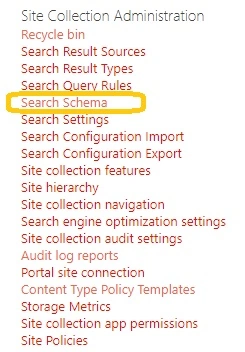
Step 1
Open site settings and click search schema (under site collection administrators)
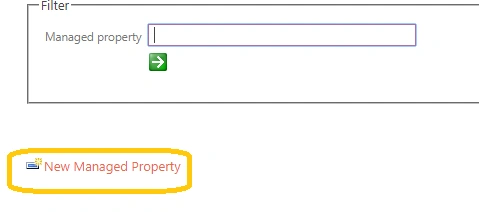
Step 2
Click on the New Managed Property link.
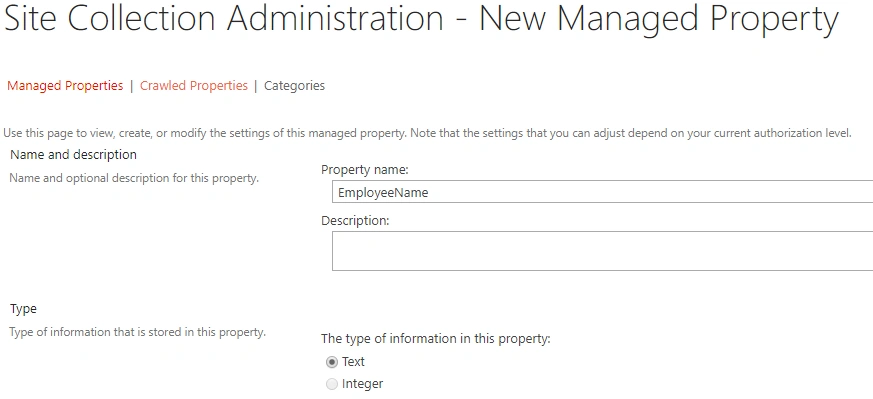
Step 3
Enter the managed property name and select the appropriate checkbox.
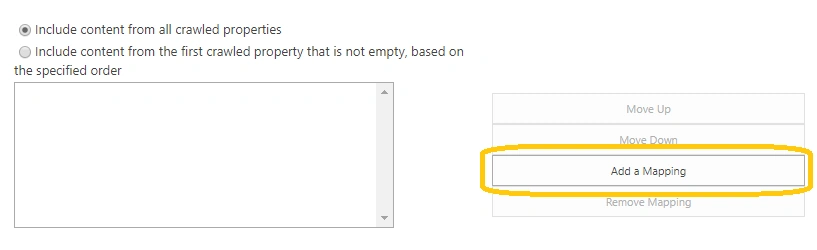
Step 4
Scroll down to Managed to crawled properties section and click on Add Mapping
Step 5
Select the appropriate crawled properties, add them, then click on the Ok button
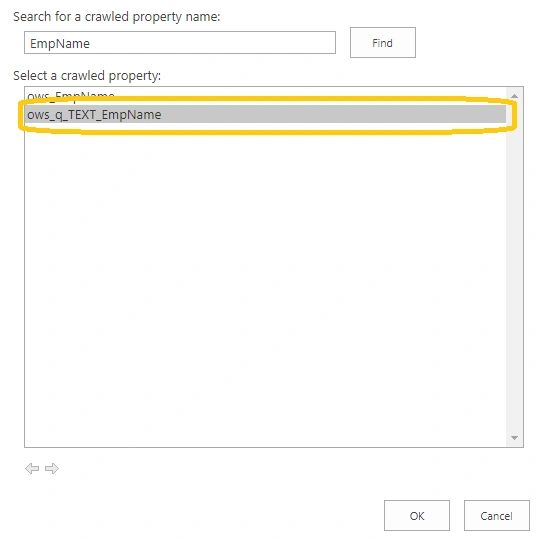
Step 6
After adding crawled property to managed property, it will look like the image shown below.

Step 7
Click on the Ok button.
Note
It will take a couple of hours to show the newly added managed property in the search schema.
When we Create New Managed Properties
- When list have regular column instead of site column
- When we want different names for columns instead of existing managed property.
Note
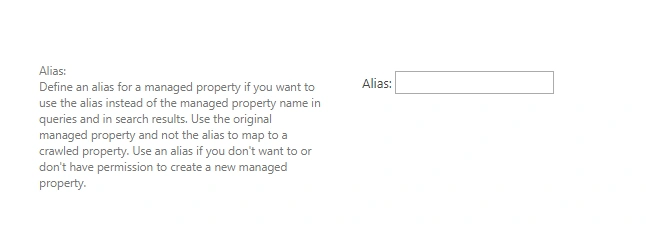
To have different names for existing managed property, we can achieve by editing the existing managed property and provide your choice-value in the alias field instead of creating a new managed property. It will also take a couple of hours to reflect the changes.
Fahim AfserPosted Jul 27, 2021, 8:25 PM
Well Explained, Thank you
Vinay AyinapurapuPosted May 29, 2021, 4:44 PM
Thanks for nice article.
Swapnil DicholkarPosted Apr 29, 2021, 5:36 AM
Hello Arvind,I am facing one issue with manage properties, issue is I want ModifiedBy property in refiners but it doesnt have refinable set to it so i used refinablestring02 and gave alia to it now i mapped all the crawl properties to this(refinablestring02) which sharepoint ModifiedBy has expect one office:8, why I am not able to find this(office:8) property in crawl properties? It would be great help if you reply :)
Chaman GautamPosted Apr 12, 2020, 11:30 PM
Nice and informative