

Introduction
This article is intended to illustrate how to implement the master-detail presentation pattern using the ObjectDataSource components and DropDownList Web control. Master-detail presentation pattern is one of the techniques most used in enterprise applications intended to visualize one-to-many relationships, for example, let's suppose the following a common business scenario where we want to display a list of subcategories of products, and allow the user select a particular subcategory in order to display the list of associated products.
Developing the solution
In order to illustrate this data presentation technique, we're going to use the tables Production.Product (representing business entity Product) and Production.ProductSubcategory (representing the subcategories associated to products) in the database AdventureWorks shipped with SQL Server 2005. In our solution, we're going to display a list of master data (data from the Production.ProductSubcategory) in a DropDownList Web control and the details of the selected category in a GridView.
The first step is to create a Web application by opening Visual Studio.NET 2005 and select File | New | Web Site as the front-end project. Let's create a Class Library project for the data access layer components. This separation of objects (concerning their responsibilities) follows the best practices of enterprise applications development.
Let's add a strongly typed DataSet item to the Class Library project (see Figure 1).
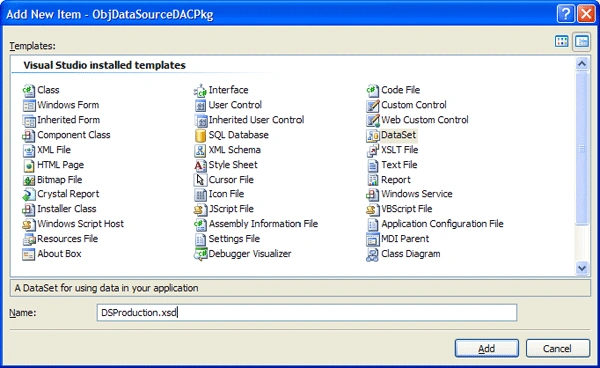
Figure 1
Let's define a TableAdapter item representing the logic to access the Production.Product table in the database AdventureWorks by using a SQL statement (see Figure 2).
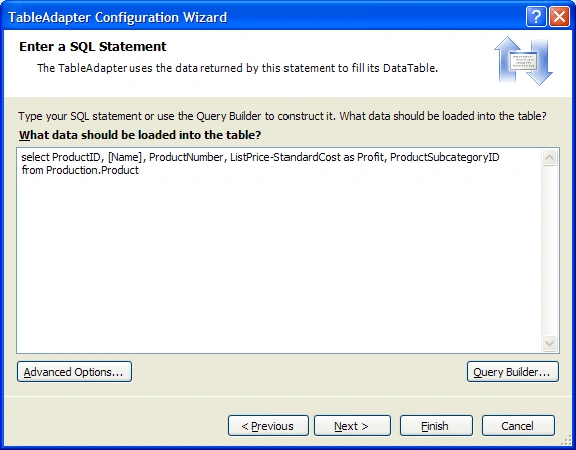
Figure 2
As well as let's define a TableAdapter item representing the logic to access the Production.ProductSubcategory table in the database AdventureWorks by using a SQL statement (see Figure 3).
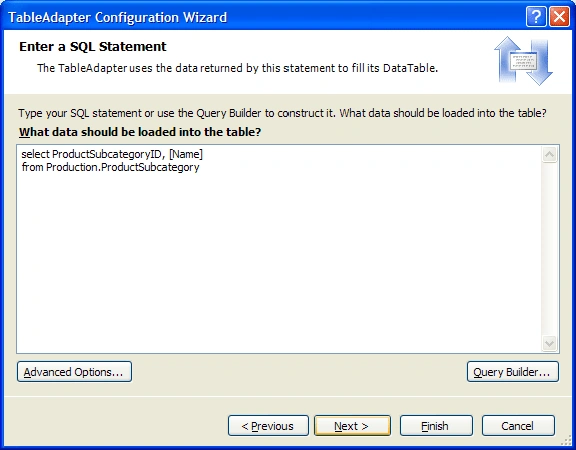
Figure 3
We need to add another query to get products by its underlying category (see Figure 4).
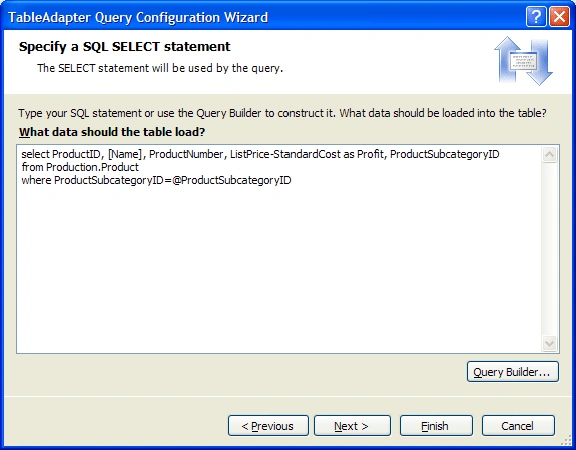
Figure 4
The result schema for the data access objects is shown in Figure 5.
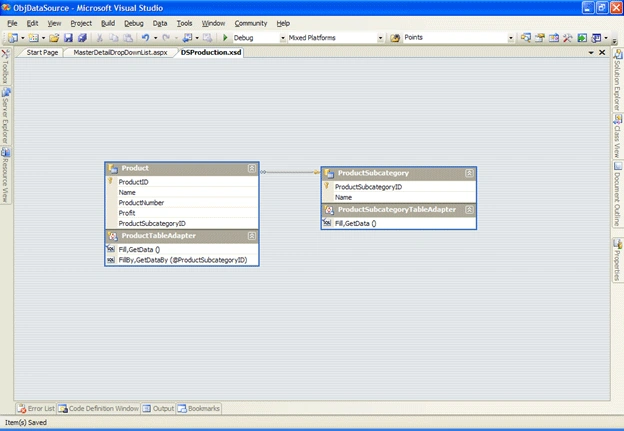
Figure 5
Now let's go to the Web front-end project and add a reference to the data access project (the Class Library project created before) and then add Web form to the project named MasterDetailDropDownList.aspx.
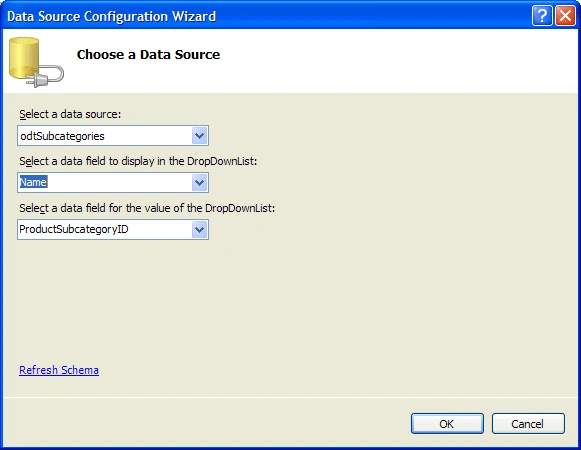
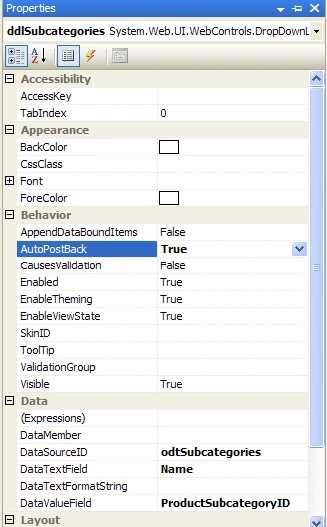
Now let's drag and drop a DropDownList control from the Toolbox onto the Web form, and set the ID property to ddlSubcategories.
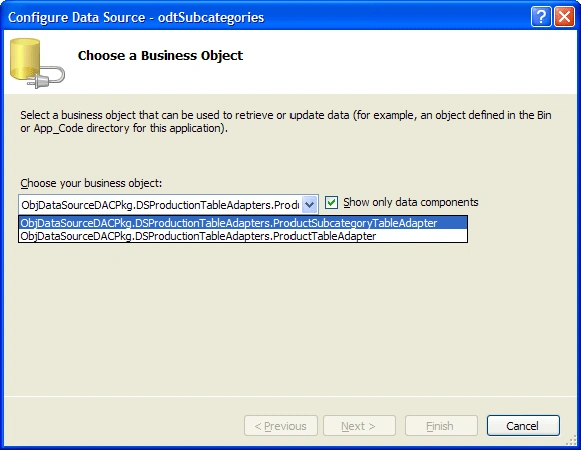
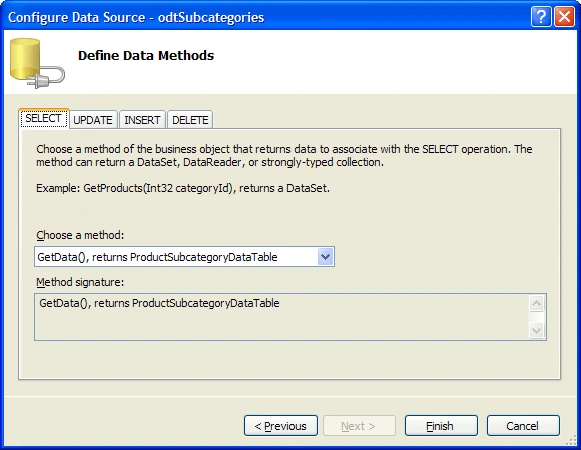
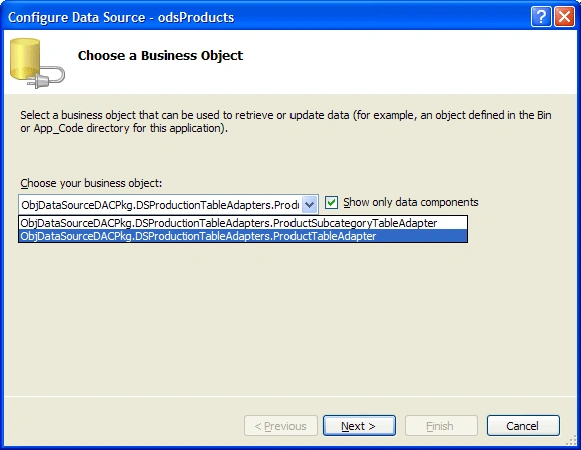
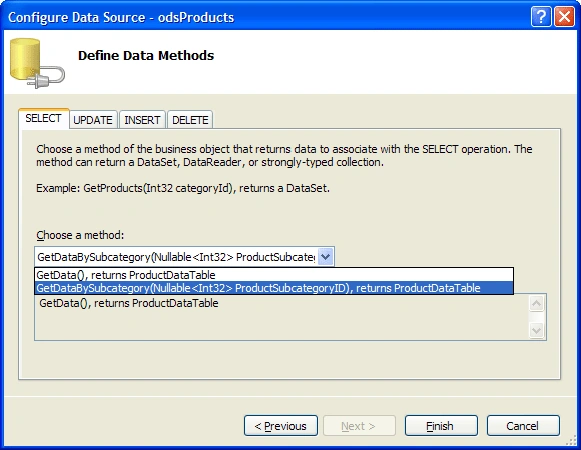
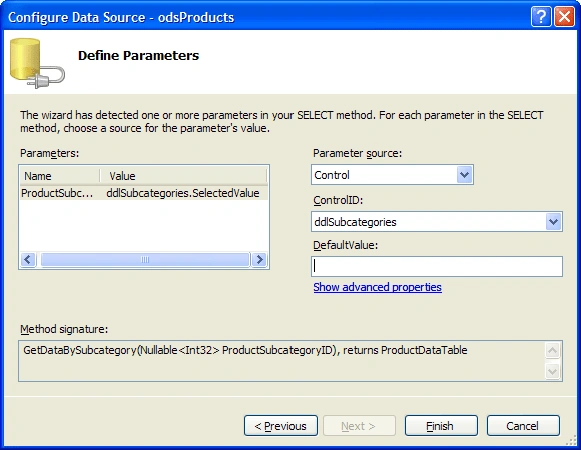
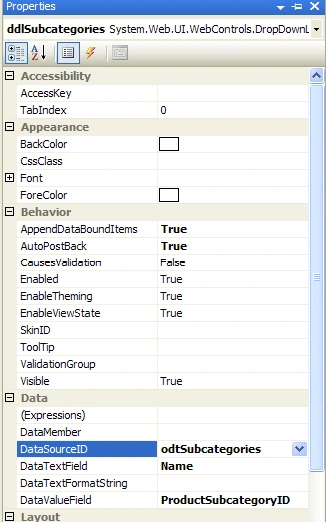
Next drag and drop an ObjectDataSource (for the ProductSubcategory data source) from the Toolbox onto the Web form, set the ID property to odtSubcategories,click on the smart tag and select the Configure Data Source option in order to launch the data source configuration wizard. In the first page (Choose a Business Object) you must select the ProductSubcategoryTableAdapter (see Figure 6).
Join the conversation! Your thoughts help the community grow.