

Introduction
We have all used Master Pages in ASP.NET applications but in a Windows application we do not have Master Pages. So we need to write custom code to get similar functionality.
In this sample application we will create a common control that we need for all the forms in the application.
These controls could be Add, Update, Delete, Refresh and Close.
Let's create a simple form first that contains all the these controls.
Use the following procedure to create a sample.
1. Add a Windows Forms application as in the screen below: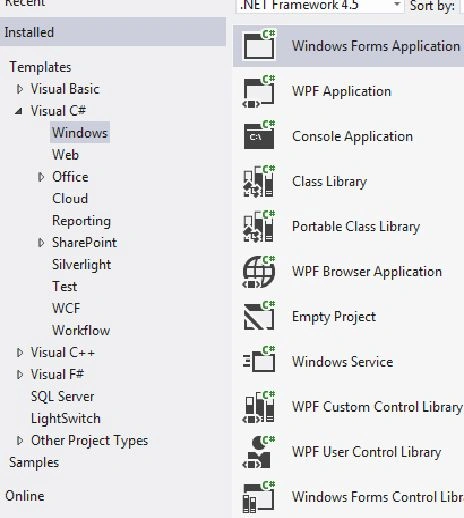
2. Add a form and name it Masterform. Add two buttons, Add and Update.
3. Code for MasterForm: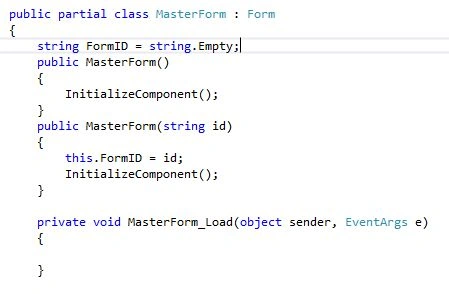
We added the string FormId and overloaded the constructor MasterForm(string id).
4. Add two forms named child1 and child2 as in the following: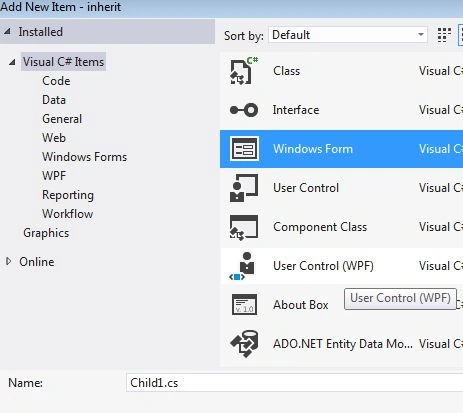
Here our objective is to make the behavior of the child page with child1.cs and child2.cs.
5. Code for Child1
We added a Child1 label on the UI, just to know which UI has been opened.
If we see the code of child1 then this form automatically inherits the Form Class.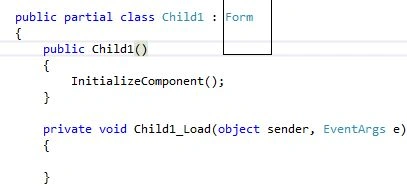
6. We will use inheritance in this project.
7. Change the inherited class from Form to MasterForm in child1.cs as in the screen below: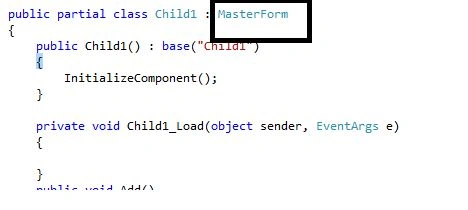
8. Open the Designer for Child1.cs.
The following explains the code.
- As soon as we open Child1 in the designer page we can see Add and Update buttons on the Child1 page.
- These Add and Update buttons are only due to inheritance as we did in the screen below.
- Here the Masterforms class acts as a master form and Child1 acts as a child form, only due to inheritance.
- Inheritance Code: public partial class Child1 : MasterForm
- The Child1 class inherits from MasterForm
- Since these buttons are designed on the Master form and we are looking at these buttons in the Child1 form, we can see a small lock over it.
- We cannot move these buttons from the child page
9. Add the following code to the child page:
10. To capture an Add and Update Event in the child page we just add the following methods to the child page.
- public void Add()
- {
- MessageBox.Show("Child 1 Add ");
- }
- public void UpdateData()
- {
- MessageBox.Show("Child 1 Update ");
- }
11. Call the base class constructor from the child page:
- public partial class Child1 : MasterForm
- {
- public Child1() : base("Child1") // call base class constructor and pass FormID as name
- {
- InitializeComponent();
- }
- private void Child1_Load(object sender, EventArgs e)
- {}
- }
12. From the code above the MasterForm(string Id) constructor will be called.
- public partial class MasterForm : Form
- {
- string FormID = string.Empty; // we will get value of FORMID from Child page
- public MasterForm()
- {
- InitializeComponent();
- }
- public MasterForm(string id) // this constructor will be called from child page
- {
- this.FormID = id;
- InitializeComponent();
- }
- private void MasterForm_Load(object sender, EventArgs e)
- {
- }
- }
13. Add a button click event on the MasterForm
- private void btnAdd_Click(object sender, EventArgs e)
- {
- MessageBox.Show("Add of Master form called first");
- if (FormID == "Child1")
- {
- Child1 o = new Child1();
- o.Add();
- }
- if (FormID == "Child2")
- {
- Child2 o = new Child2();
- o.Add();
- }
- }
The following explains the code.
- As soon as we run Child1 for the Base class the MasterForm constructor is called
- We have passed Child1 as a string to the base class constructor
- As the user clicks on the button Add that appears on the Child page, behind the scence btnAdd_click of MasterForm will be called
- We have an if condition to check which form is running. Here in this case Child1 is running and we passed Child1 as a string from the constructor
- Inside the If condition we are creating an object of Child1 to call an Add or Update button.
14. Running the Code.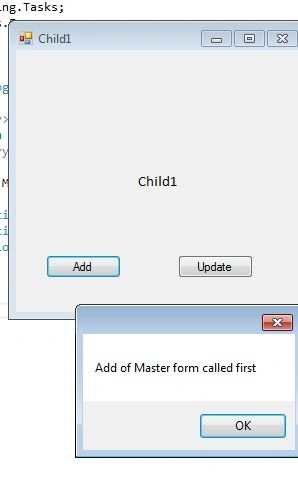
We will get the screen above if we click on the Add button.
Now when we click on the Ok button of the Alert box:
Complete Code
MasterForm.cs
- public partial class MasterForm : Form
- {
- string FormID = string.Empty;
- public MasterForm()
- {
- InitializeComponent();
- }
- public MasterForm(string id)
- {
- this.FormID = id;
- InitializeComponent();
- }
- private void MasterForm_Load(object sender, EventArgs e)
- {
- }
- private void btnAdd_Click(object sender, EventArgs e)
- {
- MessageBox.Show("Add of Master form called first");
- if (FormID == "Child1")
- {
- Child1 o = new Child1();
- o.Add();
- }
- if (FormID == "Child2")
- {
- Child2 o = new Child2();
- o.Add();
- }
- }
- private void btnUpdate_Click(object sender, EventArgs e)
- {
- MessageBox.Show("Update of Master form called first");
- if (FormID == "Child1")
- {
- Child1 o = new Child1();
- o.UpdateData();
- }
- if (FormID == "Child2")
- {
- Child2 o = new Child2();
- o.UpdateData();
- }
- }
- }
Child1.cs
- public partial class Child1 : MasterForm
- {
- public Child1() : base("Child1")
- {
- InitializeComponent();
- }
- private void Child1_Load(object sender, EventArgs e)
- {
- }
- public void Add()
- {
- MessageBox.Show("Child 1 Add ");
- }
- public void UpdateData()
- {
- MessageBox.Show("Child 1 Update ");
- }
- }
Robert DeMareePosted Jan 30, 2020, 11:32 AM
Why does the DETAIL form keep original objects from the MASTER form, even if the MASTER is changed? Is there a way to "refresh" the DETAIL form--so that the current MASTER form is shown?
vivek vermaPosted Aug 2, 2019, 1:45 AM
Whats memory impact and base and child form events execution and performance issue in such a inheritance.(like initialize component and paint event ).
Adnan DaniPosted Oct 9, 2018, 10:11 PM
How to use single background image in all window forms
Amal SalahPosted Sep 2, 2015, 9:42 AM
this helps me thanks
Udaya kumarPosted Sep 22, 2014, 1:58 AM
Nice tutorial. Please give the real time example
Devesh OmarPosted Jul 3, 2014, 2:55 AM
We are using similar concept in our live project :)
shiva krishnaPosted Jul 3, 2014, 1:59 AM
But this concept will be used in real time o not?