Introduction: What Are Trigger Conditions and When Did They Arrive?
Trigger conditions in Power Automate are a powerful feature that lets you control exactly when a flow should start. Rather than letting a flow run every time its trigger event occurs, you can set specific criteria—using logical expressions—so your flow only runs when it truly matters. This saves resources, reduces unnecessary runs, and keeps your automations precise and efficient.
Trigger conditions became widely available as Power Automate matured, particularly around 2019–2020, as Microsoft enhanced the platform’s flexibility and cost-effectiveness. With trigger conditions, organizations gained granular control over their workflows, especially in environments like SharePoint, where data changes are frequent.
Why Use Trigger Conditions?
- Reduce Unnecessary Runs: Prevents flows from executing when the criteria aren't met, saving Power Platform requests and reducing costs, especially in pay-as-you-go scenarios.
- Improve Performance: Keeps flow histories clean and manageable, making troubleshooting and auditing easier.
- Increase Precision: Ensures automations only run for relevant events, reducing noise and potential errors.
- Enhance Security and Compliance: Avoids accidental processing of sensitive or irrelevant data.
How to Use Trigger Conditions in Power Automate?
Basic Steps to Add a Trigger Condition
1. Create or edit a Flow: Start with a trigger, such as “When an item is created or modified” in SharePoint.

2. Access Trigger Settings: Click the ellipsis (…) on the trigger card and select Settings.

3. Add a Trigger Condition: In the Trigger Conditions section, click Add and enter your expression. Each condition must start with @.

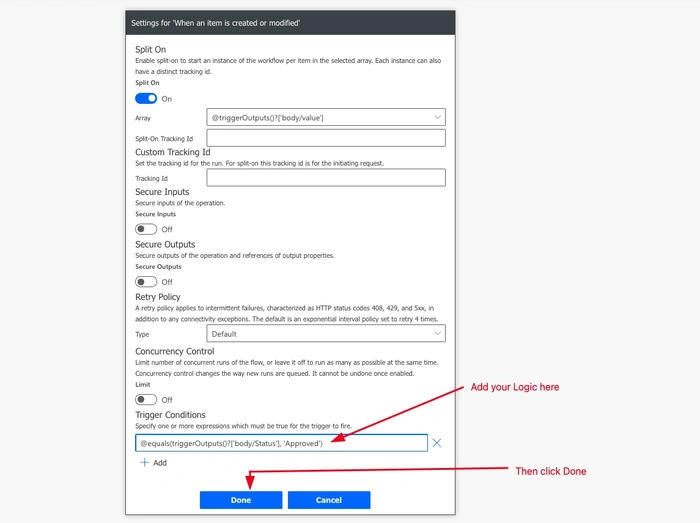
4. Save the Flow: Ensure all errors are resolved before saving.
Syntax Overview
- Expressions use Power Automate’s workflow definition language, like Azure Logic Apps.
- Logical operators: @and(), @or(), @equals(), @greater(), etc.
- Reference trigger data using triggerOutputs()?['body/FieldName'].
Example 1. Only Run When a SharePoint Item’s Status Is “Approved”
@equals(triggerOutputs()?['body/Status'], 'Approved')
Example 2. Only Trigger When a SharePoint Item’s Modified Date Is Today
@equals(formatDateTime(triggerOutputs()?['body/Modified'],'yyyy-MM-dd'), utcNow('yyyy-MM-dd'))
Example 3. Multiple Conditions (AND/OR) for SharePoint
Only trigger if Status is “Completed” and Priority is “High”:
@and(
  equals(triggerOutputs()?['body/Status'], 'Completed'),
  equals(triggerOutputs()?['body/Priority'], 'High')
)
Trigger if either Status is “In Progress” or AssignedTo is not empty:
@or(
  equals(triggerOutputs()?['body/Status'], 'In Progress'),
  not(empty(triggerOutputs()?['body/AssignedTo']))
)
Best Practices
- Always start expressions with @.
- Use @and() for multiple required conditions, @or() for alternatives.
- Test thoroughly—if your flow isn’t triggering, check the run history for skipped triggers and verify your logic.
Common Use Cases for Trigger Conditions
- SharePoint: Only process items with a certain status, priority, or date range.
- Email: Run flows only when the subject contains specific keywords (e.g., “Urgent”).
- Approvals: Trigger follow-up actions only if an approval outcome is “Approved.”
- Document Management: Only start workflows for files of a certain type or when metadata meets criteria.
- HR Onboarding: Automate tasks only for new employees in specific departments.
- Project Management: Notify teams only when tasks are overdue or assigned to them.
Key Insights
- Trigger conditions are essential for efficient and scalable automation in Power Automate.
- They help organizations save on licensing costs and keep automation logic clean.
- SharePoint scenarios benefit greatly, as lists and libraries often contain large volumes of data that should not always trigger flows.
- Mastering trigger conditions means fewer failed or unnecessary runs, improved performance, and better compliance.
Conclusion
Trigger conditions in Power Automate are the gatekeepers of modern workflow automation. By harnessing their power, you ensure that your flows run only when they should, making your automations smarter, faster, and more cost-effective. Whether you’re working with SharePoint, Outlook, or any other connector, learning to use trigger conditions effectively is a must for every Power Automate practitioner aiming for robust and scalable solutions.
“Trigger conditions allow users to fine-tune their workflows, ensuring that automations only run under specific circumstances, thus saving resources and preventing unnecessary actions.”
Start using trigger conditions today—and turn your flows from blunt instruments into precision tools for business productivity!


Prathamesh DhoparePosted Jun 17, 2025, 7:10 AM
Nice! Easy to understand