

Before continuing this article, I highly recommend reading these previous parts:
- Mastering WPF DataGrid in a Day: Hour 1 Introduction
- Mastering WPF DataGrid in a Day: Hour 2 DataGrid Layout and Border
- Mastering WPF DataGrid in a Day: Hour 3 DataGrid Header
- Mastering WPF DataGrid in a Day: Hour 4 DataGrid Rows
- Mastering WPF DataGrid in a Day: Hour 5 DataGrid Columns
- Mastering WPF DataGrid in a Day: Hour 6 DataGrid Columns In-Depth
- Mastering WPF DataGrid in a Day: Hour 7 Data Template
CRUD using DataGrid
So far, we have seen the basic operations in the DataGrid working with a collection of objects. Now, let's work with a database. For our sample, we will use an existing Northwind database provided by Microsoft.
Northwind Database
In Figure 15 we can see some core tables of the Northwind database. 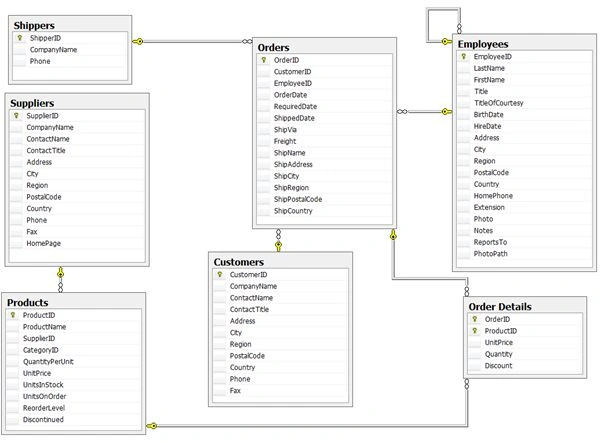
Figure 15
- Suppliers table contains the information about those who supply to the company
- Customers table contains the Northwind customers details who buy from Northwind
- Employees contains details of Northwind traders that work for Northwind
- Products contain the products that Northwind trades
- Shippers contains details of the shippers who ship the products from the traders to the end-customers
- Orders table contains all the information related to Northwind sales and purchases
- Order Details contains the information for all the orders of which products are associated with a specific order
LINQ to Data
Language-Integrated Query (LINQ) was introduced in Visual Studio 2008 and .NET Frmework 3.5. LINQ is used for quering data and it also support the Add, Update and Delete. LINQ can also be used to access various types of data, including XML, SQL Data source, web services and so on.
Let's say, we have an array of integers as in:
The Listing 26 is the LINQ query that selects the numbers based on the where clause.
- var numResults = from num in numbers where (num % 2) == 0 select num;
Now, let's review a typical SQL query as listed in Listing 27, that expects all the columns from the Customers table where the City is Redmond.
- SELECT * FROM Customers WHERE City='Redmond'
Listing 27 can be converted to a LINQ query that looks as in Listing 28.
- var CustomersResult =
- from cust in db.Customers
- where cust.City == "Redmond"
- select cust;
Listing 27
Unlike a SQL query that starts with a SELECT statement, the LINQ query starts with "from" followed by the "where" and "select" statements.
Access Data
Let's set up the database connection using LINQ in our application to access the SQL Server database.
Right-click on the project then Add New Item and choose “LINQ to SQL Classes” that the file has the (.dbml) extension. See Figure 16.
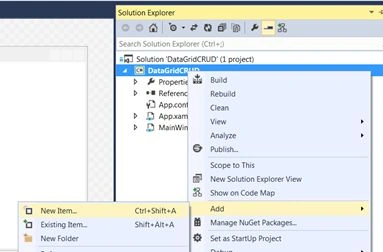
Figure 16
Select the LINQ to SQL Classes file. See Figure 17.
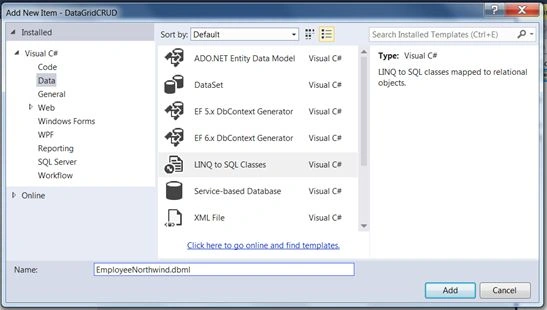
Figure 17
A dbml file will added to the project. See Figure 18.
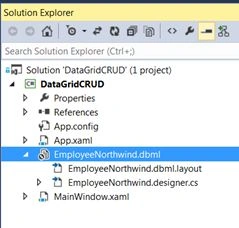
Figure 18
Now open the Server Explorer to configure the database connection. See Figure 19.
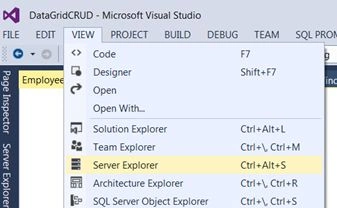
Figure 19
Click on “Connect to Database” as shown in Figure 20.
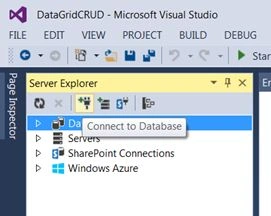
Figure 20
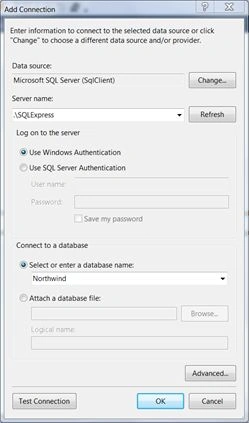
Figure 21
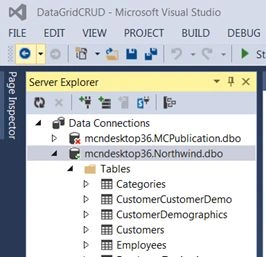
Figure 22
Drag and drop all required database tables to the dbml designer surface to generate database classes that can be used in your code.
When you drag and drop the tables onto the designer surface a warning message will be shown that is given below, click Yes to add database connection string information to the web.config file.
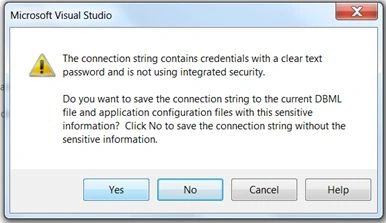
Figure 23
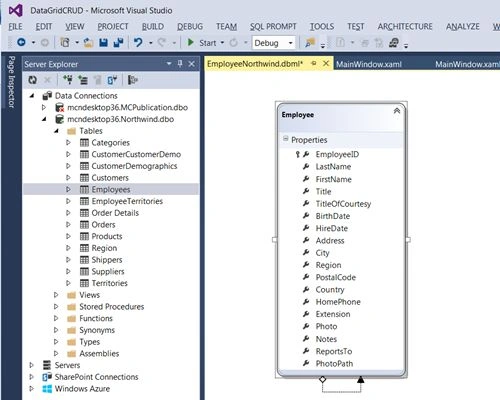
Figure 24
Now open the WPF XAML page and add a “DataGrid” onto the design surface.
Listing 28
- <DataGrid x:Name="EmployeeDataGrid" HorizontalAlignment="Left" Height="491" Margin="10,10,0,0" VerticalAlignment="Top" Width="741" AutoGe nerateColumns="False" ItemsSource="{Binding}">
- <DataGrid.Columns>
- <DataGridTextColumn Binding="{Binding EmployeeID}" Width="100" Header="Employee ID" IsReadOnly="True" />
- <DataGridTextColumn Binding="{Binding LastName}" Width="100" Header="Last Name"/>
- <DataGridTextColumn Binding="{Binding FirstName}" Width="100" Header="First Name"/>
- <DataGridTextColumn Binding="{Binding Title}" Width="150" Header="Title"/>
- <DataGridTemplateColumn Header="Birth Date">
- <DataGridTemplateColumn.CellTemplate>
- <DataTemplate>
- <TextBlock Text="{Binding BirthDate, StringFormat=\{0:d\}}" />
- </DataTemplate>
- </DataGridTemplateColumn.CellTemplate>
- <DataGridTemplateColumn.CellEditingTemplate>
- <DataTemplate>
- <DatePicker SelectedDate ="{Binding BirthDate}" />
- </DataTemplate>
- </DataGridTemplateColumn.CellEditingTemplate>
- </DataGridTemplateColumn>
- </DataGrid.Columns>
- </DataGrid>
Listing 29
- private void Window_Loaded(object sender, RoutedEventArgs e)
- {
- EmployeeDataGrid.ItemsSource = GetAllEmployees();
- }
- private ObservableCollection<Employee> GetAllEmployees()
- {
- var empResult = from emp in context.Employees select emp;
- return new ObservableCollection<Employee>(empResult);
- }
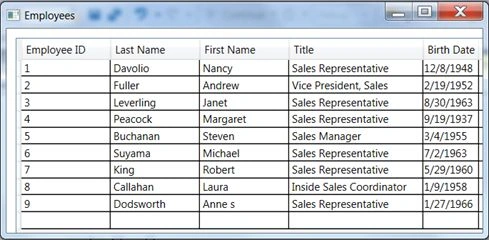
Figure 25
Add, Update, Delete Data
LINQ also supports inserting, updating and deleting in “LINQ to SQL”.
Listing 30 shows inserting a new record using LINQ to SQL.
Listing 30
- EmployeeNorthwindDataContext context = new EmployeeNorthwindDataContext();
- employee.FirstName = emp.FirstName;
- employee.LastName = emp.LastName;
- employee.Title = emp.Title;
- employee.BirthDate = emp.BirthDate;
- employee.Photo = emp.Photo;
- context.Employees.InsertOnSubmit(employee);
- context.SubmitChanges();
Listing 31
EmployeeNorthwindDataContext context = new EmployeeNorthwindDataContext();
- employee.EmployeeID = emp.EmployeeID;
- employee.FirstName = emp.FirstName;
- employee.LastName = emp.LastName;
- employee.Title = emp.Title;
- employee.BirthDate = emp.BirthDate;
- employee.Photo = emp.Photo;
- context.SubmitChanges();
Listing 32
context.Employees.DeleteOnSubmit(employee);
Listing 33 shows adding binding properties with columns.
Gets or sets a value that indicates whether to raise the TargetUpdated event when a value is transferred from the binding source to the binding target and update them.
Listing 33
- Binding="{Binding EmployeeID, NotifyOnTargetUpdated=True,Mode=TwoWay, UpdateSourceTrigger=PropertyChanged}"
Listing 34
- <DataGrid x:Name="EmployeeDataGrid" HorizontalAlignment="Left" Height="491" Margin="10,10,0,0" VerticalAlignment="Top" Width="760"
- AutoGenerateColumns="False"
- ItemsSource=" {Binding}" RowEditEnding="EmployeeDataGrid_RowEditEnding" AddingNewItem="EmployeeDataGrid_AddingNewItem" PreviewKeyDow n="EmployeeDataGrid _PreviewKeyDown" BeginningEdit="EmployeeDataGrid_BeginningEdit">
- <DataGrid.Columns>
- <DataGridTextColumn Binding=" {Binding EmployeeID, NotifyOnTargetUpdated=True,Mode=TwoWay, UpdateSourceTrigger=PropertyChanged}" Width="100" Header="Employee ID" IsReadOnly="True" />
- <DataGridTextColumn Binding=" {Binding LastName, NotifyOnTargetUpdated=True, Mode=TwoWay, UpdateSourceTrigger=PropertyChanged}" W idth="100" Header="Last Name"/>
- <DataGridTextColumn Binding=" {Binding FirstName, NotifyOnSourceUpdated=True, Mode=TwoWay,UpdateSourceTrigger=PropertyChanged}" W idth="100" Header="First Name"/>
- <DataGridTextColumn Binding=" {Binding Title, NotifyOnTargetUpdated=True,Mode=TwoWay, UpdateSourceTrigger=PropertyChanged}" Width ="150" Header="Title"/>
- <DataGridTemplateColumn Header="Birth Date">
- <DataGridTemplateColumn.CellTemplate>
- <DataTemplate>
- <TextBlock Text="{Binding BirthDate, StringFormat=\{0:d\}}" />
- </DataTemplate>
- </DataGridTemplateColumn.CellTemplate>
- <DataGridTemplateColumn.CellEditingTemplate>
- <DataTemplate>
- <DatePicker SelectedDate =" {Binding BirthDate, NotifyOnSourceUpdated=True,Mode=TwoWay, UpdateSourceTrigger=PropertyChanged}" />
- </DataTemplate>
- </DataGridTemplateColumn.CellEditingTemplate>
- </DataGridTemplateColumn>
- <DataGridTemplateColumn Header="Image" Width="120" IsReadOnly="True">
- <DataGridTemplateColumn.CellTemplate>
- <DataTemplate>
- <Image Stretch="UniformToFill" Name="Photo" Source=" {Binding Photo, Converter= {StaticResource imageConverter}, Mode=Two Way, ValidatesOnExceptions=true, NotifyOnValidationError=true, UpdateSourceTrigger=PropertyChanged}"/>
- </DataTemplate>
- </DataGridTemplateColumn.CellTemplate>
- </DataGridTemplateColumn>
- <DataGridTemplateColumn Header="Upload">
- <DataGridTemplateColumn.CellTemplate>
- <DataTemplate>
- <StackPanel>
- <Button Content="Browse" Height="20" Margin="5"
- Name="buttonBrowse" VerticalAlignment="Top" Width="58" Click="buttonBrowse_Click" />
- </StackPanel>
- </DataTemplate>
- </DataGridTemplateColumn.CellTemplate>
- </DataGridTemplateColumn>
- </DataGrid.Columns>
- </DataGrid>
Listing 35
- private void EmployeeDataGrid_RowEditEnding(object sender, DataGridRowEditEndingEventArgs e)
- {
- Employee employee = new Employee();
- Employee emp = e.Row.DataContext as Employee;
- if (emp != null)
- {
- if (emp.EmployeeID > 0)
- {
- isInsert = false;
- }
- else
- {
- isInsert = true;
- }
- }
- if (isInsert)
- {
- var InsertRecord = MessageBox.Show("Do you want to add " + emp.FirstName + "?", "Confirm", MessageBoxButton.YesNo, MessageBoxImage. Question);
- if (InsertRecord == MessageBoxResult.Yes)
- {
- employee.FirstName = emp.FirstName;
- employee.LastName = emp.LastName;
- employee.Title = emp.Title;
- employee.BirthDate = emp.BirthDate;
- employee.Photo = emp.Photo;
- context.Employees.InsertOnSubmit(employee);
- context.SubmitChanges();
- EmployeeDataGrid.ItemsSource = GetAllEmployees();
- MessageBox.Show(employee.FirstName + " " + employee.LastName + " has added sucessfully.", "Add New Employee", MessageBoxButton.O K, MessageBoxImage.Information);
- }
- else
- EmployeeDataGrid.ItemsSource = GetAllEmployees();
- }
- context.SubmitChanges();
- }
Listing 36
- private void EmployeeDataGrid_PreviewKeyDown(object sender, KeyEventArgs e)
- {
- if (e.Key == Key.Delete && !isEdit)
- {
- var grid = (DataGrid)sender;
- if (grid.SelectedItems.Count > 0)
- {
- var result = MessageBox.Show("Are you sure you want to delete this employee?", "Deleting Records", MessageBoxButton.YesNo, Messa geBoxImage.Exclamation);
- if (result == MessageBoxResult.Yes)
- {
- foreach (var row in grid.SelectedItems)
- {
- Employee employee = row as Employee;
- context.Employees.DeleteOnSubmit(employee);
- }
- context.SubmitChanges();
- MessageBox.Show("Employee deleted sucessfully.", "Delete Employee", MessageBoxButton.OK, MessageBoxImage.Information);
- }
- else
- EmployeeDataGrid.ItemsSource = GetAllEmployees();
- }
- }
- }
Listing 37
- private void buttonBrowse_Click(object sender, RoutedEventArgs e)
- {
- Employee employee = new Employee();
- FileDialog OpenFileDialog1 = new OpenFileDialog();
- OpenFileDialog1.Title = "Insert Image";
- OpenFileDialog1.InitialDirectory = "c:\\";
- // Below code will filter all file in open folder as per given file extension
- OpenFileDialog1.Filter = "JPEG (*.jpg;*.jpeg;*.jpe)|*.jpg;*.jpeg;*.jpe|PNG (*.png)|*.png|TIFF (*.tiff)|*.tiff|GIF (*.gif)|*.gif|All Fi les (*.*)|*.*";
- if (OpenFileDialog1.ShowDialog() == true)
- {
- var clipBoardData = Clipboard.GetDataObject();
- var emp = ((FrameworkElement)sender).DataContext as Employee;
- if (emp != null)
- {
- emp.Photo = GetPhoto(OpenFileDialog1.FileName);
- if (emp.EmployeeID > 0)
- {
- var Result = MessageBox.Show("Are you sure you want to upload this photo.", "Photo", MessageBoxButton.YesNo, MessageBoxImage. Exclamation);
- if (Result == MessageBoxResult.Yes)
- {
- employee.EmployeeID = emp.EmployeeID;
- employee.FirstName = emp.FirstName;
- employee.LastName = emp.LastName;
- employee.Title = emp.Title;
- employee.BirthDate = emp.BirthDate;
- employee.Photo = emp.Photo;
- context.SubmitChanges();
- EmployeeDataGrid.ItemsSource = GetAllEmployees();
- MessageBox.Show("Photo uploaded sucessfully!", "Photo Upload", MessageBoxButton.OK, MessageBoxImage.Information);
- }
- }
- }
- else
- {
- MessageBox.Show("Can't uploaded photo, Add the employee first!", "Add Employee", MessageBoxButton.OK, MessageBoxImage.Informatio n);
- }
- }
- }
Listing 38
- public static byte[] GetPhoto(string filePath)
- {
- FileStream stream = new FileStream(
- filePath, FileMode.Open, FileAccess.Read);
- BinaryReader reader = new BinaryReader(stream);
- byte[] photo = reader.ReadBytes((int)stream.Length);
- reader.Close();
- stream.Close();
- return photo;
- }
It will convert an image data from database into an image to display in a DataGrid. See Listing 39.
Listing 39
- public object Convert(object value, Type targetType, object parameter, CultureInfo culture)
- {
- if (value != null)
- {
- byte[] byteArray = (byte[])value;
- if (byteArray == null)
- return null;
- BitmapImage image = new BitmapImage();
- using (MemoryStream imageStream = new MemoryStream())
- {
- imageStream.Write(byteArray, 0, byteArray.Length);
- imageStream.Seek(0, System.IO.SeekOrigin.Begin);
- image.BeginInit();
- image.CacheOption = BitmapCacheOption.OnLoad;
- image.StreamSource = imageStream;
- image.EndInit();
- image.Freeze();
- }
- return image;
- }
- return null;
- }
Listing 40
- EmployeeNorthwindDataContext context = new EmployeeNorthwindDataContext();
- bool isInsert = false;
- bool isEdit = false;
- private void EmployeeDataGrid_AddingNewItem(object sender, AddingNewItemEventArgs e)
- {
- isInsert = true;
- }
- private void EmployeeDataGrid_BeginningEdit(object sender, DataGridBeginningEditEventArgs e)
- {
- isEdit = true;
- }
DataGrid also supports the sorting, grouping and filtering of data.
Sorting data in DataGrid
The CanUserSortColumns property allows the user to sort data in a datagrid by column.
CanUserSortColumns="True"
Listing 42 shows grouping in a DataGrid.
- private ObservableCollection<Employee> GetAllEmployees()
- {
- var empResult = from emp in context.Employees select emp;
- return new ObservableCollection<Employee>(empResult);
- }
- private void Window_Loaded(object sender, RoutedEventArgs e)
- {
- var EmployeeData = GetAllEmployees();
- ListCollectionView collection = new ListCollectionView(EmployeeData);
- collection.GroupDescriptions.Add(new PropertyGroupDescription("Title"));
- EmployeeDataGrid.ItemsSource = collection;
- }
Listing 43 shows a style for grouping.
- <Window.Resources>
- <Style x:Key="GroupHeaderStyle" TargetType="{x:Type GroupItem}">
- <Setter Property="Template">
- <Setter.Value>
- <ControlTemplate TargetType="{x:Type GroupItem}">
- <Expander x:Name="exp" IsExpanded="True"
- Background="White"
- Foreground="Black">
- <Expander.Header>
- <TextBlock Text="{Binding Title}"/>
- </Expander.Header>
- <ItemsPresenter />
- </Expander>
- </ControlTemplate>
- </Setter.Value>
- </Setter>
- </Style>
- </Window.Resources>
- <DataGrid.GroupStyle>
- <GroupStyle ContainerStyle="{StaticResource GroupHeaderStyle}">
- <GroupStyle.Panel>
- <ItemsPanelTemplate>
- <DataGridRowsPresenter/>
- </ItemsPanelTemplate>
- </GroupStyle.Panel>
- </GroupStyle>
- </DataGrid.GroupStyle>
The following shows the DataGrid XAML code with a grouping style.
- <Grid>
- <DataGrid x:Name="EmployeeDataGrid" HorizontalAlignment="Left" Height="491" Margin="10,10,0,0" VerticalAlignment="Top" Width="760" Can UserSortColumns="True"
- AutoGenerateColumns="False"
- ItemsSource=" {Binding}" RowEditEnding="EmployeeDataGrid_RowEditEnding" AddingNewItem="EmployeeDataGrid_AddingNewItem" PreviewKey Down="EmployeeDataGrid_PreviewKeyDown" BeginningEdit="EmployeeDataGrid_BeginningEdit">
- <DataGrid.Columns>
- <DataGridTextColumn Binding=" {Binding EmployeeID, NotifyOnTargetUpdated=True,Mode=TwoWay, UpdateSourceTrigger=PropertyChanged }" Width="100" Header="Employee ID" IsReadOnly="True" />
- <DataGridTextColumn Binding=" {Binding LastName, NotifyOnTargetUpdated=True, Mode=TwoWay, UpdateSourceTrigger=PropertyChanged} " Width="100" Header="Last Name"/>
- <DataGridTextColumn Binding=" {Binding FirstName, NotifyOnSourceUpdated=True, Mode=TwoWay,UpdateSourceTrigger=PropertyChanged} " Width="100" Header="First Name"/>
- <DataGridTextColumn Binding=" {Binding Title, NotifyOnTargetUpdated=True,Mode=TwoWay, UpdateSourceTrigger=PropertyChanged}" Wi dth="150" Header="Title"/>
- <DataGridTemplateColumn Header="Birth Date">
- <DataGridTemplateColumn.CellTemplate>
- <DataTemplate>
- <TextBlock Text="{Binding BirthDate, StringFormat=\{0:d\}}" />
- </DataTemplate>
- </DataGridTemplateColumn.CellTemplate>
- <DataGridTemplateColumn.CellEditingTemplate>
- <DataTemplate>
- <DatePicker SelectedDate =" {Binding BirthDate, NotifyOnSourceUpdated=True,Mode=TwoWay, UpdateSourceTrigger=PropertyChanged }" />
- </DataTemplate>
- </DataGridTemplateColumn.CellEditingTemplate>
- </DataGridTemplateColumn>
- </DataGrid.Columns>
- <DataGrid.GroupStyle>
- <GroupStyle ContainerStyle="{StaticResource GroupHeaderStyle}">
- <GroupStyle.Panel>
- <ItemsPanelTemplate>
- <DataGridRowsPresenter/>
- </ItemsPanelTemplate>
- </GroupStyle.Panel>
- </GroupStyle>
- </DataGrid.GroupStyle>
- </DataGrid>
Result of all employees group by “Title”:
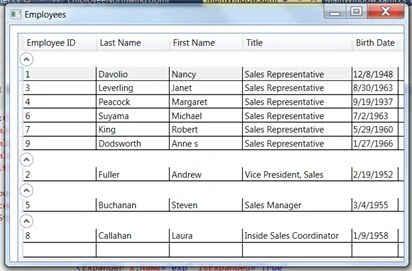
Filtering/Finding Data in DataGrid
Get the instance of CollectionView from DataGrid and apply a filter on this collection view.
Listing 45 shows getting the collection view from a DataGrid.
- ICollectionView cv = CollectionViewSource.GetDefaultView(EmployeeDataGrid.ItemsSource);
Listing 46 shows applying a filter on a CollectionView.
- cv.Filter = o =>
- {
- Employee a = o as Employee;
- if (t.Name == "txtId")
- return (a.EmployeeID == Convert.ToInt32(filter));
- return (a.LastName.ToUpper().StartsWith(filter.ToUpper()));
- };
Listing 47 shows adding a TextBox to the header of the LastName column to find the last name.
- <DataGridTextColumn
- Header="Last Name"
- Width="150"
- Binding="{Binding LastName, NotifyOnTargetUpdated=True, Mode=TwoWay, UpdateSourceTrigger=PropertyChanged}" >
- <DataGridTextColumn.ElementStyle>
- <Style TargetType="TextBlock">
- <Setter Property="TextWrapping" Value="Wrap"/>
- </Style>
- </DataGridTextColumn.ElementStyle>
- <DataGridTextColumn.EditingElementStyle>
- <Style TargetType="TextBox">
- <Setter Property="Foreground" Value="Blue"/>
- </Style>
- </DataGridTextColumn.EditingElementStyle>
- <DataGridTextColumn.HeaderTemplate>
- <DataTemplate>
- <StackPanel Orientation="Horizontal">
- <TextBlock Text="{Binding Content, RelativeSource=
- {RelativeSource Mode=TemplatedParent}}"/>
- <TextBox x:Name="txtLastName" Width="100" TextChanged="txtLastName_TextChanged" />
- </StackPanel>
- </DataTemplate>
- </DataGridTextColumn.HeaderTemplate>
- </DataGridTextColumn>
- private void txtLastName_TextChanged(object sender, TextChangedEventArgs e)
- {
- TextBox t = (TextBox)sender;
- string filter = t.Text;
- ICollectionView cv = CollectionViewSource.GetDefaultView(EmployeeDataGrid.ItemsSource);
- if (filter == "")
- cv.Filter = null;
- else
- {
- cv.Filter = o =>
- {
- Employee a = o as Employee;
- if (t.Name == "txtId")
- return (a.EmployeeID == Convert.ToInt32(filter));
- return (a.LastName.ToUpper().StartsWith(filter.ToUpper()));
- };
- }
- }
Summary
This is the last article of the Mastering WPF DataGrid series. In this article, we saw how to build CRUD operations for a DataGrid.
Rick BurkePosted Oct 19, 2015, 12:07 PM
It would also be very useful to show a CRUD example without code-behind as with MVVM, and using business objects created from XML.
Sujeet SumanPosted Sep 26, 2015, 1:37 AM
Nice Article...............
Sean CleetusPosted Apr 7, 2015, 9:49 AM
Request for a new chapter: Using AutoGenerateColumns
Ed XavierPosted Feb 25, 2015, 9:54 AM
Question, at Listing 30 , inserting new record, if there is a foreign key field in employees how to approach, have such a scenario but its turning up as null (e.g for orders, ) my ord.employees.Lastname returns null though navigation property exists, using EF