

Introduction
Recently, Angular has released its latest version, Angular 6.0. In the latest version, they havefocused more on toolchain, which provides us with a way to quick start our task easily, as well as some synchronized versions, such as Angular/core, Angular/compiler etc.
With the release of Angular 6.0, one of the features which I like the most is Material Dashboard, which is kind of a starter component with a list of dynamic card components.
You can find the official blog post for the release of Angular 6.0 here.
In this article, we are going to learn how to make use of Material Dashboard starter component into our application to get a Dashboard structure with the following few steps.
Material Dashboard Using Angular 6.0
Material Dashboard is completely inspired by Google's Angular Material Design Component. In this dashboard, there are a number of Material Components used, which are listed below.
- mat-grid-tile
- mat-grid-list
- mat-card
- mat-menu
- mat-icon
And also there are a few other components like mat-title, mat-header, mat-content etc.
Let's start by implementing Dashboard using Angular 6.0. If you are new to Angular, do not worry, just follow a few steps and you will be able to create an application in Angular. I hope you have already installed a stable version or the latest version of node.js as well as npm.
Create new Angular 6.0 application by executing npm command.
- ng new materialdashboardangular6
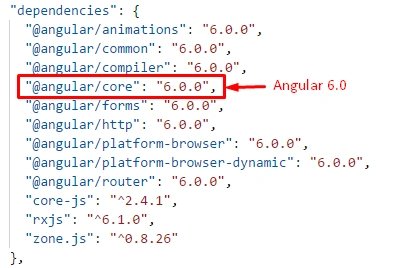
You can see in the above image, those core dependencies like core, compiler, HTTP, form, and others are updated with the latest version, which is now 6.0.0.
Other developer dependencies are also updated in the latest version of Angular.
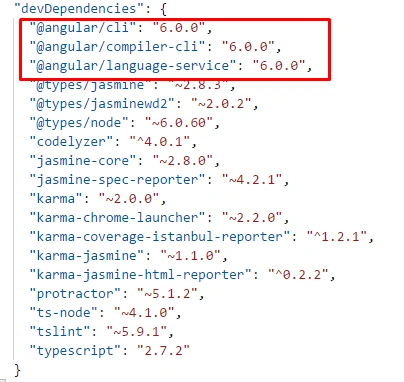
For working with Material Dashboard, we need to install a few dependencies for Angular-material by using npm commands which are listed below.
Old approach for using Angular Material
Base dependency is angular/material, just type the below npm command into the console.
Base dependency is angular/material, just type the below npm command into the console.
- npm install @angular-material
- npm install @angular/cdk
New Updates In Angular 6.0
In Angular 6.0, there is a tree of components which is used to create a group of components and by using these components, we can get Materialized Dashboard using Angular Material + Material CDK Components.
And one of the most important parts is Angular Material Starter Component. By installing Angular/material, we will be able to generate a starter component.
For that, we need to install Angular/material by executing the following command.
- ng add @angular/material
Generating Material Dashboard
Previously we have installed @angular/material, for generating Material Dashboard, we can use a single command to generate starter dashboard component.
Syntax
Syntax
- ng generate @angular/material:material-dashboard --name = <Give_Any_Name>
material-dashboard is a starter component, which generates a group of the materialized components in the form of the dashboard by just providing a name, as I've provided in the below command.
And you can see in the console, there are a few files created inside the app directory with provided a component name. The file structure looks like the below screen.
- ng generate @angular/material:material-dashboard --name material-dashboard
Now, let's see the content of all the files generated one by one.
material-dashboard.component.html
- <div class="grid-container">
- <h1 class="mat-h1">Dashboard</h1>
- <mat-grid-list cols="2" rowHeight="350px">
- <mat-grid-tile *ngFor="let card of cards" [colspan]="card.cols" [rowspan]="card.rows">
- <mat-card class="dashboard-card">
- <mat-card-header>
- <mat-card-title>
- {{card.title}}
- <button mat-icon-button class="more-button" [matMenuTriggerFor]="menu" aria-label="Toggle menu">
- <mat-icon>more_vert</mat-icon>
- </button>
- <mat-menu #menu="matMenu" xPosition="before">
- <button mat-menu-item>Expand</button>
- <button mat-menu-item>Remove</button>
- </mat-menu>
- </mat-card-title>
- </mat-card-header>
- <mat-card-content class="dashboard-card-content">
- <div>Card Content Here</div>
- </mat-card-content>
- </mat-card>
- </mat-grid-tile>
- </mat-grid-list>
- </div>
- <mat-grid-list> // Main grid container
- // divides structure in small chunks
- <mat-grid-tile *ngFor="let card of cards" [colspan]="card.cols" [rowspan]="card.rows">
- // Every chunks acts as card component
- <mat-card class="dashboard-card">
- // Card Header
- <mat-card-header>
- <mat-card-title>
- <mat-menu #menu="matMenu" xPosition="before">
- </mat-menu>
- </mat-card-title>
- </mat-card-header>
- // Content of Card
- <mat-card-content class="dashboard-card-content">
- <div>Card Content Here</div>
- </mat-card-content>
- </mat-card>
- </mat-grid-tile>
- </mat-grid-list>
material-dashboard.component.ts
- import { Component } from '@angular/core';
- @Component({
- selector: 'material-dashboard',
- templateUrl: './material-dashboard.component.html',
- styleUrls: ['./material-dashboard.component.css']
- })
- export class MaterialDashboardComponent {
- // Number of cards to be generated with column and rows to be covered
- cards = [
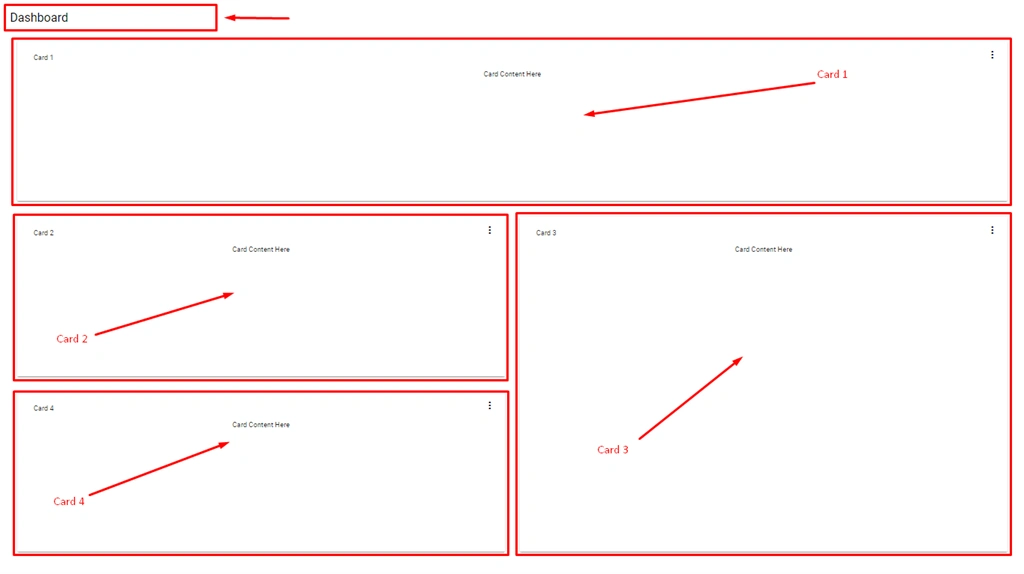
- { title: 'Card 1', cols: 2, rows: 1 },
- { title: 'Card 2', cols: 1, rows: 1 },
- { title: 'Card 3', cols: 1, rows: 2 },
- { title: 'Card 4', cols: 1, rows: 1 }
- ];
- }
material-dashboard.component.css
Stylesheet file contains different classes to provide different positioning and direction throughout the page.
- .grid-container {
- margin: 20px;
- }
- .dashboard-card {
- position: absolute;
- top: 15px;
- left: 15px;
- right: 15px;
- bottom: 15px;
- }
- .more-button {
- position: absolute;
- top: 5px;
- right: 10px;
- }
- .dashboard-card-content {
- text-align: center;
- }
For that, just go to app.component.html file. Remove all of the content and just add markup tag as in the following snippet :
- <!-- To Use Dashboard On Application Home page -->
- <material-dashboard>
- </material-dashboard>
Conclusion
In this article, we have covered a few things which are listed below.
- Overview of Material Dashboard and its component
- Package.json file version updates
- New updates in Angular 6.0
- Material Dashboard generating process
- Introduction of all generated files using Material Generator
Thus, the generated dashboard is just a normal structure. We can enhance it by customizing as per our different requirements.
Follow my other articles on Angular Material.
I hope you have learned something from this article, Thanks for reading!!!
Charbel AbiKhalilPosted Dec 13, 2018, 4:55 AM
How can i add a table for only one card content? Thanks !
Charlie RagusaPosted Dec 3, 2018, 6:15 AM
Given that the cards are created with ngFor, how do you recommend adding content to the individual cards? I was able to add 'let i = index' to the loop and then add div's with ngIf="i == 0, 1, 2, 3" in the content area, but I think there must be a better way. How would you approach?
Sandra stPosted Jul 19, 2018, 5:00 AM
Great post, do you know if we can add charts inside the cards or only images and text ? Thanks
Bhavesh JadavPosted May 10, 2018, 8:39 AM
Good writing with an example, thanks to sharing it.
SanPosted May 10, 2018, 4:27 AM
Hi Manav , i have a one Web API with angularjs application in Visual Studio 2017 After publish the application on dev server it is working fine but we have run the source code then display error 'Uncaught Error: Bootstrap's JavaScript requires jQuery' and other some routing issues also display .So i need the debug source code but i am facing the issues.
Bhawna KaushikPosted May 9, 2018, 9:17 AM
Great article Manav sir.
Dharmraj ThakurPosted May 7, 2018, 11:44 PM
Looks great... good writeup
Naresh SinghalPosted May 7, 2018, 11:19 PM
Wow !! Nice informative shared.........
Mahesh VermaPosted May 7, 2018, 9:18 PM
Nice article Manav....very informative.....