

Power Apps is a suite of apps, services, connectors, and data platforms that provide a rapid application development environment to build custom apps for your business needs. More Details https://docs.microsoft.com/en-us/powerapps/powerapps-overview.
Power Fx is the low-code language that will be used across the Microsoft Power Platform. It's a general-purpose, strong-typed, declarative, and functional programming language.
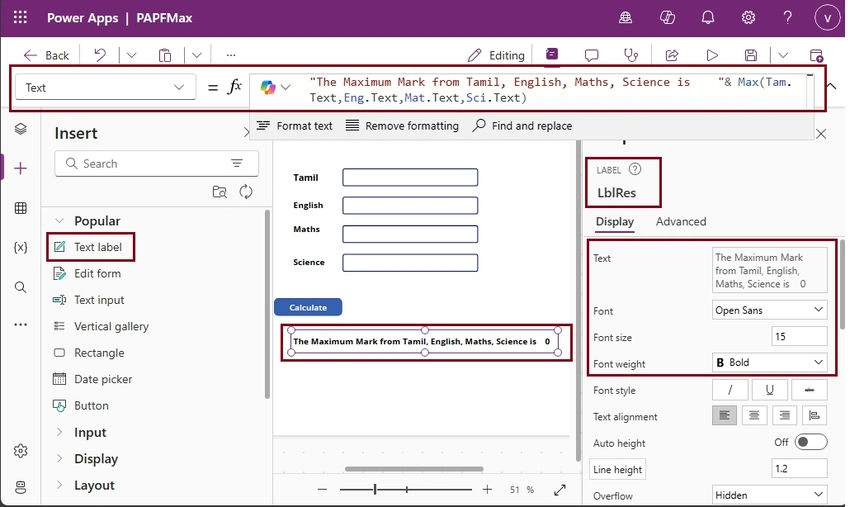
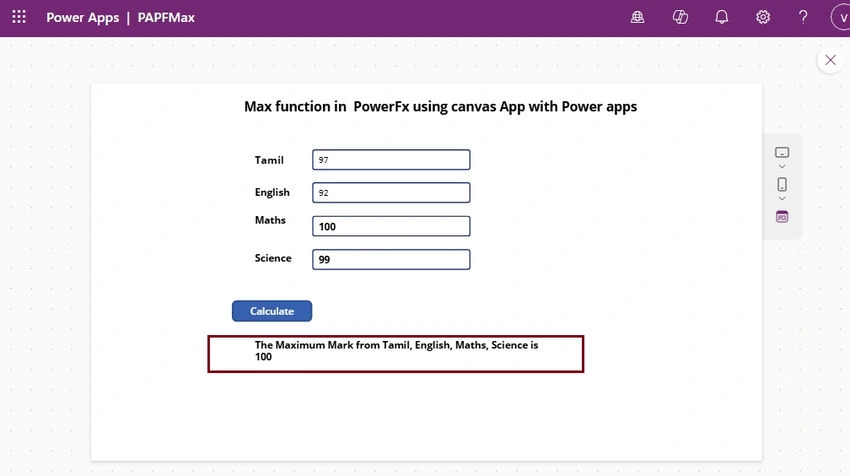
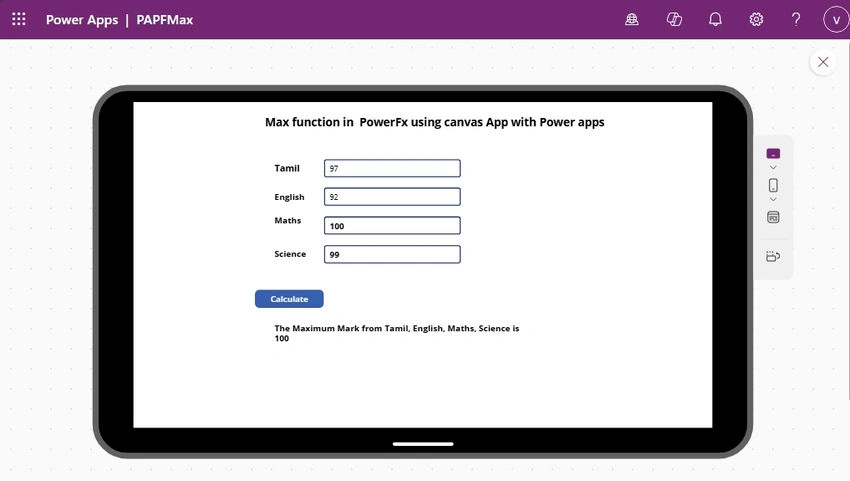
The Max function finds the maximum value. The General syntax is Max( NumericalFormula1, [ NumericalFormula2, ... ] )
Reading this article, you can learn how to perform the Max function from Power Fx using Microsoft Power Apps. Also, you will be able to learn Text box and label control in the Power Apps environment.
Step 1. Open the URL https://powerapps.microsoft.com/en-us/ in the browser for Power apps.
Create an account with your Organisation Mail ID and log in after logging into your Power Apps account.
Step 2. First, Click Create (+ ) and Select the Canvas app from blank.
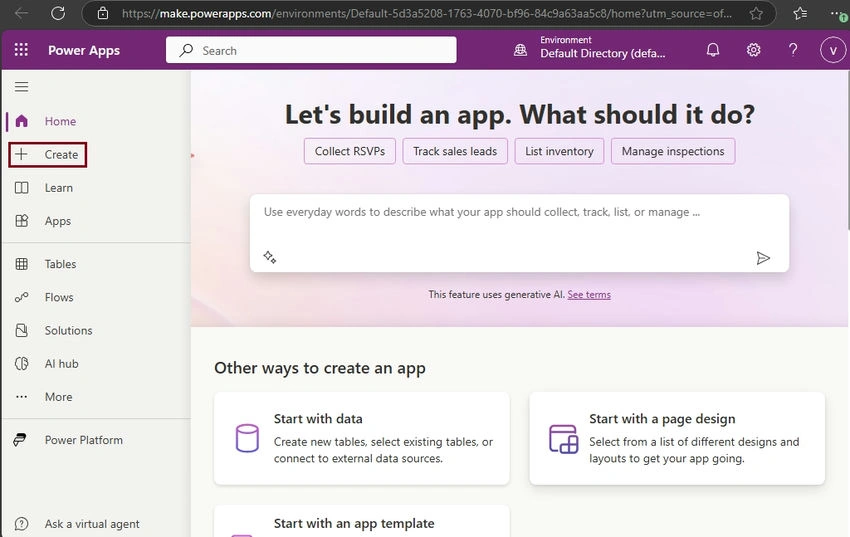
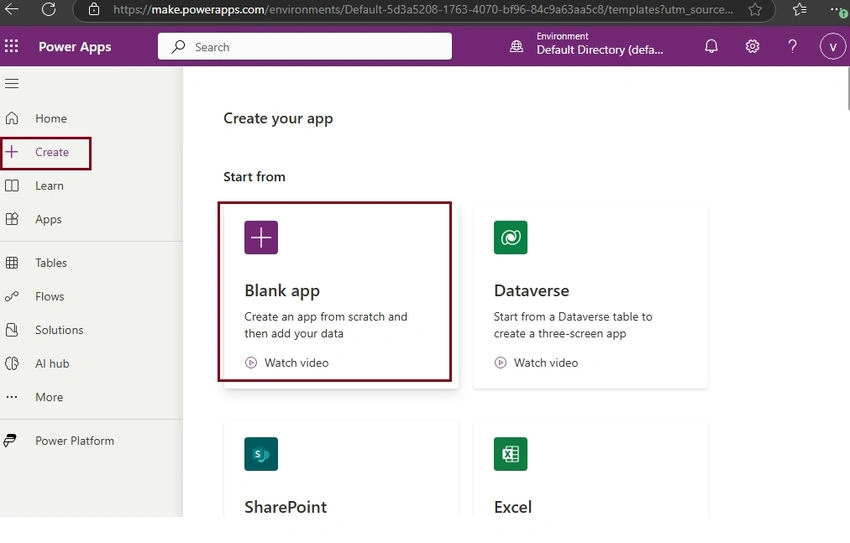
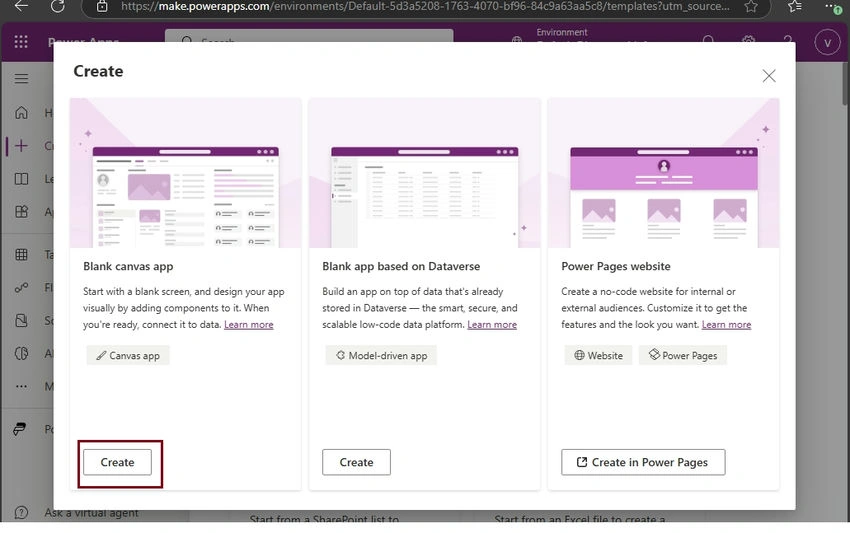
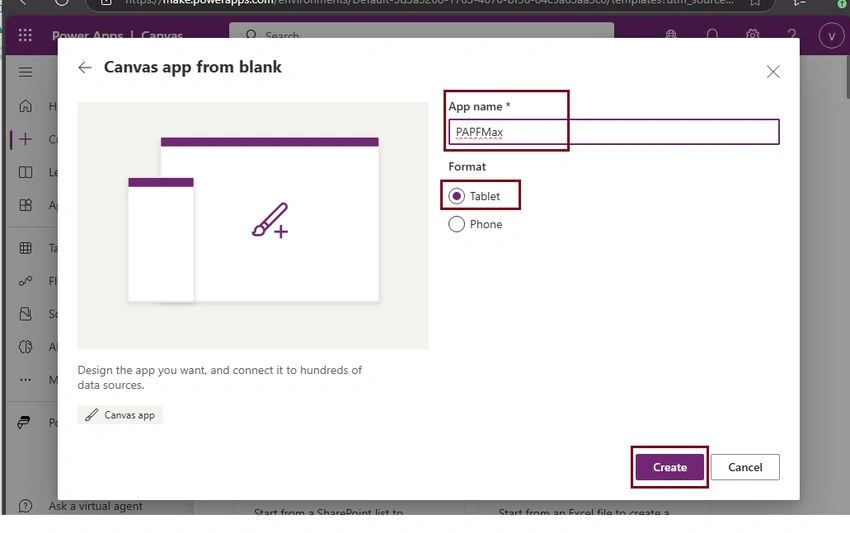
Next, give the app name as PAPFMax and format it as Tablet.
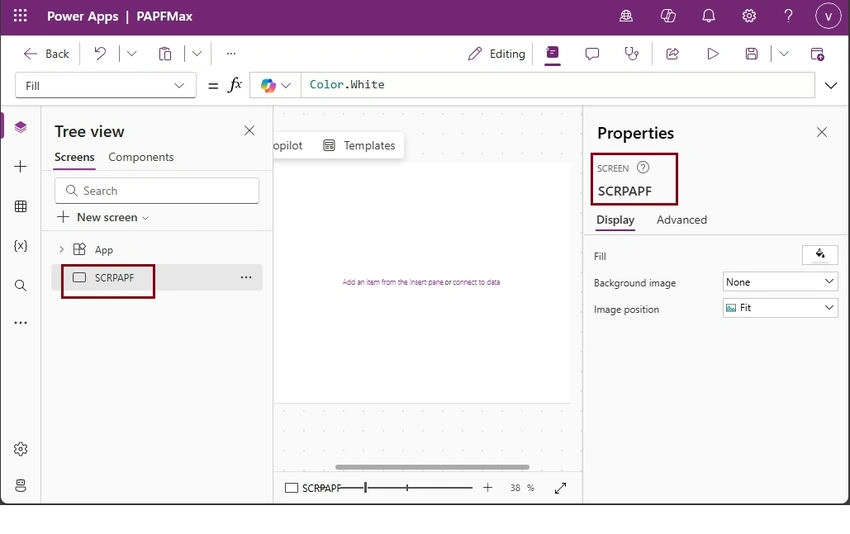
Step 3. To test the power function, first rename the screen as SCRPAPF.
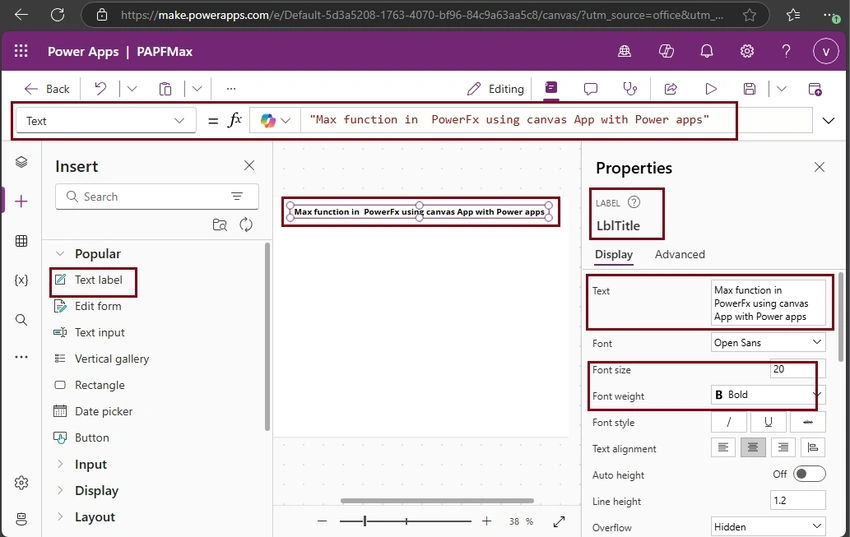
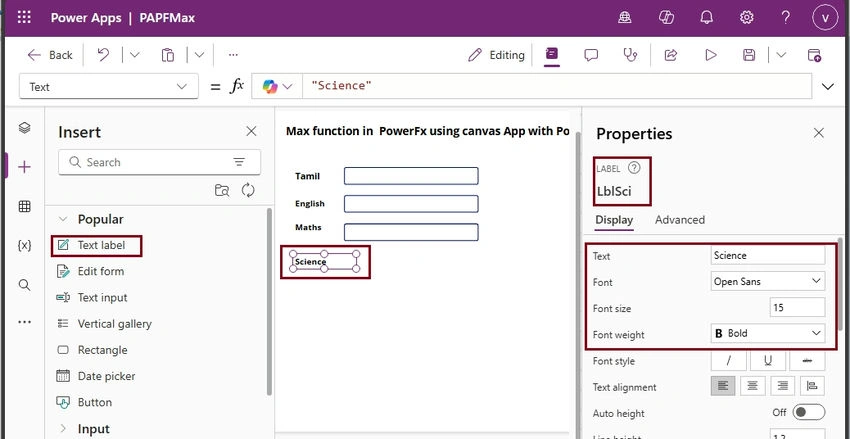
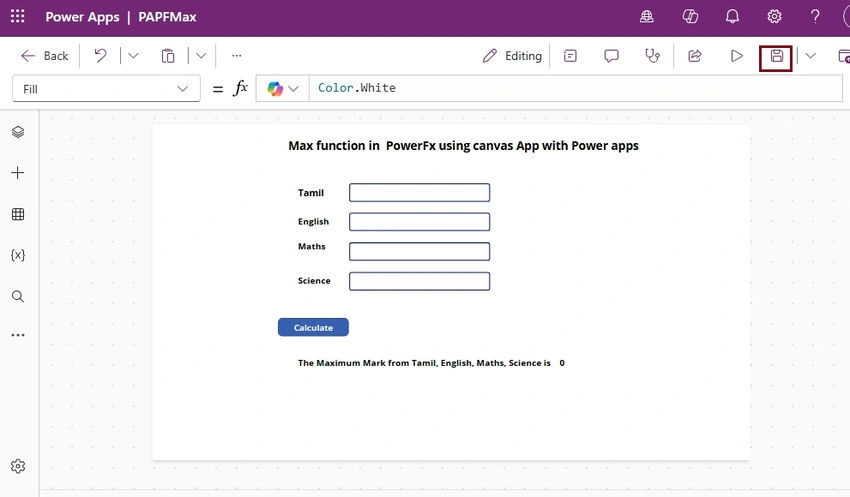
Next, Insert a Label control and set the Name and Text property as LblTitle and “Max function in PowerFx using canvas App with Power apps”.
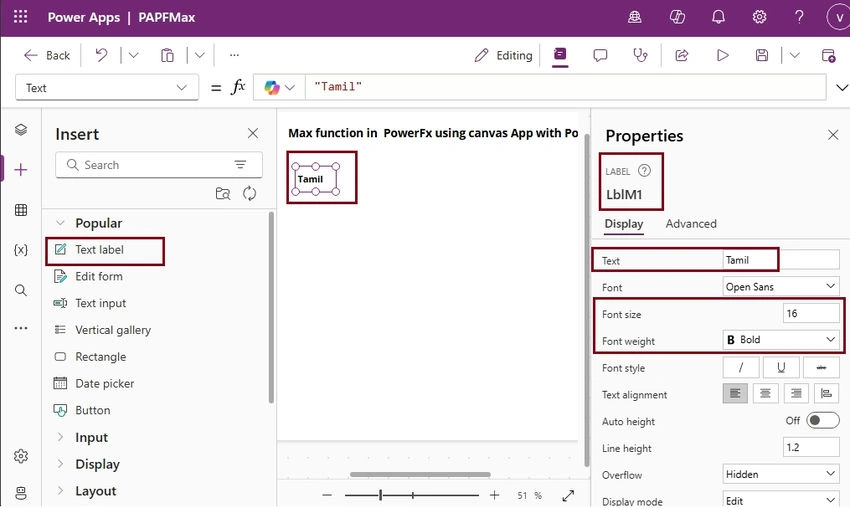
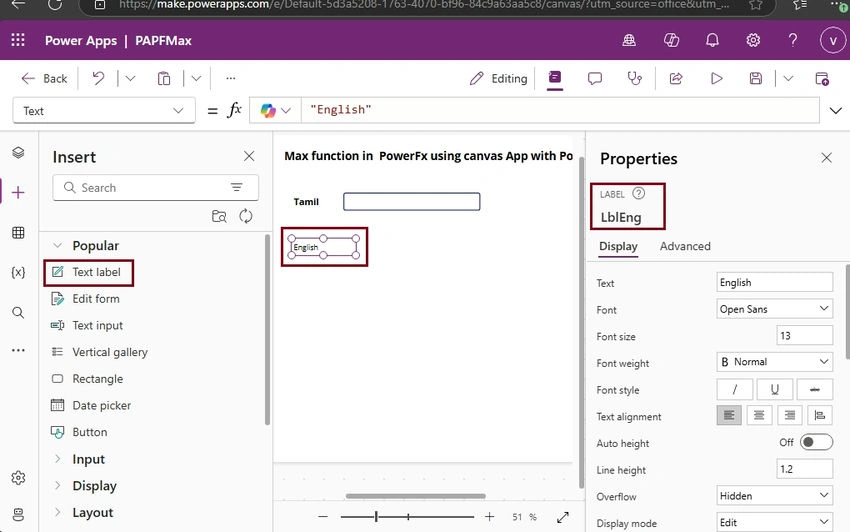
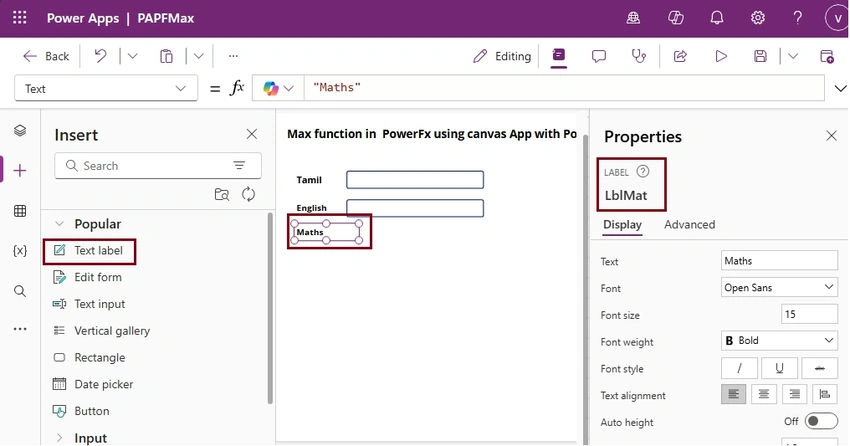
Next, Insert a Label control and set the Name and Text property as LblM1 and “Tamil"
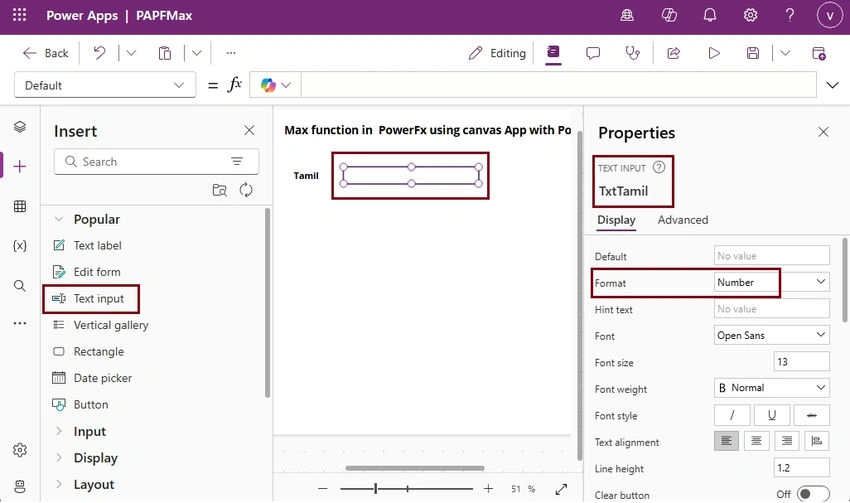
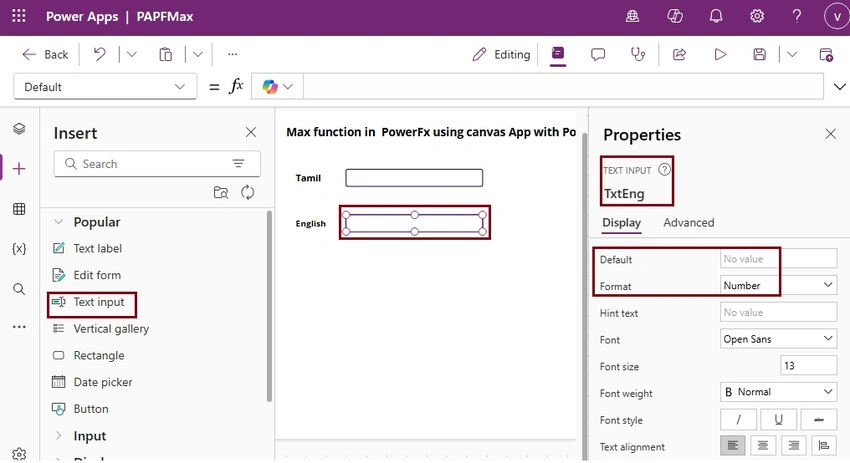
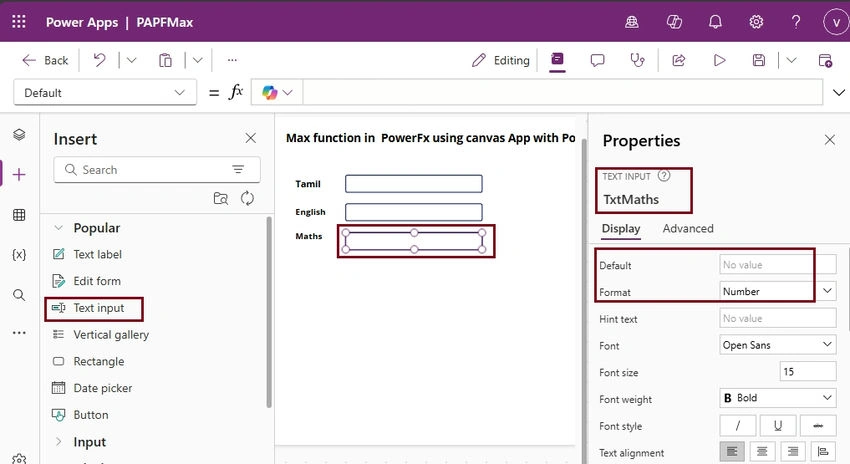
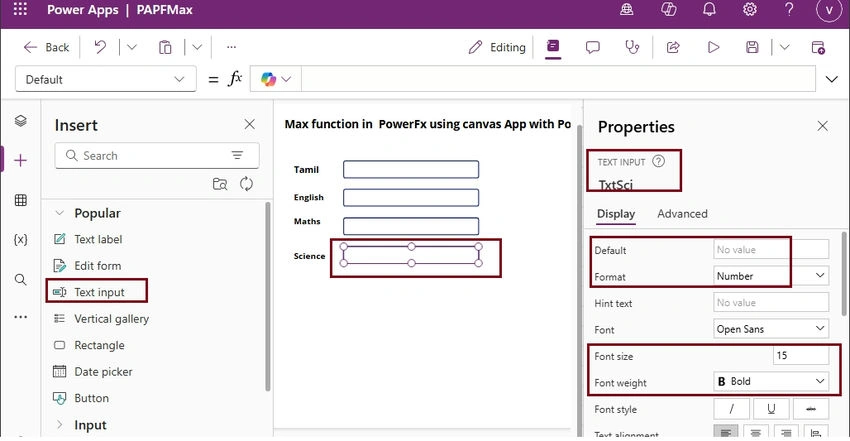
Next, Insert a TextBox control and set the Name and Format property as TxtTamil and Number.
Join the conversation! Your thoughts help the community grow.