

Previously I wrote about In-Memory Optimized Tables, in this blog I am going to discuss how to determine which tables could benefit from being In-Memory by using a tool called Memory Optimization Advisor (MOA). This a is a tool built into SQL Server Management Studio (SSMS) that will inform you of which tables could benefit using In Memory OLTP capabilities and which may have non supported features. Once identified, MOA will help you to actually migrate that table and data to be optimized. Let’s see how it works by walking through it using a table I use for demonstrations in AdventureWorks2016CTP3. Since this is a smaller table and doesn’t incur a ton writes it is not a good use case, however, for simplicity I am using it for this demo.
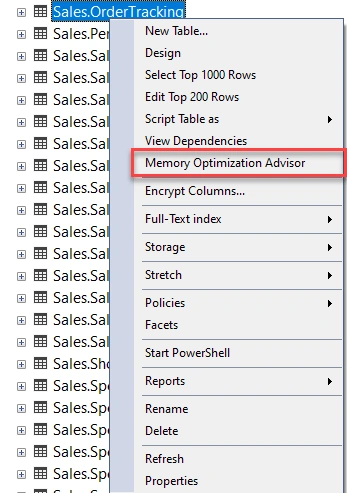
Once create Right click on the table and choose Memory Optimization Advisor.
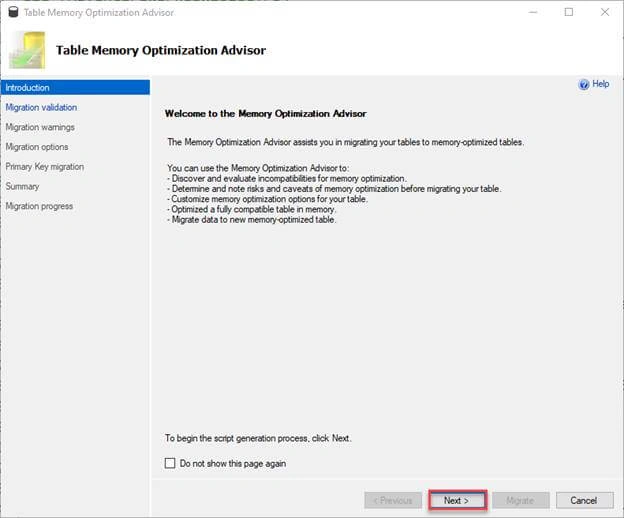
Click Next in the subsequent window that appears.
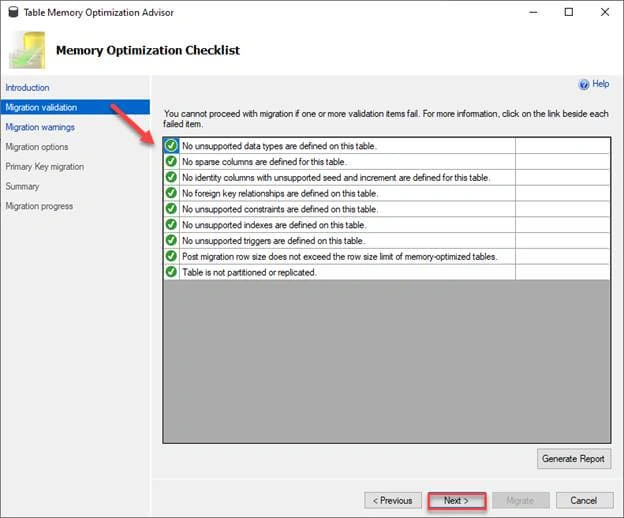
Next it will validate if your table is able to be migrated. It looks for things like unsupported data types, sparse columns, seeded columns, foreign keys, constraints and replication just to name a few. If any item fails, you must make changes and/or remove those features in order to move the table to a memory optimized table. This would be things like foreign keys, constraints, triggers, replication and partitioning to name a few.
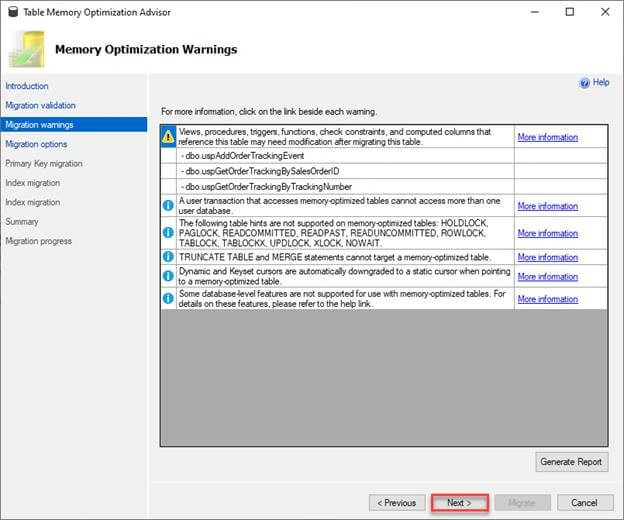
Next it will go over some warnings. These items, unlike the ones in the validation screen, won’t stop the migration process but can cause behavior of that option to fail or act abnormally so be aware of this. Microsoft goes a step further here and gives us links to more information so that we can make an informed decision as whether or not to move forward with the migration.
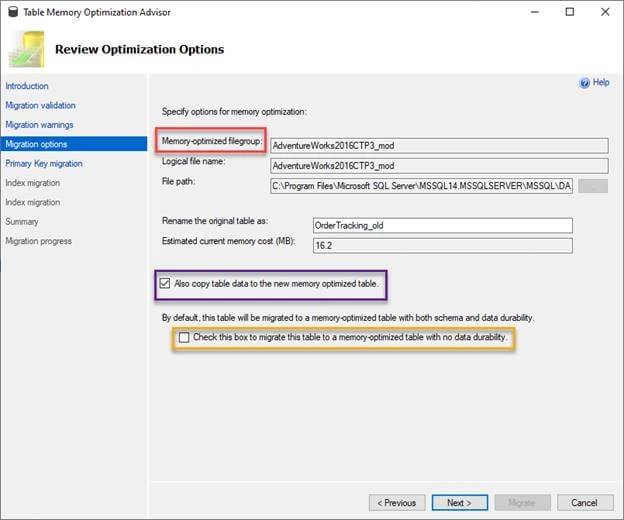
The next screen below is very important as it lets you choose options for your migration to a memory optimized table. I want to point out a few things in this next screen shot.
First, in the RED box, you will be a requirement for a file group name. A memory optimized table must have a special file group when migrating. This is a requirement to allow you to rename the original table and keep it in place thus avoiding naming conflicts. You will note also in this screen you can choose what to rename the original table.
Next in the PURPLE box, you will see the option to check to also have the data moved to the new table. If you do not check this option, your table will be created with no rows and you will have to manually move your data.
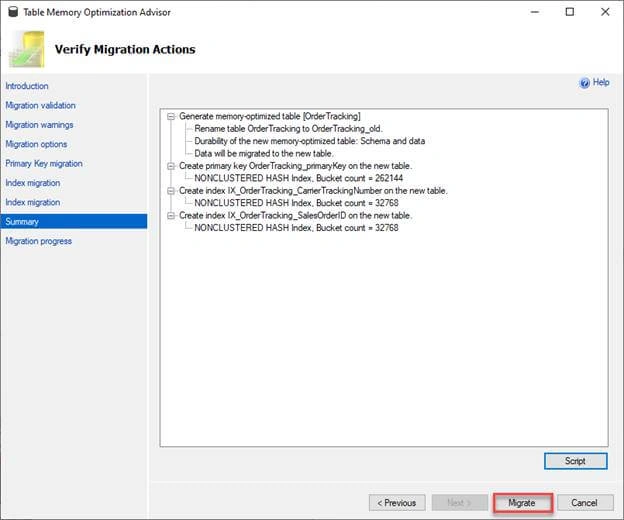
Next in YELLOW box, this is the create able option that is equivalent to DURABILITY= SCHEMA_ONLY or SCHEMA_AND_DATA I talked about in my last blog. If you do check this box, then you will not have any durability and your data will disappear due to things like restart of SQL Services or reboots (this may be what you want if you are using this table as though it was a TEMP TABLE and the data is not needed). Be very aware of these options because by default this is not checked. If you are not sure which option to choose, don’t check the box. That will ensure the data is durable. Click NEXT.
Join the conversation! Your thoughts help the community grow.