

Introduction
- How to connect through SQL Server Database using Python?
- How can we store some information into the SQL Server database using Python?
- How can we perform an update and delete operations?
- How we will retrieve stored information from the SQL Server database?
Prerequisites
Before performing all the above operations you have to install the following tools.
- Download and install Visual Studio 2013 or higher version. You can install this from the following link Visual Studio Community Website.
- After installing visual studio you need to install Python Tool for Visual Studio (PTVS).
- After Installing PTVS You need to Install Python Interpreter: Click Here to Download Python Interpreter.
- And for communicate with the database you need to install SQL Server express 2008 or higher version: Click Here to Install SQL Sever Express.
Steps
Firstly, we will create a console based Python project.
- Open Visual Studio.
- Select File, New, then Project.

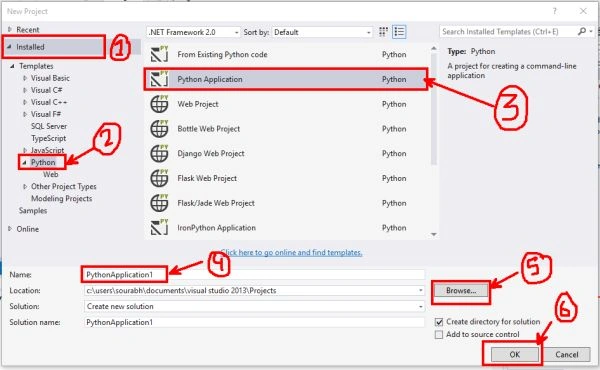
- Now select Install template, Python, then Python Application. and give the name to the application and choose location where you want to save your application and then press OK.
- After performing above operation you need to Install Python package for SQL Server Connectivity.
Python Package Installing For SQL Server Connectivity
If you want to connect your python code to SQL Server there is no direct method. You need to install packages for connecting SQL Server. To install package perform the following steps:
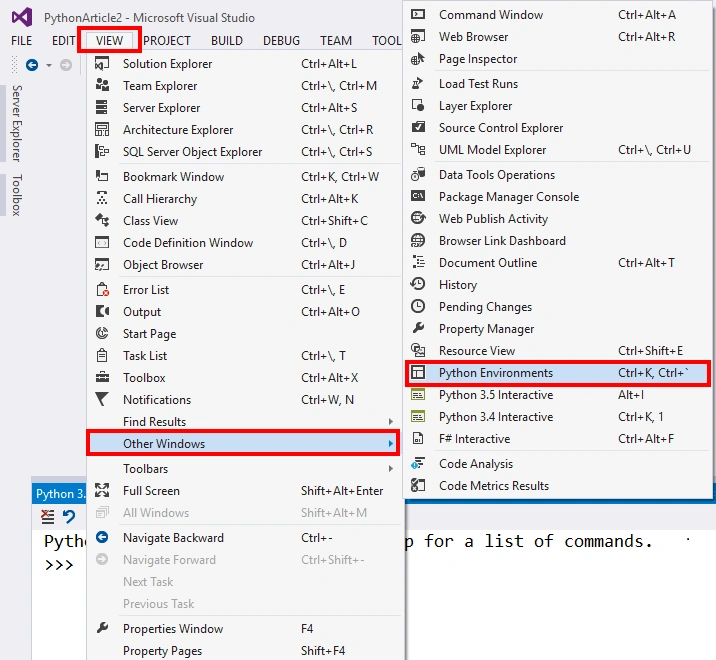
- Open Python Environment in Visual Studio by clicking VIEW, Other Windows, then Python Environment.
- Now click on Python Interpreter which you have installed in your system (Note: A Computer can contain more than 1 Python interpreter), select pip from the drop-down and search form pypyodbc.
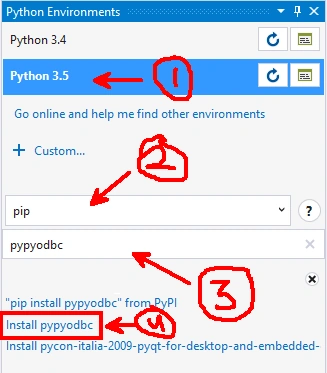 Note: "pypyodbc" is a module that is used to connect to the database and perform operations on that. pypyodbc can be used with any type of database: Oracle, SQL Server, MySQL, Microsoft Access or Excel, etc.
I am creating a database Payroll and inside that database, I am creating a table named EmployeeMaster which contains the following fields.
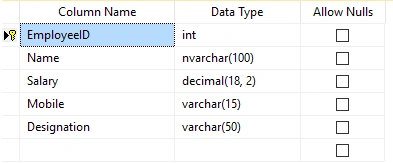 Here EmployeeID is the primary key and Auto Incremented.
You can use the following code to create this EmployeeMaster table.
- CREATE TABLE EmployeeMaster(
- EmployeeID int IDENTITY(1,1) NOT NULL,
- Name nvarchar(100) NOT NULL,
- Salary decimal(18, 2) NOT NULL,
- Mobile varchar(15) NOT NULL,
- Designation varchar(50) NOT NULL,
- CONSTRAINT [PK_EmployeeMaster1] PRIMARY KEY CLUSTERED
- (
- [EmployeeID] ASC
- )WITH (PAD_INDEX = OFF, STATISTICS_NORECOMPUTE = OFF, IGNORE_DUP_KEY = OFF, ALLOW_ROW_LOCKS = ON, ALLOW_PAGE_LOCKS = ON) ON [PRIMARY]
- ) ON [PRIMARY]
Connect to SQL Server Database: The following Python code shows you how you can connect to the SQL Server database.
Connect in the function which contains connection string.
- #importing module
- import pypyodbc
- #creating connection Object which will contain SQL Server Connection
- connection = pypyodbc.connect('Driver={SQL Server};Server=.\\sqlexpress;Database=Payroll;uid=sa;pwd=sa')
- print("Connection Successfully Established")
- #closing connection
- connection.close()
- Driver for connection to a particular database.
- Server: Which database server we are using.
- Database: Name of the database which we will use.
- uid: the user ID of the database server.
- pwd: Password for connection to the database.
Insert Data To Database
The following command is used to Insert data into the database.
- #importing module
- import pypyodbc
- #creating connection Object which will contain SQL Server Connection
- connection = pypyodbc.connect('Driver={SQL Server};Server=.\\sqlexpress;Database=Payroll;uid=sa;pwd=sa')
- #Creating Cursor
- cursor = connection.cursor()
- #SQL Query
- SQLCommand = ("INSERT INTO EmployeeMaster(Name, Salary, Mobile, Designation) VALUES ('Sourabh','200000','9928486447','Computer Programmer')")
- #Processing Query
- cursor.execute(SQLCommand)
- #Commiting any pending transaction to the database.
- connection.commit()
- #closing connection
- connection.close()
- print("Data Successfully Inserted")
- cursor() : This is a method which returns a new cursor object using the connection.
- execute() : Prepares and executes SQL.
- commit() : Commits any pending transaction to the database.
Output
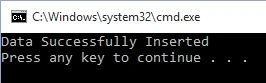
And check the database, it will contain data which you have inserted.

Using Question Mark (?)

We can also execute our query with a question mark sign. Sometimes we need to insert our data at run time and we want to form our query with the + symbol and sometimes we forget to open/close double quotes or single quotes or plus symbols. So we can also execute our query with Question Mark Sign? like the following:
- SQLCommand = ("INSERT INTO EmployeeMaster(Name, Salary, Mobile, Designation) VALUES (?,?,?,?)")
- Values = [Name,Salary,Mobile,Designation]
- cursor.execute(SQLCommand,Values)
- #importing module
- import pypyodbc
- #creating connection Object which will contain SQL Server Connection
- connection = pypyodbc.connect('Driver={SQL Server};Server=.\\sqlexpress;Database=Payroll;uid=sa;pwd=sa')
- #Creating Cursor
- cursor = connection.cursor()
- #############Database Parameters##########
- Name= "DJ"
- Salary=50000
- Mobile="9876543210"
- Designation="Computer Programmer"
- ##########################################
- #SQL Query
- SQLCommand = ("INSERT INTO EmployeeMaster(Name, Salary, Mobile, Designation) VALUES (?,?,?,?)")
- Values = [Name,Salary,Mobile,Designation]
- #Processing Query
- cursor.execute(SQLCommand,Values)
- #Commiting any pending transaction to the database.
- connection.commit()
- #closing connection
- connection.close()
- print("Data Successfully Inserted")
Inside Database

Data read from user and inserted into the database
- #importing module
- import pypyodbc
- #creating connection Object which will contain SQL Server Connection
- connection = pypyodbc.connect('Driver={SQL Server};Server=.\\sqlexpress;Database=Payroll;uid=sa;pwd=sa')
- #Creating Cursor
- cursor = connection.cursor()
- #############Database Parameters##########
- Name= input("Please Enter Name:")
- Salary=input("Please Enter Salary:")
- Mobile=input("Please Enter Mobile Number:")
- Designation=input("Please Enter Designation:")
- ##########################################
- #SQL Query
- SQLCommand = ("INSERT INTO EmployeeMaster(Name, Salary, Mobile, Designation) VALUES (?,?,?,?)")
- Values = [Name,Salary,Mobile,Designation]
- #Processing Query
- cursor.execute(SQLCommand,Values)
- #Commiting any pending transaction to the database.
- connection.commit()
- #closing connection
- connection.close()
- print("Data Successfully Inserted")
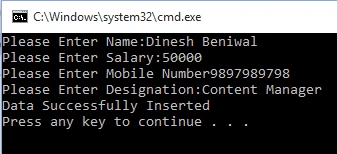
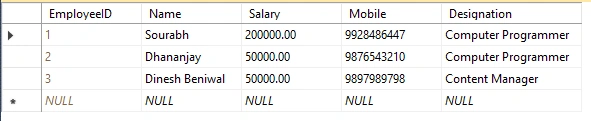
Inside Database
 Update In Database
- #importing module
- import pypyodbc
- #creating connection Object which will contain SQL Server Connection
- connection = pypyodbc.connect('Driver={SQL Server};Server=.\\sqlexpress;Database=Payroll;uid=sa;pwd=sa')
- #Creating Cursor
- cursor = connection.cursor()
- #SQL Query
- SQLCommand = ("Update EmployeeMaster set Name='Dhananjay' where EmployeeID=2")
- #Processing Query
- cursor.execute(SQLCommand)
- #Commiting any pending transaction to the database.
- connection.commit()
- #closing connection
- connection.close()
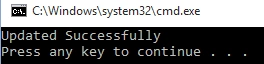
- print("Updated Successfully")
- #importing module
- import pypyodbc
- #creating connection Object which will contain SQL Server Connection
- connection = pypyodbc.connect('Driver={SQL Server};Server=.\\sqlexpress;Database=Payroll;uid=sa;pwd=sa')
- #Creating Cursor
- cursor = connection.cursor()
- #SQL Query
- SQLCommand = ("Delete from EmployeeMaster where EmployeeID=3")
- #Processing Query
- cursor.execute(SQLCommand)
- #Commiting any pending transaction to the database.
- connection.commit()
- #closing connection
- connection.close()
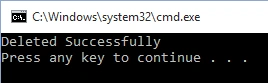
- print("Deleted Successfully")

Retrieve Data from the Database
We can retrieve data from the database in two ways.
- Fetch one row at a time: We call fetchone() method.
- Fetch all rows: We call fetchall() method.
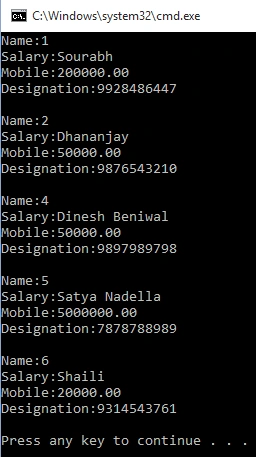
fetchone method example
- #importing module
- import pypyodbc
- #creating connection Object which will contain SQL Server Connection
- connection = pypyodbc.connect('Driver={SQL Server};Server=.\\sqlexpress;Database=Payroll;uid=sa;pwd=sa')
- #Creating Cursor
- cursor = connection.cursor()
- #SQL Query
- SQLCommand = ("select * from EmployeeMaster")
- #Processing Query
- cursor.execute(SQLCommand)
- results = cursor.fetchone()
- while results:
- print ("Name:" + str(results[0]))
- print ("Salary:" + str(results[1]))
- print ("Mobile:" + str(results[2]))
- print ("Designation:" + str(results[3]))
- print()
- results = cursor.fetchone()
- #closing connection
- connection.close()
Output
Fetch All Rows
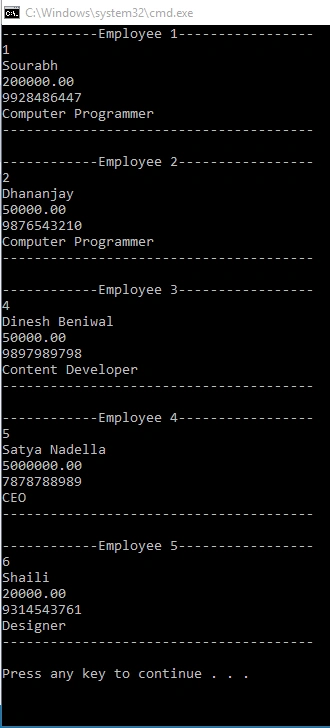
The following example shows how can we fetch all the rows at a time from the database using fetchall() method.
- #importing module
- import pypyodbc
- #creating connection Object which will contain SQL Server Connection
- connection = pypyodbc.connect('Driver={SQL Server};Server=.\\sqlexpress;Database=Payroll;uid=sa;pwd=sa')
- #Creating Cursor
- cursor = connection.cursor()
- #SQL Query
- SQLCommand = ("select * from EmployeeMaster")
- #Processing Query
- cursor.execute(SQLCommand)
- i=1
- for rows in cursor.fetchall():
- print("------------Employee %d-----------------"%i)
- for field in rows:
- print(str(field))
- print("---------------------------------------")
- print('')
- i=i+1
- #closing connection
- connection.close()
Davood RiaziPosted Nov 27, 2016, 1:06 AM
Thanks , Good article. How can we store some information into the SQL Server database using Python and retrieve stored information from the SQL Server database and show the data in web page ?
Kuppurasu NagarajPosted May 6, 2016, 9:12 AM
Nice Sharing..
Abhishek JaiswalPosted Oct 27, 2015, 10:27 AM
Loved this article. Good one Sourabh keep sharing more, am waiting for the next parts. Cheers! :)
Priyaranjan K SPosted Oct 26, 2015, 8:26 AM
Good One
Nilesh JadavPosted Oct 26, 2015, 6:48 AM
Good Share sir !!
Harshad PansuriyaPosted Oct 26, 2015, 4:39 AM
Nice one