

Microsoft cognitive services
In this article, I'll explain how we can use Microsoft Cognitive Services for Search API, step by step.
Step 1
To consume Cognitive Services, you should have an Azure account. If you don't have any, you can create free account.
In this article, I'll explain how we can use Microsoft Cognitive Services for Search API, step by step.
Step 1
To consume Cognitive Services, you should have an Azure account. If you don't have any, you can create free account.
Step 2
Click here and login.
Step 3
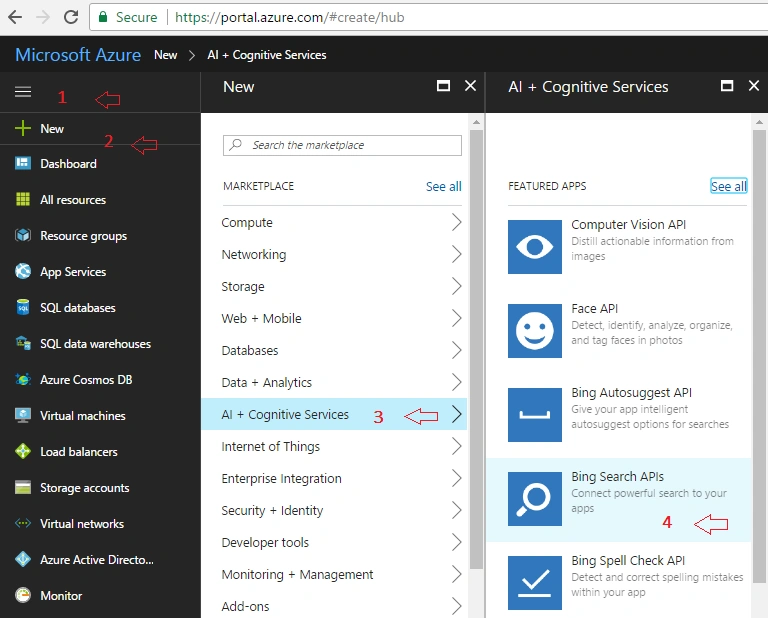
Now, follow these steps which I have marked into below image as follow.
Step 4
Create Search API. You can put the name you want and provide more information as below.
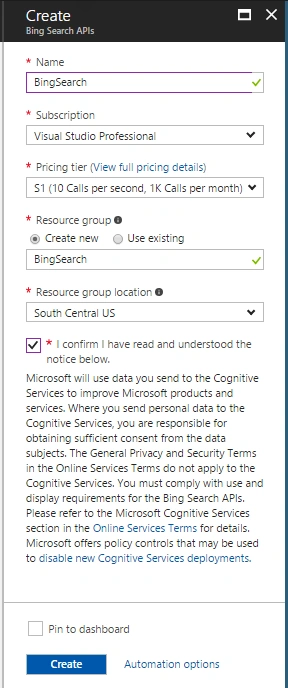
Click on "Create" button.
Step 5
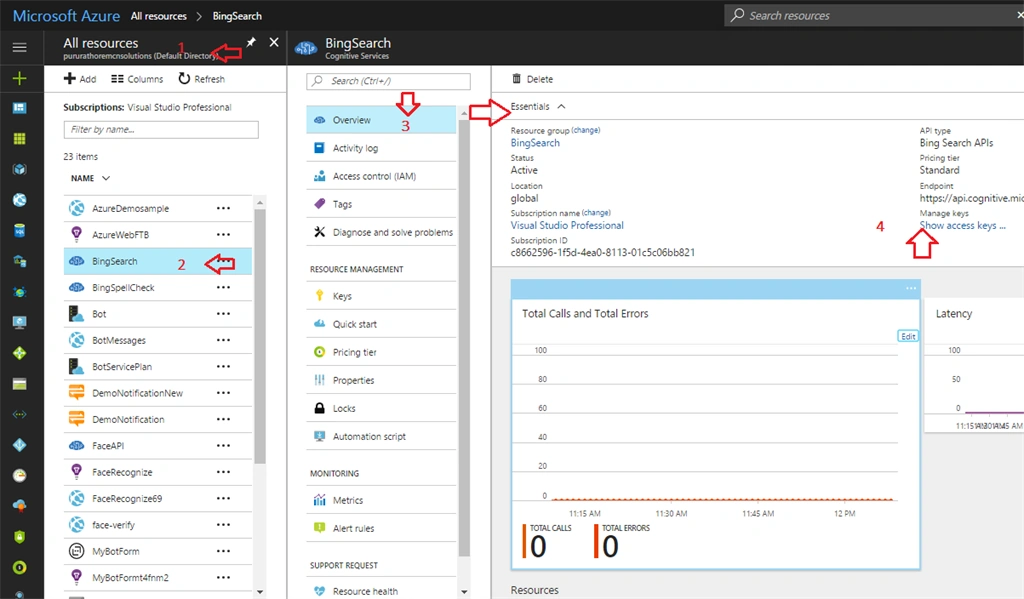
Now, click on "All Resources" in left panel and then find your service which you have recently created. Bing Search Panel will open and follow these steps which I have marked on the below screen.
Step 6
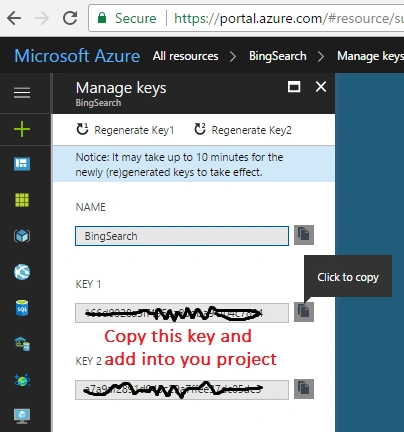
Copy any one key and use it in your project.
Step 7
Now, create a new application and write the below code.
JavaScript code
- <%@ Page Language="C#" AutoEventWireup="true" CodeFile="BingSearch.aspx.cs" Inherits="BingSearch" %>
- <!DOCTYPE html>
- <html xmlns="http://www.w3.org/1999/xhtml">
- <head runat="server">
- <title>Microsoft Cognitive Services Bing Search API- by puru</title>
- <style>
- .ulSearch {text-align: left;font-family: Arial;}
- .ulSearch li {padding: 10px;list-style-type: none;float: left;}
- .ulSearch li a {text-decoration: none;}
- .ulSearch li img {float: left;padding-right: 5px;width: 100px;height: 100px;}
- .ulSearch li div {float: left;width: 80%;}
- .ulSearch li span {color: gray;}
- </style>
- <script src="http://ajax.googleapis.com/ajax/libs/jquery/1.9.0/jquery.min.js"></script>
- </head>
- <body>
- <script type="text/javascript">
- function Search() {
- if ($("#InputSearch").val().length > 0) {
- var params = {
- // Request parameters
- "q": $("#InputSearch").val(),
- "count": "10",
- "offset": "0",
- "mkt": "en-us",
- "safesearch": "Moderate",
- };
- $.ajax({
- url: "https://api.cognitive.microsoft.com/bing/v5.0/search?" + $.param(params),
- beforeSend: function (xhrObj) {
- // Request headers
- xhrObj.setRequestHeader("Ocp-Apim-Subscription-Key", "xxx863xxx3434xxx852xxxc562xxx68");//put you key here
- },
- type: "GET",
- // Request body
- data: "{body}",
- })
- .done(function (data) {
- $("#UlSearchResult").html("");
- if (data.images != undefined) {
- jQuery.each(data.images.value, function (index, value) {
- if (value.name != undefined) {
- $("#UlSearchResult").append("<li><img src=" + value.thumbnailUrl + "/><div>" + value.name + "<br/><span>" + value.webSearchUrl + "</span><br/>" + value.contentUrl + "</div></li>");
- }
- })
- }
- else if (data.webPages != undefined) {
- jQuery.each(data.webPages.value, function (index, value) {
- if (value.name != undefined) {
- $("#UlSearchResult").append("<li><div><a href=" + value.displayUrl + ">" + value.name + "</a></br>" + value.url + "<br/><span>" + value.snippet + " </span></div></li>")
- }
- })
- }
- else if (data.news != undefined) {
- jQuery.each(data.news.value, function (index, value) {
- if (value.name != undefined) {
- $("#UlSearchResult").append("<li><img src=" + value.images.thumbnail.contentUrl + "/><div><a href=" + value.url + ">" + value.name + "</a><br/><span>" + value.description + " </span><br/>" + value.datePublished + " </div></li>")
- }
- })
- }
- })
- .fail(function () {
- alert("No result found");
- });
- } else {
- alert("Please enter what you want to search.");
- }
- }
- </script>
- Search
- <input type="text" name="InputSearch" id="InputSearch" />
- <input type="button" id="SearchButton" name="Search" value="Search" onclick="Search(); return false;" />
- <ul class="ulSearch" id="UlSearchResult"></ul>
- </body>
- </html>
C# code
SearchResultInfo.cs
HTML for C# code
- protected async void ButtonSearch_Click(object sender, EventArgs e)
- {
- if (!string.IsNullOrEmpty(TextboxSearch.Text))
- {
- var client = new HttpClient();
- var queryString = HttpUtility.ParseQueryString(string.Empty);
- // Request headers
- client.DefaultRequestHeaders.Add("Ocp-Apim-Subscription-Key", ConfigurationManager.AppSettings["BingSearch-Key"]);// put your //key here
- // Request parameters
- queryString["q"] = TextboxSearch.Text;
- queryString["count"] = "10";
- queryString["offset"] = "0";
- queryString["mkt"] = "en-us";
- queryString["safesearch"] = "Moderate";
- var uri = "https://api.cognitive.microsoft.com/bing/v5.0/search?" + queryString;
- using (var r = await client.GetAsync(new Uri(uri)))
- {
- string result = await r.Content.ReadAsStringAsync();
- Rootobject LegList = JsonConvert.DeserializeObject<Rootobject>(result);
- StringBuilder sb = new StringBuilder();
- foreach (var item in LegList.webPages.value)
- {
- sb.Append("<li><a href=" + item.displayUrl + ">" + item.name + "</a><br/><span>" + item.snippet + " </span></li>");
- }
- ulSearchResult.InnerHtml = sb.ToString();
- }
- }
- }
Note- To create JSON object, we need to create RootObject class. So, we can create RootObject class as follow. Right click on result and you will see JSON result. Copy JSON result and create a new class in your project.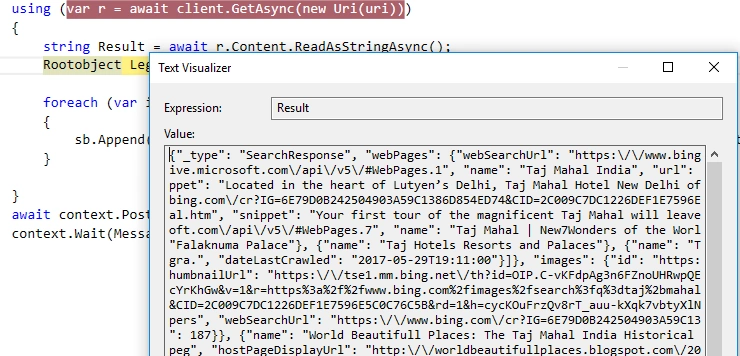
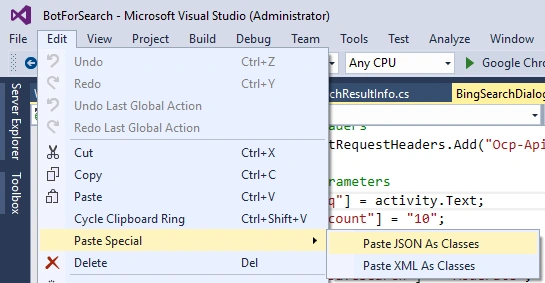
After creating class, go to Edit menu and click on 'Paste Special'. Then, click on 'Paste json as classes' as follows.
SearchResultInfo.cs
- namespace BingSearch
- {
- public class SearchResultInfo
- {
- }
- public class Rootobject
- {
- public string _type { get; set; }
- public Webpages webPages { get; set; }
- public Rankingresponse rankingResponse { get; set; }
- }
- public class Webpages
- {
- public string webSearchUrl { get; set; }
- public int totalEstimatedMatches { get; set; }
- public Value[] value { get; set; }
- }
- public class Value
- {
- public string id { get; set; }
- public string name { get; set; }
- public string url { get; set; }
- public string displayUrl { get; set; }
- public string snippet { get; set; }
- public DateTime dateLastCrawled { get; set; }
- public About[] about { get; set; }
- }
- public class About
- {
- public string name { get; set; }
- }
- public class Rankingresponse
- {
- public Mainline mainline { get; set; }
- }
- public class Mainline
- {
- public Item[] items { get; set; }
- }
- public class Item
- {
- public string answerType { get; set; }
- public int resultIndex { get; set; }
- public Value1 value { get; set; }
- }
- public class Value1
- {
- public string id { get; set; }
- }
- }
- <%@ Page Language="C#" AutoEventWireup="true" CodeFile="BIngSearchCSharp.aspx.cs" Inherits="BIngSearchCSharp" Async="true" %>
- <!DOCTYPE html>
- <html xmlns="http://www.w3.org/1999/xhtml">
- <head runat="server">
- <title>Microsoft Cognitive Services Bing Search API- by puru</title>
- <style>
- .ulSearch {text-align: left;font-family: Arial;}
- .ulSearch li {padding: 10px;list-style-type: none;float: left;}
- .ulSearch li a {text-decoration: none;}
- .ulSearch li img {float: left;padding-right: 5px;width: 100px;height: 100px;}
- .ulSearch li div {float: left;width: 80%;}
- .ulSearch li span {color: gray;}
- </style>
- </head>
- <body>
- <form id="form1" runat="server">
- <div>
- <asp:TextBox ID="TextboxSearch" runat="server" />
- <asp:Button ID="ButtonSearch" runat="server" Text="Search" OnClick="ButtonSearch_Click" />
- <ul id="ulSearchResult" class="ulSearch" runat="server"></ul>
- </div>
- </form>
- </body>
- </html>
Output
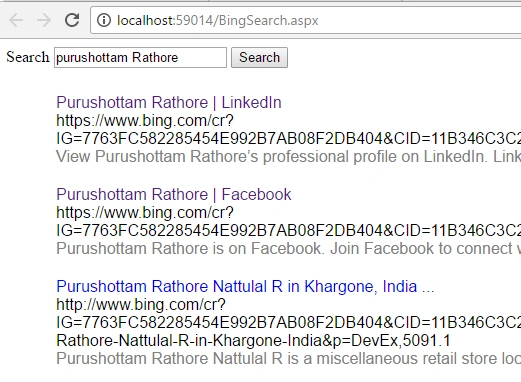
Enter text which you want to search and click on "Search" button. You will find the following result.
Raj KumarPosted Jun 5, 2017, 3:35 PM
Good explaination Puru...