Introduction
Microsoft to overcome the problems of Internet Explorer Browser added a new app in Windows 10 called Microsoft Edge. It is too fast and just in time browsing. In this app, we will learn the keys tools of the Microsoft Edge app and this app is more free from firmware and harmful issues. To understand the functionality of the Microsoft Edge browser just do some steps.
Open Microsoft Edge App
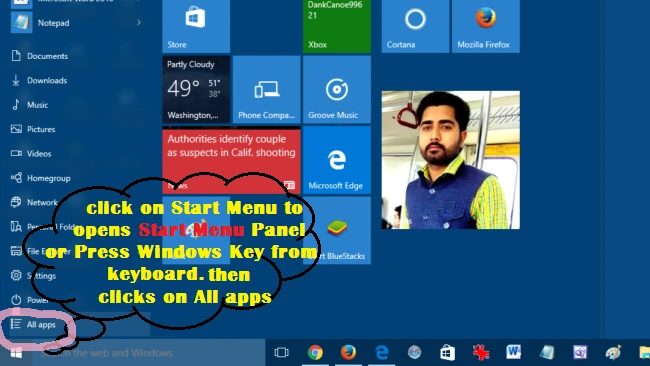
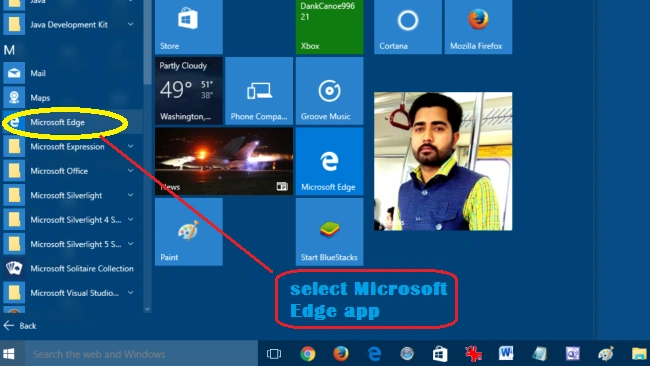
To open new Microsoft App just go down Windows left corner and click on the Start Menu button or you can also press the Windows key from keyboard to open Start Menu as in the following screenshot.
Step 1
Step 2
Image Source
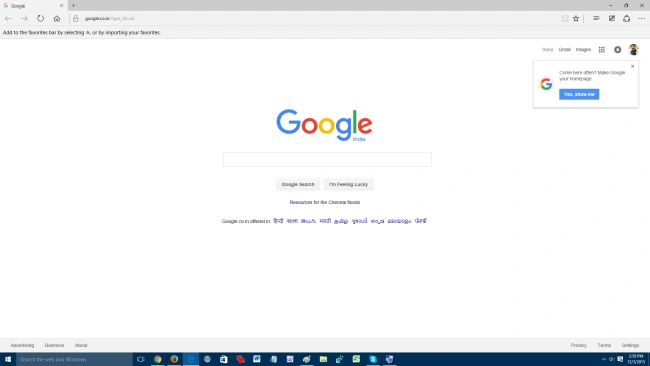
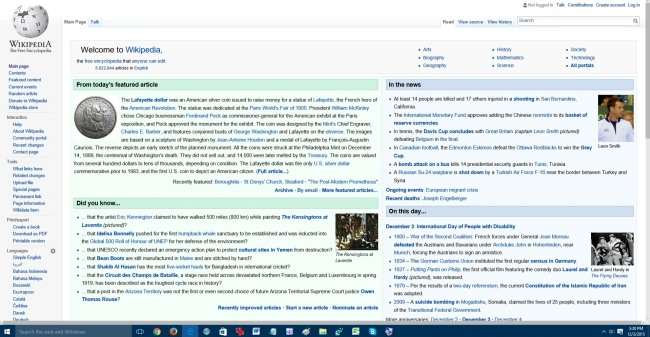
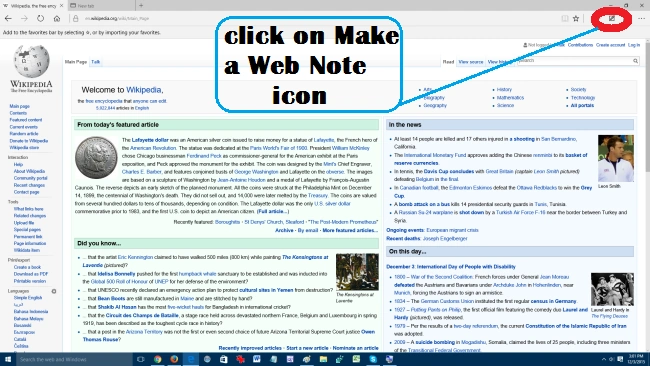
After doing the above steps a new Edge browser is opened with the home page. Now type any web site URL or any keyword which we want to surf, for example, we opened Wikipedia main page as in the following screenshot,
Image Source
Make a Web Note
Now we will use the new Make a web Note feature of Edge browser. Click on the Make a Web Note icon to Switched-ON new toolbar as in the following screenshot,
Image Source
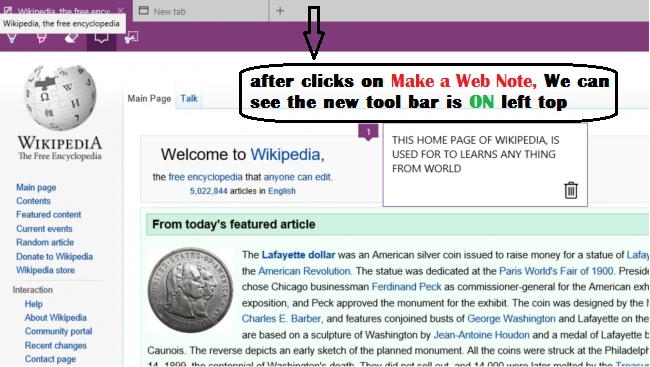
After clicking on the Make a Web Note new Plum colored bar is Switched-ON as in the following screenshot,
Image Source
Clip Tool
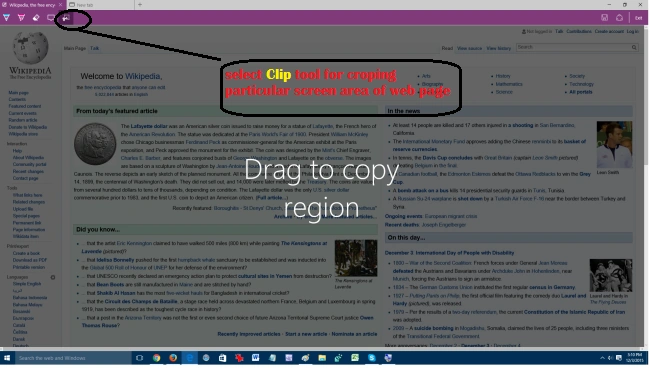
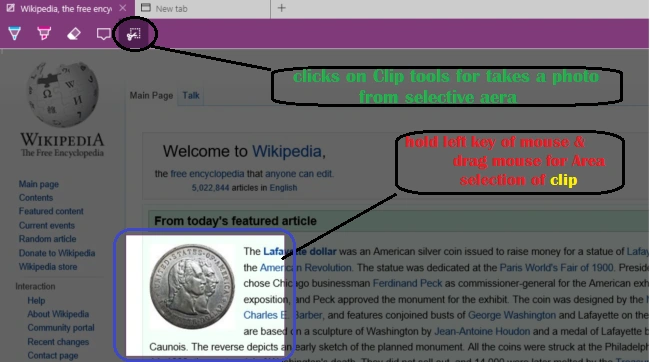
Clip tool works as a snipping tool of Windows to takes a snap-shot of Windows screen by free hand. Similarly, the Clip Tool is used to take any size clip form the web page. To take any clip just look at the screenshot,
Image Source
Image Source
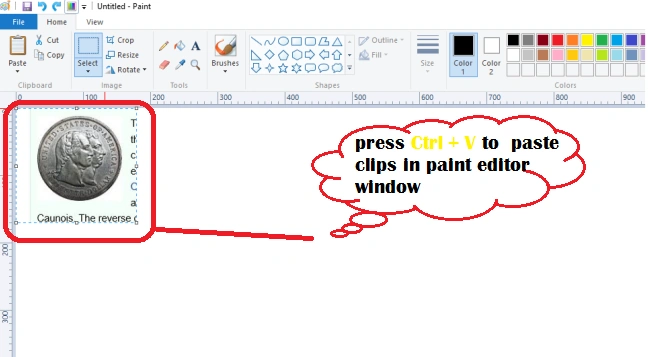
After selection clip area, open Paint or MsWord application and paste the clipping image into the paint as in the following screenshot,
Pen Tool
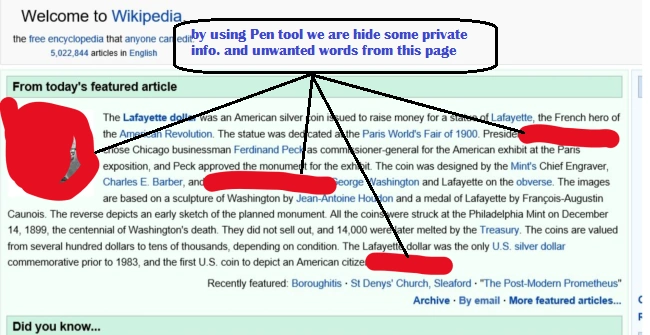
Using pen tool we hide some important information as in the following screenshot,
Image Source
Highlighter Tool
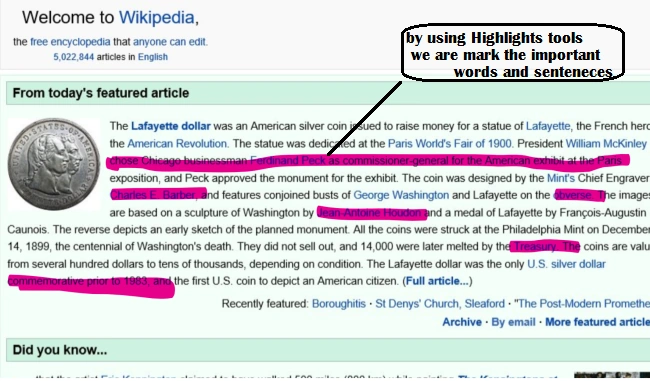
We also use the Highlighter tool to mark some important information like some words and sentences. To do this, just follow the screenshot.
Image Source
Share
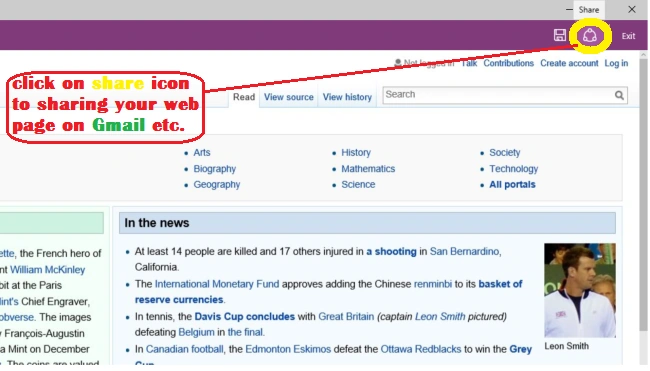
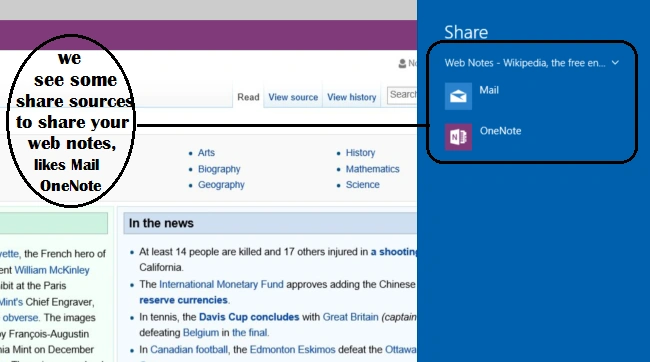
We also use the share tool for sharing all the web notes to social networking websites. Here are the screenshots,
Image Source
Private Browsing
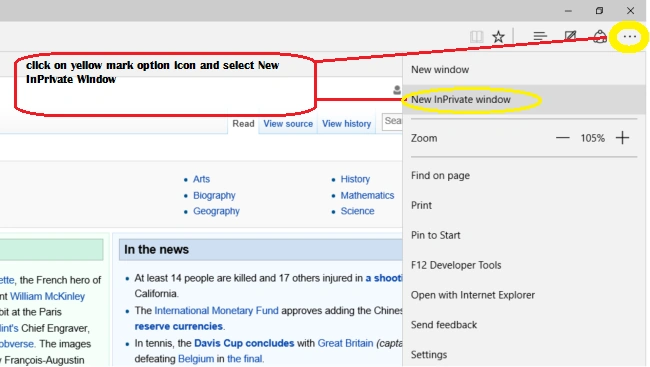
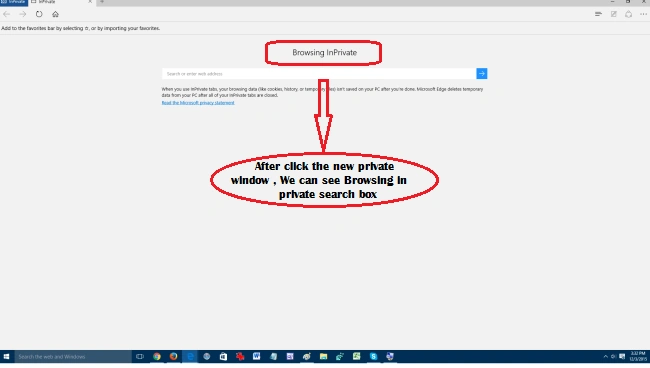
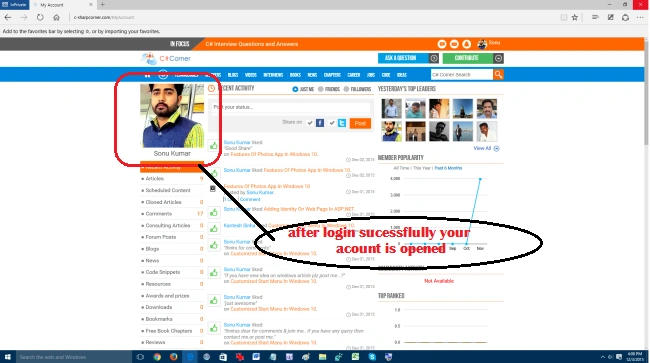
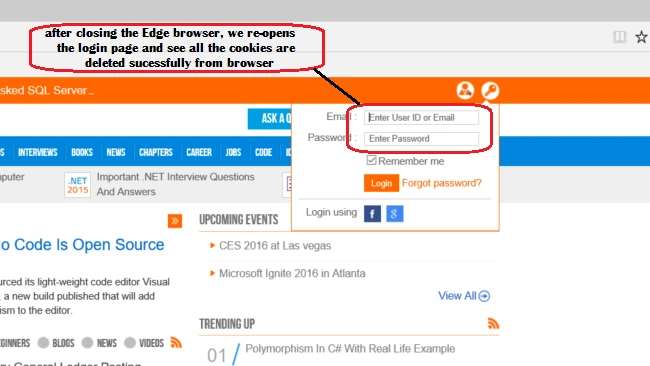
The main function of Private Browsing is to secure your web login accounts. In private browsing we are using our private web pages, for example, we use net banking. In this case, we will first login to our account then go for net banking, but in some case let's say we forget to logout our bank account from the website. So this is bad for our account money and may prove fatal. This is because maybe a new user hacks your account using browser cookies files. But in private this is not possible because all the cookies are auto-deleted when you closed Edge Browser. For example, to do private browsing just follow the below-given screenshot.
Step 1
Step 2
Step 3
Image Source
Step 4
Image Source
Step 5
Image Source
Summary
The main motivation of this article is to use the new features and privacy of the Microsoft Edge App. I hope you liked this article the same as my previous articles.



Sridhar SharmaPosted Dec 8, 2015, 5:18 AM
Super article :)
Mukesh KumarPosted Dec 8, 2015, 12:41 AM
Good Job