When working with Microsoft Fabric, most of the time we focus on building things — Lakehouses, Warehouses, Data Pipelines, Notebooks, semantic models, and Power BI reports.
But behind all of these is another important area that is easy to overlook: the Microsoft Fabric Admin Portal.
The Admin Portal is where Fabric administrators manage and control many of the settings that affect how Fabric is used across an organisation. It provides administrators with a central place to configure tenant settings, monitor usage, manage users, and control which Fabric features are available.
In this article, I'll walk through what the Fabric Admin Portal is and some of the areas that Fabric administrators should be familiar with.
What Is the Microsoft Fabric Admin Portal?
The Microsoft Fabric Admin Portal is the administration area for managing Fabric at the tenant level.
While a workspace administrator mainly manages resources within a particular workspace, the Fabric Admin Portal provides controls that can affect the wider Fabric environment.
This distinction is important.
For example, a workspace administrator might manage access to a specific Lakehouse or Notebook, while a Fabric administrator can control whether certain Fabric capabilities are available to users across the organisation.
The Admin Portal therefore plays an important role in governance, security, administration, and overall management of a Fabric tenant.
Accessing the Fabric Admin Portal
To access the Admin Portal, sign in to Microsoft Fabric and open the settings menu.
From there, administrators can select Admin portal.
The options available inside the Admin Portal depend on the administrator's permissions and the capabilities available in the tenant.
This is why a normal Fabric user may not see the same administration options as a Fabric administrator.
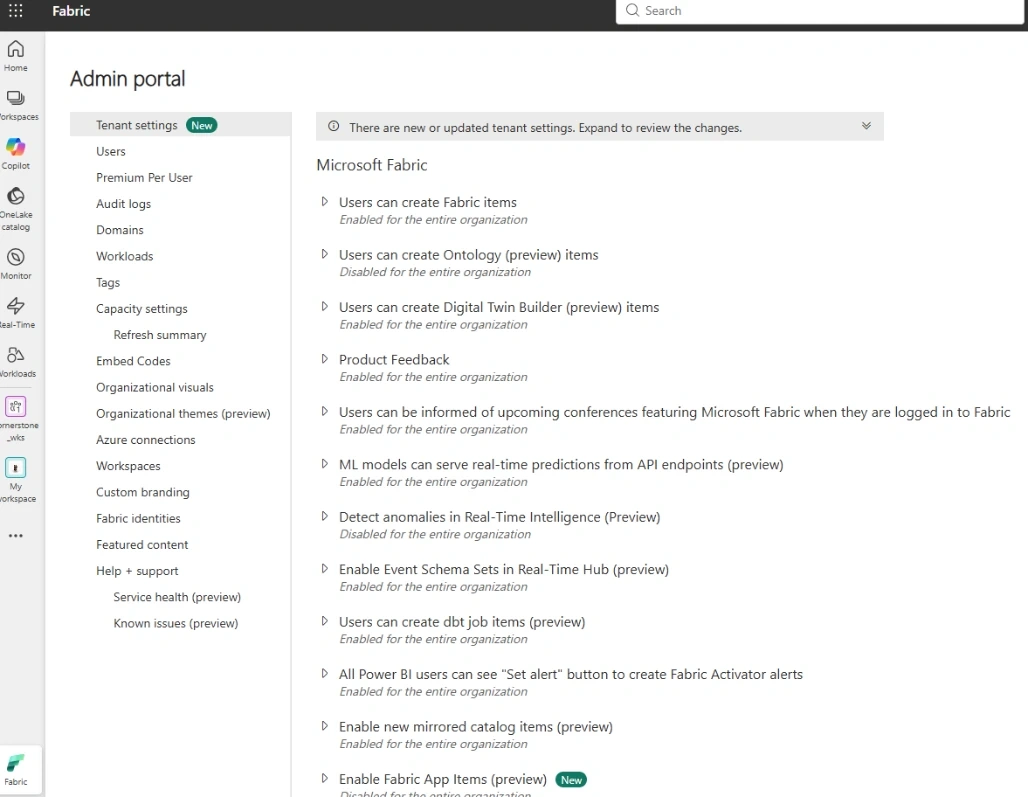
Tenant Settings
One of the most important areas of the Admin Portal is Tenant settings.
This is where administrators can control various Fabric and Power BI capabilities across the organisation.
For example, an administrator may need to decide whether users are allowed to use a particular feature, share certain content, or create specific types of Fabric resources.
Rather than simply enabling everything for everyone, administrators can often control access using different scopes.
Depending on the setting, access can be made available to:
The entire organisation
Specific security groups
Specific users or groups
No users
This gives administrators much more control over how Fabric features are introduced.
Why Tenant Settings Matter
Tenant settings are particularly important in larger organisations.
Imagine a company wants to introduce a new Fabric capability, but the data governance team wants only a small group of developers to use it initially.
Instead of enabling the feature for everyone, the administrator can configure the relevant tenant setting and restrict it to an appropriate group.
The organisation can then test the feature before making it available more widely.
This approach can help reduce unnecessary risk while still allowing teams to experiment with new Fabric capabilities.
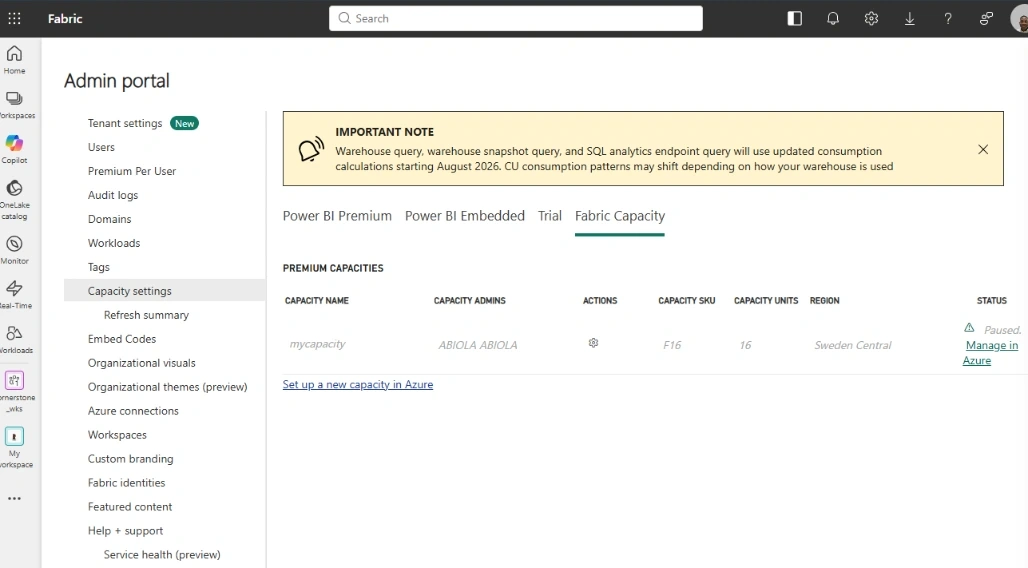
Capacity Settings
Another important part of Fabric administration is capacity management.
Fabric workloads consume capacity resources, so administrators need visibility into how those resources are being used.
Capacity administration can help organisations understand where workloads are running and how resources are being consumed.
This becomes increasingly important when a tenant contains many workspaces, users, reports, pipelines, notebooks, and other Fabric items.
Good capacity management can help identify workloads that are consuming significant resources and support better planning as the organisation grows.
Domains
Fabric also provides the concept of domains, which can be useful for organising data and analytics resources around business areas.
For example, an organisation could have domains such as:
Finance
Sales
Marketing
Human Resources
Operations
Instead of thinking about Fabric only in terms of technical workspaces, domains provide another way to organise and manage data products around business functions.
This can make it easier for users to understand where particular data assets belong.
Usage Metrics and Monitoring
Administration isn't only about changing settings.
Administrators also need to understand how Fabric is being used.
Usage and monitoring capabilities can provide insight into areas such as user activity, workloads, and resource consumption.
This information can be useful when answering questions such as:
Which Fabric features are being used?
Which workspaces are particularly active?
How is capacity being consumed?
Are there workloads that need attention?
How is Fabric adoption growing across the organisation?
Monitoring this information helps administrators make decisions based on actual usage rather than assumptions.
Governance and Security
The Admin Portal also has an important role in governance.
As more teams start using Fabric, organisations need to think carefully about who can access data and which capabilities users should have.
For example, simply giving every user access to every Fabric feature may not be appropriate for an enterprise environment.
Administrators can use tenant-level controls together with Microsoft Entra groups, workspace permissions, and other security mechanisms to create a more controlled environment.
It is important to remember that the Admin Portal is only one part of Fabric security. Workspace permissions, item permissions, OneLake security, semantic model permissions, and Microsoft Entra identity controls can also play important roles.
Admin Portal vs Workspace Settings
A common point of confusion is the difference between the Fabric Admin Portal and workspace settings.
They serve different purposes.
Admin Portal
The Admin Portal is primarily concerned with tenant-level administration and controls that can affect the wider Fabric environment.
Workspace Settings
Workspace settings are focused on a particular workspace and the resources contained within it.
For example, if I have a workspace called Sales Analytics, I can configure permissions and settings for that workspace without necessarily changing the configuration of the entire Fabric tenant.
Understanding this difference is important when troubleshooting permissions or deciding where a particular configuration should be made.
A Typical Fabric Administration Scenario
Let's say an organisation has recently adopted Microsoft Fabric.
The administrator may start by configuring tenant settings and deciding which Fabric capabilities should be available.
Next, appropriate security groups can be created in Microsoft Entra ID for different teams.
Workspaces can then be created for areas such as Sales, Marketing, and Finance, with the appropriate users assigned to each workspace.
As teams begin using Fabric, the administrator can monitor usage and capacity consumption and adjust the environment as required.
This creates a more structured approach than simply allowing everyone to create and use everything without governance.


Join the conversation! Your thoughts help the community grow.