One of the challenges organisations face when working with large amounts of data and analytics content is knowing which items they can actually trust.
Imagine an organisation with hundreds of Lakehouses, Warehouses, semantic models, reports, data pipelines and other Fabric items spread across multiple workspaces. Different teams are creating and sharing content, and employees are constantly looking for existing datasets and reports they can reuse.
But how does someone know whether a particular semantic model is an officially approved source of business data or simply something another developer created for experimentation?
This is where Item Certification in Microsoft Fabric becomes important.
Certification provides a way for organisations to identify trusted, reliable and authoritative Fabric items, making it easier for other users to discover and confidently reuse them.
Let's look at how to enable this capability and how to certify an item.
Understanding Item Certification
Item Certification is part of the endorsement capabilities available in Microsoft Fabric and Power BI.
There are three endorsement labels worth understanding:
Promoted: Indicates that an item owner considers their content valuable and ready for sharing and reuse. Users with write permissions can promote items.
Certified: Indicates that an authorised reviewer has reviewed an item and confirmed that it meets the organisation's quality standards.
Master data: Identifies data items considered authoritative sources of core organisational information, such as customer records and product codes.
The important distinction is that promotion is something item owners can do themselves, whereas certification is restricted to users authorised by the Fabric administrator.
Also, certification is not an automatic quality assessment performed by Microsoft Fabric. It is an organisational decision made by authorised reviewers.
Part 1: Enabling Item Certification in Microsoft Fabric
Before anyone can certify an item, a Fabric administrator must first enable the certification capability at the tenant level.
You cannot simply open a Lakehouse or semantic model and start applying the Certified badge if your administrator hasn't enabled it.
Here is how to configure it.
Step 1: Open the Fabric Admin Portal
Sign in to Microsoft Fabric using an account with Fabric administrator permissions.
Navigate to the settings menu and open the Admin portal.
Step 2: Navigate to Tenant Settings
Within the Admin portal, select Tenant settings.
Look for the section labelled Export and sharing settings and expand it.
Under this section, locate the Certification setting.
Step 3: Enable Certification
Switch the Certification setting to Enabled.
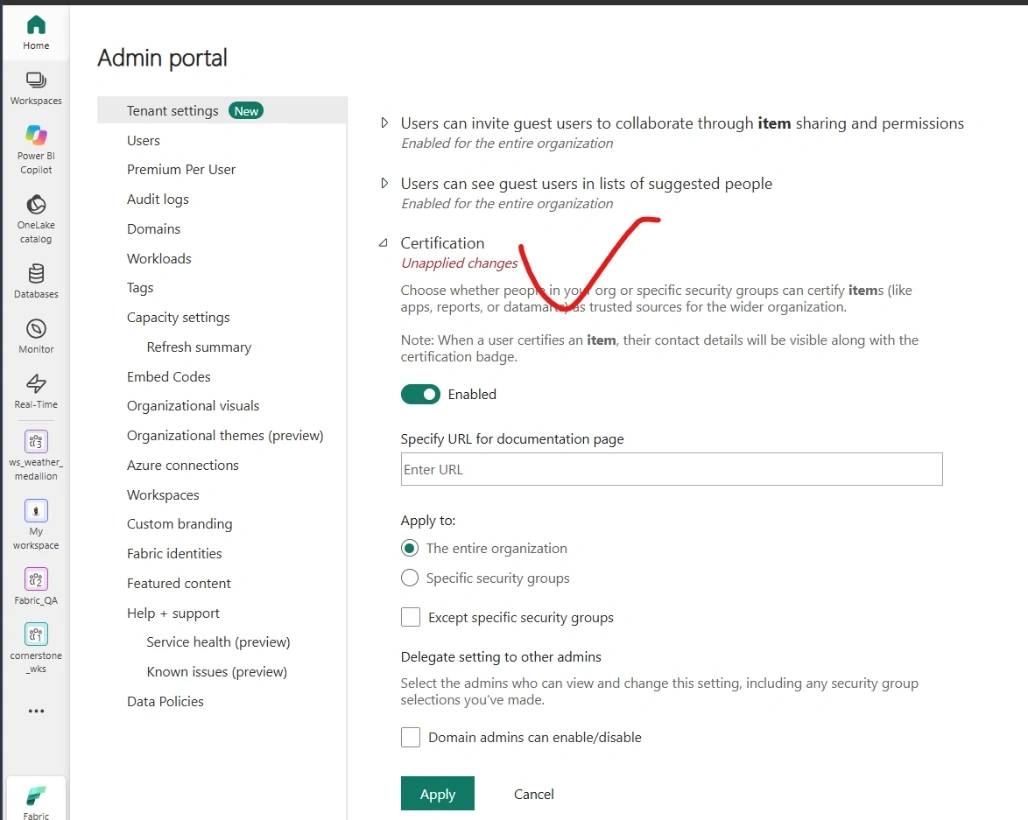
You will now see additional configuration options that determine who can certify items within your organisation.
Step 4: Specify the Certification Policy URL
Fabric allows administrators to provide a URL pointing to their organisation's certification guidelines.
For example, an organisation might have an internal SharePoint document explaining:
The quality standards an item must satisfy.
Data validation and testing requirements.
Naming conventions and documentation requirements.
Security and access-control expectations.
The process for requesting certification.
Providing this URL is useful because users who want their items certified can access the organisation's guidelines directly from the endorsement settings.
Step 5: Specify Who Can Certify Items
This is arguably the most important configuration.
Fabric allows administrators to specify the security groups whose members are authorised to certify items.
You can configure certification for:
The entire organisation: Everyone in the organisation can certify items, provided they also have write permissions on the item.
Specific security groups: Only members of selected Microsoft Entra security groups can certify items.
You can also exclude specific security groups if necessary.
My recommendation is to avoid giving certification privileges to everyone unless there is a strong organisational reason to do so.
Instead, create dedicated security groups for authorised reviewers, such as Data Governance, Data Architecture or Data Stewardship teams.
This helps maintain accountability and ensures that certification is handled by people who understand the organisation's data standards.
Once you have configured the required settings, select Apply.
Your organisation's certification capability is now enabled.
Part 2: How to Certify an Item in Microsoft Fabric
Now that certification has been enabled, let's look at how an authorised user can actually certify an item.
For this demonstration, I have a Sales semantic model in a Fabric workspace. The model has been developed, tested and reviewed, and we now want to make it an officially certified source for other teams to use.
Step 1: Navigate to the Workspace
Open the Fabric workspace containing the item you want to certify.
Locate the relevant item. This could be a Lakehouse, Warehouse, semantic model, report, notebook or another supported Fabric item.
Remember that Power BI dashboards are currently excluded from certification.
Step 2: Open the Item Settings
Locate the item and open its Settings.
Within the settings panel, expand the Endorsement section.
You should see the available endorsement options, including Promoted and Certified, depending on your permissions and tenant configuration.
Step 3: Select Certified
Select the Certified option.
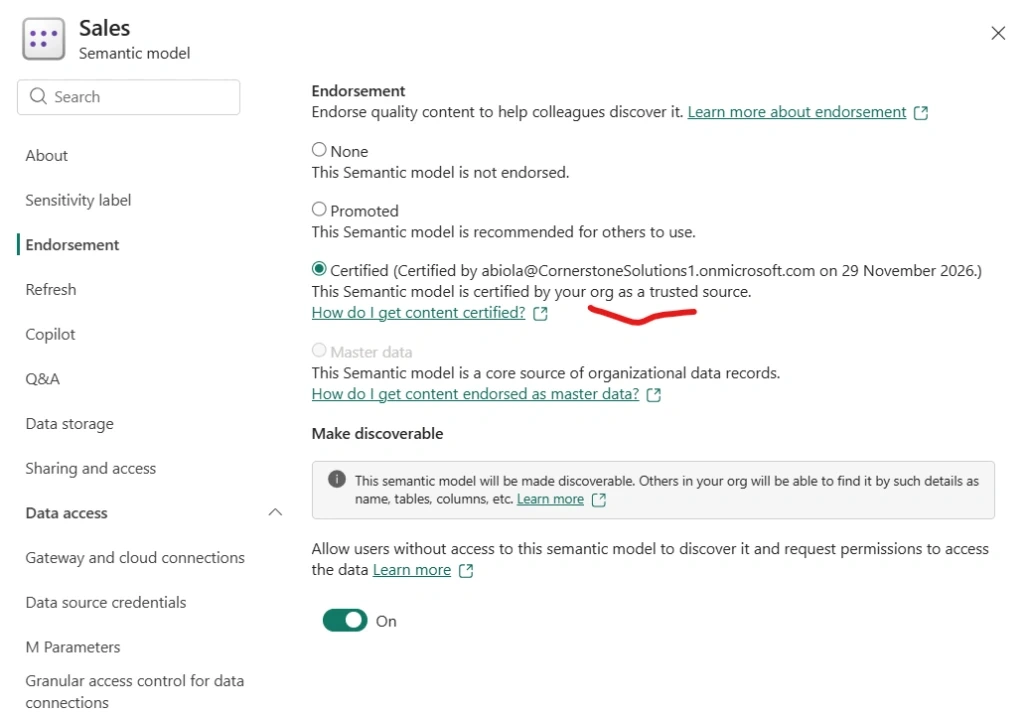
Before doing this, make sure the item has actually been reviewed and meets your organisation's certification requirements.
Certification is a significant responsibility. You are effectively telling other users that this item is reliable, authoritative and suitable for wider organisational use.
Your item now carries the Certified endorsement badge, making it easier for other users to recognise it as an organisation-approved resource.

If you are certifying a Power BI semantic model, you might also see a Make discoverable option. This relates to semantic model discovery and allows users who don't already have access to find the semantic model. It does not automatically grant them permission to use its data.
What if you are not authorised to certify an item?
This is another important scenario.
Imagine you are a Power BI developer who has built a semantic model that meets all your organisation's quality standards. However, when you navigate to the Endorsement section, the Certified option is greyed out.
This doesn't necessarily mean there is something wrong with your semantic model.
It could simply mean your account hasn't been included in the security groups authorised to certify items.
Fortunately, you can still request certification.
Open the item's settings, expand the Endorsement section and look for the How do I get content certified? link.
Selecting this link takes you to the certification guidance URL configured by your Fabric administrator.
You can then follow your organisation's process for requesting certification.
If your administrator hasn't configured a documentation URL, you will need to contact them directly.


Join the conversation! Your thoughts help the community grow.