Introduction
This article demonstrates how to add Graph API using Android Application and get an access token and call Graph API or other APIs that require access tokens from Azure Active Directory v2.
How does it work?
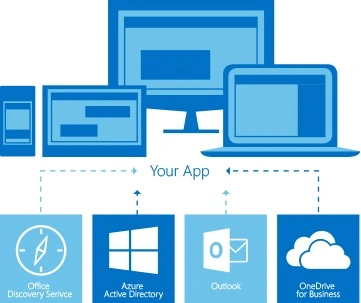
The sample created by this guide is based on a scenario where an Android application is used to query a Web API that accepts the token from Azure Active Directory v2.
Prerequisites
- This article setup is focused on Android Studio, but any other Android application development environment is also acceptable.
- Android SDK 21 or newer is required (SDK 25 is recommended).
- Google Chrome or a web browser using Custom Tabs is required for this release of the Microsoft Authentication Library (MSAL) for Android.
MSAL manages to cache and refreshing access tokens for you, so your application doesn't need to.
Step 1
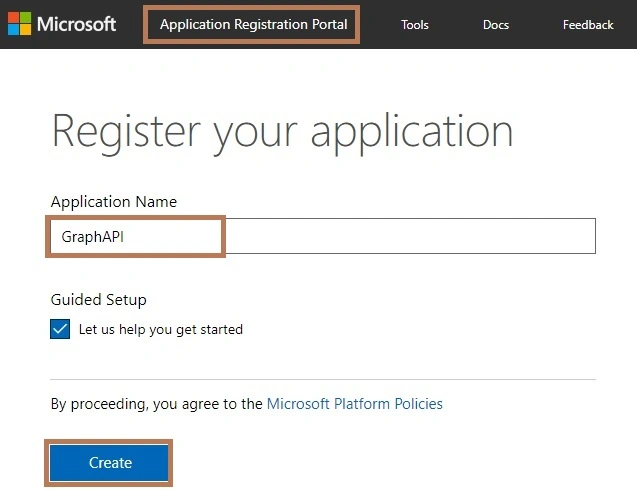
Open the browser and search for Application Registration Portal (Microsoft)
Click Here. Then, Login with your Outlook ID and give an application name followed by a click on "Create".
Step 2
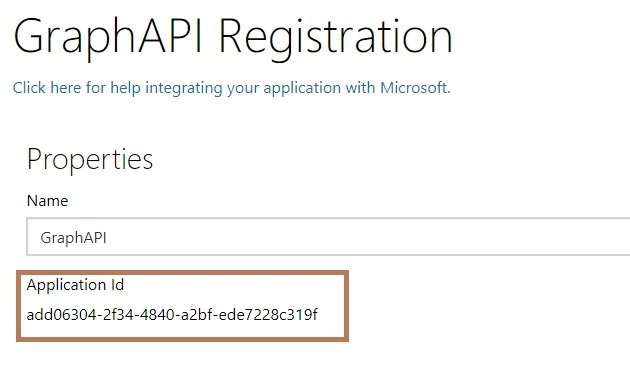
Create a new API Registration page and then copy the displayed Application ID.
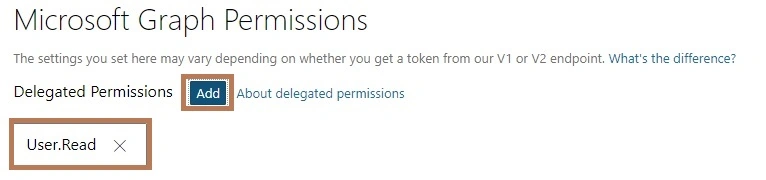
Next, give your application permissions. Click the add button. but default added User. Read option.
Step 4
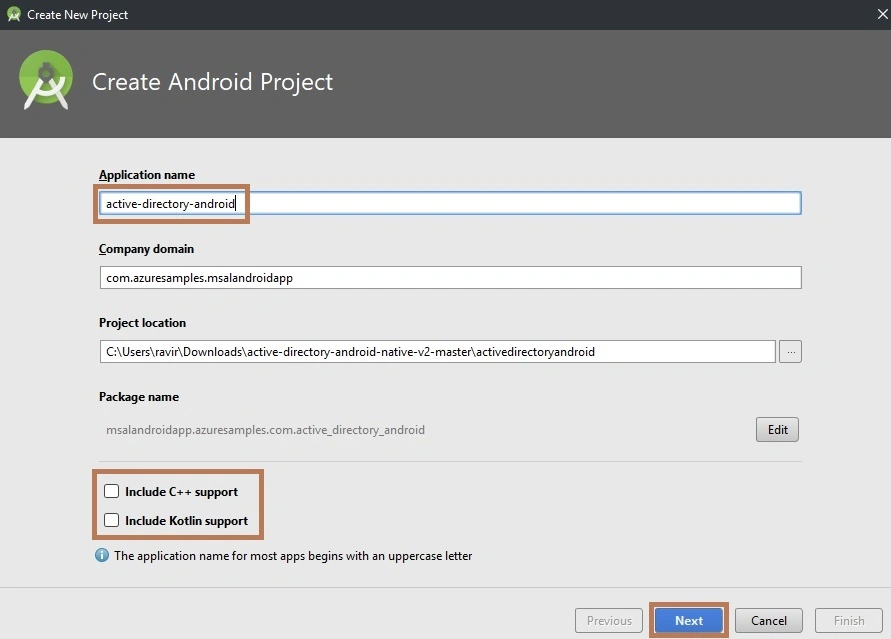
Create a new project in Android Studio. When it prompts you to select the default activity, select Empty Activity and proceed.
Step 5
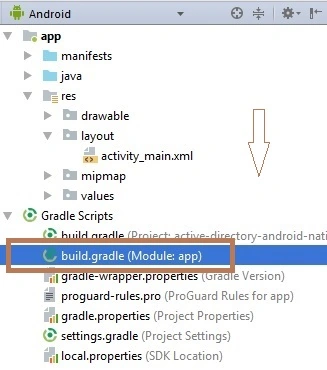
Next, go to Gradle Scripts >> build.gradle (Module: app)
Select build.gradle page. The app Gradle compile code will appear. Just replace that the following code.
dependencies
- compile 'com.android.volley:volley:1.0.0'
- compile ('com.microsoft.identity.client:msal:0.1.1') {
- exclude group: 'com.android.support', module: 'appcompat-v7' }
buildTypes
- release {
- minifyEnabled false
- proguardFiles getDefaultProguardFile('proguard-android.txt'), 'proguard-rules.pro'
- }
Step 6
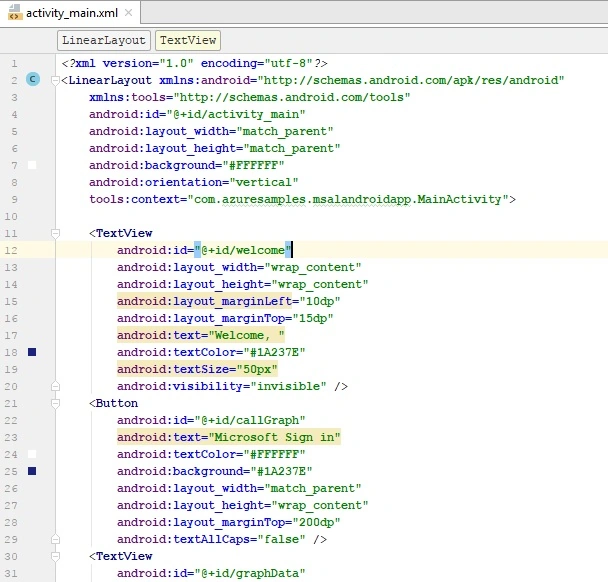
Next, go to app >> res >> layout >>activity_main.xml. Select activity_main.xml page. The xml code will appear, Just replace the following code.
Change the activity layout from
"android.support.constraint.ConstrainstLayout" or other to "LinearLayout".
Add (android:orentation="verticle") property to LinearLayout, Copy and paste the following code.
XML Code
- <?xml version="1.0" encoding="utf-8"?>
- <LinearLayout xmlns:android="http://schemas.android.com/apk/res/android"
- xmlns:tools="http://schemas.android.com/tools"
- android:id="@+id/activity_main"
- android:layout_width="match_parent"
- android:layout_height="match_parent"
- android:background="#FFFFFF"
- android:orientation="vertical"
- tools:context="com.azuresamples.msalandroidapp.MainActivity">
-
- <TextView
- android:id="@+id/welcome"
- android:layout_width="wrap_content"
- android:layout_height="wrap_content"
- android:layout_marginLeft="10dp"
- android:layout_marginTop="15dp"
- android:text="Welcome, "
- android:textColor="#1A237E"
- android:textSize="50px"
- android:visibility="invisible" />
- <Button
- android:id="@+id/callGraph"
- android:text="Microsoft Sign in"
- android:textColor="#FFFFFF"
- android:background="#1A237E"
- android:layout_width="match_parent"
- android:layout_height="wrap_content"
- android:layout_marginTop="200dp"
- android:textAllCaps="false" />
- <TextView
- android:id="@+id/graphData"
- android:layout_width="match_parent"
- android:layout_height="wrap_content"
- android:layout_marginLeft="5dp"
- android:text="Getting Graph Data..."
- android:textColor="#3f3f3f"
- android:visibility="invisible" />
- <LinearLayout
- android:layout_width="match_parent"
- android:layout_height="0dip"
- android:layout_weight="1"
- android:gravity="center|bottom"
- android:orientation="vertical" >
- <Button
- android:text="Sign Out"
- android:layout_width="match_parent"
- android:layout_height="wrap_content"
- android:layout_marginBottom="15dp"
- android:textColor="#FFFFFF"
- android:background="#00a1f1"
- android:textAllCaps="false"
- android:id="@+id/clearCache"
- android:visibility="invisible" />
- </LinearLayout>
-
- </LinearLayout>
Step 7
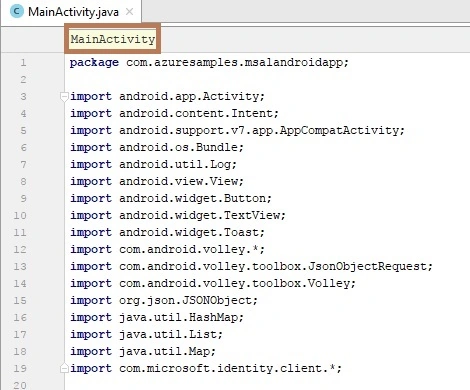
- Next, go to app >> java >> (company domain name) >> MainActivity. Select MainActivity page, The java code will appear.
- Add the following imports
Imports Code
- import android.app.Activity;
- import android.content.Intent;
- import android.support.v7.app.AppCompatActivity;
- import android.os.Bundle;
- import android.util.Log;
- import android.view.View;
- import android.widget.Button;
- import android.widget.TextView;
- import android.widget.Toast;
- import com.android.volley.*;
- import com.android.volley.toolbox.JsonObjectRequest;
- import com.android.volley.toolbox.Volley;
- import org.json.JSONObject;
- import java.util.HashMap;
- import java.util.List;
- import java.util.Map;
- import com.microsoft.identity.client.*;
Replace the MainActivity class with below
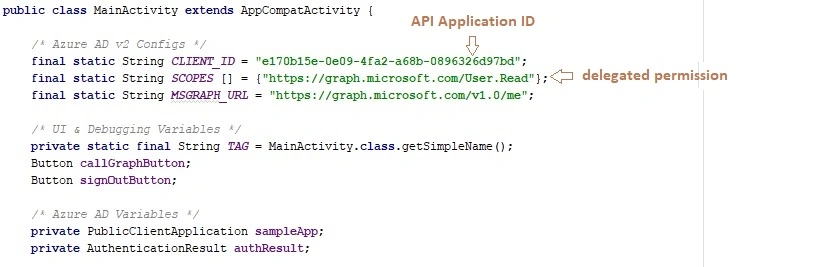
First the Registration Application ID.
- final static String CLIENT_ID = "[Enter the application Id here]";
Access the user read permission
Java Code
- public class MainActivity extends AppCompatActivity {
-
-
- final static String CLIENT_ID = "Enter the Application Client ID";
- final static String SCOPES [] = {"https://graph.microsoft.com/User.Read"};
- final static String MSGRAPH_URL = "https://graph.microsoft.com/v1.0/me";
-
-
- private static final String TAG = MainActivity.class.getSimpleName();
- Button callGraphButton;
- Button signOutButton;
-
-
- private PublicClientApplication sampleApp;
- private AuthenticationResult authResult;
-
- @Override
- protected void onCreate(Bundle savedInstanceState) {
- super.onCreate(savedInstanceState);
- setContentView(R.layout.activity_main);
-
- callGraphButton = (Button) findViewById(R.id.callGraph);
- signOutButton = (Button) findViewById(R.id.clearCache);
-
- callGraphButton.setOnClickListener(new View.OnClickListener() {
- public void onClick(View v) {
- onCallGraphClicked();
- }
- });
-
- signOutButton.setOnClickListener(new View.OnClickListener() {
- public void onClick(View v) {
- onSignOutClicked();
- }
- });
-
-
- sampleApp = null;
- if (sampleApp == null) {
- sampleApp = new PublicClientApplication(
- this.getApplicationContext(),
- CLIENT_ID);
- }
-
-
- List<User> users = null;
-
- try {
- users = sampleApp.getUsers();
-
- if (users != null && users.size() == 1) {
-
-
- sampleApp.acquireTokenSilentAsync(SCOPES, users.get(0), getAuthSilentCallback());
-
- } else {
-
- }
- } catch (MsalClientException e) {
- Log.d(TAG, "MSAL Exception Generated while getting users: " + e.toString());
-
- } catch (IndexOutOfBoundsException e) {
- Log.d(TAG, "User at this position does not exist: " + e.toString());
- }
-
- }
-
-
- @Override
- protected void onActivityResult(int requestCode, int resultCode, Intent data) {
- sampleApp.handleInteractiveRequestRedirect(requestCode, resultCode, data);
- }
-
-
- private void onCallGraphClicked() {
- sampleApp.acquireToken(getActivity(), SCOPES, getAuthInteractiveCallback());
-
- }
Setup Sign-out Process
Add the following method into the
MainActivity class
-
-
- private void onSignOutClicked() {
-
-
- List<User> users = null;
-
- try {
- users = sampleApp.getUsers();
-
- if (users == null) {
-
-
- } else if (users.size() == 1) {
-
- sampleApp.remove(users.get(0));
- updateSignedOutUI();
-
- }
- else {
-
- for (int i = 0; i < users.size(); i++) {
- sampleApp.remove(users.get(i));
- }
- }
-
- Toast.makeText(getBaseContext(), "Signed Out!", Toast.LENGTH_SHORT)
- .show();
-
- } catch (MsalClientException e) {
- Log.d(TAG, "MSAL Exception Generated while getting users: " + e.toString());
-
- } catch (IndexOutOfBoundsException e) {
- Log.d(TAG, "User at this position does not exist: " + e.toString());
- }
- }
Call the Microsoft Graph API using the token you just obtained
Add the following methods into the
MainActivity class
- private void callGraphAPI() {
- Log.d(TAG, "Starting volley request to graph");
-
-
- if (authResult.getAccessToken() == null) {return;}
-
- RequestQueue queue = Volley.newRequestQueue(this);
- JSONObject parameters = new JSONObject();
-
- try {
- parameters.put("key", "value");
- } catch (Exception e) {
- Log.d(TAG, "Failed to put parameters: " + e.toString());
- }
- JsonObjectRequest request = new JsonObjectRequest(Request.Method.GET, MSGRAPH_URL,
- parameters,new Response.Listener<JSONObject>() {
- @Override
- public void onResponse(JSONObject response) {
-
- Log.d(TAG, "Response: " + response.toString());
-
- updateGraphUI(response);
- }
- }, new Response.ErrorListener() {
- @Override
- public void onErrorResponse(VolleyError error) {
- Log.d(TAG, "Error: " + error.toString());
- }
- }) {
- @Override
- public Map<String, String> getHeaders() throws AuthFailureError {
- Map<String, String> headers = new HashMap<>();
- headers.put("Authorization", "Bearer " + authResult.getAccessToken());
- return headers;
- }
- };
-
- Log.d(TAG, "Adding HTTP GET to Queue, Request: " + request.toString());
-
- request.setRetryPolicy(new DefaultRetryPolicy(
- 3000,
- DefaultRetryPolicy.DEFAULT_MAX_RETRIES,
- DefaultRetryPolicy.DEFAULT_BACKOFF_MULT));
- queue.add(request);
- }
-
-
- private void updateGraphUI(JSONObject graphResponse) {
- TextView graphText = (TextView) findViewById(R.id.graphData);
- graphText.setText(graphResponse.toString());
- }
-
-
- private void updateSuccessUI() {
- callGraphButton.setVisibility(View.INVISIBLE);
- signOutButton.setVisibility(View.VISIBLE);
- findViewById(R.id.welcome).setVisibility(View.VISIBLE);
- ((TextView) findViewById(R.id.welcome)).setText("Welcome, " +
- authResult.getUser().getName());
- findViewById(R.id.graphData).setVisibility(View.VISIBLE);
- }
-
-
- private void updateSignedOutUI() {
- callGraphButton.setVisibility(View.VISIBLE);
- signOutButton.setVisibility(View.INVISIBLE);
- findViewById(R.id.welcome).setVisibility(View.INVISIBLE);
- findViewById(R.id.graphData).setVisibility(View.INVISIBLE);
- ((TextView) findViewById(R.id.graphData)).setText("No Data");
- }
-
-
-
- public Activity getActivity() {
- return this;
- }
-
-
- private AuthenticationCallback getAuthSilentCallback() {
- return new AuthenticationCallback() {
- @Override
- public void onSuccess(AuthenticationResult authenticationResult) {
-
- Log.d(TAG, "Successfully authenticated");
-
-
- authResult = authenticationResult;
-
-
- callGraphAPI();
-
-
- updateSuccessUI();
- }
-
- @Override
- public void onError(MsalException exception) {
-
- Log.d(TAG, "Authentication failed: " + exception.toString());
-
- if (exception instanceof MsalClientException) {
-
- } else if (exception instanceof MsalServiceException) {
-
- } else if (exception instanceof MsalUiRequiredException) {
-
- }
- }
-
- @Override
- public void onCancel() {
-
- Log.d(TAG, "User cancelled login.");
- }
- };
- }
-
-
- private AuthenticationCallback getAuthInteractiveCallback() {
- return new AuthenticationCallback() {
- @Override
- public void onSuccess(AuthenticationResult authenticationResult) {
-
- Log.d(TAG, "Successfully authenticated");
- Log.d(TAG, "ID Token: " + authenticationResult.getIdToken());
- authResult = authenticationResult;
- callGraphAPI();
- updateSuccessUI();
- }
-
- @Override
- public void onError(MsalException exception) {
-
- Log.d(TAG, "Authentication failed: " + exception.toString());
-
- if (exception instanceof MsalClientException) {
-
- } else if (exception instanceof MsalServiceException) {
-
- }
- }
-
- @Override
- public void onCancel() {
-
- Log.d(TAG, "User cancelled login.");
- }
- };
- }
- }
Step 8
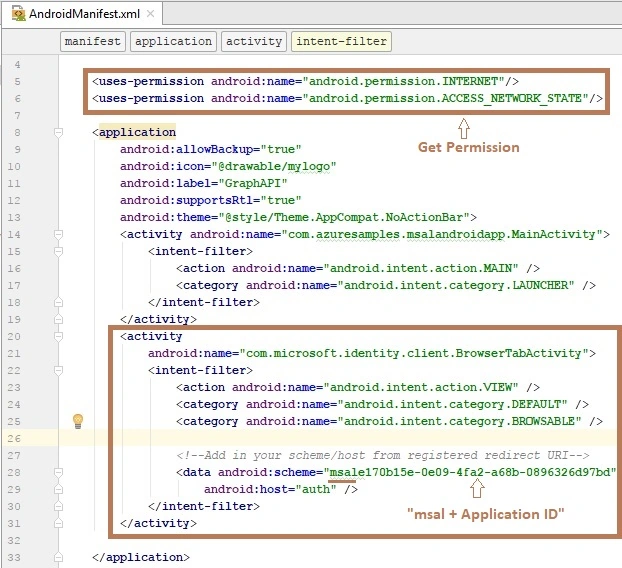
Next, go to app >> manifests >> AndroidMainfest.xml. Select the AndroidMainfest page, The xml code will appear. Just replace the following code.
Just Enable INTERNET and ACCESS_NETWORK_STATE.
- <uses-permission android:name="android.permission.INTERNET"/>
- <uses-permission android:name="android.permission.ACCESS_NETWORK_STATE"/>
This registers a BrowserTabActivity to allow the OS to resume your application after completing the authentication.
- <activity
- android:name="com.microsoft.identity.client.BrowserTabActivity">
- <intent-filter>
- <action android:name="android.intent.action.VIEW" />
- <category android:name="android.intent.category.DEFAULT" />
- <category android:name="android.intent.category.BROWSABLE" />
-
-
- <data android:scheme="msale170b15e-0e09-4fa2-a68b-0896326d97bd"
- android:host="auth" />
- </intent-filter>
- </activity>
Step 9
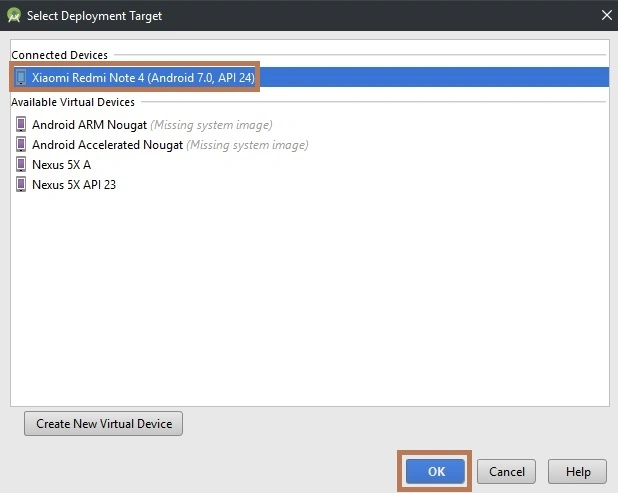
Next, go to Android Studio and Deploy the application. Select deployment target.
OUTPUT

Run the application in your desired emulator (Shift + F10).
Finally, we have successfully created MGraph API using the Android application


DELCIL MARTINEZPosted May 26, 2023, 4:17 AM
How could you do so that the code passes as a parameter the user and password (mail and password) so that there is no user intervention during login. I could show an example. Thank you.
Ankur SohalPosted Dec 8, 2017, 1:52 AM
Nice , and easy way to use it....