

Introduction
In this article, I will try to share my experience of moving from SQL Server to SQL Azure for the first time. This is my first article on migrating the SQL Server database to Azure SQL Server. The Import and Export Wizard is a simple way to copy data using bacpac file.
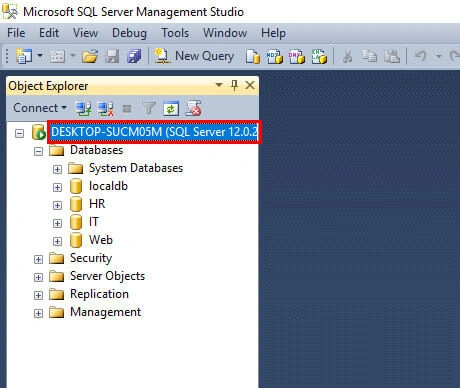
Export to bacpac file in SQL Server Management Studio (SSMS)- Open and connect database file in SQL Server Management Studio (SSMS).
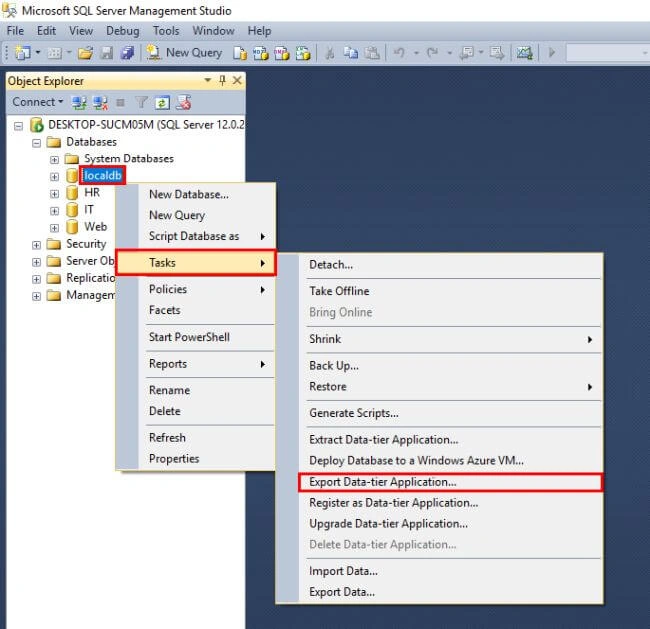
- To export a database file, right click on the name of the database. In the context menu, select Tasks > Export Data-tier Application.
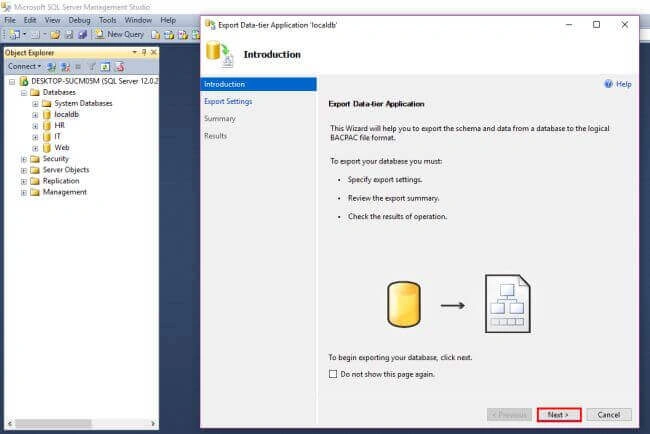
- The option will open the wizard. Click Next> Introduction page and go to the Export Settings.
- Export Settings are requested to the location to save the bacpac file.
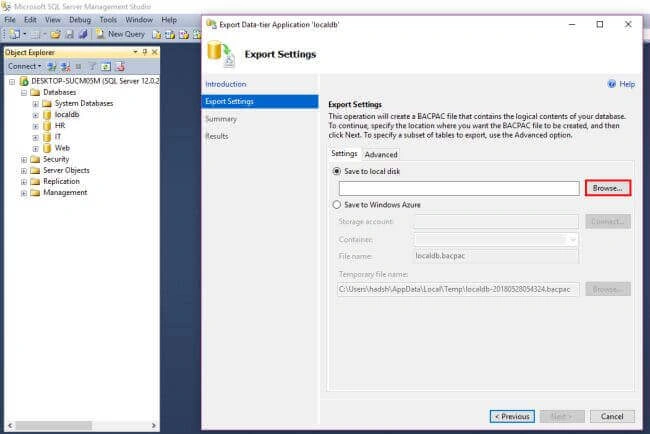
- You can save it to the local disk or Azure Storage account. Since you don't have an Azure Storage account, you'll save the bacpac file and file name to the local disk.
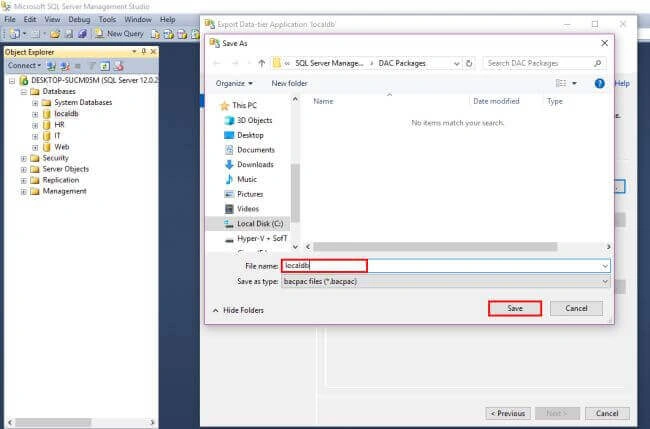
- If you want to migrate a full database, select all the objects. After the location is selected, click Next.
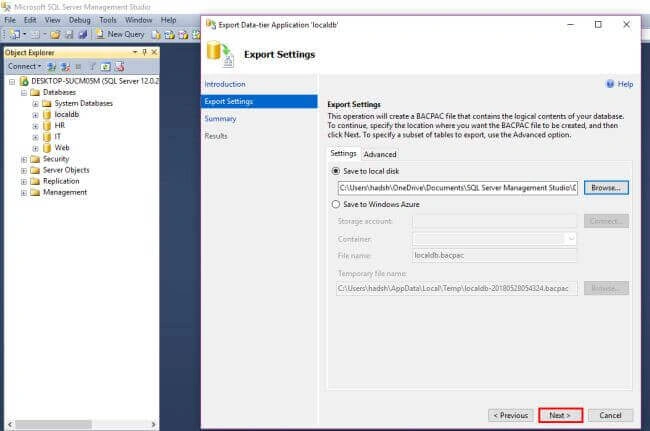
- The current Summary page looks like below. You can verify and confirm the Settings here. After all information is verified, click Finish.
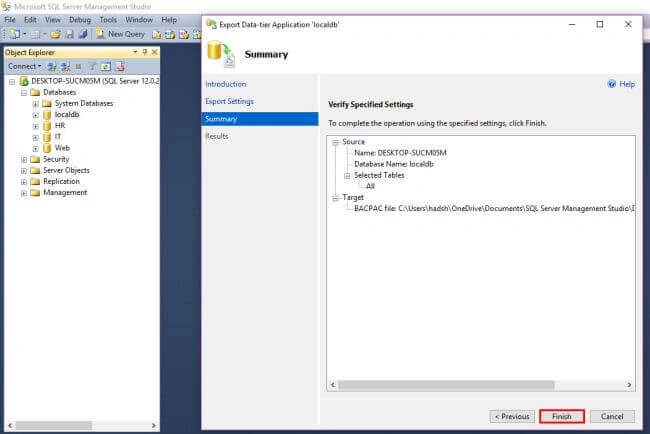
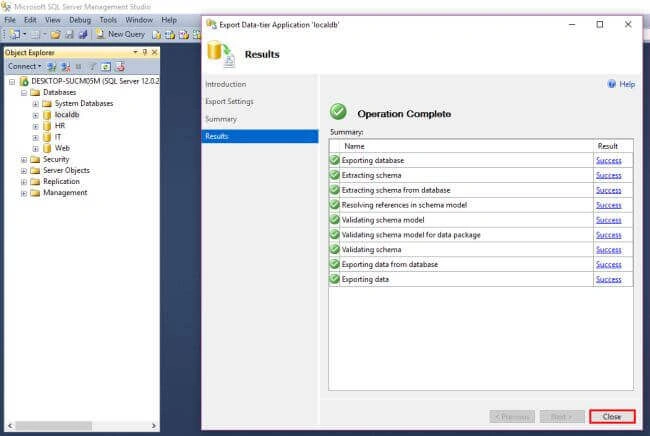
- It starts the exporting now. Click the Close button to exit the bacpac Export wizard.
Import a bacpac file to Azure SQL
- To create an (Create a SQL database Azure) SQL Azure database form a bacpac file in SSMS, connect to the SQL Azure Server.
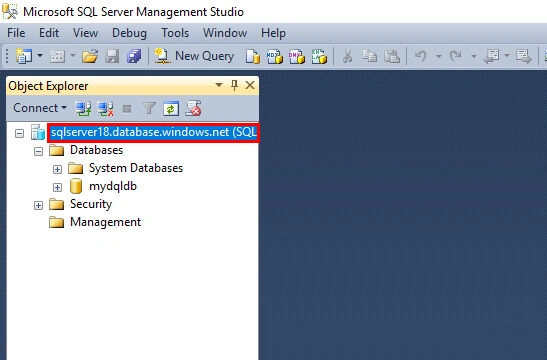
- After you connect, go to Object Explorer pane, right click the database, and select Import Data-tier.
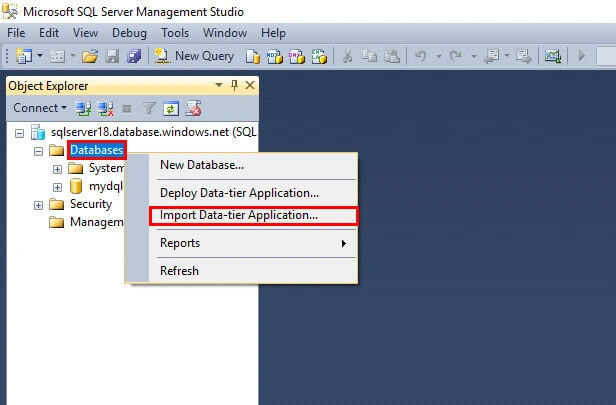
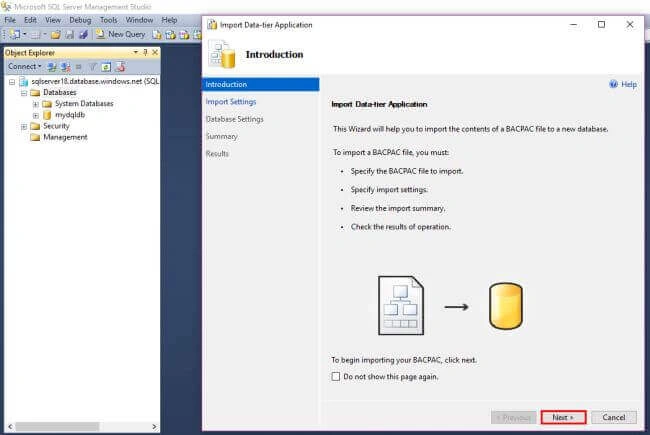
- The option will open the wizard. Click Next> Introduction page and go to the Import Settings.
- The Import settings are requested to the bacpac file to import.
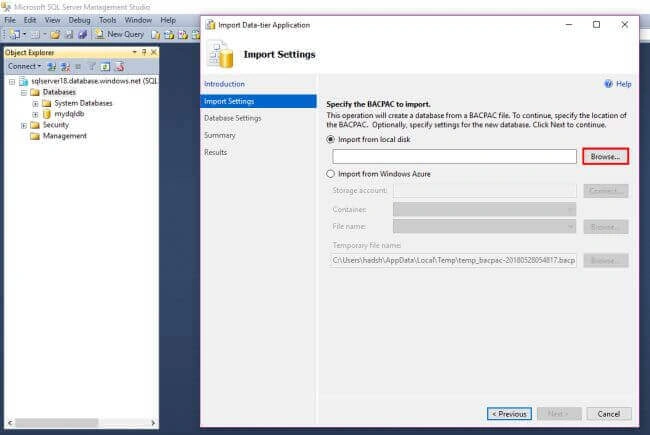
- You have exported the bacpac file to your local disk., Now, let's import it.
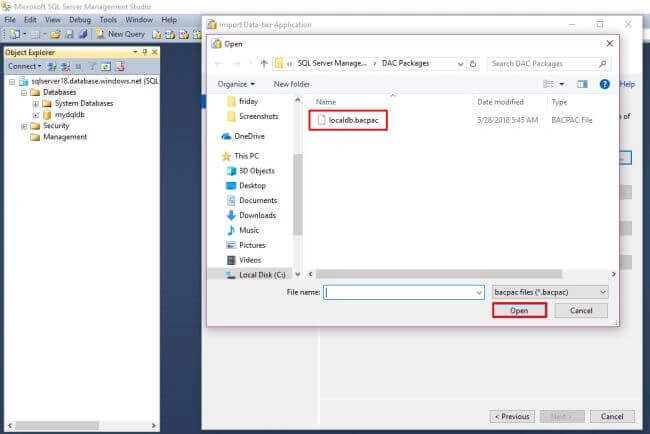
- After this, click Next button.
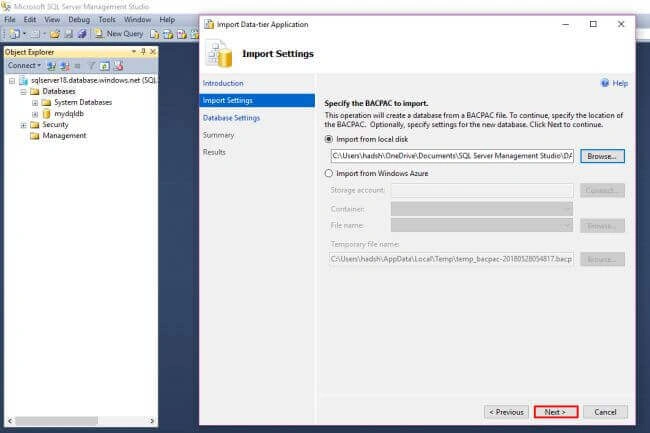
- You have exported the bacpac file to your local disk., Now, let's import it.
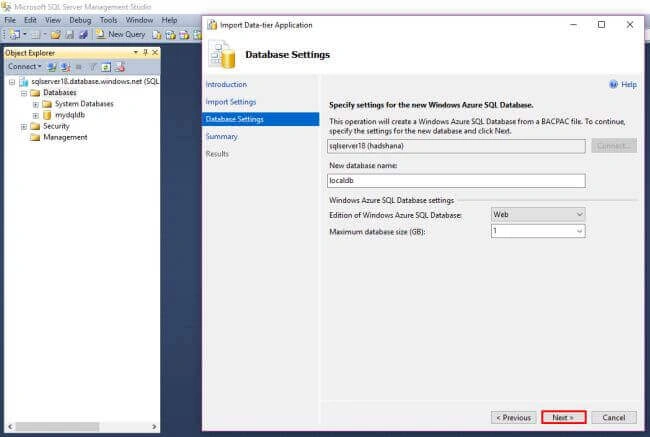
- The Database Settings page requests rhat you configure the new Azure SQL database by providing the new database name and maximum database size. Click Next.
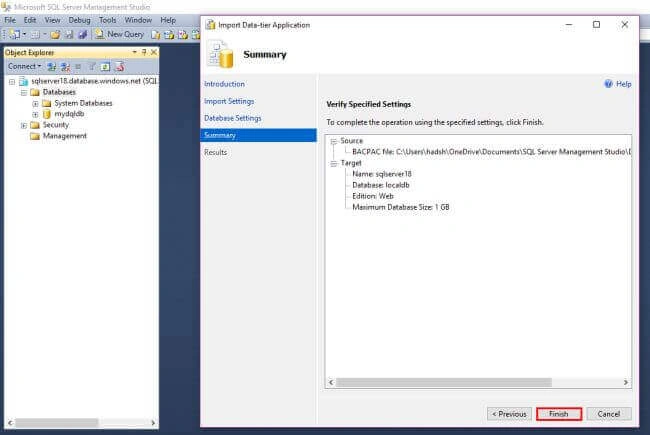
- The Summary page confirms the correct information. Click the Finish button to the start the Import action.
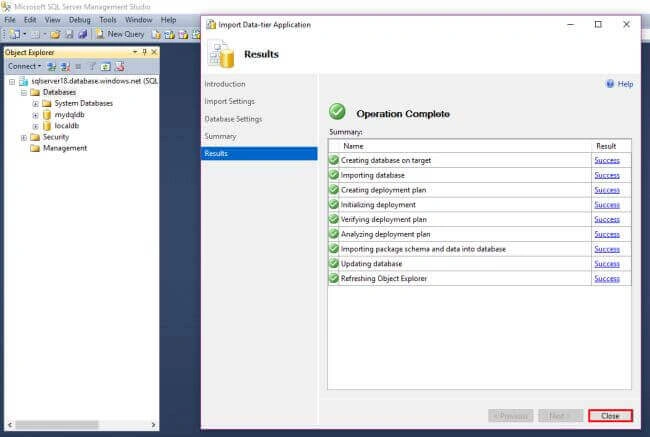
- Successful Import looks like below. Click the Close button to exit the bacpac Import wizard.
Validate Azure SQL
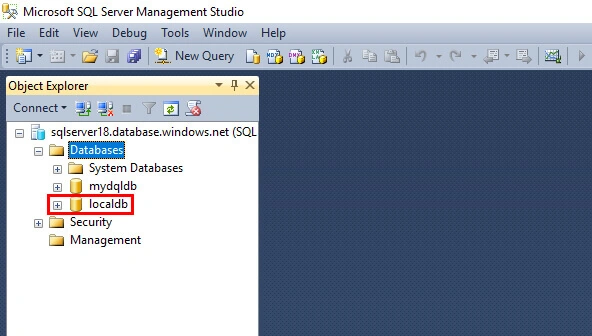
- You can confirm that a new database has been created in the Azure SQL Server.
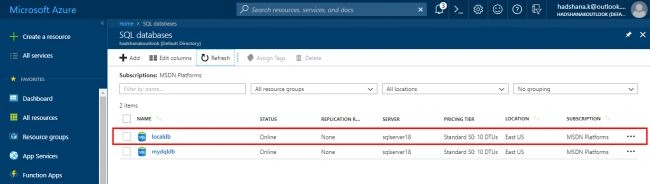
- And visit the Microsoft Azure portal to check in the respective Azure SQL Server.
Prasan KarunarathnaPosted Jun 29, 2019, 5:53 AM
Very useful article, explain the steps in a very simple way, Keep it up !!!
Sana KamalPosted Jun 21, 2019, 10:12 PM
Nice Article.
hardik gheewalaPosted May 31, 2019, 5:32 AM
Thank you Hadshana. It really help me to import DB to azure. Very easy to import DB
Rahul PalPosted Nov 13, 2018, 12:55 AM
Nice article
Karthikeyan SekarPosted Oct 19, 2018, 1:44 PM
Nice one, easy to understand. Thanks for sharing.
Prabu ElavarasanPosted Aug 29, 2018, 6:49 AM
What kind of errors, something like Out of Memory? Please post the error message if possible.
JosephsPosted Aug 29, 2018, 4:11 AM
When i export Data-tier schema and tables error come
SubashPosted Aug 9, 2018, 8:03 PM
Nice Hadshana which version of mssql you used? MSSQL 2012 or 2016?
Rameshkumar AngaPosted Jul 25, 2018, 3:13 PM
Good job.....
Farhan AhmedPosted Jul 24, 2018, 12:48 AM
Nice.......
Sreekanth VangaraPosted Jul 19, 2018, 12:38 AM
Nice article, keep sharing.
Jayakumar BalasubramaniamPosted Jul 18, 2018, 7:22 PM
Good one..
Kapil Singh KumawatPosted Jul 17, 2018, 1:47 AM
Nice article
Ramesh PalanivelPosted Jul 16, 2018, 12:56 AM
Nice One and contents are articulated well.
Viknaraj ManogararajahPosted Jul 12, 2018, 7:08 PM
really superb article, simply explain keep sharing more article..
Prabu ElavarasanPosted Jul 5, 2018, 10:14 AM
In that link having both approaches, the one you've explained and the other deployment methodology as well.
Prabu ElavarasanPosted Jul 5, 2018, 10:13 AM
However, there is an quicker way to migrate the SQL DBs into Azure via SSMS any latest versions. There is a straight forward action in SSMS to Deploy the DB into Azure. Please take a look over here : https://www.mssqltips.com/sqlservertip/5255/learn-how-to-migrate-a-sql-server-database-to-sql-azure-server/
Prabu ElavarasanPosted Jul 5, 2018, 10:11 AM
Hello Hadshana - Appreciate your hard work to create this article.