

Overview
This document describes how to migrate a SQL database from an on-premises SQL Server (SQL IaaS) to Azure SQL using the Microsoft DMA utility (Data Migration Assistant). There are other ways to do this, but this is the preferred approach.
Data Migration Assistant
The Data Migration Assistant (DMA) assists you in upgrading to a modern data platform by detecting database compatibility issues in your new version of SQL Server or Azure SQL Database. DMA suggests speed and reliability enhancements for your target environment and enables you to migrate your schema, data, and uncontained objects from your source server to your target server.
Get Data Migration Assistant
To install DMA, download the latest version of the tool from the Microsoft Download Center, and then run the DataMigrationAssistant.msi file.
Supported source and target versions
DMA is the successor of SQL Server Upgrade Advisor, and it should be used to upgrade most SQL Server versions. The following source and target versions are supported:
Sources
- SQL Server 2005 (deprecated)
- SQL Server 2008
- SQL Server 2008 R2
- SQL Server 2012
- SQL Server 2014
- SQL Server 2016
- SQL Server 2017
- SQL Server 2019
- Amazon RDS for SQL Server
Targets
- SQL Server 2012
- SQL Server 2014
- SQL Server 2016
- SQL Server 2017 on Windows and Linux
- SQL Server 2019
- Azure SQL Database single database
- Azure SQL Managed Instance
- SQL Server running on an Azure Virtual Machine
Pre-requisites
In order to do this, you need the following:
- DMA installed and running on the SQL IaaS server (Source SQL Server).
- A destination database in Azure SQL
- Credentials and the full server name for the Azure SQL database
- The expected size for the Azure SQL database (would be the DTU count)
STEPS
Step 1
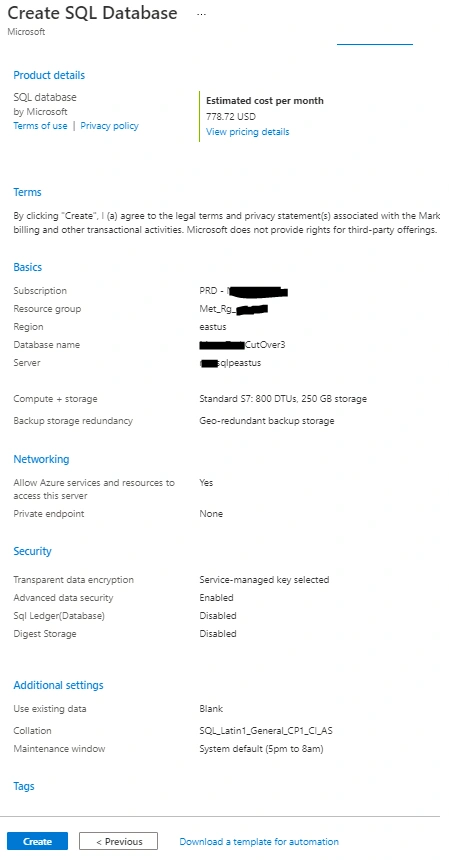
Create the new database in Azure SQL – do NOT use an existing database as the presence of data will cause issues.
- In https://portal.azure.com go to SQL Databases (using the search box at the top) and click Create

- Select the appropriate Subscription and Resource Groups
- Enter the name for the database and select a server the DB will be hosted on
- Leave Use elastic pool set to no (is default)
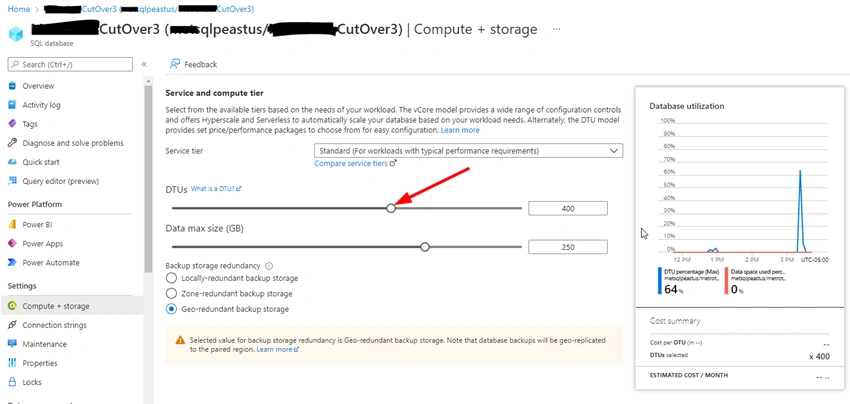
- Click Configure database in the Compute Storage section and in the Service, Tier drop down box, select DTU based model -> Standard and pick a size – should be S7 to allow the process to complete faster
- Leave backup setting default – geo-redundant backup
- Click Review + create
- Validate all info is correct and click Create
Step 2
Once the DB provisioning is complete you will see the following:
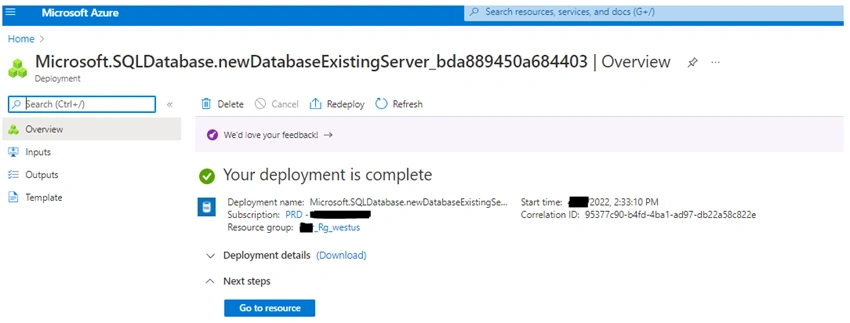
*** Now that the DB has been created, we can start the migration from SQL IaaS to Azure SQL using DMA ***
Step 3
On the server that is running the SQL IaaS database, install DMA if it has not already been installed
Step 4
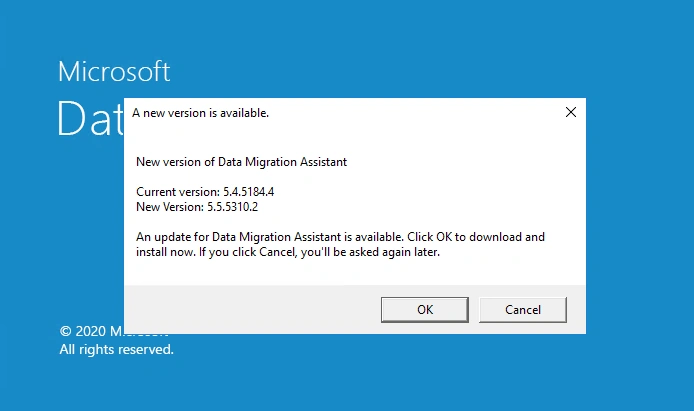
Open DMA from the Windows Start Menu – when prompted select Cancel on the New Version is Available screen
Step 5
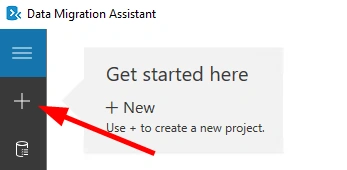
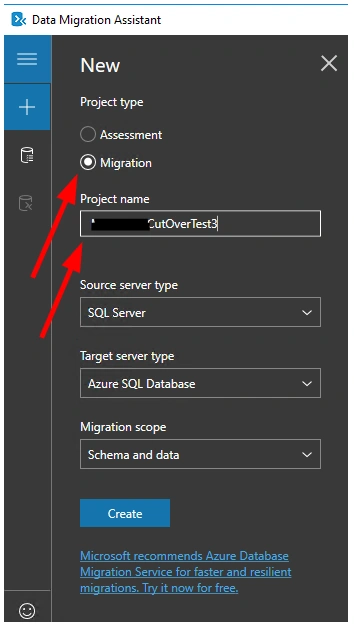
Click + to create a new Migration
Step 6
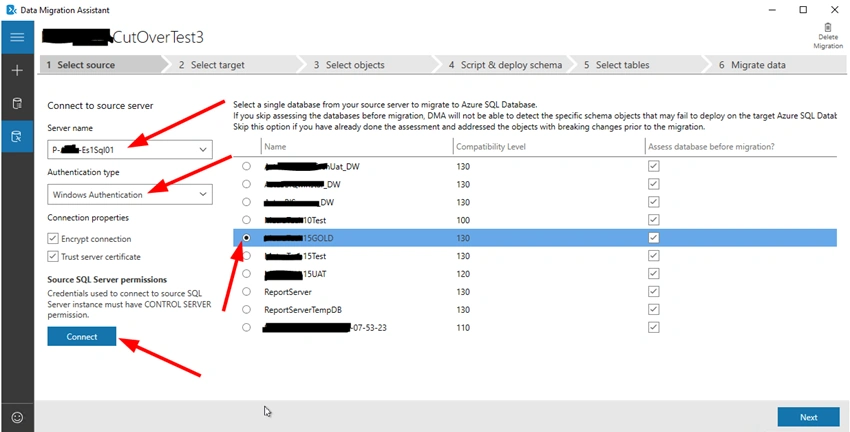
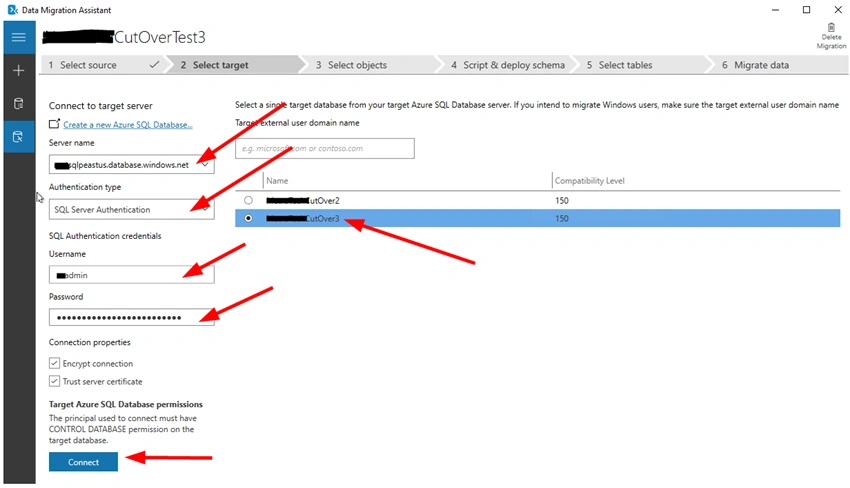
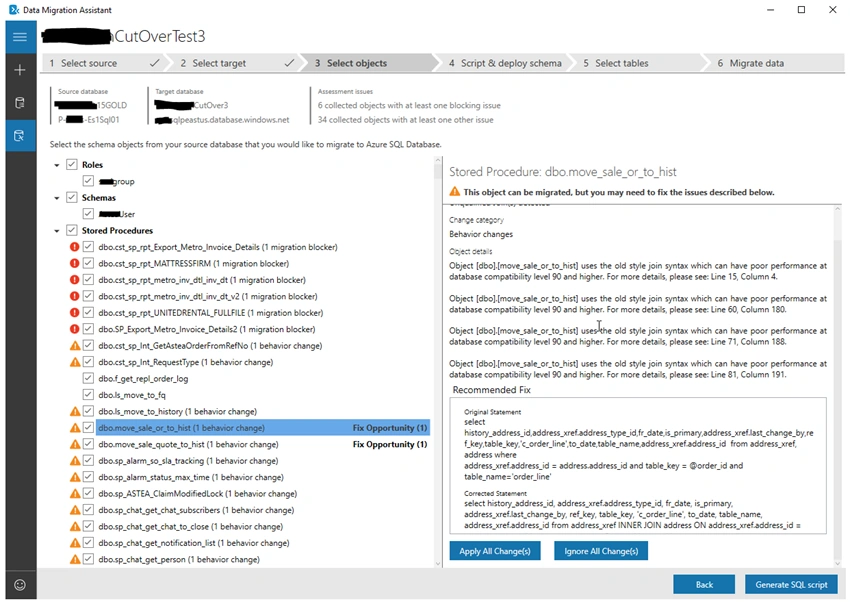
Select Migration and give it a Project Name, leave the other options default and click Create.


Join the conversation! Your thoughts help the community grow.