

Introduction
With InfoPath officially deprecated, organizations using SharePoint must shift to modern alternatives for form customization. Power Apps offers a powerful, low-code solution to build responsive, mobile-ready forms that integrate directly with SharePoint. This article provides a practical guide to migrating InfoPath forms to Power Apps, covering key steps, challenges, and best practices. Whether your form is simple or complex, this guide will help you modernize efficiently.
How to Open and Customize a SharePoint List Form in Power Apps
Step 1: Go to Your SharePoint List
Open the SharePoint site where your list is located.
Click on the list you want to customize.
From the top menu, select Integrate → Power Apps → Customize forms.

Step 1.1: (Alternative) Open the Form via List Settings
If the Integrate option is not visible, you can open the form through list settings:
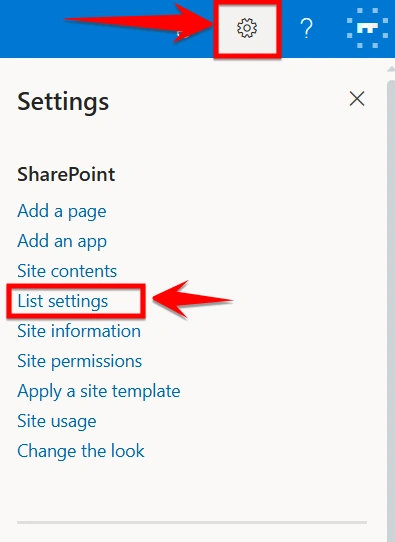
In your SharePoint list, click on the Settings (gear icon) in the top-right corner.
Choose List settings.
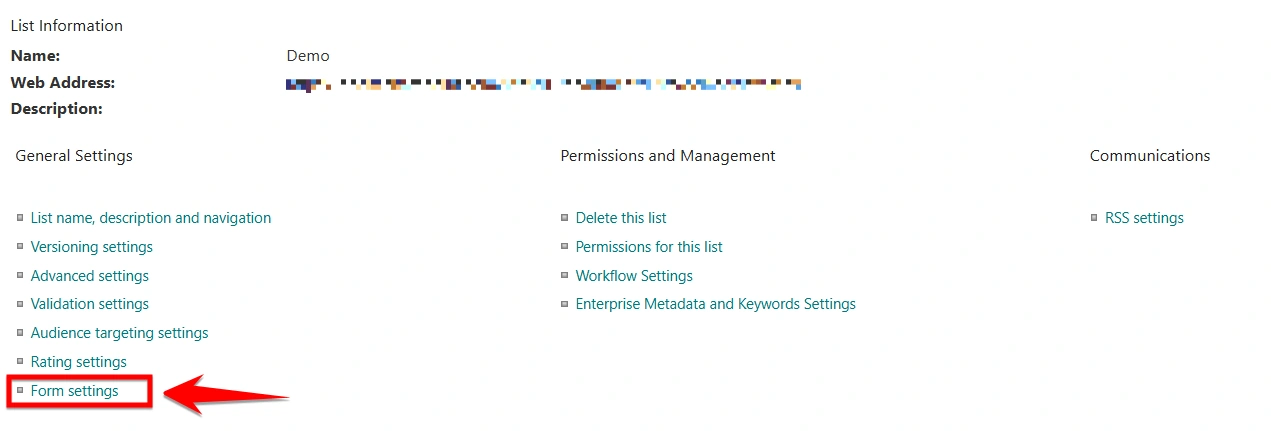
Scroll down and select Form settings.
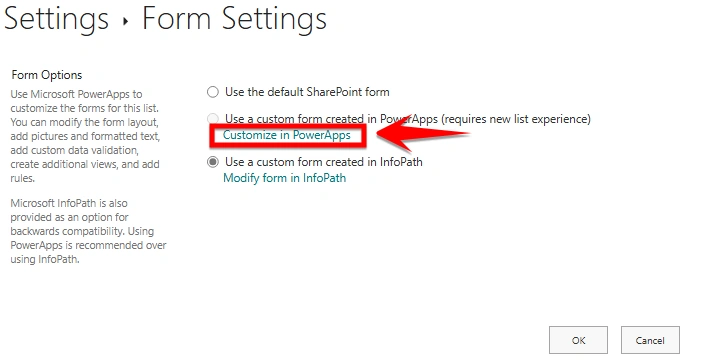
Under “Use a custom form created in Power Apps,” click on Modify in Power Apps.
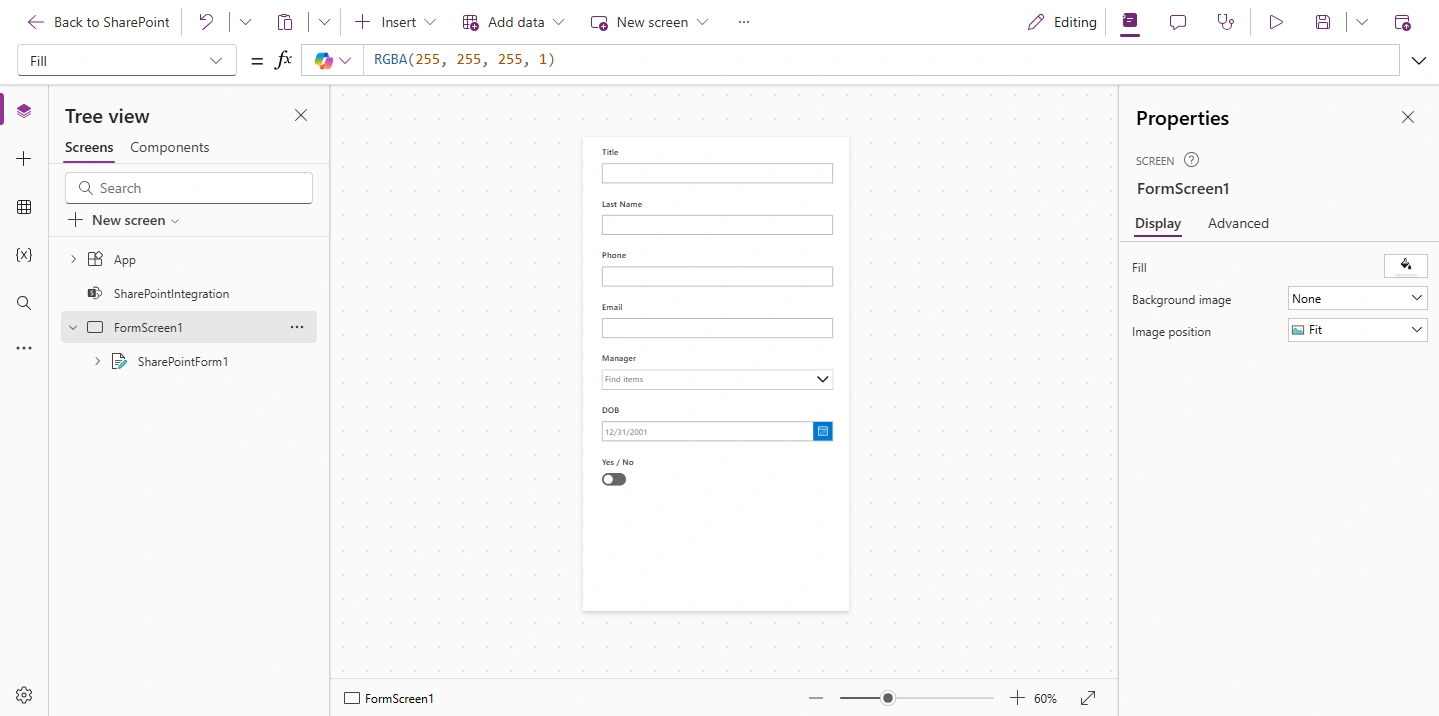
Power Apps Studio will open in a new tab.
Step 2: Power Apps Studio Will Open in the Browser
After clicking "Customize forms," Power Apps Studio will open in a new browser tab.
You will see a pre-built form screen:
The form is already connected to your SharePoint list.
The fields (DataCards) are auto-generated based on the list columns.
The screen name is usually called FormScreen1.
Step 3: Customize the Form Layout
Now you can start modifying the form:
Rearrange fields: Drag and drop DataCards to reorder them.
Hide/show fields: Select a DataCard and set Visible to false if not needed.
Change control types: E.g., replace a text box with a dropdown or date picker.
Add custom logic using Power Fx:
Example: Visible = User().Email = "[email protected]"
Add new controls like labels, buttons, or icons using the Insert panel.
Step 4: Save and Publish the Form
Once customization is complete:
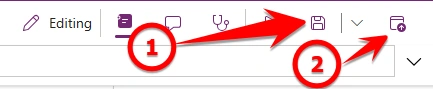
Click File → Save.
Then click Publish to SharePoint.
You’ll see a message: "The form was published to SharePoint successfully."
Step 5: Test the Form in SharePoint
Go back to your SharePoint list:
Click New to open the custom Power Apps form.
Click on any list item and choose Edit or View — you'll see your customized form.
You can go back to Power Apps to make updates any time via:
List settings → Integrate → Power Apps → Customize forms
Conclusion
Moving from InfoPath to Power Apps is a smart way to keep your SharePoint forms up to date. Power Apps makes it easy to build and customize forms with a modern look that works well on any device. By following the steps in this guide, you can quickly create better forms and improve how users interact with your SharePoint lists. It’s an easy and powerful way to upgrade your forms for the future.
Join the conversation! Your thoughts help the community grow.