

Introduction
As we know there are various approaches for the Entity Framework available with which we can connect with the database from the ASP.NET web application. There are generally three approaches available, given below:
- Code First Approach
- Database First Approach
- Model First Approach
In this article we will work with the Model First Approach using the Entity Framework 6 and using this approach we will connect with the database from the web application. We will create the ASP.NET web application using the MVC Project Template. I am using the Visual Studio 2013 and in this IDE, we use the MVC 5 Project Template to create the web application. I have created an application in which I used the Database First Approach to connect with the database.
Entity Framework 6 Overview
The Entity Framework 6.1 is the latest version of Entity Framework. We will work here in the version 6 of Entity Framework. The following are some features of Entity Framework 6:
- Async Query and Save
- Connection Resiliency
- Code Based Configuration
- Dependency Resolution
- Multiple Contexts per Database
You can get the full description of Entity Framework 6 from here.
I am using the Visual Studio 2013 to work with the Entity Framework 6. We can create the application using the Entity Framework 6 that targets .NET 4.0 or .NET 4.5. I am using .NET 4.5.1.
Getting Started
We will now create the MVC 5 application using the Model First Approach. Use the following procedure:
- Creating Web Application
- Adding Entity Data Model
- Working with Entity Data Model Designer
- Working with Controller and Views
- do CRUD Operations
- Working with Database
Creating Web Application
In this section, we will create the ASP.NET web application using the MVC Project Template. Follow the steps given below.
Step 1: Open Visual Studio 2013 and click on New Project.
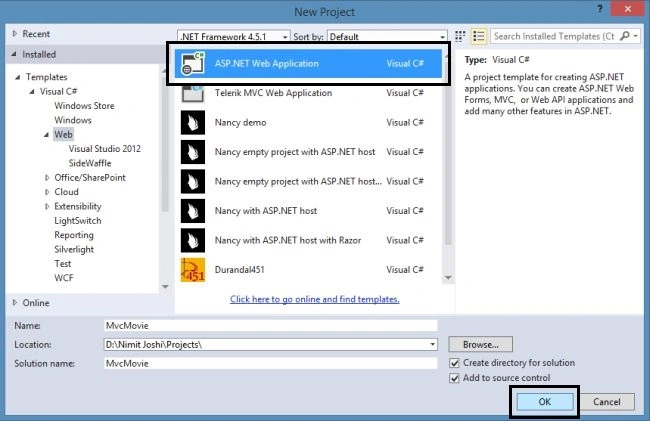
Step 2: Select the Web tab from the left pane and select the ASP.NET web application and specify the application as "MvcMovie"
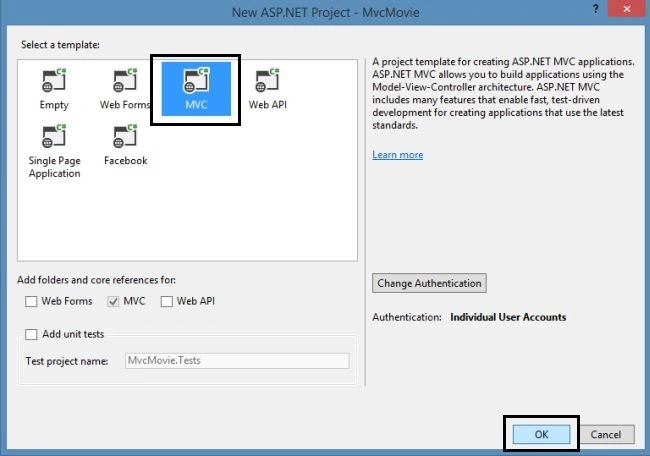
Step 3: Select the MVC Project Template and click on OK.
Visual Studio automatically creates the MVC application and adds many files and folders to the project. You can check it out in the Solution Explorer.
Adding Entity Data Model
In this section, we will add the ADO.NET Entity Data Model to the application. We will create the empty model in here. Use the following procedure.
Step 1: In the Solution Explorer, right-click on the Models folder and click on ADO.NET Entity Data Model.

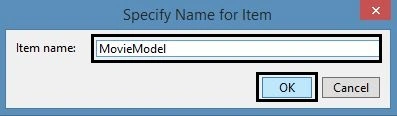
Step 2: Specify the model name.
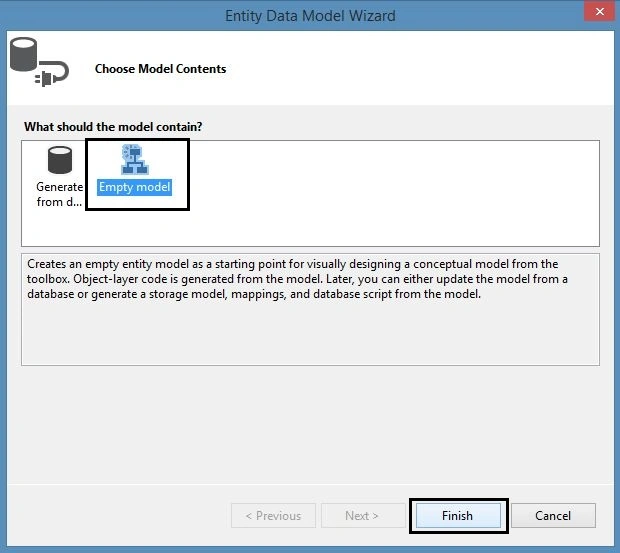
Step 3: In the next Entity Data Model Wizard, select the Empty Model and click on "Finish".
Now you can see the Entity Data Model Designer.
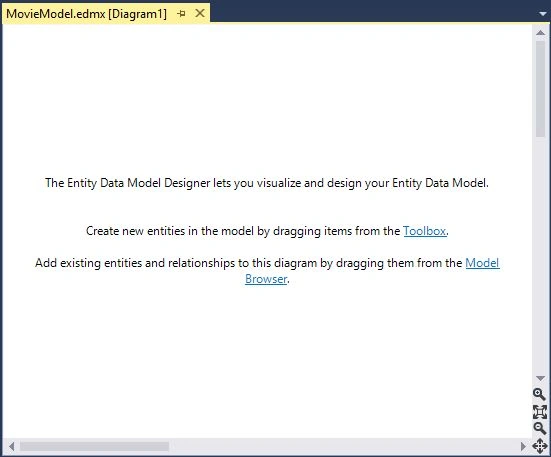
Working with Entity Data Model Designer
In this section, we'll add the entity in the Entity Data Model Designer. We will proceed in this section using following two sections:
- Adding Entity Model
- Generate Database from Model
Adding Entity Model
In this section, we'll create the entity model using the following procedure.
Step 1: Right-click on the Data Model Designer and go to add new entity as shown below:
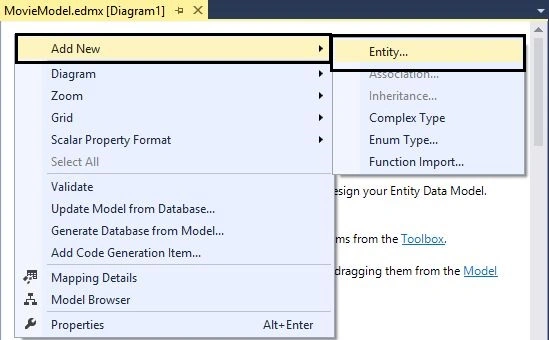
Step 2: In the next Add Entity wizard, specify the entity name.
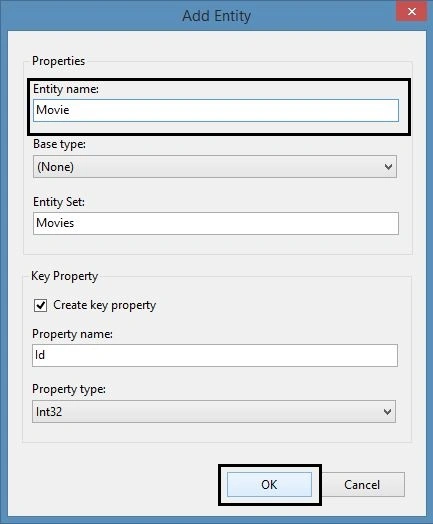
Note: You can change the name of Entity Set that is generated automatically.
Step 3: Now you can see that the entity is created. So, it is time to add a scalar property to the entity. Right-click on the entity and go to add new scalar property.
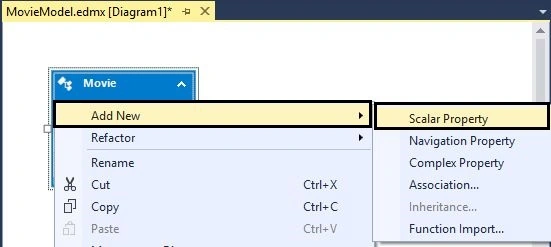
Change the name of the property.
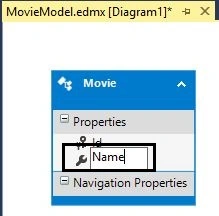
Step 4: Add more scalar properties to the entity.
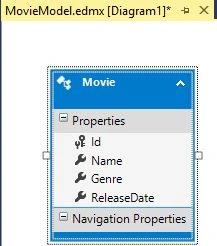
Generate Database from Model
Now we have generated an entity model. You can also create more entity models in the Data Model Designer. We will now generate the database from the model. Use the following procedure.
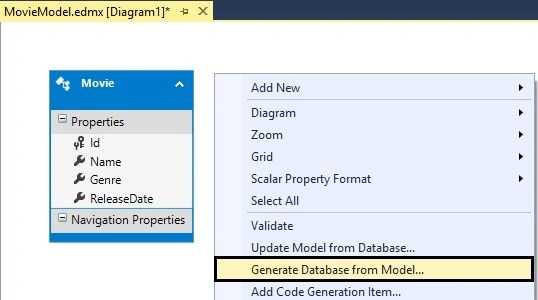
Step 1: Right-click on the Data Model Designer surface and select the Generate Database from Model.
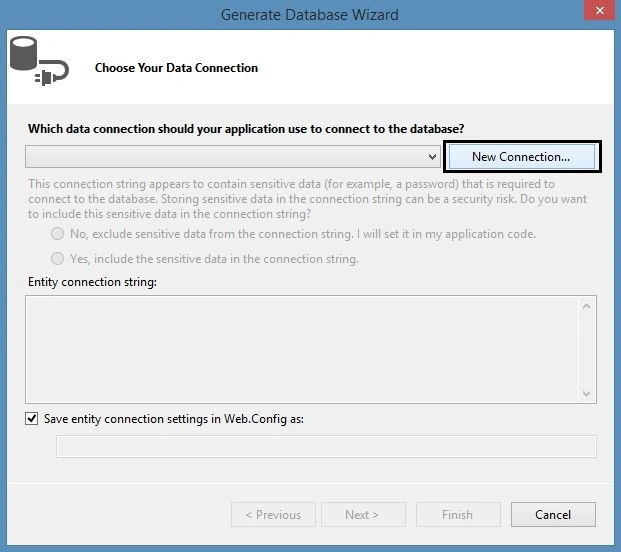
Step 2: Now in the Generate Database Wizard, click on New Connection to connect with the database.
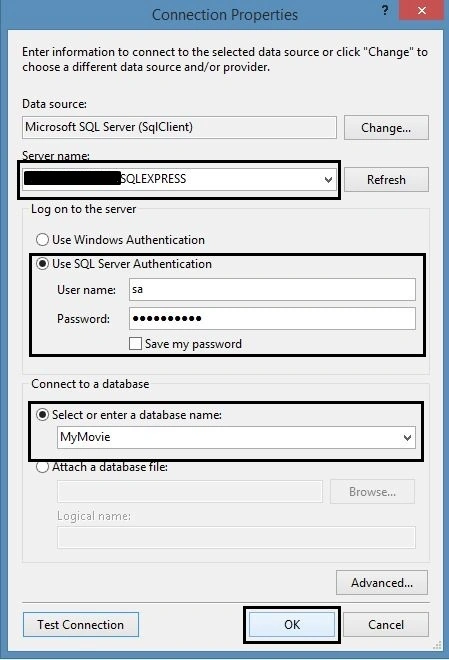
Step 3: In the next Connection Properties wizard, specify the server name and the specify the database name.
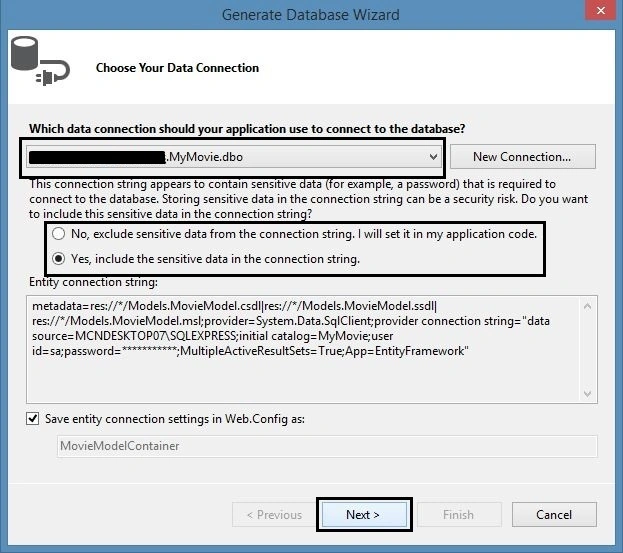
Step 4: Now in the Generate Database Wizard, you can see that the connection is created. Click on the Next button.
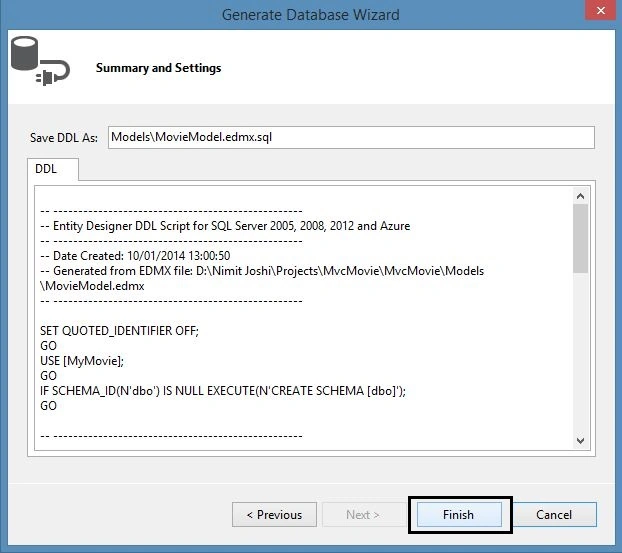
Step 5: The database summary and script is generated and click on Finish.
Step 6: Now right-click on the script and click on Execute.
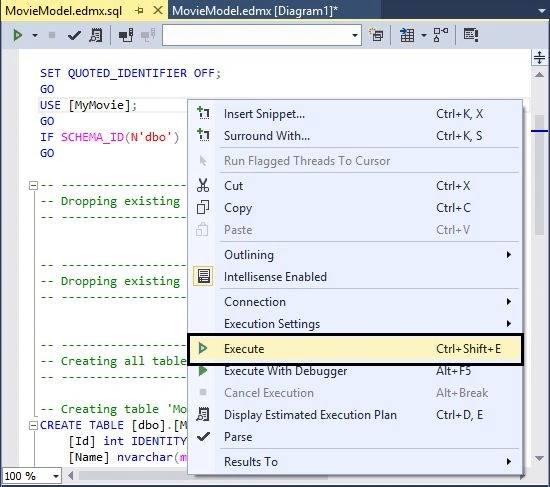
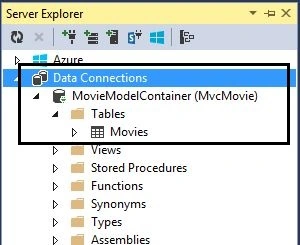
After executing the database will have been created. You can see your database in the Server Explorer.
Working with Controller and Views
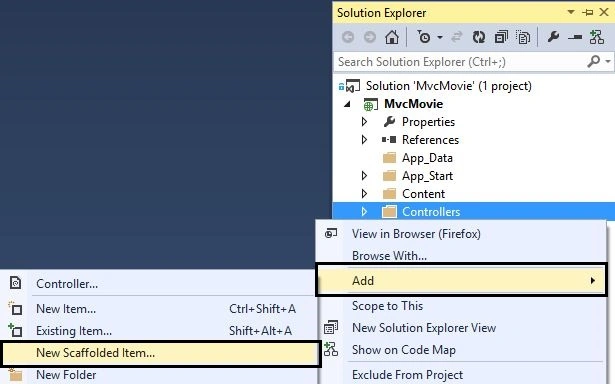
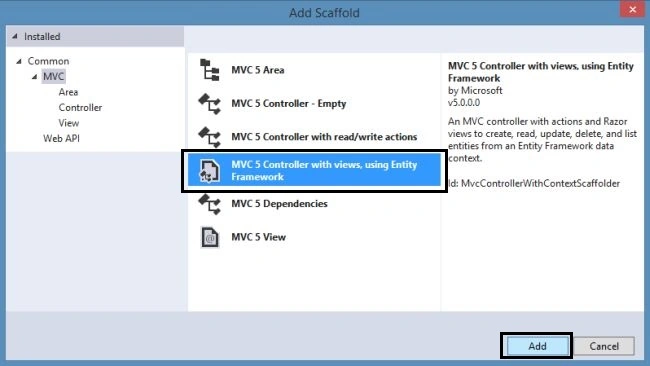
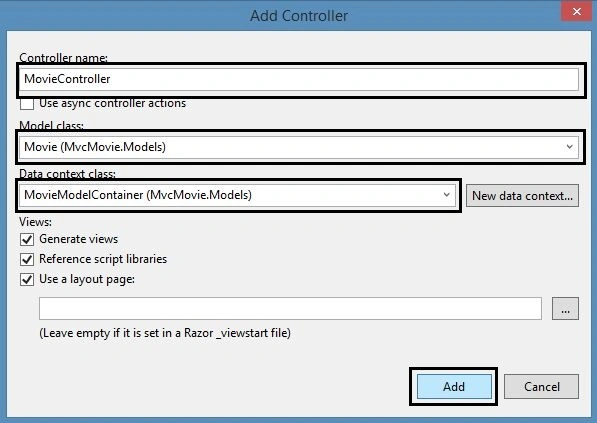
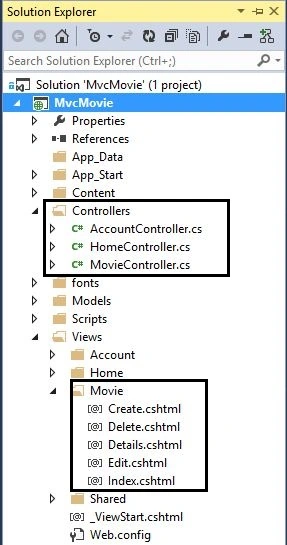
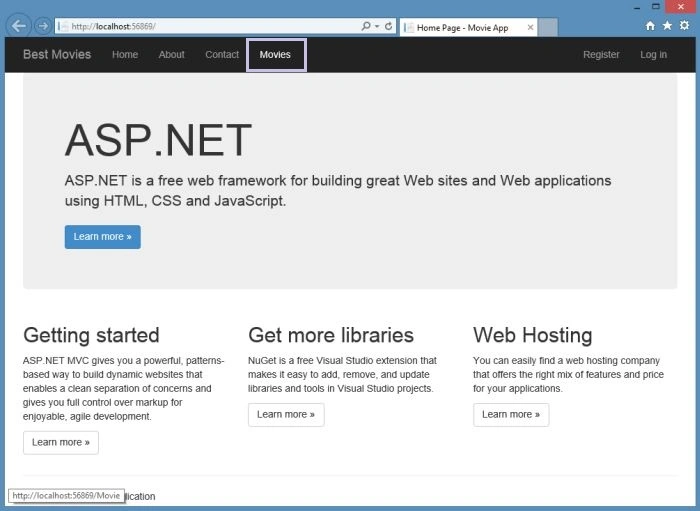
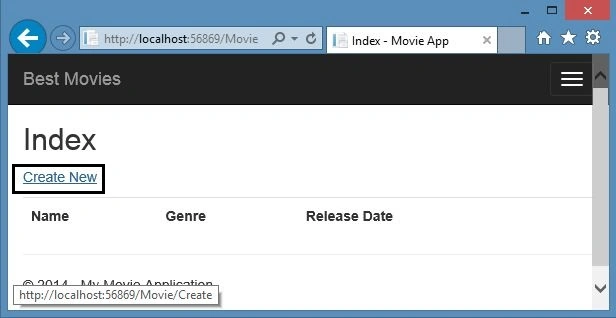
In this section we will work with the controller and views in MVC 5. So far we have the done the work with the database. We wil now add the MVC 5 controller and view using the Entity Framework. So let's get started with the following procedure.
Step 1: Build the solution at first. When you build the solution then you can find the model class in the Models folder.
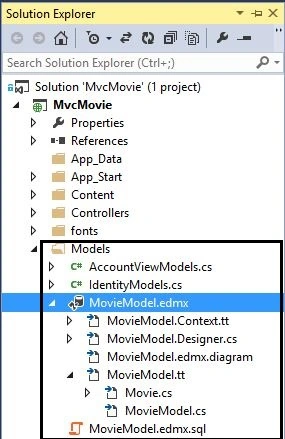
The Movie class is generated in the models folder. Edit the code with the following highlighted code:
rajesh NukalaPosted Dec 6, 2016, 8:22 AM
How i need to bind data on selection of dropdown like if select state and i need to get city based on state please help me out thanks in advance bro
Sankar SenguptaPosted Apr 21, 2016, 8:26 AM
Hello, can I use this approach to connect to Mongo DB? I have installed the corresponding driver
Ashwini SuryawanshiPosted Dec 29, 2015, 4:40 AM
have i missed any important step? please help me.
Ashwini SuryawanshiPosted Dec 29, 2015, 4:08 AM
I have followed each and every step till 'Execute' and build the application. after build, table is getting created in db but model is not getting created in Model folder
Mukesh KumarPosted Nov 8, 2015, 12:27 PM
Good Job
Md. Raskinur RashidPosted Jan 21, 2015, 7:10 AM
Thanks!
Gaurav Kumar AroraPosted Jan 18, 2015, 6:09 AM
Nimit Joshi - good and detailed contents. Just curious to know, is it mandatory to execute script as you shown above?
ram shyamPosted Dec 11, 2014, 1:59 AM
Thanks!!
prem kumarPosted Oct 11, 2014, 12:57 AM
Nimit joshi sir i have doubt in MVC would you help me sir ....
Nimit JoshiPosted Oct 10, 2014, 3:27 AM
Download my ebook: http://www.c-sharpcorner.com/ebooks/free/80/programming-Asp-Net-mvc-5.aspx
prem kumarPosted Oct 10, 2014, 1:33 AM
Thanks nimit joshi would help sir me if any doubt may i ask you .
prem kumarPosted Oct 9, 2014, 7:58 AM
i wanna learn mvc where am start and which way am go to learn depth and easily ..Thanks in advance
Naresh BeniwalPosted Oct 6, 2014, 11:35 PM
I was looking for this approach to use in mvc5, nice article thanks
Shobhit KambojPosted Oct 6, 2014, 2:11 AM
very good for understanding....
Rajeev RanjanPosted Oct 6, 2014, 12:39 AM
This is really a good article, where every step images describe the work process.
Nimit JoshiPosted Oct 3, 2014, 3:31 PM
Thanks for replying and reading....
Abdalla OsmanPosted Oct 2, 2014, 6:50 PM
Best explanation, Well done!
Vithal WadjePosted Oct 2, 2014, 2:03 PM
good one