

Entity Framework Model First approach
In this article, we will discuss the Model First approach of Entity Framework. This is a continuation of the previous article. Please refer to the previous article before proceeding.
Entity Framework supports the three approaches given below.
- Schema First approach – Referred to in the previous article.
- Model First approach – We will see in this article.
- Code First approach - Next Article.
Let’s start
With the Schema first approach, which is based on the underlying database tables; i.e. departments and employees tables, we can generate the department and employee entities.
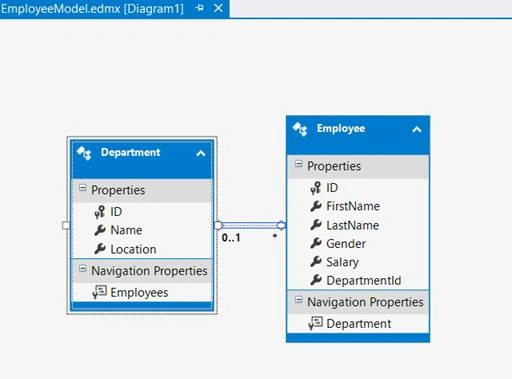
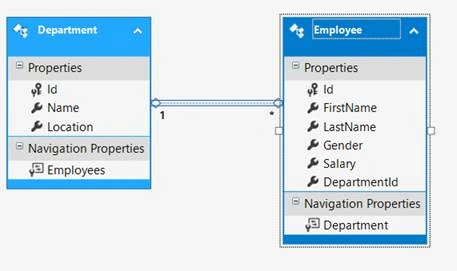
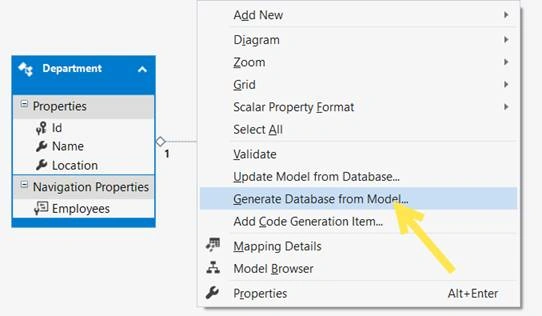
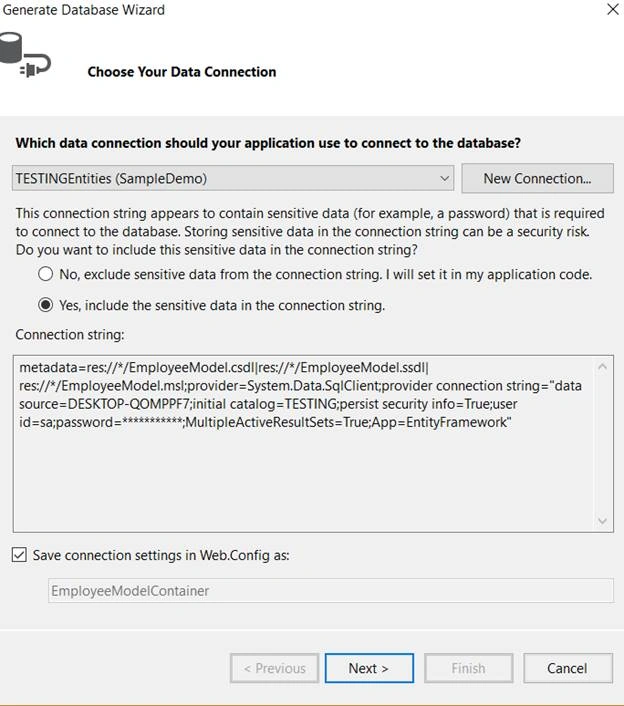
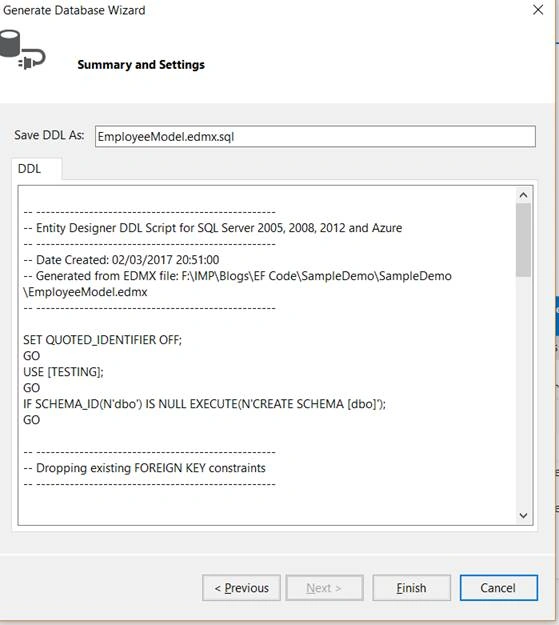
In this article, we will see the Model First approach. Thus, in Model First approach, we first create the entities, i.e. the department and the employees. We will establish a relationship between them and based on these entities, we are going to generate T-SQL, which is required for the underlying database tables i.e. the departments and employees. Let’s see how to do that. We will work with the same example on which we worked in the previous article of this series.
Now, let’s flip to VS here. In this solution, I already have employee.edmx file, delete that file and build the solution.
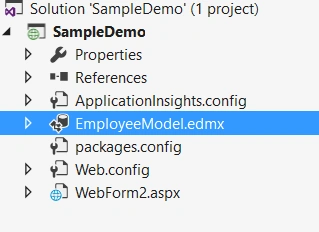
Now, let’s add a new item and we want to add ADO.NET Entity Data Model, as shown below.
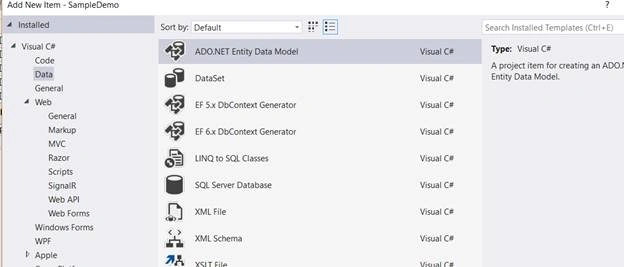
Name it as EmployeeModel and click OK.
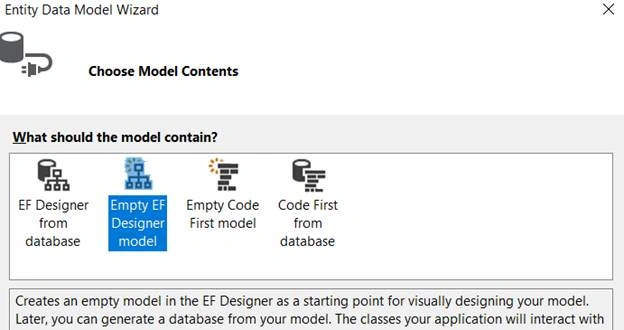
With the Schema First approach, we will select the first option, which is EF designer, from the database because it is based on the underlying database objects, where we want to generate our entities.
Now, we are going to use Model First approach, so select Empty EF Designer Model. We will create the entities first and based on those entities, the Entity Framework is required to generate the required T-SQL for us for the underlying database objects.
Now, click Finish, which should generate Employee Model in our solution.
Now, we will add Department entity. Thus, right click on Design surface -> Add -> Entity.
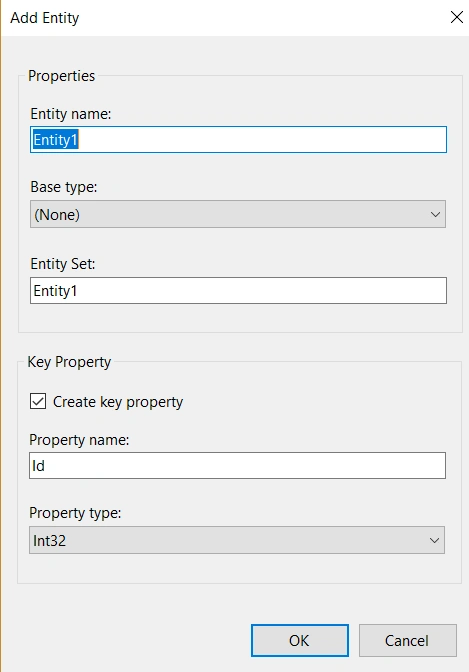
Specify the name of the entity as Department. Specify the base type as none because we are not using any inheritance here.
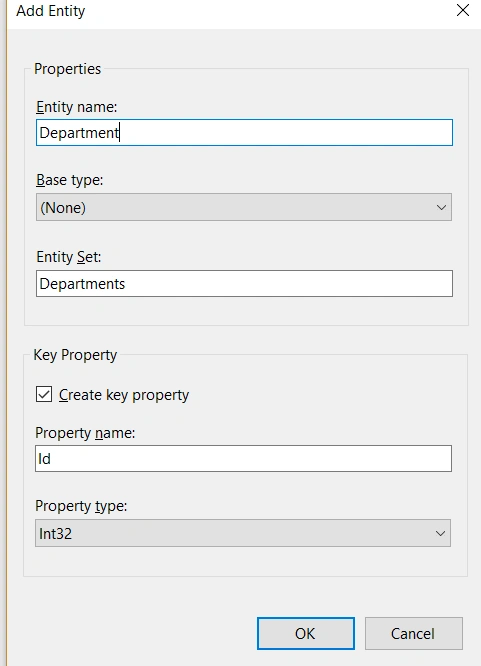
The Property name is ID, which is the primary key for our Departments table and property type should be INT32. Thus, click OK, which should generate Department entity for us.
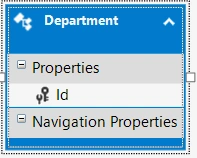
Notice, we already have the scalar property, which is ID property, and notice that there is a key symbol, which means it is a primary key. For Department entities, we need the name and location of the scalar properties.
To get them, right click on Department property -> Add -> Scalar property, as shown below.
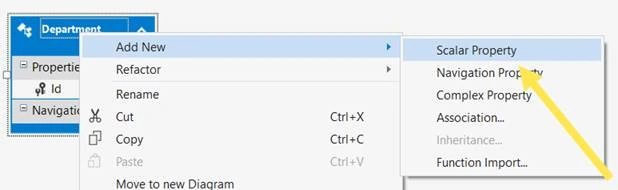
Type Name. Now, right click on the name and select Properties, as shown below.
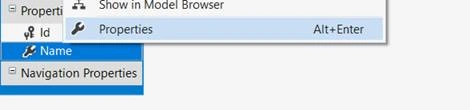
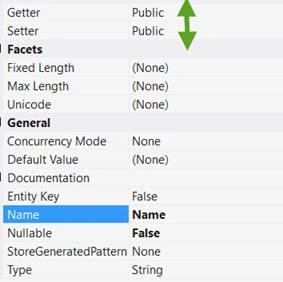
The Name of the property is Name. Is it Nullable NO; it has been set to false. Look at the Getter and the Setter property, where both should be public properties and maximum length now is none but you can set the maximum length, as per your requirement. The type is string.
Hence, SQL which going to be generated for the department's underlying table, is going to make that column in the table as nvarchar and then the size is going to MAX as nvarchar(MAX).
Now, let's add another property location, as shown below.
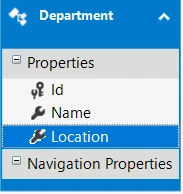
Hence, it was Department entity where we will add another entity, which is employee entity.
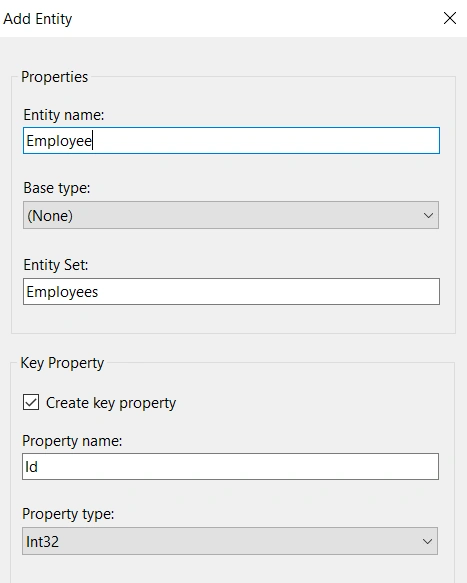
Click OK.
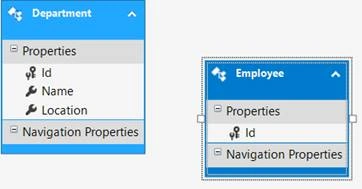
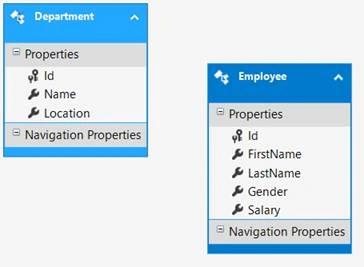
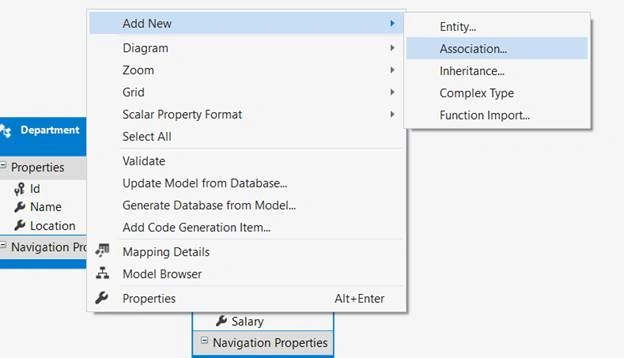
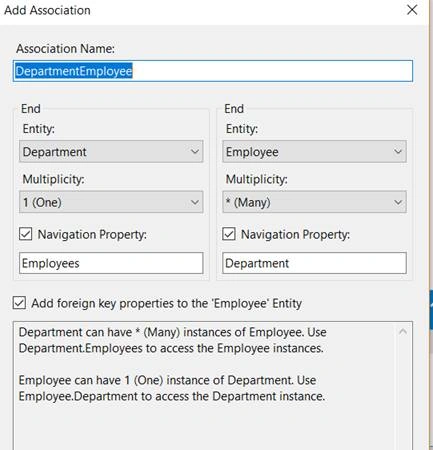
Our Employee entity is generated, which is similar to our department entity. Employee entity also has ID, which is a primary key. Now, let’s add 4 scalar properties in Employee entities as Firstname,lastname, Gender and Salary, as shown below.
Seungwon HongPosted Sep 11, 2018, 12:41 PM
I love your EF series. Tyyy
Chelluri NishikantPosted Feb 6, 2017, 2:32 AM
And give me some idea on ado.net concepts what we need to cover
Chelluri NishikantPosted Feb 6, 2017, 2:30 AM
Sir how can we bind the 2 columns from two different tables into one formview control in ASP.net
Vishal PrajapatiPosted Feb 5, 2017, 10:54 PM
Nice article..keep up the good work..
Chelluri NishikantPosted Feb 5, 2017, 5:26 AM
Sir I want some project ideas on ASP.net
Manav PandyaPosted Feb 5, 2017, 3:34 AM
Thanks for sharing great one ...