

Introduction
In this article I will show you the modal popup effect using JavaScript and CSS in the Web API. Here we use JavaScript code and CSS code for generating the effect.
- First create an Web API application as in the following:
- Start Visual Studio 2012.
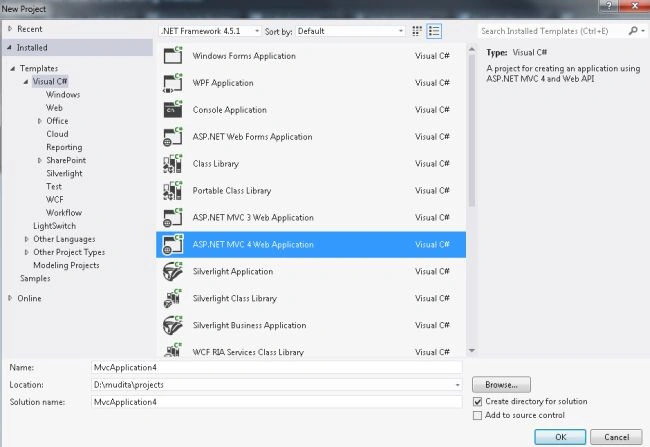
- From the Start window select "New Project".
- From the new project window select "Installed" -> "Visual C#" -> "Web".
- Select "ASP.NET MVC4 Web Application" and click the "OK" button.
- From the "MVC4 Project" window select "Web API".
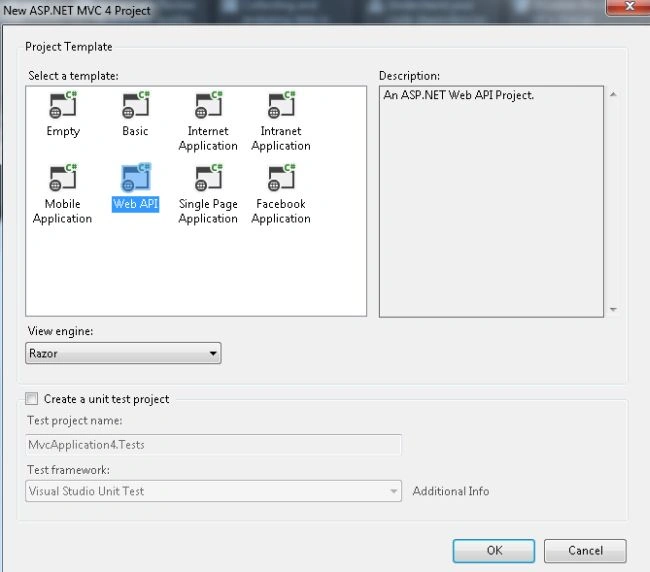
- Click the "OK" button.
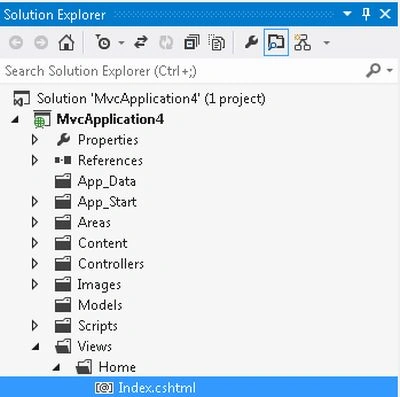
- Select the "index.cshtml" file. This file exists:
- In the "Solution Explorer".
- Expand the "Views" folder.
- Select "Home" -> "index.cshtml" file.
Add the following code.
There is the CSS code is this:- @{
- ViewBag.Title = "ModalPopup effect using javascript and css";
- }
- <style type="text/css">
- .skyblue
- {
- top:20%;
- left:20%;
- z-index:1000;
- position:absolute;
- background-color:skyblue;
- display:compact;
- }
- .hidepopup
- {
- display:none;
- }
- .brown
- {
- background-color:brown;
- filter: alpha(opacity=70);
- opacity: 0.7;
- width:100%;
- height:100%;
- z-index:auto;
- position:absolute;
- top:auto;
- left:auto;
- }
- </style>
- <script type="text/javascript">
- function Display() {
- document.getElementById("browndiv").className = "brown";
- document.getElementById("skybluediv").className = "skyblue";
- }
- function HidePopup() {
- document.getElementById("skybluediv").className = "hidepopup";
- document.getElementById("browndiv").className = "hidepopup";
- return false;
- }
- </script>
- <h4>Modal effect by using javascript and css</h4><br />
- <input type="button" value="Test Function" onclick="javascript: Display();"/>
- <div id="browndiv">
- </div>
- <div id="skybluediv" style="width:200px;height:200px;border-color:blue;border-style:solid;" class="hidepopup">
- <div id="divvalue">What is this?<br />This is the simple example of the modal effect using javascript and css</div><br />
- <div style="text-align:center" ><input type="button" value="Close" onclick="javascript: HidePopup();"/></div>
- </div>
This code is responsible for the formatting of the page.- <style type="text/css">
- .skyblue
- {
- top:20%;
- left:20%;
- z-index:1000;
- position:absolute;
- background-color:skyblue;
- display:compact;
- }
- .hidepopup
- {
- display:none;
- }
- .brown
- {
- background-color:brown;
- filter: alpha(opacity=70);
- opacity: 0.7;
- width:100%;
- height:100%;
- z-index:auto;
- position:absolute;
- top:auto;
- left:auto;
- }
The following code is the JavaScript code:
There are two methods defined, the first one is "Display" and the second one is "HidePopup". The "Display" method accesses the ".brown" and "skyblue" CSS classes. And the second Function "Hidepopup" accesses the "hidepopup" class of the CSS.- <script type="text/javascript">
- function Display() {
- document.getElementById("browndiv").className = "brown";
- document.getElementById("skybluediv").className = "skyblue";
- }
- function HidePopup() {
- document.getElementById("skybluediv").className = "hidepopup";
- document.getElementById("browndiv").className = "hidepopup";
- return false;
- }
- </script>
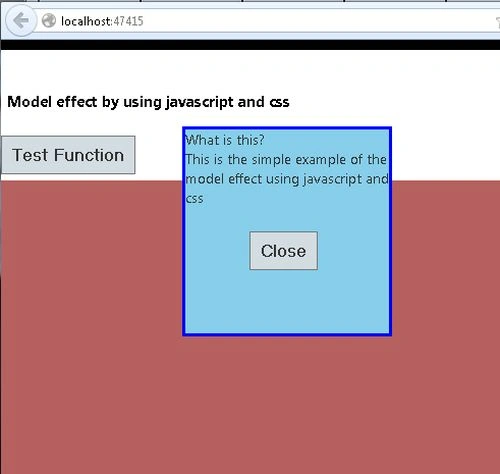
- Execute the application by pressing "F5".
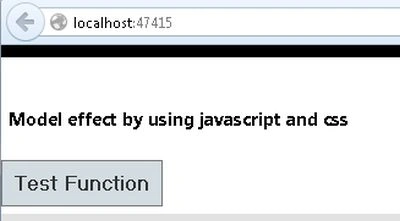
Click on the button then display a popup modal.
Join the conversation! Your thoughts help the community grow.