

The Modern Attachments control in Power Apps introduces a more flexible approach to file management. It provides a modern interface, drag-and-drop support on the web, file validation options, and the ability to work outside a form.
Key features
Modern user interface: Provides a cleaner appearance that aligns with modern Power Apps controls.
Drag-and-drop uploads: Allows users to add files by dragging them into the attachment area when using a web browser.
File-count limits: Restricts the number of attachments users can add.
File-size restrictions: Defines the maximum size allowed for each new attachment.
Accepted file types: Restricts new uploads to specified file extensions.
Download and removal: Supports downloading files and marking existing attachments for removal.
Form-independent operation: Allows developers to manage attachments outside a form using supported data-source operations.
Event handling: Provides events such as OnAddFile, OnRemoveFile, and OnError for implementing custom behavior.
Important: The Modern Attachments control is currently documented as a preview feature. Review Microsoft's current documentation and test it thoroughly before considering it for production use.
How to enable and add the Modern Attachments Control
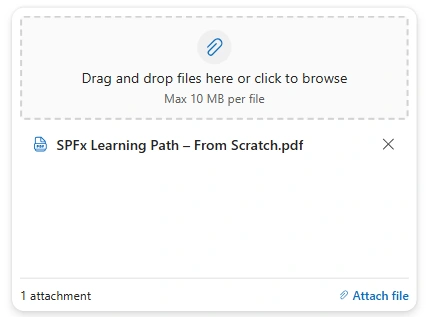
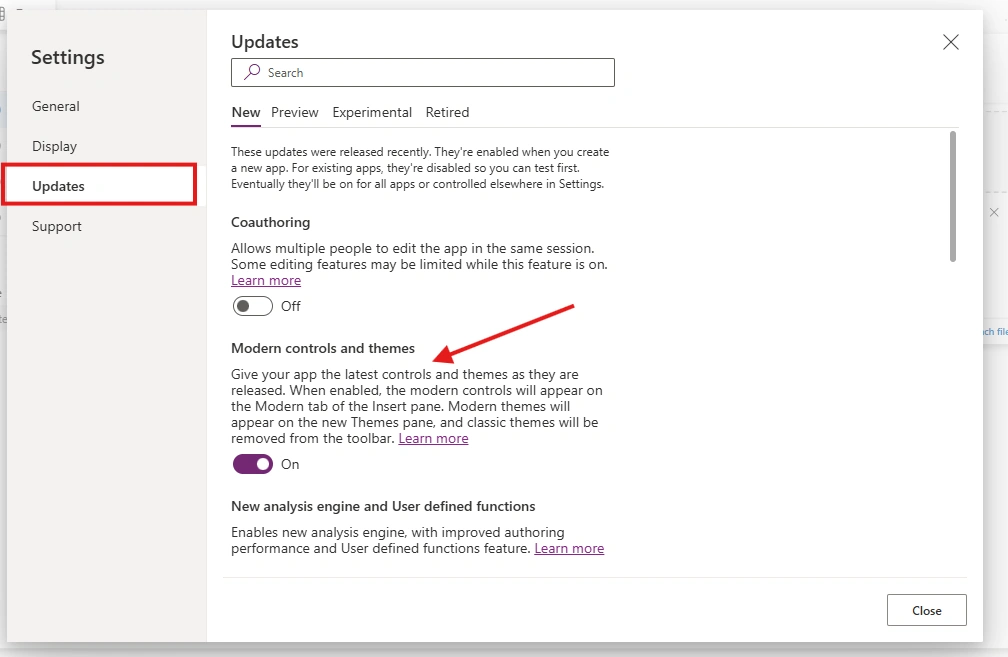
Before implementing the control, make sure modern controls and themes are enabled in your canvas app.
Follow these steps:
Open your canvas app in Power Apps Studio.
Open the app settings.

Go to Updates section from left nav and toggle Modern controls and themes.
Understanding the Important Properties
The Modern Attachments control provides several properties for managing the upload experience.
AcceptedFileTypes
The AcceptedFileTypes property allows you to specify the file extensions accepted for new uploads.
For example:
[".pdf", ".docx"]
This configures the control to accept PDF and Word documents.
Attachments
The Attachments output property returns the attachment table that can be used when saving changes to a supported attachment column.
For SharePoint list attachments, this output can be passed to Patch:
Patch(
Requests,
RequestsGallery.Selected,
{
Attachments: Attachments1.Attachments
}
)
This is one of the most useful capabilities of the modern control because it enables developers to save attachment changes without relying exclusively on a form's SubmitForm function.
Practical Example: Upload Attachments to a SharePoint List Using Patch
Let's implement a practical scenario in which users select a request from a SharePoint list, upload supporting documents, and save their attachments using a custom button.
Scenario
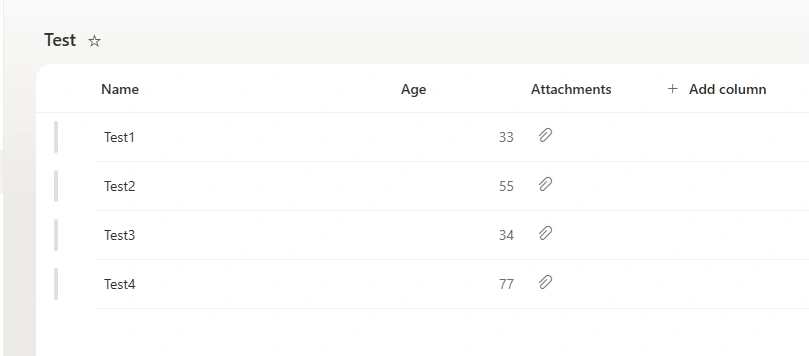
As i have made Test SharePoint list in SharePoint site, created these columns with showing attachments column
I have added DataGrid and add above list as datasource and on right side i have added modern attachments control
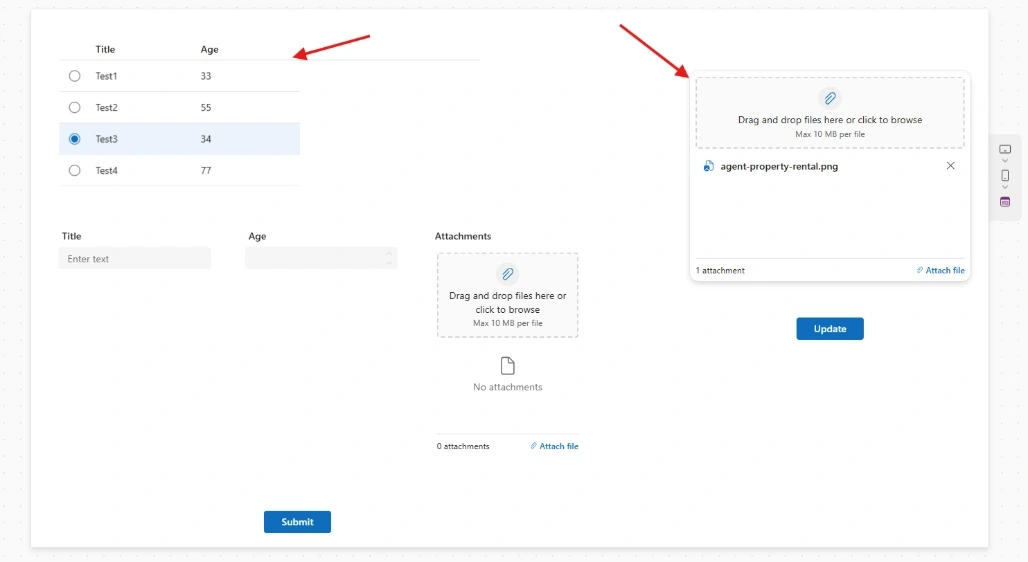
I have written this on Items property of Attachments control for showing attachments based on selection
DataGrid1.Selected.AttachmentsBelow i have added button and place below code on OnSelect property of button.
Patch(
    Test,
    DataGrid1.Selected,
    {Attachments: Attachments2.Attachments}
)
Conclusion
The Modern Attachments control offers Power Apps developers a more flexible approach to managing files in canvas apps. Its modern interface, drag-and-drop support on the web, file restrictions, and ability to work outside a form make it a useful option for building customized attachment experiences.
One of its most significant advantages is the ability to pass the control's Attachments output to Patch when updating supported attachment columns. Developers can also use the control within a form and save the record and its attachments through SubmitForm.
Join the conversation! Your thoughts help the community grow.