

HTML5 Canvas Modify Shape Color and set stroke width
In this article, you will learn about the implementation and use of an onclick event to modify the color of various figures and also see the implementation of stroke width on the mouseover event.
To fill a shape we can set the fill property when we instantiate a shape, or we can use the setFill() method.
To set a shape stroke and stroke width, we can set the stroke and strokeWidth properties when we instantiate a shape, or we can use the setStroke() and setStrokeWidth() methods.
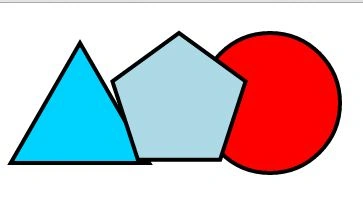
First, we will create a triangle, circle, and pentagon with their borders. We will use the stoke(), to create the border. We will set the width of the border with strokeWidth and color of the border with strokeStyle.
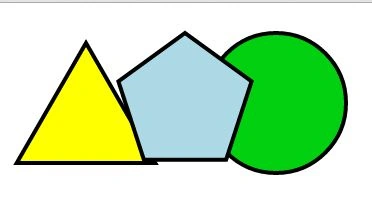
For a triangle and a circle we will use the onclick event to change the color of the triangle and circle.
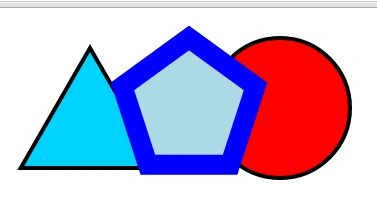
For the pentagon, we will use an onmouseovert event to change the color of the pentagon.
Example
- <!DOCTYPE html>
- <html lang="en" xmlns="http://www.w3.org/1999/xhtml">
- <head>
- <meta charset="utf-8" />
- <title></title>
- <style>
- body {
- margin: 0px;
- padding: 0px;
- }
- canvas {
- </style>
- </head>
- <body>
- <div id="container"></div>
- <script src="http://d3lp1msu2r81bx.cloudfront.net/kjs/js/lib/kinetic-v4.3.1.min.js"></script>
- <script>
- var stage = new Kinetic.Stage({
- container: 'container',
- width: 578,
- height: 200
- });
- var layer = new Kinetic.Layer();
- var triangle = new Kinetic.RegularPolygon({
- x: 190,
- y: 120,
- sides: 3,
- radius: 80,
- fill: '#00D2FF',
- stroke: 'black',
- strokeWidth: 4
- });
- triangle.on('click', function () {
- var fill = this.getFill() == 'yellow' ? '#00D2FF' : 'yellow';
- this.setFill(fill);
- layer.draw();
- });
- layer.add(triangle);
- var circle = new Kinetic.Circle({
- x: 380,
- y: stage.getHeight() / 2,
- radius: 70,
- fill: 'red',
- stroke: 'black',
- strokeWidth: 4
- });
- circle.on('click', function () {
- var fill = this.getFill() == 'red' ? '#00d00f' : 'red';
- this.setFill(fill);
- layer.draw();
- });
- layer.add(circle);
- stage.add(layer);
- var pentagon = new Kinetic.RegularPolygon({
- x: stage.getWidth() / 2,
- y: stage.getHeight() / 2,
- sides: 5,
- radius: 70,
- fill: 'lightblue',
- stroke: 'black',
- strokeWidth: 3
- });
- pentagon.on('mouseover', function () {
- this.setStroke('blue');
- this.setStrokeWidth(20);
- layer.draw();
- });
- pentagon.on('mouseout', function () {
- this.setStroke('black');
- this.setStrokeWidth(4);
- layer.draw();
- });
- // add the shape to the layer
- layer.add(pentagon);
- // add the layer to the stage
- stage.add(layer);
- </script>
- </body>
- </html>
Output
Originally we have
After the Onclick event the color of the triangle and circle change
After the onMouseover event we finally get:
Join the conversation! Your thoughts help the community grow.