Introduction
This article explains how to move data from one ListBox to another ListBox using jQuery. Here we create two ListBoxes in which one has the list of cities, when we select the data from the ListBox and click on the "LeftShift" button then it moves the data to the second ListBox. In the same way we move the data from the second ListBox to the first ListBox. For this operation we need to use jQuery.
Use the following procedure to create the sample.
Step 1
Create a Web API application:
- Start Visual Studio 2012.
- From the Start window select "Installed" -> "Visual C#" -> "Web".
- Select "ASP.NET MVC4 Web Application" and click on the "Ok" button.

- From the "MVC4 Project" window select "Web API".

- Click on the "OK" button.
Step 2
Now in the "HomeController" add the code. This file exists:
- In the "Solution Explorer".
- Expand the "Controller" folder.
- Select the "HomeController".
Add the following code:
- using System;
- using System.Collections.Generic;
- using System.Linq;
- using System.Web;
- using System.Web.Mvc;
- namespace MovedataListBox.Controllers
- {
- [HandleError]
- public class HomeController : Controller
- {
- public ActionResult Index()
- {
- ViewData["Message"] = "Welcome";
- return View();
- }
- }
- }
Step 3
- In the "Solution Explorer".
- Select the "Home folder".
- Select the "Index.cshtml" file.

Add the following code:
- <html>
- <head>
- <title></title>
- <script type="text/javascript" src="http://code.jquery.com/jquery-1.4.1.min.js"></script>
- <script type="text/javascript">
- $(function () {
- $("#ShiftRight,#ShiftLeft").click(function (event) {
- var ID = $(event.target).attr("ID");
- var ChooseFrom = ID == "ShiftRight" ? "#ChooseLeft" : "#ChooseRight";
- var moveTo = ID == "ShiftRight" ? "#ChooseRight" : "#ChooseLeft";
- var SelectData = $(ChooseFrom + " :selected").toArray();
- $(moveTo).append(SelectData);
- SelectData.remove;
- });
- });
- </script>
- </head>
- <body>
- <form method="get">
- <select id="ChooseLeft" multiple="multiple">
- <option value="1">Lucknow</option>
- <option value="2">Kanpur</option>
- <option value="3">Delhi</option>
- <option value="4">Gurgao</option>
- <option value="5">Noida</option>
- <option value="5">Agra</option>
- <option value="5">Banglore</option>
- <option value="5">Rajasthan</option>
- <option value="5">Pune</option>
- </select>
- <input id="ShiftRight" type="button" value=" ShftRight (>>) " />
- <input id="ShiftLeft" type="button" value="ShiftLeft(<<) " />
- <select id="ChooseRight" multiple="multiple">
- </select>
- </form>
- </body>
- </html>
Step 4
Execute the application:
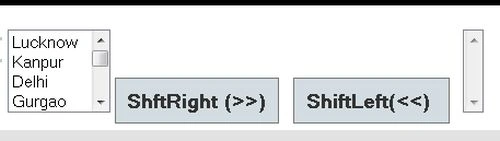
Select the data from the list and click on the "RightShift" button. We can move more than one data from one list to another list.
Move one item:
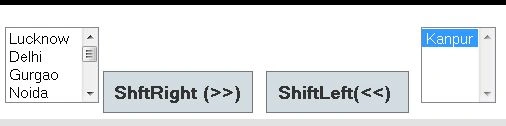
Move two items:

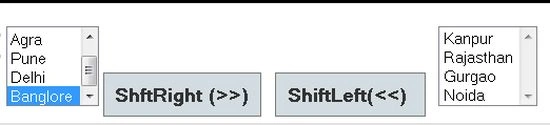
Now the same as selecting data from the right list box and click on the "LeftShift" button.


Join the conversation! Your thoughts help the community grow.