

Introduction
Visual Studio Code is a graphical code editor for Linux, macOS and Windows that supports various extensions. Personally, I think in current scenarios, Visual Studio Code is the best code editor tool. In Visual Studio Code, you can get an extension about AngularJS, NodeJS, TypeScript, C#, Python and also for other languages. In this article, I will explain how can we use Visual Studio Code for SQL Server. We will create a connection to SQL Server and afterwards, we run various queries in the code editor.
If you don’t have Visual Studio Code, download Visual Studio Code.
Now, start your Visual Studio Code and type “mssql”. You will find an extension for “mssql” and download it.
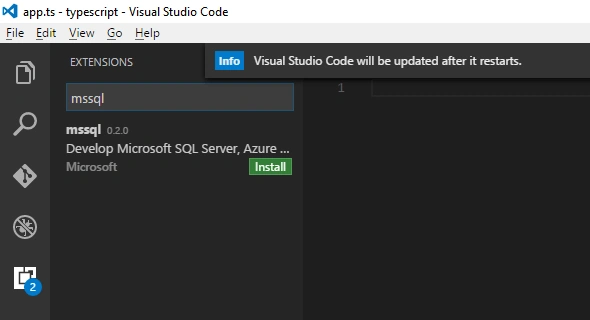
This extension installs the files required for Microsoft SQL Server, Azure SQL and SQL Data Warehouse development .
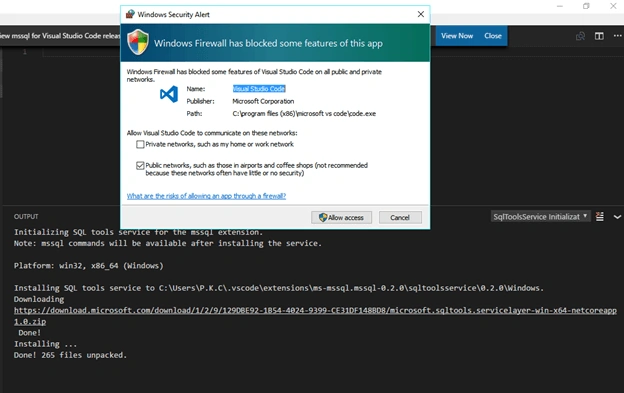
After successful installation, create a “data.sql” file in your editor and ensure that language mode for your file is “SQL”.

In the current state, we are in disconnected mode. If we write any query, we will not get any result. First, we will create a connection to SQL Server. Press “Ctrl+Shift+P” or F1 and type “sql”. You will get a dropdown list. From this list, click on “MS SQL: Connect” option and select “Create Connection Profile”.
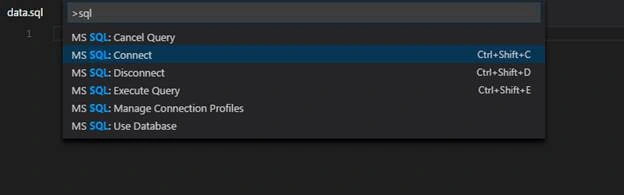
When you enter, then it will ask you about your “Server Name”, “database” (it is optional), user name, password and name for your profile. After answering all the points given above, Visual Studio makes the connection for your SQL Server instance. If the connection is successfully established, then you will find your server name and database name in status bar. You will get Master database, if you don’t define the database name during the connection establishment, otherwise you will get your database name.

Create database
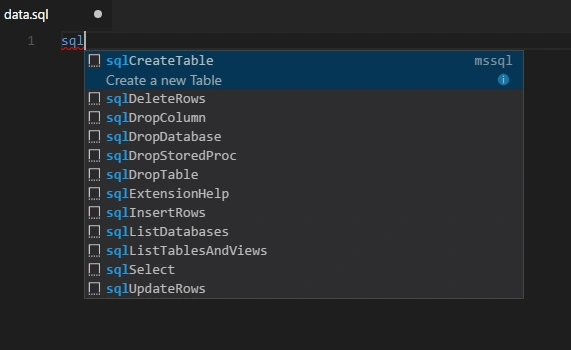
During the connection, we don’t define the database, so we create a database. Write SQL in your SQL file, which you will create, when you type SQL, then you will get a list of code snippets.
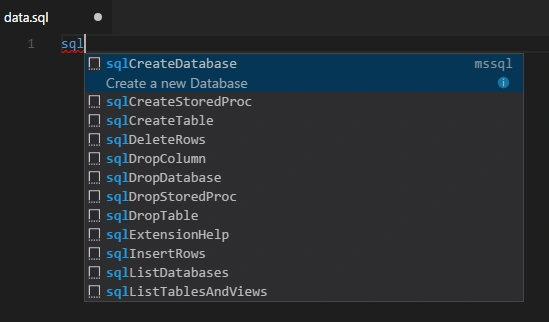
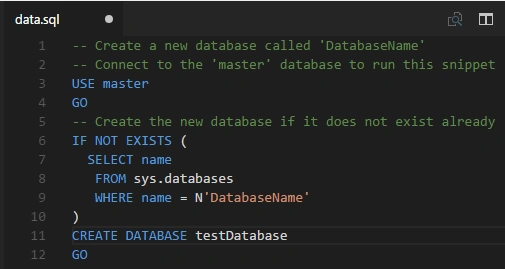
Click on “sqlCreateDatabase” option. When you enter on this, you will get a code snippet to create a database. Write “testDatabase” for this exercise.
To execute the query given above, create the database and now press “Ctrl+ Shift +E”. You will get a message of the connection establishment, if the database is created successfully.
Use database
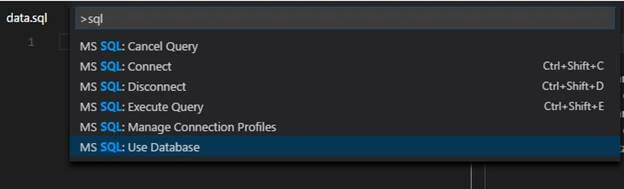
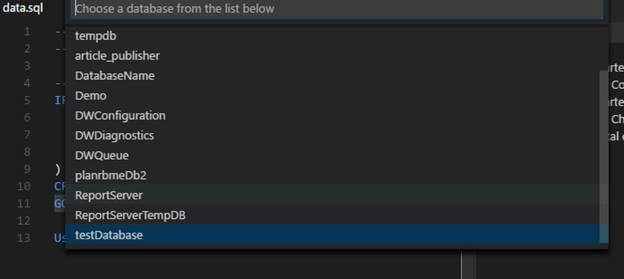
After creating the database, we use this database, so press “F1”, type “SQL” and select “Use Database” option.
Mahesh ChandPosted Jan 13, 2017, 7:06 AM
Thanks Pankaj for covering latest tools and sharing it.
SubashPosted Jan 12, 2017, 11:16 PM
Yes mr.Anu is right nice share useful one
Alex LiPosted Jan 12, 2017, 8:39 PM
Nice article.Thanks for sharing.Will helpful my job
Anu VPosted Jan 12, 2017, 12:02 AM
Nice article. Thanks for sharing...