

Introduction
In this article, we will learn how we can process Multi-Layout Forms using Power Apps and Form Processing AI Builder.
In our earlier article, we talked about how we can build, train and publish Form Processing AI Builder Model. If you haven’t visited my earlier article, please visit using this URL.
Prerequisites
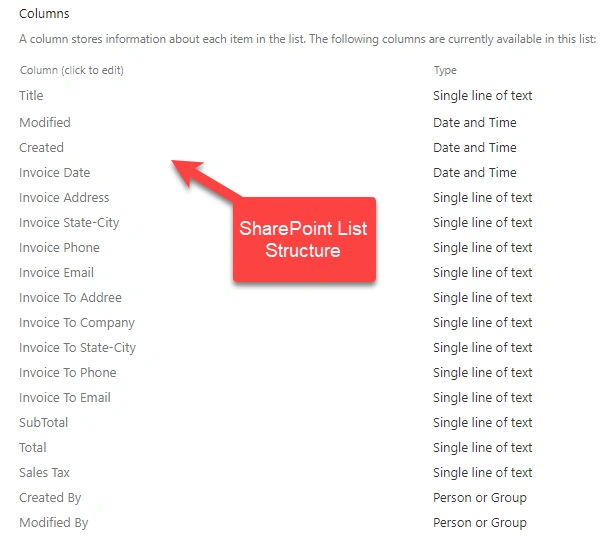
Create the following SharePoint lists.
Invoice Multiples
Master List to store all basic information
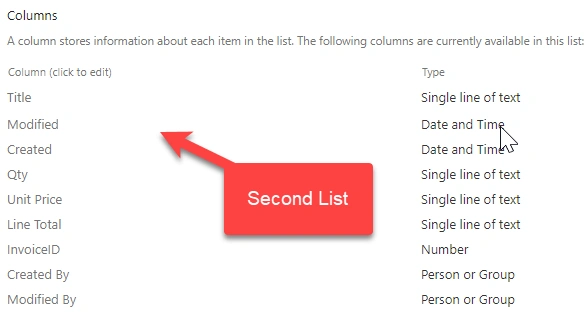
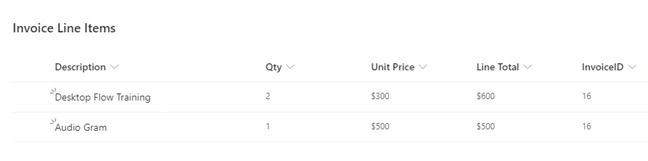
Invoice Line Items
List to store line items (table) from each invoice.
Now, let’s build a Power App.
- Create a blank Canvas App for Tablet Layout.
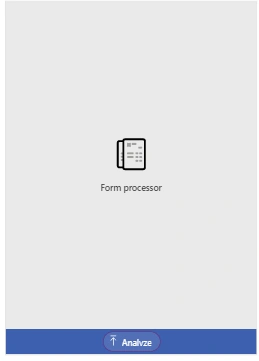
- From insert Menu, go to AI Builder section and select “Form Processor”.

- That will add one control on-screen.
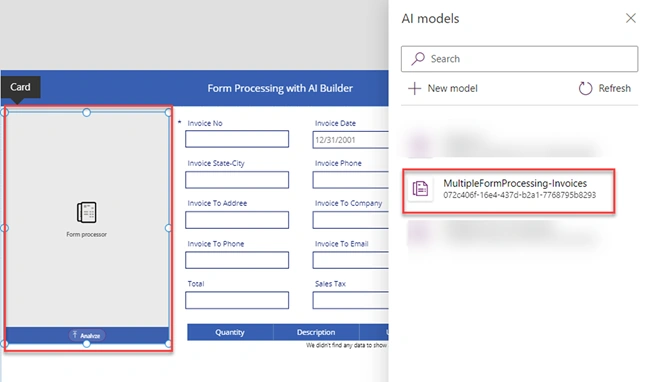
- Select Form Processor control and provide AI Model as the published model from the previous article.
- Let’s add a Form to pre-populate values.
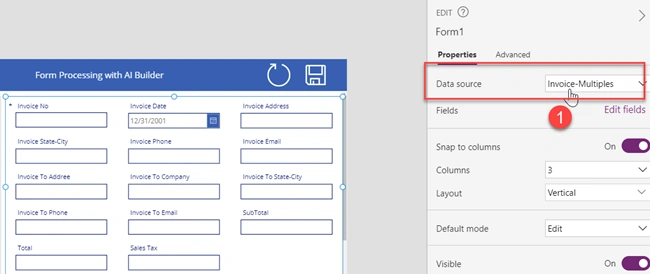
- Go to Insert > Forms > Edit Forms

- Provide data source as “Invoice-Multiple” list.
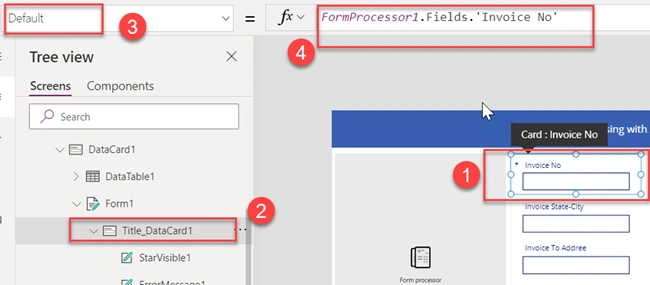
- Now, to prepopulate the fields from the FormProcessor control, select each datacard and open the Default event. Write the following code.
FormProcessor1.Fields.'Invoice No'
We will get the field names using the “FormProcessor1.Fields” property. Here, the field name is the same as we defined in our earlier article.
Follow the same procedure for the other fields:
|
Field Name
|
Code
|
|
Invoice Date
|
FormProcessor1.Fields.Date
|
|
Invoice Address
|
FormProcessor1.Fields.'Street Address'
|
|
Invoice StateCity
|
FormProcessor1.Fields.'City-State'
|
|
Invoice Phone
|
FormProcessor1.Fields.'Phone No'
|
|
Invoice Email
|
FormProcessor1.Fields.Email
|
|
Invoice to Address
|
FormProcessor1.Fields.'Street Address'
|
|
Invoice to Company
|
FormProcessor1.Fields.'Invoice To Company Name'
|
|
Invoice to State-City
|
FormProcessor1.Fields.'Invoice To State City'
|
|
Invoice to Phone
|
FormProcessor1.Fields.'Invoice To Phone'
|
|
Invoice to Email
|
FormProcessor1.Fields.'Invoice To Email'
|
|
Subtotal
|
FormProcessor1.Fields.Subtotal
|
|
Total
|
FormProcessor1.Fields.Total
|
|
Sales Tax
|
FormProcessor1.Fields.SalesTax
|
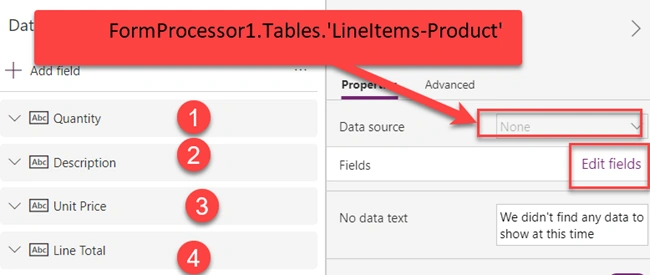
- Add Data table control to show line items.

- Add the following line of code in the Items Property.
FormProcessor1.Tables.'LineItems-Product'
- Add all the fields.
- Add a Save button and write the following code.

SubmitForm(Form1);
- Select Form Control and add the following code in the Items property.
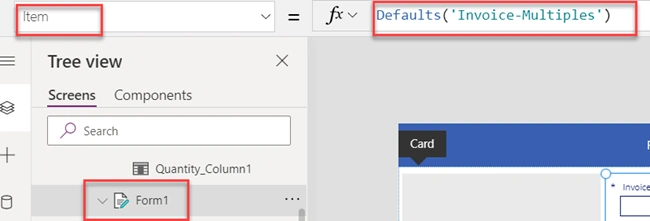
- Defaults('Invoice-Multiples')
Select Form Control and add the following code on the “OnSucess ” event to store line items from the data table.
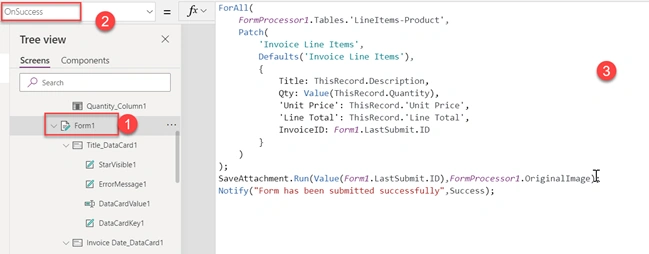
- ForAll(FormProcessor1.Tables.
- 'LineItems-Product', Patch('Invoice Line Items', Defaults('Invoice Line Items'), {
- Title: ThisRecord.Description,
- Qty: Value(ThisRecord.Quantity),
- 'Unit Price': ThisRecord.
- 'Unit Price',
- 'Line Total': ThisRecord.
- 'Line Total',
- InvoiceID: Form1.LastSubmit.ID
- }));
- SaveAttachment.Run(Value(Form1.LastSubmit.ID), FormProcessor1.OriginalImage);
- Notify("Form has been submitted successfully", NotificationType.Success);
- Now in the above code, the following line is used to save the uploaded form as a SharePoint list attachment. You can ignore this if you do not want to store an uploaded document.
- If you wish to store an uploaded document, then you need to follow this article and create a flow to store the uploaded document for Form Processing AI Model.
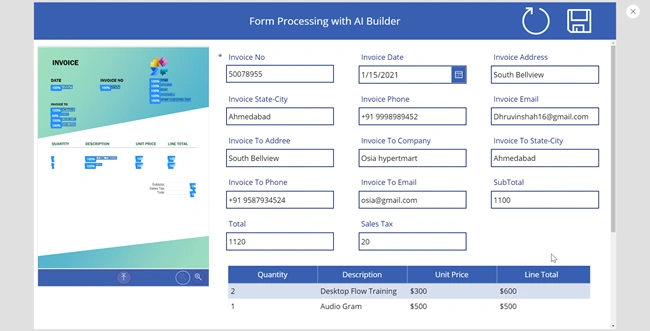
- Now, let’s test the form.
- Upload any sample invoice.
- This will pre-populate all the fields.
- Save the form.
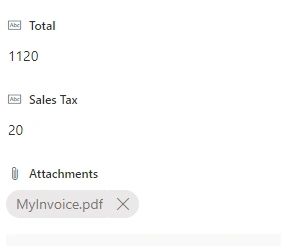
- This has saved all the items to the SharePoint list with attachments.

Conclusion
This is how we can process multi-layout forms using Power Apps and Form Processing AI Builder. Isn’t that amazing? Happy Power Apping!
Join the conversation! Your thoughts help the community grow.