

Introduction
Today we are going to learn how to create a Windows Store App for multi track video using JavaScript. The Metro style app platform allows apps to select the audio tracks with the right language or content. You can playback a video file in the following video tag with four audio tracks. We set "English" as the default Language for this app. You can choose other audio languages dynamically after you click the "Play" button to load the video file..
I assume you can create a simple Windows Store App using JavaScript. For more help visit Simple Windows Store Apps using JavaScript.
To start the creation of the app, add two JavaScript pages by right-clicking on the js folder in the Solution Explorer and select Add > new item > JavaScript Page and then provide an appropriate name. In the same way, add one HTML page to your project.
Now add any image to the images folder and right-click on the folder select Add than select Adding existing item and than select the image. Now create a folder by right-clicking on the name of the project in Solution Explorer then select new and than select a new folder then rename the folder. And add videos same as Images Folder.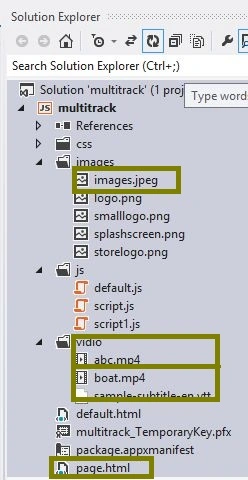
Write the following code in default.HTML:
<!DOCTYPE html>
<html>
<head>
<meta charset="utf-8" />
<title>app</title>
<link rel="stylesheet" href="//Microsoft.WinJS.1.0/css/ui-light.css" />
<script src="//Microsoft.WinJS.1.0/js/base.js"></script>
<script src="//Microsoft.WinJS.1.0/js/ui.js"></script>
<link rel="stylesheet" href="/css/default.css" />
<script src="/js/scrtipt1.js"></script>
<script src="/js/default.js"></script>
</head>
<body role="application" style="background-color: lightcoral">
<center><div id="rootGrid">
<div id="content">
<h1 id="featureLabel"></h1>
<div id="contentHost"></div>
</div>
</div></center>
</body>
</html>
Write the following code in default.js:
(function () {
"use strict";
var appTitle = "";
var pages = [
{ url: "page.html", title: "Stereo 3D" }
];
function activated(eventObject) {
if (eventObject.detail.kind === Windows.ApplicationModel.Activation.ActivationKind.launch) {
eventObject.setPromise(WinJS.UI.processAll().then(function () {
var url = WinJS.Application.sessionState.lastUrl || pages[0].url;
return WinJS.Navigation.navigate(url);
}));
}
}
WinJS.Navigation.addEventListener("navigated", function (eventObject) {
var url = eventObject.detail.location;
var host = document.getElementById("contentHost");
host.winControl && host.winControl.unload && host.winControl.unload();
WinJS.Utilities.empty(host);
eventObject.detail.setPromise(WinJS.UI.Pages.render(url, host, eventObject.detail.state).then(function () {
WinJS.Application.sessionState.lastUrl = url;
}));
});
WinJS.Namespace.define("App", {
appTitle: appTitle,
pages: pages,
videoOnError: function (error) {
switch (error.target.error.code) {
case error.target.error.MEDIA_ERR_ABORTED:
App.displayError("You aborted the video playback.");
break;
case error.target.error.MEDIA_ERR_NETWORK:
App.displayError("A network error caused the video download to fail part-way.");
break;
case error.target.error.MEDIA_ERR_DECODE:
App.displayError("The video playback was aborted due to a corruption problem or because the video used features your browser did not support.");
break;
case error.target.error.MEDIA_ERR_SRC_NOT_SUPPORTED:
App.displayError("The video could not be loaded, either because the server or network failed or because the format is not supported.");
break;
default:
App.displayError("An unknown error occurred.");
break;
}
},
displayStatus: function (msg) {
WinJS.log && WinJS.log(msg, null, "status");
},
displayError: function (msg) {
WinJS.log && WinJS.log(msg, null, "error");
}
});
WinJS.Application.addEventListener("activated", activated, false);
WinJS.Application.start();
})();
Write the following code in page.html:
<!DOCTYPE html>
<html>
<head>
<title></title>
<script src="/js/script.js"></script>
</head>
<body>
<div data-win-control="App.pageInput">
<button class="action" id="multitrackStart">
Play</button>
<button class="action" id="multitrackStartChannel1">
English</button>
<button class="action" id="multitrackStartChannel2">
Hindi</button>
<button class="action" id="multitrackStartChannel3">
Chinese</button>
<button class="action" id="multitrackStartChannel4">
Polish</button>
<button class="action secondary" id="multitrackStop">
Pause</button>
<br />
<br />
</div>
<div data-win-control="App.pageOutput">
<video id="multitrackVideo" src="/vidio/LadyWashington_MultiLang.mp4" style="position: relative; width: 50%;" poster="images/images.jpeg" loop>
</video>
</div>
</body>
</html>
Write the following code in script.js:
(function () {
"use strict";
var page = WinJS.UI.Pages.define("page.html", {
ready: function (element, options) {
WinJS.Utilities.query("#multitrackStart").listen("click", multitrackStart);
WinJS.Utilities.query("#multitrackStartChannel1").listen("click", getMultitrackFunction("en"));
WinJS.Utilities.query("#multitrackStartChannel2").listen("click", getMultitrackFunction("hi"));
WinJS.Utilities.query("#multitrackStartChannel3").listen("click", getMultitrackFunction("zh"));
WinJS.Utilities.query("#multitrackStartChannel4").listen("click", getMultitrackFunction("pl"));
WinJS.Utilities.query("#multitrackStop").listen("click", multitrackStop);
WinJS.Utilities.query("#multitrackVideo").listen("error", App.videoOnError);
},
unload: function () {
multitrackStop();
}
});
function multitrackStart() {
App.displayError("");
var vid = WinJS.Utilities.query("#multitrackVideo")[0];
vid.play();
}
function getMultitrackFunction(channel) {
return function () {
App.displayError("");
var vid = WinJS.Utilities.query("#multitrackVideo")[0];
for (var ch = 0; ch < vid.audioTracks.length; ch++) {
vid.audioTracks[ch].enabled = (vid.audioTracks[ch].language === channel);
}
};
}
function multitrackStop() {
var vid = WinJS.Utilities.query("#multitrackVideo")[0];
if (!vid.paused) {
vid.pause();
}
}
})();
Write the following code in script1.js:
(function () {
var pageOutput = WinJS.Class.define(
function (element, options) {
element.winControl = this;
this.element = element;
new WinJS.Utilities.QueryCollection(element)
.setAttribute("role", "region")
.setAttribute("aria-labelledby", "outputLabel")
.setAttribute("aria-live", "assertive");
element.id = "output";
this._addOutputLabel(element);
this._addStatusOutput(element);
}, {
_addOutputLabel: function (element) {
var label = document.createElement("h2");
label.id = "outputLabel";
label.textContent = "Output";
element.parentNode.insertBefore(label, element);
},
_addStatusOutput: function (element) {
var statusDiv = document.createElement("div");
statusDiv.id = "statusMessage";
element.insertBefore(statusDiv, element.childNodes[0]);
}
}
);
var currentpageUrl = null;
WinJS.Navigation.addEventListener("navigating", function (evt) {
currentpageUrl = evt.detail.location;
});
WinJS.log = function (message, tag, type) {
var statusDiv = document.getElementById("statusMessage");
};
function activated(e) {
WinJS.Utilities.query("#featureLabel")[0].textContent = App.appTitle;
}
WinJS.Application.addEventListener("activated", activated, false);
WinJS.Namespace.define("App", {
pageOutput: pageOutput
});
})();
Output:
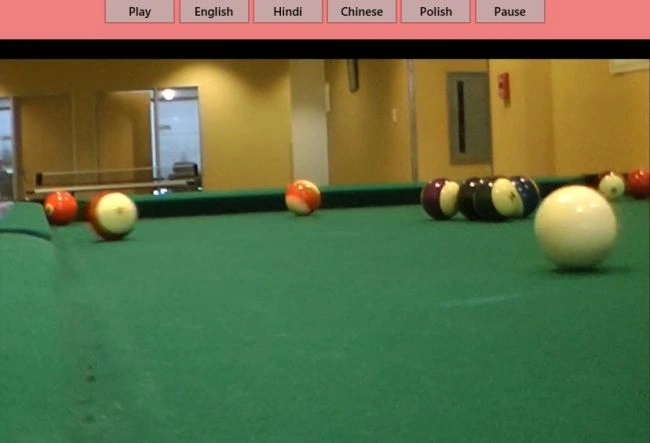
Summary
In this article I described how to create a Windows Store App for multitrack videos using JavaScript. I hope this article has helped you in understanding this topic. Please share it. If you know more about this, your feedback and constructive contributions are welcome.
Join the conversation! Your thoughts help the community grow.