

Introduction
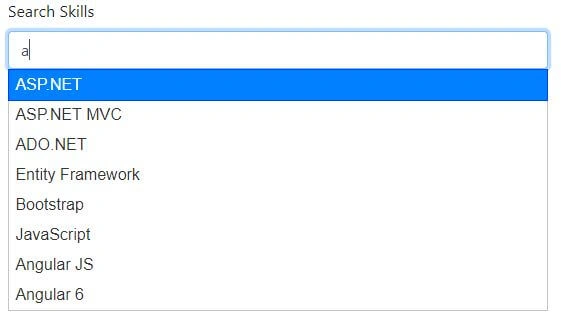
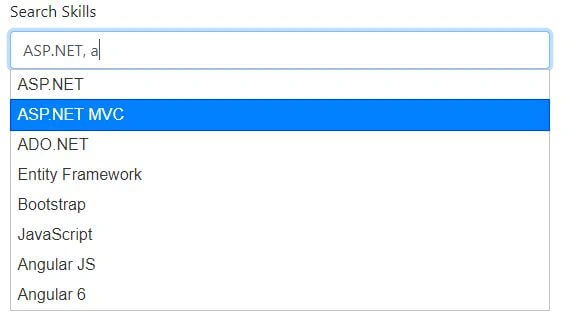
In this article, I will demonstrate how to create a multi-select jQuery autocomplete textbox using MVC 5. I will use jQuery autocomplete plugin and Bootstrap 4.
Step 1
Open SQL server 2014 and create a database table.
- CREATE TABLE [dbo].[Skill](
- [Id] [int] IDENTITY(1,1) NOT NULL,
- [Language] [nvarchar](50) NULL,
- CONSTRAINT [PK_Skill] PRIMARY KEY CLUSTERED
- (
- [Id] ASC
- )WITH (PAD_INDEX = OFF, STATISTICS_NORECOMPUTE = OFF, IGNORE_DUP_KEY = OFF, ALLOW_ROW_LOCKS = ON, ALLOW_PAGE_LOCKS = ON) ON [PRIMARY]
- ) ON [PRIMARY]
- GO
Step 2
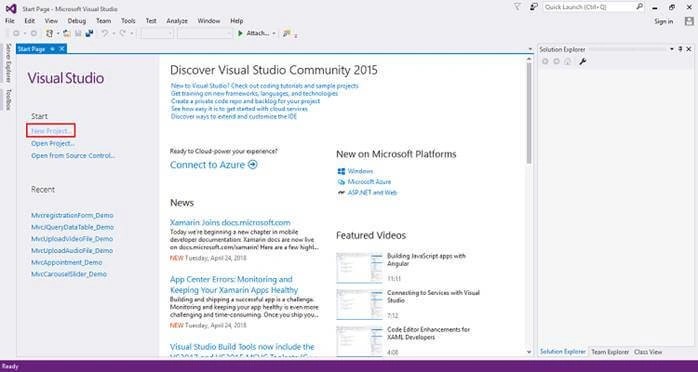
Open Visual Studio 2015, click on New Project and create an empty web application project.
Screenshot for creating new project 1
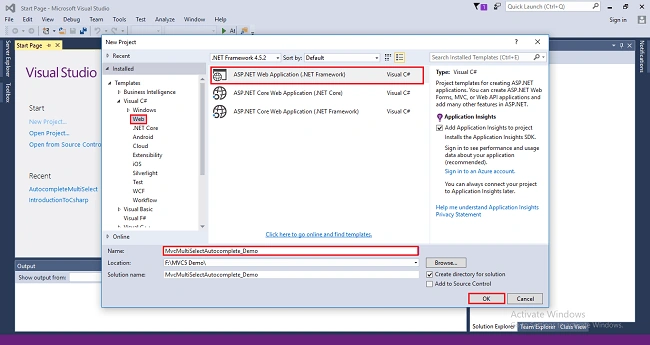
After clicking on New Project, one window will appear. Select Web from the left panel, choose ASP.NET Web Application, give a meaningful name to your project, and then click on OK as shown in below screenshot.
Screenshot for creating new project 2
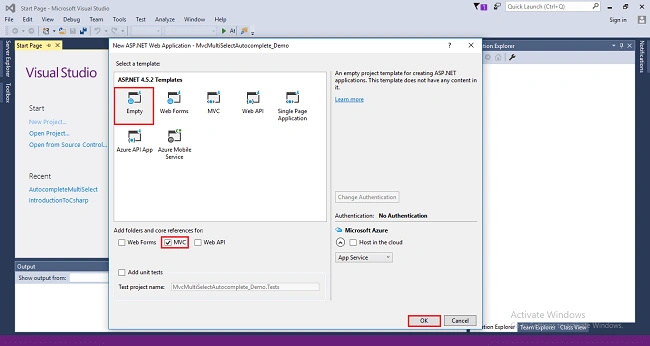
After clicking on OK one more window will appear; choose empty, check on MVC checkbox and click on OK as shown below screenshot.
Screenshot for creating new project 3
After clicking OK, the project will be created with the name of MvcMultiSelectAutocomplete_Demo.
Step 3
Add Entity Framework now. For that, right click on Models folder, select Add, then select New Item, then click on it.
Screenshot for adding entity framework 1
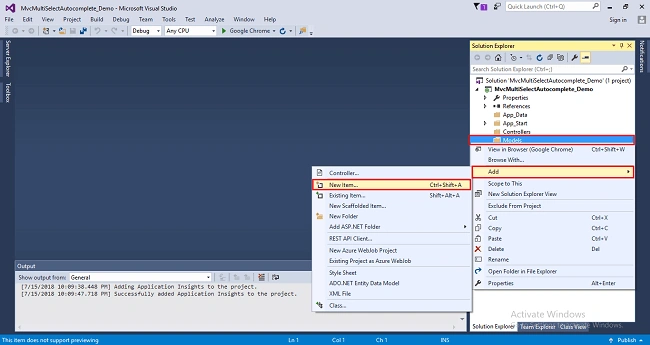
After clicking on a New item, you will get a window; from there, select Data from the left panel and choose ADO.NET Entity Data Model, give it the name DBModels (this name is not mandatory you can give any name) and click on Add.
Screenshot for adding entity framework 2
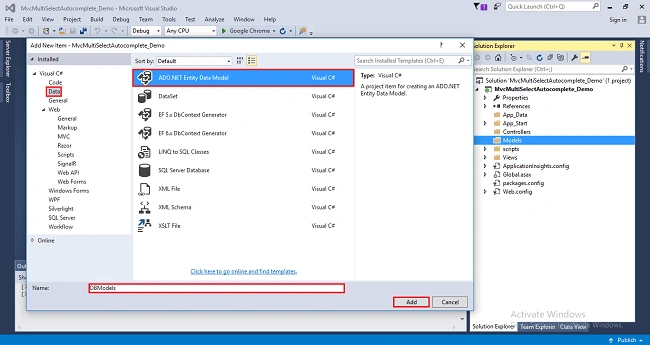
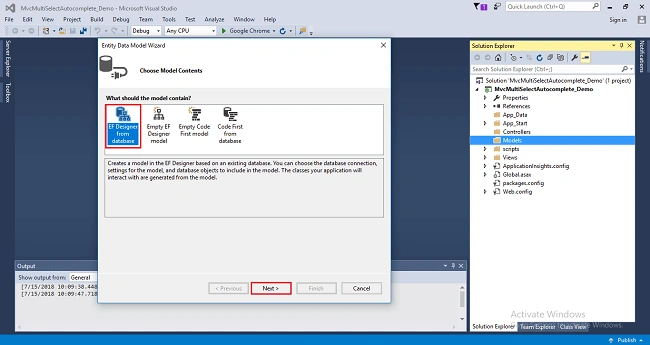
After you click on "Add a window", the wizard will open, choose EF Designer from the database and click Next.
Screenshot for adding entity framework 3
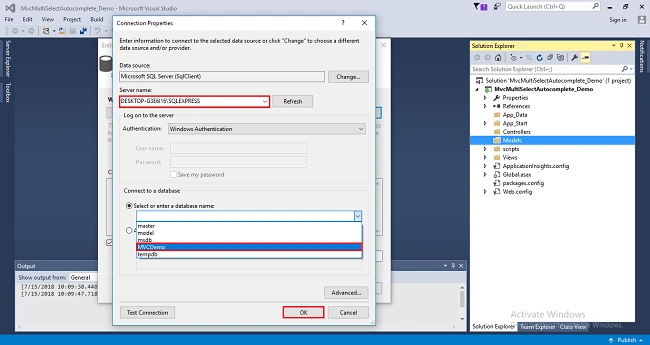
After clicking on Next a window will appear. Choose New Connection. Another window will appear, add your server name if it is local then enter a dot (.). Choose your database and click on OK.
Screenshot for adding entity framework 4
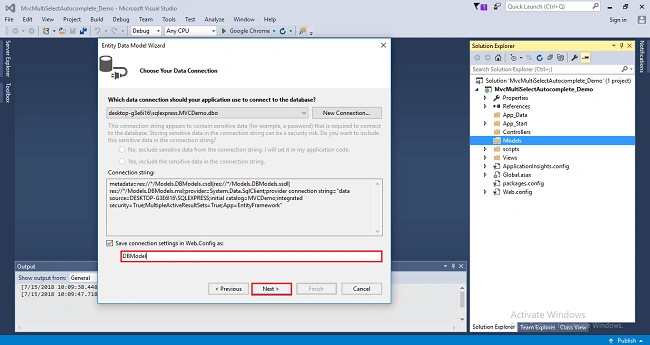
The connection will be added. If you wish to save connect as you want. You can change the name of your connection below. It will save connection in web config then click on Next.
Screenshot for adding entity framework 5
After clicking on NEXT another window will appear to choose database table name as shown in the below screenshot then click on Finish.
Screenshot for adding entity framework 6
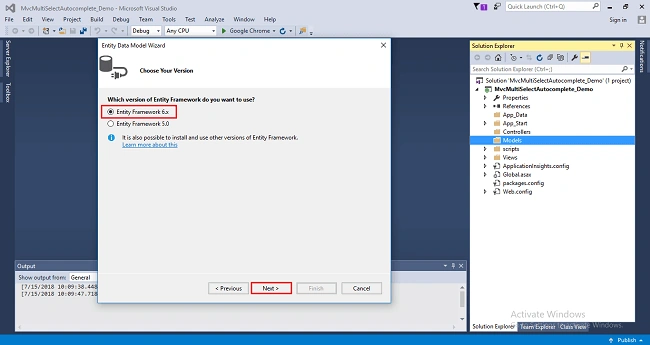
Screenshot for adding entity framework 7
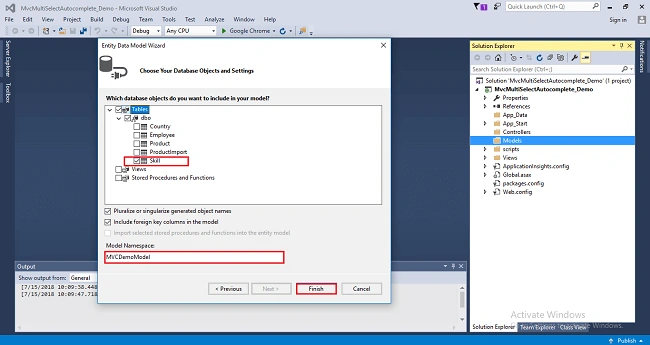
Entity framework will be added and respective class gets generated under the Models folder.
Screenshot for adding entity framework 8
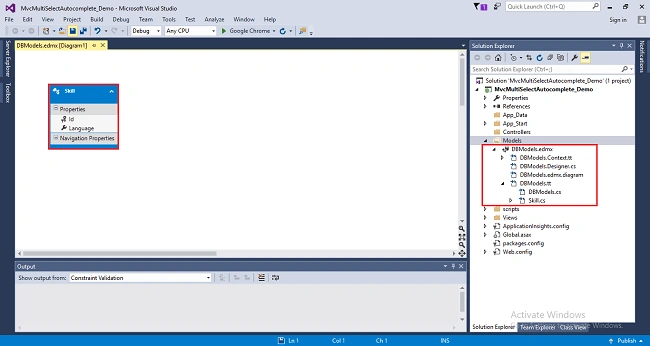
Following class will be added,
- namespace MvcMultiSelectAutocomplete_Demo.Models
- {
- using System;
- using System.Collections.Generic;
- public partial class Skill
- {
- public int Id { get; set; }
- public string Language { get; set; }
- }
- }
Step 4
Right click on Controllers folder, select Add, then choose Controller as shown in below screenshot,
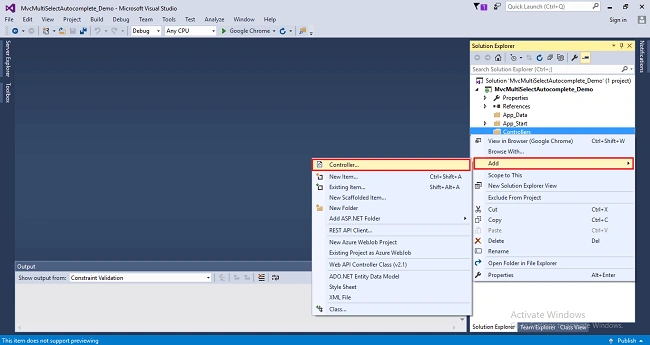
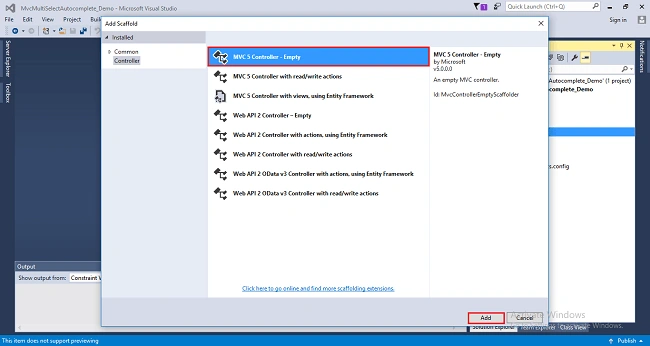
After clicking on the controller a window will appear to choose MVC5 Controller-Empty click on Add.
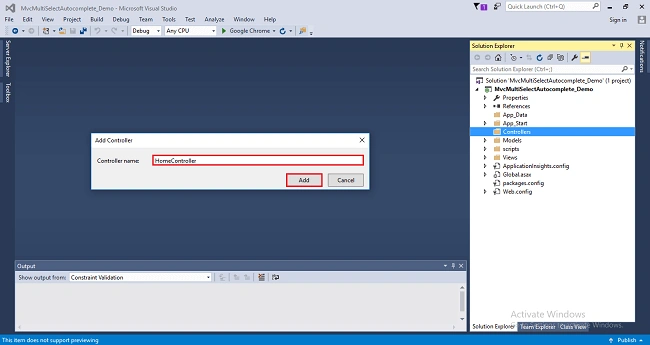
After clicking on Add another window will appear with DefaultController. Change the name to HomeController then click on Add. HomeController will be added under Controllers folder. Remember don’t change the Controller suffix for all controllers, change only highlight, and instead of Default just change Home as shown in the below screenshot.
Complete code for controller
- using MvcMultiSelectAutocomplete_Demo.Models;
- using System;
- using System.Collections.Generic;
- using System.Linq;
- using System.Web;
- using System.Web.Mvc;
- namespace MvcMultiSelectAutocomplete_Demo.Controllers
- {
- public class HomeController : Controller
- {
- // GET: Home
- public ActionResult Index()
- {
- return View();
- }
- [HttpGet]
- public ActionResult Search(string term)
- {
- using (DBModel db=new DBModel())
- {
- return Json(db.Skills.Where(p => p.Language.Contains(term)).Select(p => p.Language).ToList(), JsonRequestBehavior.AllowGet);
- }
- }
- }
- }
Step 5
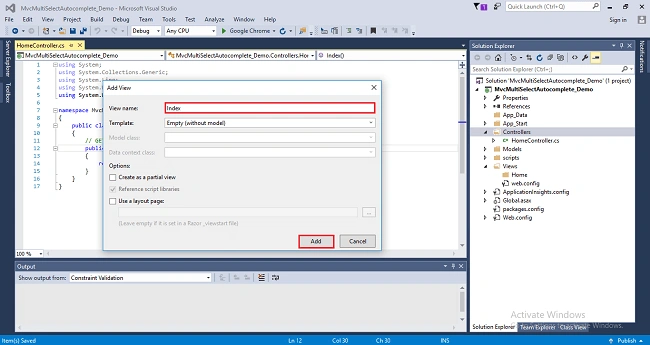
Right-click on index action method in the controller. Add view window will appear with default index name unchecked (use a Layout page) and click on Add as shown in the below screenshot. The view will be added in the views folder under Home folder with name index.
Screenshot for adding view
Step 6
Add required script and style in head section of view.


Norton DraftPosted Dec 1, 2021, 1:07 PM
Hi Farhan, the textbox works very well. Thank you for the piece of code. But I'm not able to select from dropdown from second time. For the first time it works with mouse, from there enter key alone works. If you could provide me with a solution to that, it'll be really helpful. Thanks in advance.
shintu babuPosted Mar 24, 2021, 3:46 AM
Can you share codes with multiselect autocomplete textbox with tags in .net mvc. And also it doesn't support already added in textbox and possible to enter new skills and accept spaces also
Syed RizviPosted Sep 3, 2019, 7:32 PM
This was a life saver! thank you so much! Best article read all month!
Alejandro ChávezPosted Jan 21, 2019, 12:21 PM
I can't download the project
First LastPosted Jul 18, 2018, 9:26 AM
Nice, useful bit of code. thanks.
Hadshana KamalanathanPosted Jul 17, 2018, 5:56 PM
Thank you for sharing.
L APosted Jul 17, 2018, 5:08 PM
Hi Farhan Ahmed, thanks for the article. I tried creating the same but couldn't able to generate suggested list for input text box. I have created an external .js file and added the script part to that but on keydown event, Action method isn't fired.