

This article shows how to bind a Drop Down List in MVC and how to show records in a GridView format on selecting records from a DropDownList.
Figure 1 shows my Data Table in design mode.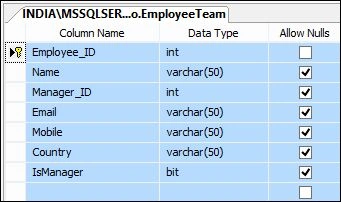
Figure 1.
The following is the Script of my table.
- CREATE TABLE [dbo].[EmployeeTeam](
- [Employee_ID] [int] IDENTITY(1,1) NOT NULL,
- [Name] [varchar](50) NULL,
- [Manager_ID] [int] NULL,
- [Email] [varchar](50) NULL,
- [Mobile] [varchar](50) NULL,
- [Country] [varchar](50) NULL,
- [IsManager] [bit] NULL,
- CONSTRAINT [PK_EmployeeTeam] PRIMARY KEY CLUSTERED
- (
- [Employee_ID] ASC
- )WITH (PAD_INDEX = OFF, STATISTICS_NORECOMPUTE = OFF,
- IGNORE_DUP_KEY = OFF, ALLOW_ROW_LOCKS = ON, ALLOW_PAGE_LOCKS = ON) ON [PRIMARY]
- ) ON [PRIMARY]
- GO
- SET ANSI_PADDING OFF
- GO
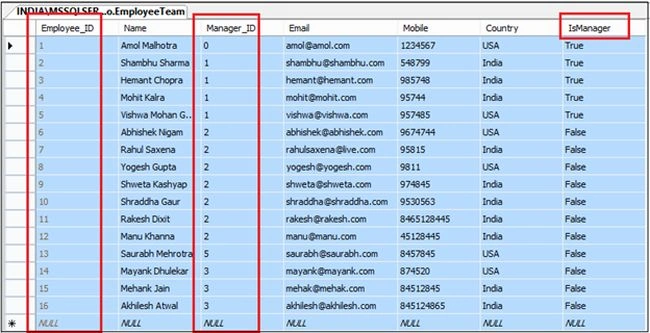
Figure 2.
Here in this you can see I have employee records with their Manager Id. So in the drop down I will see only Manage and on selecting Manager from the drop down I will show their team information in the GridView.
Open Visual Studio 2012 and add a project as in Figure 3.
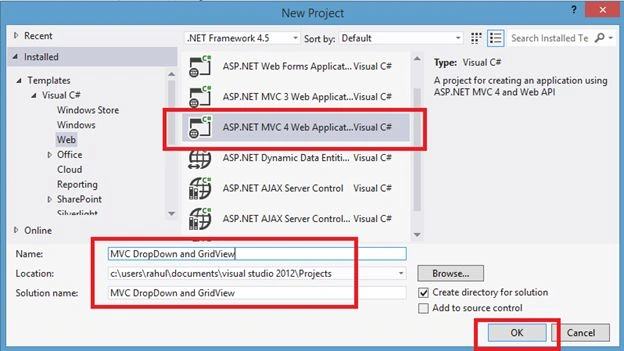
Figure 3.
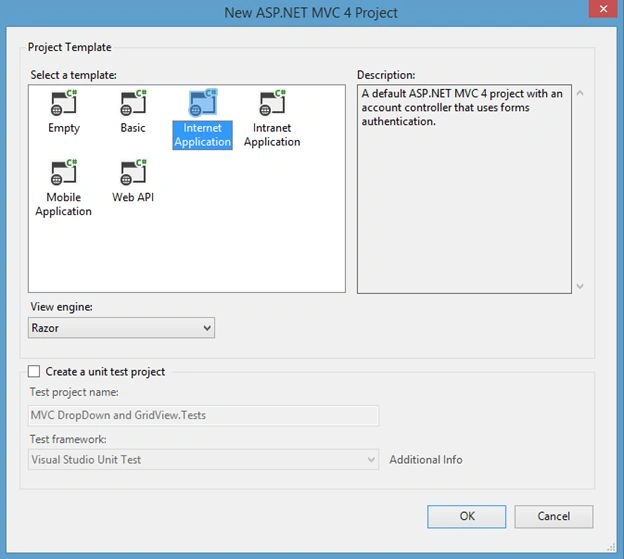
Figure 4.
Now right-click on the Project's Solution Explorer, select Manage NuGet Packages and Add a jQuery reference as in Figure 5.
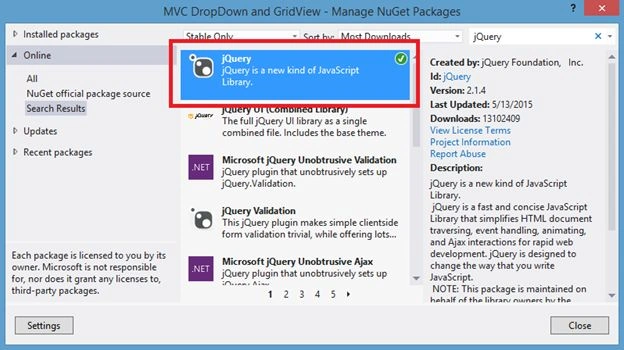
Figure 5.
Now right-click on the project's Solution Explorer and Add New Item as in Figure 6 -11.
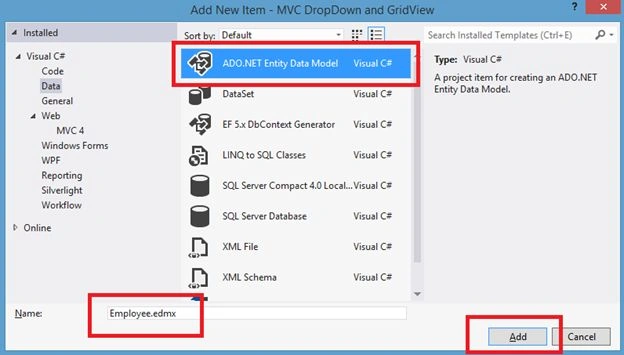
Figure 6.
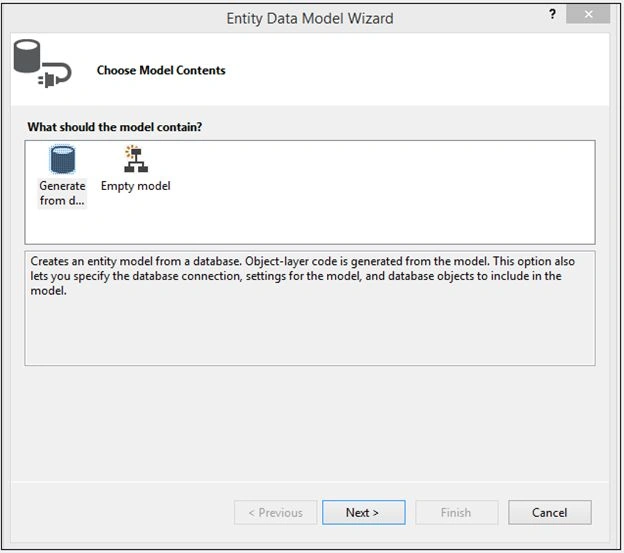
Figure 7.
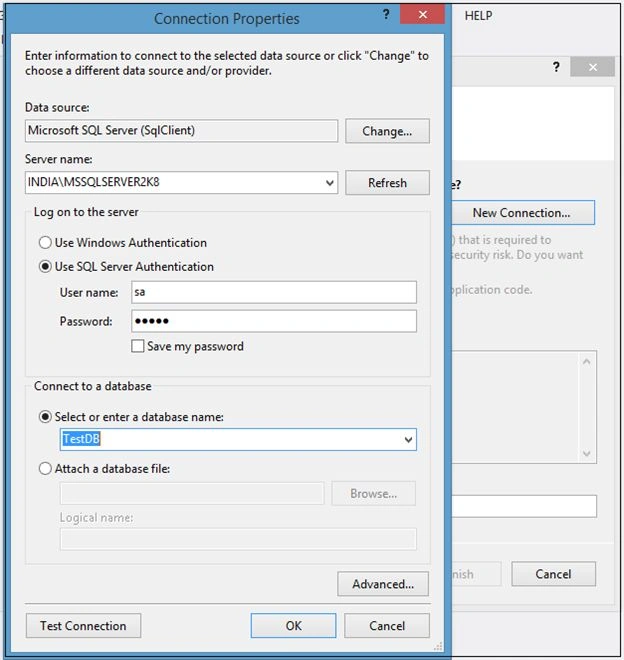
Figure 8.
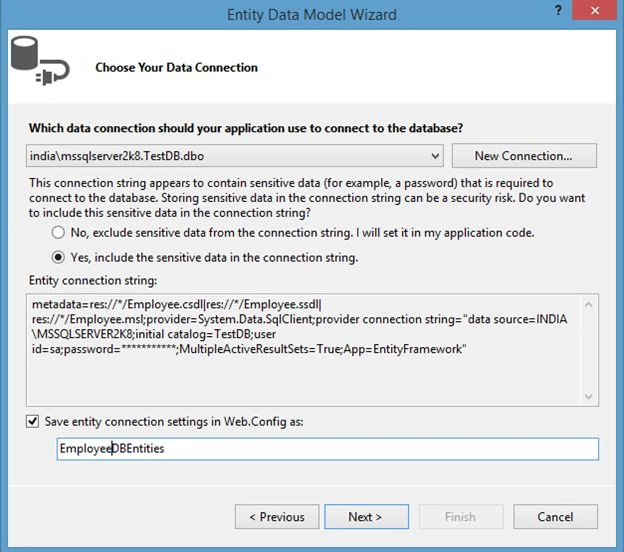
Figure 9.
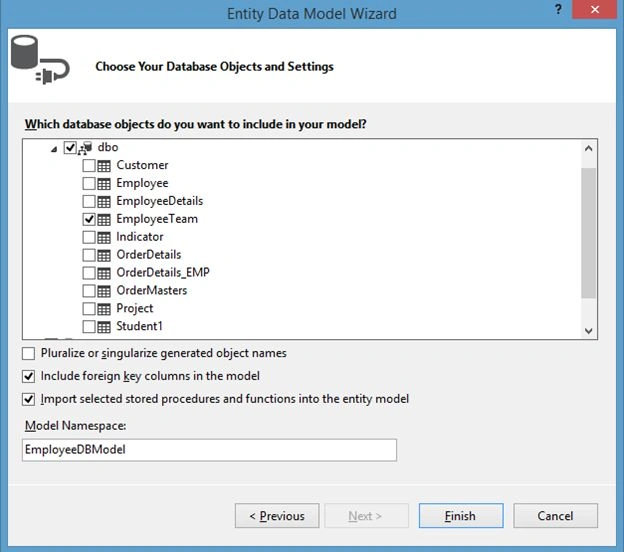
Figure 10.
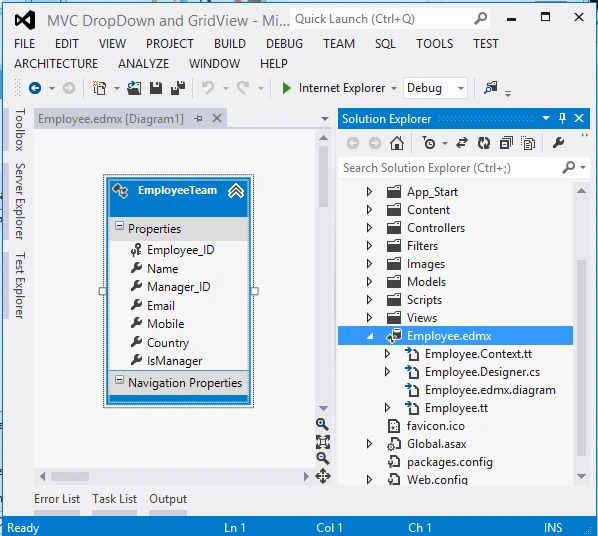
Figure 11.
Now right-click on the Model folder and Add New Class. Name it Employee.cs as in the following.
- using System;
- using System.Collections.Generic;
- using System.Linq;
- using System.Web;
- using System.Web.Mvc;
- namespace MVC_DropDown_and_GridView.Models
- {
- public class Employee
- {
- public List<SelectListItem> ManagerEmployeeList { get; set; }
- public List<Employee> EmployeeTeamGrid { get; set; }
- public int Employee_ID { get; set; }
- public string Name { get; set; }
- public string Email { get; set; }
- public string Country { get; set; }
- public string Mobile { get; set; }
- }
- }
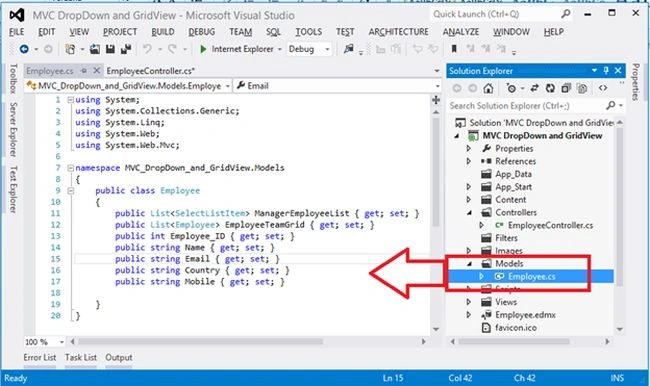
Figure 12.
Now right-click on the Controller Folder and Add New Empty Controller. Name it EmployeeController.cs and use the following code.
- using System;
- using System.Collections.Generic;
- using System.Linq;
- using System.Web;
- using System.Web.Mvc;
- using MVC_DropDown_and_GridView.Models;
- namespace MVC_DropDown_and_GridView.Controllers
- {
- public class EmployeeController : Controller
- {
- //
- // GET: /Employee/
- private EmployeeDBEntities db = new EmployeeDBEntities();
- public ActionResult Index()
- {
- Employee _model = new Employee();
- var managerList = db.EmployeeTeam.ToList().Where(a => a.IsManager.Equals(true));
- _model.ManagerEmployeeList = (from d in managerList
- select new SelectListItem
- {
- Value = d.Employee_ID.ToString(),
- Text = d.Name
- }).ToList();
- var qq = (from e in db.EmployeeTeam
- select new Employee
- {
- Employee_ID = e.Employee_ID,
- Name = e.Name,
- Email = e.Email,
- Country = e.Country,
- Mobile = e.Mobile
- }).ToList();
- _model.EmployeeTeamGrid = qq;
- return View("Index", _model);
- }
- public ActionResult Filter(int Manager_ID)
- {
- int? emp_ID = Convert.ToInt32(Manager_ID);
- List<Employee> y = null;
- var qq = y;
- if (emp_ID == 0)
- {
- qq = (from e in db.EmployeeTeam
- select new Employee
- {
- Employee_ID = e.Employee_ID,
- Name = e.Name,
- Email = e.Email,
- Country = e.Country,
- Mobile = e.Mobile
- }).ToList();
- }
- else
- {
- qq = (from e in db.EmployeeTeam
- where e.Manager_ID == emp_ID
- select new Employee
- {
- Employee_ID = e.Employee_ID,
- Name = e.Name,
- Email = e.Email,
- Country = e.Country,
- Mobile = e.Mobile
- }).ToList();
- }
- return PartialView("_ShowManagerTeam", qq);
- }
- }
- }
- @model MVC_DropDown_and_GridView.Models.Employee
- @{
- ViewBag.Title = "MVC 4 - Showing Data in DropDown And Grid View";
- }
- <script src="~/Scripts/jquery-2.1.4.min.js"></script>
- <script src="~/Scripts/jquery.validate.min.js"></script>
- <script src="~/Scripts/jquery.validate.unobtrusive.min.js"></script>
- <link href="~/StyleSheet1.css" rel="stylesheet" />
- <table style="width: 90%; text-align: center; background-color: #ADD8E6; padding: 10px;">
- <tr> <td style="padding: 10px; text-align: center; height:30px; background-color:#FF0000;
- font-size:20pt; font-weight:bold; color:white;">Select Manager #
- @Html.DropDownList("lstManagerEmployee", Model.ManagerEmployeeList)
- </td></tr>
- <tr><td><div id="employeeListGrid">
- @Html.Partial("_ShowManagerTeam", Model.EmployeeTeamGrid)
- </div>
- </td></tr>
- </table>
- <script>
- $(document).ready(function () {
- $("#lstManagerEmployee").append($("<option></option>").val("0").html("All Employee"));
- $("#lstManagerEmployee").val("0");
- });
- </script>
- <script type="text/javascript">
- $('#lstManagerEmployee').change(function (e) {
- e.preventDefault();
- var url = '@Url.Action("Filter")';
- $.get(url, { Manager_ID: $(this).val() }, function (result) {
- $('#employeeListGrid').html(result);
- });
- });
- </script>
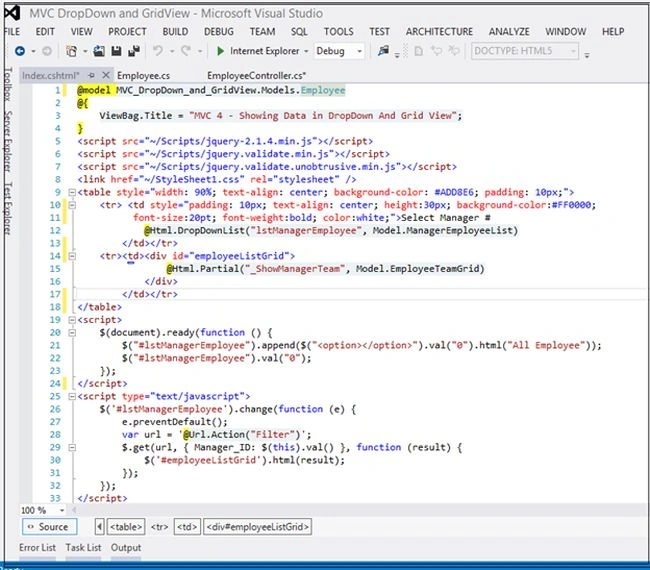
Figure 13.
Now right-click on Views, then Employee and ADD a Partial View (_ShowManagerTeam.cshtml).
- <div id="gridposition" style="width: 100%;">
- @{
- var grid1 = new WebGrid(source: Model, canPage: true, rowsPerPage: 10, ajaxUpdateContainerId: "gridContent");
- @grid1.GetHtml(mode: WebGridPagerModes.All,
- tableStyle: "gridTable",
- headerStyle: "gridHead",
- footerStyle: "gridFooter",
- rowStyle: "gridRow",
- alternatingRowStyle: "gridAltRow",
- htmlAttributes: new { id = "positionGrid" },
- fillEmptyRows: false,
- columns: grid1.Columns(
- grid1.Column("Employee_ID", header: "Employee_ID"),
- grid1.Column("Name", header: "Name"),
- grid1.Column("Email", header: "Email"),
- grid1.Column("Country", header: "Country "),
- grid1.Column("Mobile", header: "Mobile")))
- }
- </div>
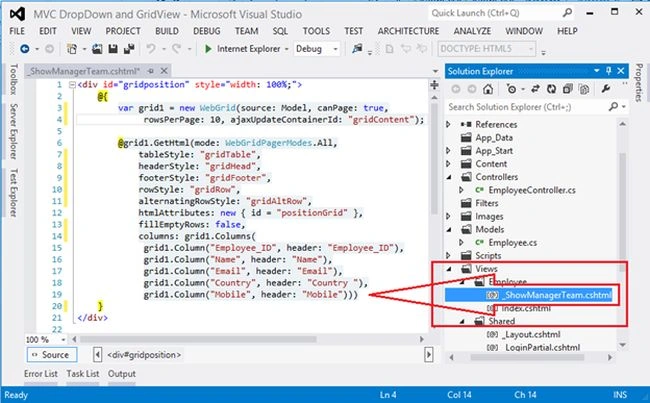
Figure 14.
To design my web grid I will add a style sheet as in the following.
- .gridTable {margin: 5px;padding: 10px;border: 1px #c8c8c8 solid;
- border-collapse: collapse;min-width: 550px;
- background-color: #fff;color: #fff; width:100%;}
- .gridHead th{font-weight: bold;background-color: #030D8D;
- color: #fff;padding: 10px; text-align:left;}
- .gridHead a:link,.gridHead a:visited,.gridHead a:active,.gridHead a:hover {color: #fff;}
- .gridHead a:hover {text-decoration:underline;}
- .gridTable tr.gridAltRow{background-color: #efeeef;}
- .gridTable tr:hover{background-color: #f6f70a;}
- .gridAltRow td{padding: 10px;margin: 5px; color: #333;text-align:left;}
- .gridRow td{padding: 10px;color: #333; text-align:left;}
- .gridFooter td{padding: 10px; color: #ffffff;font-size: 12pt;
- text-align: center; background-color:#228B22;}
- .gridFooter a{font-weight: bold;color: blue; border: 2px #f00 solid;}
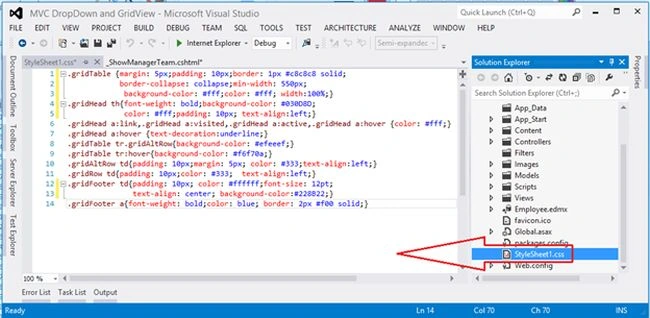
Figure 15.
Now run your application. Figures 16 through 23 show the output.
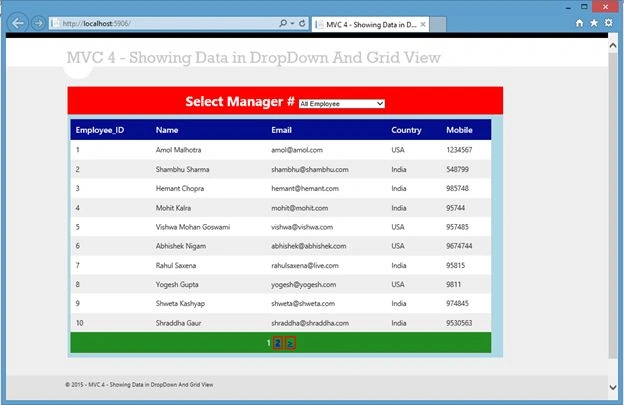
Figure 16.
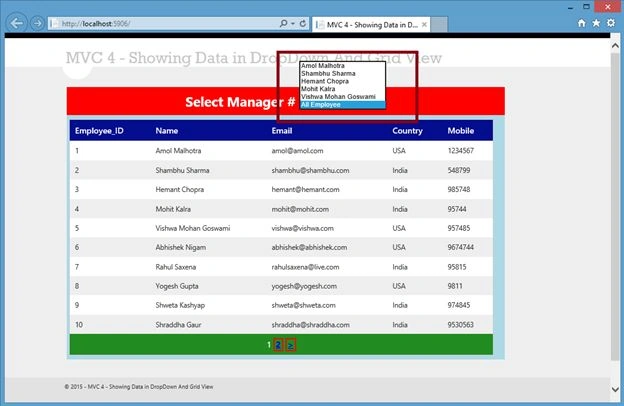
Figure 17.
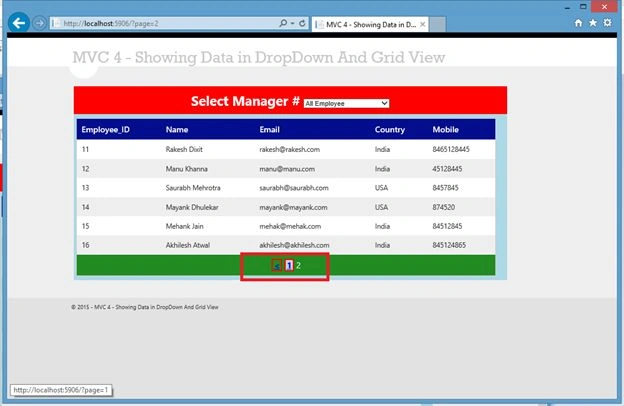
Figure 18.
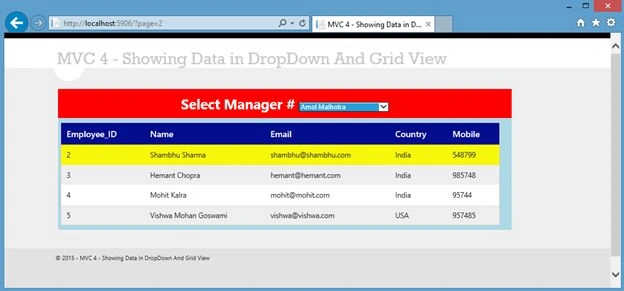
Figure 19.
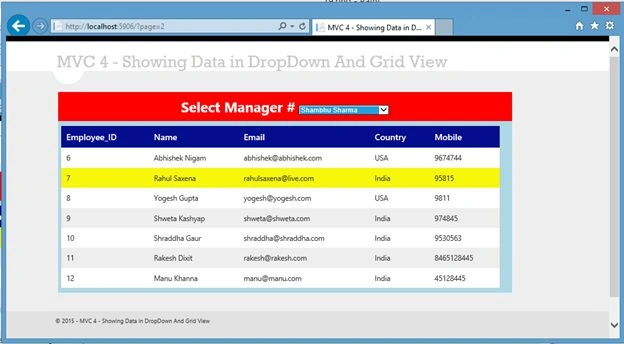
Figure 20.
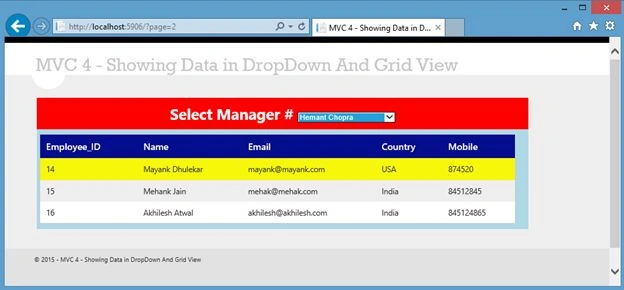
Figure 21.
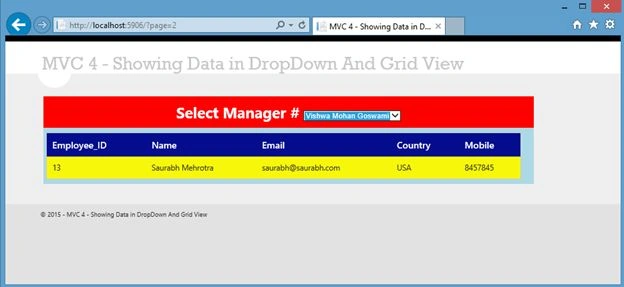
Figure 22.
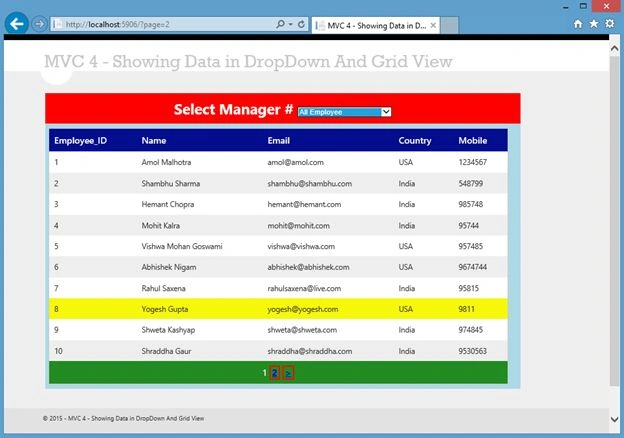
Figure 23.
Yousef AlHassanPosted Jul 28, 2022, 2:35 PM
Excellent example, right to the point.
Mahesh KarthikPosted Sep 19, 2018, 3:00 AM
Same project but i need without database is it possible...?
Ahmed AbdiPosted Sep 12, 2018, 9:14 AM
Thanks a lot. It helped me
Shubham SawantPosted Jul 18, 2017, 6:47 AM
Very Good Example Sir..
Rahul Kumar SaxenaPosted Sep 17, 2015, 12:13 PM
Thanks Anil Kumar
Anil KumarPosted Sep 17, 2015, 3:48 AM
gr8
Rahul Kumar SaxenaPosted Jun 15, 2015, 10:27 PM
Thanks Santhakumar Munuswamy..
Rahul Kumar SaxenaPosted Jun 15, 2015, 10:27 PM
Thanks Sibeesh Venu
Santhakumar MunuswamyPosted Jun 15, 2015, 2:30 PM
Thanks for good work.. keep it up
Sibeesh VenuPosted Jun 15, 2015, 12:42 PM
Good one.
Rahul Kumar SaxenaPosted Jun 15, 2015, 12:16 PM
Thanks Kailash Chandra Behera
Former memberPosted Jun 15, 2015, 8:19 AM
nice article
Rahul Kumar SaxenaPosted Jun 15, 2015, 6:54 AM
Thanks Manoj Kulkarni
Manoj KulkarniPosted Jun 15, 2015, 6:50 AM
Nice article
Rahul Kumar SaxenaPosted Jun 15, 2015, 6:44 AM
Thanks Khan Abrar Ahmed
Rahul Kumar SaxenaPosted Jun 15, 2015, 6:44 AM
Thanks Debasis Saha
Rahul Kumar SaxenaPosted Jun 15, 2015, 6:44 AM
Thanks Akash Nagina
Rahul Kumar SaxenaPosted Jun 15, 2015, 6:43 AM
Thanks Sibeesh Venu
Khan Abrar AhmedPosted Jun 15, 2015, 6:31 AM
Nice article
Debasis SahaPosted Jun 15, 2015, 6:15 AM
good article
Akash NaginaPosted Jun 15, 2015, 6:12 AM
Nice article..
Sibeesh VenuPosted Jun 15, 2015, 5:11 AM
Good one buddy.
Rahul Kumar SaxenaPosted Jun 15, 2015, 4:09 AM
Thanks Debendra Dash...
Debendra DashPosted Jun 15, 2015, 3:59 AM
Nice work sir...