In this post, we are going to create an MVC CRUD application with the help of Knockout JS. We will be using SQL database and Visual Studio for our development. If you are new to MVC, I strongly recommend you to read my previous post about MVC. Now, let’s begin.
Download source code
Introduction about Knockout JS
According to Knockout JS documentation, Knockout is a JavaScript library that helps you to create rich and responsive display and editor UI with a clean underlying data model. Any time, you have sections of UI that updates dynamically (e.g., changing depending on the user’s actions or when an external data source changes), KO can help you to implement it more simply and maintainable.
It has benefits, as shown below.
- Pure JavaScript library works with any Server or client-side technology.
Can be added on top of your existing Web Application without requiring major architectural changes. - Compact - around 13kb after gzipping
Works on any mainstream Browser (IE 6+, Firefox 2+, Chrome, Safari, Edge, others). - Comprehensive suite of specifications (developed BDD-style) means its correct functioning can easily be verified on the new Browsers and platforms.
Background
As I am working on a project, which uses Knockout for binding the Server data, a friend of mine requested me to create a CRUD application with Knockout, so that he can easily learn it. I just accepted his request and here, we are going to create an MVC CRUD application with the help of Knockout JS. I hope, you will like this.
Create an Empty MVC Application
To get started, we will create an empty MVC application, as shown below.
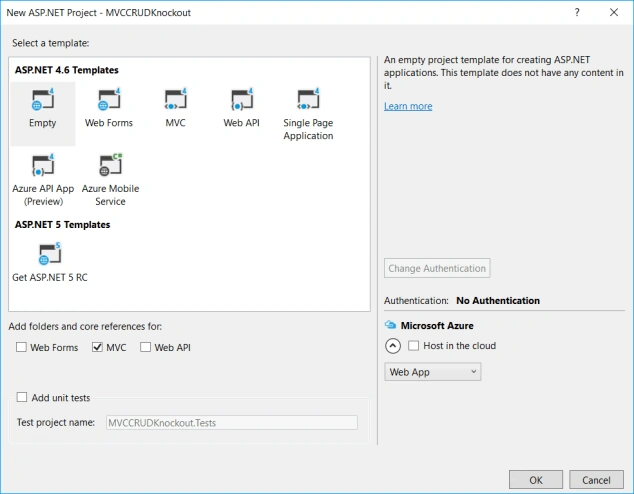 add_new_empty_mvc_project
Creating database and Entity Data Model
add_new_empty_mvc_project
Creating database and Entity Data Model
Here, I am creating a database with the name “TrialDB”. You can always create a DB by running the query given below.
- USE [master]
- GO
- /****** Object: Database [TrialDB] Script Date: 20-11-2016 03:54:53 PM ******/
- CREATE DATABASE [TrialDB]
- CONTAINMENT = NONE
- ON PRIMARY
- ( NAME = N'TrialDB', FILENAME = N'C:\Program Files\Microsoft SQL Server\MSSQL13.SQLEXPRESS\MSSQL\DATA\TrialDB.mdf' , SIZE = 8192KB , MAXSIZE = UNLIMITED, FILEGROWTH = 65536KB )
- LOG ON
- ( NAME = N'TrialDB_log', FILENAME = N'C:\Program Files\Microsoft SQL Server\MSSQL13.SQLEXPRESS\MSSQL\DATA\TrialDB_log.ldf' , SIZE = 8192KB , MAXSIZE = 2048GB , FILEGROWTH = 65536KB )
- GO
- ALTER DATABASE [TrialDB] SET COMPATIBILITY_LEVEL = 130
- GO
- IF (1 = FULLTEXTSERVICEPROPERTY('IsFullTextInstalled'))
- begin
- EXEC [TrialDB].[dbo].[sp_fulltext_database] @action = 'enable'
- end
- GO
- ALTER DATABASE [TrialDB] SET ANSI_NULL_DEFAULT OFF
- GO
- ALTER DATABASE [TrialDB] SET ANSI_NULLS OFF
- GO
- ALTER DATABASE [TrialDB] SET ANSI_PADDING OFF
- GO
- ALTER DATABASE [TrialDB] SET ANSI_WARNINGS OFF
- GO
- ALTER DATABASE [TrialDB] SET ARITHABORT OFF
- GO
- ALTER DATABASE [TrialDB] SET AUTO_CLOSE OFF
- GO
- ALTER DATABASE [TrialDB] SET AUTO_SHRINK OFF
- GO
- ALTER DATABASE [TrialDB] SET AUTO_UPDATE_STATISTICS ON
- GO
- ALTER DATABASE [TrialDB] SET CURSOR_CLOSE_ON_COMMIT OFF
- GO
- ALTER DATABASE [TrialDB] SET CURSOR_DEFAULT GLOBAL
- GO
- ALTER DATABASE [TrialDB] SET CONCAT_NULL_YIELDS_NULL OFF
- GO
- ALTER DATABASE [TrialDB] SET NUMERIC_ROUNDABORT OFF
- GO
- ALTER DATABASE [TrialDB] SET QUOTED_IDENTIFIER OFF
- GO
- ALTER DATABASE [TrialDB] SET RECURSIVE_TRIGGERS OFF
- GO
- ALTER DATABASE [TrialDB] SET DISABLE_BROKER
- GO
- ALTER DATABASE [TrialDB] SET AUTO_UPDATE_STATISTICS_ASYNC OFF
- GO
- ALTER DATABASE [TrialDB] SET DATE_CORRELATION_OPTIMIZATION OFF
- GO
- ALTER DATABASE [TrialDB] SET TRUSTWORTHY OFF
- GO
- ALTER DATABASE [TrialDB] SET ALLOW_SNAPSHOT_ISOLATION OFF
- GO
- ALTER DATABASE [TrialDB] SET PARAMETERIZATION SIMPLE
- GO
- ALTER DATABASE [TrialDB] SET READ_COMMITTED_SNAPSHOT OFF
- GO
- ALTER DATABASE [TrialDB] SET HONOR_BROKER_PRIORITY OFF
- GO
- ALTER DATABASE [TrialDB] SET RECOVERY SIMPLE
- GO
- ALTER DATABASE [TrialDB] SET MULTI_USER
- GO
- ALTER DATABASE [TrialDB] SET PAGE_VERIFY CHECKSUM
- GO
- ALTER DATABASE [TrialDB] SET DB_CHAINING OFF
- GO
- ALTER DATABASE [TrialDB] SET FILESTREAM( NON_TRANSACTED_ACCESS = OFF )
- GO
- ALTER DATABASE [TrialDB] SET TARGET_RECOVERY_TIME = 60 SECONDS
- GO
- ALTER DATABASE [TrialDB] SET DELAYED_DURABILITY = DISABLED
- GO
- ALTER DATABASE [TrialDB] SET QUERY_STORE = OFF
- GO
- USE [TrialDB]
- GO
- ALTER DATABASE SCOPED CONFIGURATION SET MAXDOP = 0;
- GO
- ALTER DATABASE SCOPED CONFIGURATION FOR SECONDARY SET MAXDOP = PRIMARY;
- GO
- ALTER DATABASE SCOPED CONFIGURATION SET LEGACY_CARDINALITY_ESTIMATION = OFF;
- GO
- ALTER DATABASE SCOPED CONFIGURATION FOR SECONDARY SET LEGACY_CARDINALITY_ESTIMATION = PRIMARY;
- GO
- ALTER DATABASE SCOPED CONFIGURATION SET PARAMETER_SNIFFING = ON;
- GO
- ALTER DATABASE SCOPED CONFIGURATION FOR SECONDARY SET PARAMETER_SNIFFING = PRIMARY;
- GO
- ALTER DATABASE SCOPED CONFIGURATION SET QUERY_OPTIMIZER_HOTFIXES = OFF;
- GO
- ALTER DATABASE SCOPED CONFIGURATION FOR SECONDARY SET QUERY_OPTIMIZER_HOTFIXES =PRIMARY;
- GO
- ALTER DATABASE [TrialDB] SET READ_WRITE
- GO
Create a table
To create a table, you can run the query given below.
- USE [TrialDB]
- GO
- /****** Object: Table [dbo].[Course] Script Date: 20-11-2016 03:57:30 PM ******/
- SET ANSI_NULLS ON
- GO
- SET QUOTED_IDENTIFIER ON
- GO
- CREATE TABLE [dbo].[Course](
- [CourseID] [int] NOT NULL,
- [CourseName] [nvarchar](50) NOT NULL,
- [CourseDescription] [nvarchar](100) NULL,
- CONSTRAINT [PK_Course] PRIMARY KEY CLUSTERED
- (
- [CourseID] ASC
- )WITH (PAD_INDEX = OFF, STATISTICS_NORECOMPUTE = OFF, IGNORE_DUP_KEY = OFF, ALLOW_ROW_LOCKS = ON, ALLOW_PAGE_LOCKS = ON) ON [PRIMARY]
- ) ON [PRIMARY]
- GO
Thus, our database is ready. Now, we will create an Entity Data Model with the database, which we created.
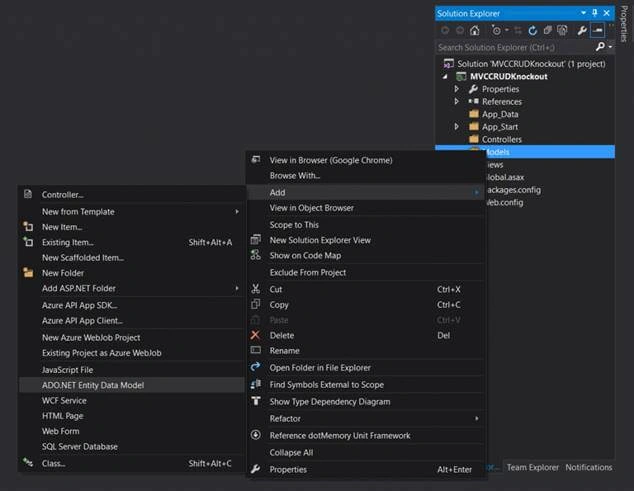 create_entity_data_model
Install Knockout JS
create_entity_data_model
Install Knockout JS
To install Knockout JS in your project, please right click on your project, click on Manage NuGet Package, and search for ‘Knockout’.
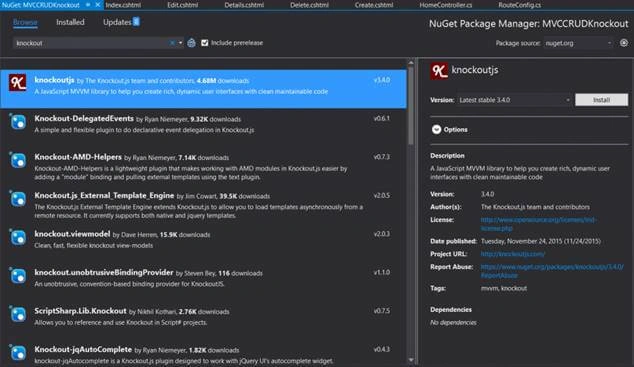 install_knockout
Now, let us start our coding as everything is set.
C – Create Operation
Thus, we are going to see the create operation, as it comes first in CRUD. Let us set up our Controller first. You can see the Controller code to create operation.
-
- public ActionResult Create() {
- return View();
- }
-
- [HttpPost]
- public string Create(Course course) {
- if (!ModelState.IsValid) return "Model is invalid";
- _db.Courses.Add(course);
- _db.SaveChanges();
- return "Cource is created";
- }
-
- if ('this_is' == /an_example/) {
- of_beautifier();
- } else {
- var a = b ? (c % d) : e[f];
- }
Here, the first action calls the View for the create operation and the second operation is used to insert the data to the database and _db is our entity.
private readonly TrialDBEntities _db = new TrialDBEntities();
Now, let’s go ahead and create View to create operation.
- @model MVCCRUDKnockout.Models.Course
- @ {
- ViewBag.Title = "Create";
- } <
- div class = "form-horizontal" >
- <
- h4 > Course < /h4> <
- hr >
- <
- div class = "form-group" >
- <
- label class = "control-label col-md-2"
- for = "CourseName" > CourseName < /label> <
- div class = "col-md-10" >
- <
- input class = "form-control text-box single-line"
- id = "CourseName"
- name = "CourseName"
- type = "text"
- value = ""
- data - bind = "value: CourseName" >
- <
- /div> <
- /div> <
- div class = "form-group" >
- <
- label class = "control-label col-md-2"
- for = "CourseDescription" > CourseDescription < /label> <
- div class = "col-md-10" >
- <
- input class = "form-control text-box single-line"
- id = "CourseDescription"
- name = "CourseDescription"
- type = "text"
- value = ""
- data - bind = "value: CourseDescription" >
- <
- /div> <
- /div> <
- div class = "form-group" >
- <
- div class = "col-md-offset-2 col-md-10" >
- <
- input type = "button"
- data - bind = "click: createCourse"
- value = "Create"
- class = "btn btn-default" >
- <
- /div> <
- /div> <
- /div> <
- div >
- @Html.ActionLink("Back to List", "Read") <
- /div> <
- script src = "~/Scripts/jquery-1.10.2.min.js" > < /script> <
- script src = "~/Scripts/knockout-3.4.0.js" > < /script> <
- script src = "~/Scripts/KOScripts/KOCreate.js" > < /script>
Did you notice that we are binding the data to our input controls as data-bind=”value: CourseName”? This value is related to the view model, which we are going to set. The interesting this is, the values in the model will be changed as you change the values in the input. You don’t need to add any kind of codes for the operations.
At last, we are binding a click event, as shown below.
- <input type="button" data-bind="click: createCourse" value="Create" class="btn btn-default">
This will call the function createCourse, which we are going to specify in our view model. Now, you may be thinking what is this view model? This Knockout uses MVVM pattern and now let us read some basic information provided in Knockout JS documentation.
MVVM and View Models
Model-View-View Model (MVVM) is a design pattern to build the user interfaces. It describes how you can keep a potentially sophisticated UI simple by splitting it into the three parts.
- A model
It contains your Application’s stored data. This data represents the objects and operations in your business domain (e.g., bank accounts that can perform money transfers) and is independent of any UI. When using KO, you will usually make AJAX calls to some Server-side code to read and write this stored model data.
- A view model
It comprises of a pure-code representation of the data and operations on a UI. For example, if you’re implementing a list editor, your view model would be an object holding a list of items and exposing methods to add and remove the items.
Note, that this is not the UI itself, it doesn’t have any concept of buttons or display styles. It’s not the persisted data model either; it holds the unsaved data; the user is working with. When using KO, your view models are pure JavaScript objects that holds no knowledge of HTML. Keeping the view model abstract in this way, lets make it simple, so you can manage more sophisticated behaviors without getting lost.
- A view
A visible, interactive UI represents the state of the view model. It displays information from the view model, sends commands to the view model (e.g., when the user clicks buttons) and updates whenever the state of the view model changes.
When using KO, your view is simply your HTML document with the declarative bindings to link it to the view model. Alternatively, you can use the templates that generates HTML, using data from your view model.
Now, going back to our create operation, KOCreate.js is the file, where we are going to write our operation. Now, please open the file and bind view model, as shown below.
- $(function () {
- ko.applyBindings(modelCreate);
- });
 knockout_apply_bindings
Now, preceding is our view model and the associated functions.
- var modelCreate = {
- CourseName: ko.observable(),
- CourseDescription: ko.observable(),
- createCourse: function() {
- try {
- $.ajax({
- url: '/Home/Create',
- type: 'post',
- dataType: 'json',
- data: ko.toJSON(this),
- contentType: 'application/json',
- success: successCallback,
- error: errorCallback
- });
- } catch (e) {
- window.location.href = '/Home/Read/';
- }
- }
- };
-
- function successCallback(data) {
- window.location.href = '/Home/Read/';
- }
-
- function errorCallback(err) {
- window.location.href = '/Home/Read/';
- }
Here, ko.observable() are the special objects, which can notify the changes and update the model accordingly. Thus, if you need to update your UI automatically, when the view model changes, you can use observable().Now, please run your view and check whether it is working fine.
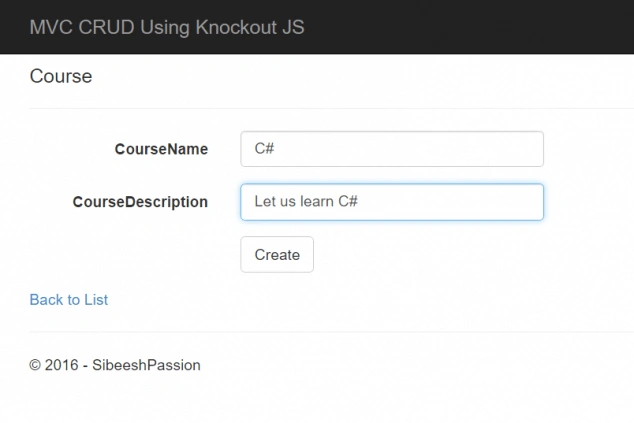 create_page
R – Read operation
create_page
R – Read operation
As we have completed our create operation, now it is the time for Read. Please open your controller and write the actions, as shown below.
-
- public ActionResult Read() {
- return View();
- }
-
- public JsonResult ListCourses() {
- return Json(_db.Courses.ToList(), JsonRequestBehavior.AllowGet);
- }
You can create your Read view as preceding.
- @{
- ViewBag.Title = "Read";
- }
- <h2>Index</h2>
- <p>
- @Html.ActionLink("Create New", "Create")
- </p>
- <table class="table">
- <tr>
- <th>
- Course Name
- </th>
- <th>
- Course Description
- </th>
- <th></th>
- </tr>
- <tbody data-bind="foreach: Courses">
- <tr>
- <td data-bind="text: CourseName"></td>
- <td data-bind="text: CourseDescription"></td>
- <td>
- <a data-bind="attr: { 'href': '@Url.Action("Edit", "Home")/' + CourseID }"class="btn-link">Edit</a>
- <a data-bind="attr: { 'href': '@Url.Action("Delete", "Home")/' + CourseID }"class="btn-link">Delete</a>
- </td>
- </tr>
- </tbody>
- </table>
- <script src="~/Scripts/jquery-1.10.2.min.js"></script>
- <script src="~/Scripts/knockout-3.4.0.js"></script>
- <script src="~/Scripts/KOScripts/KORead.js"></script>
Here, we are using data-bind=”foreach: Courses” for looping through our model, which we are going to create now. Thus, shall we do it? Please create a JS file with the name KORead.js and add the code, mentioned below.
- $(function() {
- ko.applyBindings(modelView);
- modelView.viewCourses();
- });
- var modelView = {
- Courses: ko.observableArray([]),
- viewCourses: function() {
- var thisObj = this;
- try {
- $.ajax({
- url: '/Home/ListCourses',
- type: 'GET',
- dataType: 'json',
- contentType: 'application/json',
- success: function(data) {
- thisObj.Courses(data);
- },
- error: function(err) {
- alert(err.status + " : " + err.statusText);
- }
- });
- } catch (e) {
- window.location.href = '/Home/Read/';
- }
- }
- };
Here, goes the output.
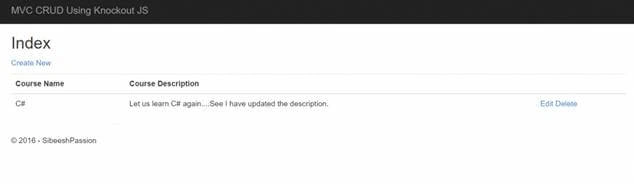 read_page
Now, it is the time for update operation. Are you ready?
U – Update operation
As we did for the two operations, mentioned above, let us create some actions in our controller first.
-
- public ActionResult Edit(int ? id) {
- if (id == null)
- return new HttpStatusCodeResult(HttpStatusCode.BadRequest);
- var course = _db.Courses.Find(id);
- if (course == null)
- return HttpNotFound();
- var serializer = new JavaScriptSerializer();
- ViewBag.SelectedCourse = serializer.Serialize(course);
- return View();
- }
-
- [HttpPost]
- public string Update(Course course) {
- if (!ModelState.IsValid) return "Invalid model";
- _db.Entry(course).State = EntityState.Modified;
- _db.SaveChanges();
- return "Updated successfully";
- }
Here, the first action with the parameter ID is called, whenever a user clicks on Edit link from the table we created. We are setting the queried data to ViewBag, so that we can use it for our related operation. For now, we can create a view, as shown below.
- @ {
- ViewBag.Title = "Edit";
- } <
- h2 > Edit < /h2>
- @using(Html.BeginForm()) {
- @Html.AntiForgeryToken() <
- div class = "form-horizontal" >
- <
- h4 > Course < /h4> <
- div class = "form-group" >
- <
- label class = "control-label col-md-2"
- for = "CourseName" > CourseName < /label> <
- div class = "col-md-10" >
- <
- input class = "form-control text-box single-line"
- id = "CourseName"
- name = "CourseName"
- type = "text"
- value = ""
- data - bind = "value: CourseName" >
- <
- /div> <
- /div> <
- div class = "form-group" >
- <
- label class = "control-label col-md-2"
- for = "CourseDescription" > CourseDescription < /label> <
- div class = "col-md-10" >
- <
- input class = "form-control text-box single-line"
- id = "CourseDescription"
- name = "CourseDescription"
- type = "text"
- value = ""
- data - bind = "value: CourseDescription" >
- <
- /div> <
- /div> <
- div class = "form-group" >
- <
- div class = "col-md-offset-2 col-md-10" >
- <
- input type = "button"
- data - bind = "click: updateCourse"
- value = "Update"
- class = "btn btn-default" >
- <
- /div> <
- /div> <
- /div>
- } <
- script type = "text/javascript" >
- var selectedCourse = '@Html.Raw(ViewBag.selectedCourse)'; <
- /script> <
- div >
- @Html.ActionLink("Back to List", "Read") <
- /div> < script src = "~/Scripts/jquery-1.10.2.min.js" > < /script>
- <script src = "~/Scripts/knockout-3.4.0.js" > < /script>
- < script src = "~/Scripts/KOScripts/KOUpdate.js" > < /script>
Create a JS with the name KOUpdate.js and add the code, mentioned below
- var parsedSelectedCourse = $.parseJSON(selectedCourse);
- $(function() {
- ko.applyBindings(modelUpdate);
- });
- var modelUpdate = {
- CourseID: ko.observable(parsedSelectedCourse.CourseID),
- CourseName: ko.observable(parsedSelectedCourse.CourseName),
- CourseDescription: ko.observable(parsedSelectedCourse.CourseDescription),
- updateCourse: function() {
- try {
- $.ajax({
- url: '/Home/Update',
- type: 'POST',
- dataType: 'json',
- data: ko.toJSON(this),
- contentType: 'application/json',
- success: successCallback,
- error: errorCallback
- });
- } catch (e) {
- window.location.href = '/Home/Read/';
- }
- }
- };
-
- function successCallback(data) {
- window.location.href = '/Home/Read/';
- }
-
- function errorCallback(err) {
- window.location.href = '/Home/Read/';
- }
Now, run your application and see the Edit/Update operation.
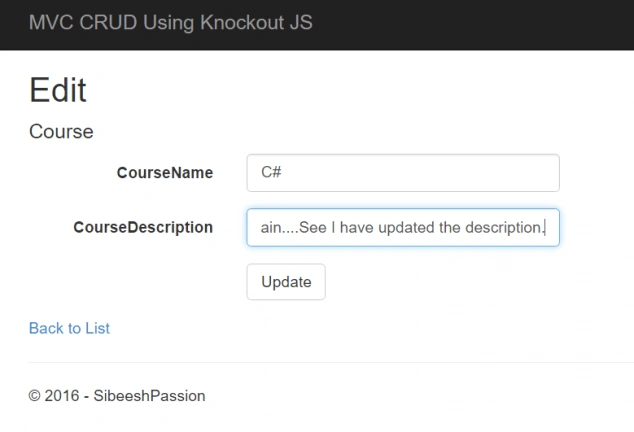 edit_page
D – Delete operation
edit_page
D – Delete operation
So our last operation, Delete. Let’s edit our controller as follows.
-
- public ActionResult Delete(int ? id) {
- if (id == null)
- return new HttpStatusCodeResult(HttpStatusCode.BadRequest);
- var course = _db.Courses.Find(id);
- if (course == null)
- return HttpNotFound();
- var serializer = new JavaScriptSerializer();
- ViewBag.SelectedCourse = serializer.Serialize(course);
- return View();
- }
-
- [HttpPost, ActionName("Delete")]
- public string Delete(Course course) {
- if (course == null) return "Invalid data";
- var getCourse = _db.Courses.Find(course.CourseID);
- _db.Courses.Remove(getCourse);
- _db.SaveChanges();
- return "Deleted successfully";
- }
The code looks exactly same as our update operation, so there is no explanation. Still if you get any issues, please ask. Now, let us create our view.
- @model MVCCRUDKnockout.Models.Course
- @ {
- ViewBag.Title = "Delete";
- } <
- h2 > Delete < /h2> <
- h3 > Are you sure you want to delete this ? < /h3>
- @using(Html.BeginForm()) {
- @Html.AntiForgeryToken() <
- div class = "form-horizontal" >
- <
- h4 > Course < /h4> <
- div class = "form-group" >
- <
- label class = "control-label col-md-2"
- for = "CourseName" > CourseName < /label> <
- div class = "col-md-10" >
- <
- input class = "form-control text-box single-line"
- id = "CourseName"
- name = "CourseName"
- type = "text"
- value = ""
- data - bind = "value: CourseName" >
- <
- /div> <
- /div> <
- div class = "form-group" >
- <
- label class = "control-label col-md-2"
- for = "CourseDescription" > CourseDescription < /label> <
- div class = "col-md-10" >
- <
- input class = "form-control text-box single-line"
- id = "CourseDescription"
- name = "CourseDescription"
- type = "text"
- value = ""
- data - bind = "value: CourseDescription" >
- <
- /div> <
- /div> <
- div class = "form-group" >
- <
- div class = "col-md-offset-2 col-md-10" >
- <
- input type = "button"
- data - bind = "click: deleteCourse"
- value = "Delete"
- class = "btn btn-default" >
- <
- /div> <
- /div> <
- /div>
- } <
- script type = "text/javascript" >
- var selectedCourse = '@Html.Raw(ViewBag.selectedCourse)'; <
- /script> <
- div >
- @Html.ActionLink("Back to List", "Read") <
- /div> <
- script src = "~/Scripts/jquery-1.10.2.min.js" > < /script> <
- script src = "~/Scripts/knockout-3.4.0.js" > < /script> <
- script src = "~/Scripts/KOScripts/KODelete.js" > < /script>
You can always create our knockout codes, as shown.
- var parsedSelectedCourse = $.parseJSON(selectedCourse);
- $(function() {
- ko.applyBindings(modelDelete);
- });
- var modelDelete = {
- CourseID: ko.observable(parsedSelectedCourse.CourseID),
- CourseName: ko.observable(parsedSelectedCourse.CourseName),
- CourseDescription: ko.observable(parsedSelectedCourse.CourseDescription),
- deleteCourse: function() {
- try {
- $.ajax({
- url: '/Home/Delete',
- type: 'POST',
- dataType: 'json',
- data: ko.toJSON(this),
- contentType: 'application/json',
- success: successCallback,
- error: errorCallback
- });
- } catch (e) {
- window.location.href = '/Home/Read/';
- }
- }
- };
-
- function successCallback(data) {
- window.location.href = '/Home/Read/';
- }
-
- function errorCallback(err) {
- window.location.href = '/Home/Read/';
- }
If everything goes fine, you will get a page, as shown below.
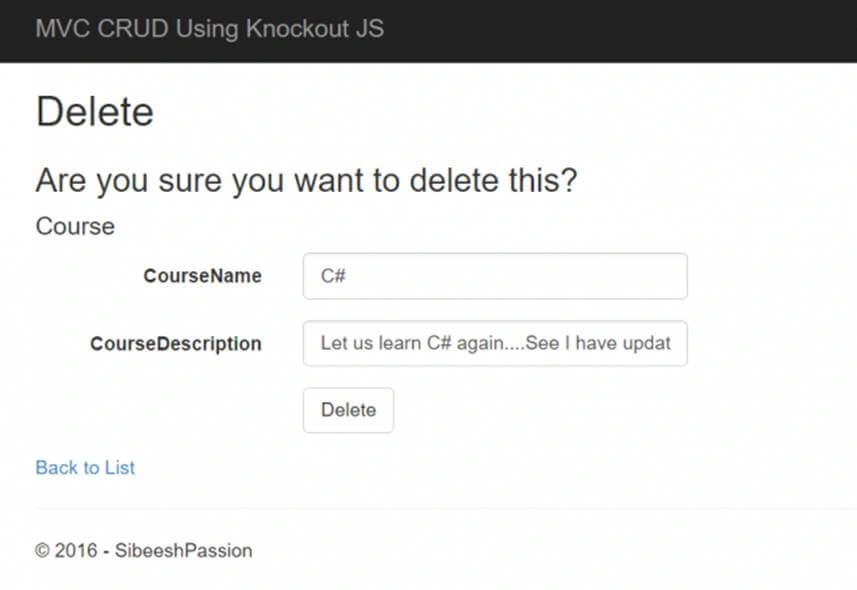 delete_page
That’s all for today. You can always download the source code attached to see the complete code and an Application. Happy coding..
References
See also
Conclusion
Did I miss anything that you may think is required? Have you found this post useful? I hope, you liked this article. Please share your valuable suggestions and feedback.
Your turn. What do you think?
A blog isn’t a blog without the comments, but do try to stay on topic. If you have a question unrelated to this post, you’re better off posting it on C# Corner, Code Project, Stack Overflow, ASP.NET Forum instead of commenting here. Tweet or E-mail me a link for your question and I’ll definitely try to help, if I can.
Please see this article in my blog here.


Fabio Silva LimaPosted Dec 13, 2016, 7:37 PM
I work with knockoutjs for years and my aproach it's using revealing module pattern in javascript.
Sibeesh VenuPosted Dec 13, 2016, 5:31 AM
Thiruppathi R Thanks much for your feedback brother
Thiruppathi RPosted Dec 13, 2016, 5:28 AM
Nice article for knockout, think you
Manav PandyaPosted Dec 13, 2016, 5:06 AM
No no sir in know very MUCH about CRUD , i am saying that there is similarities between Knowckout and MVC Sibeesh Venu
Sibeesh VenuPosted Dec 13, 2016, 4:55 AM
Manav Pandya Thanks much for your kind words brother. CRUD stands for Create Read Update Delete, it is just a term, and not related to MVC.
Manav PandyaPosted Dec 13, 2016, 2:25 AM
Thanks for sharing this , trying to learn from you
Manav PandyaPosted Dec 13, 2016, 2:25 AM
Thanks for that CRUD , i dont know too much in Knockout , but CRUD is somewhat like MVC Sibeesh Venu
Sibeesh VenuPosted Dec 13, 2016, 2:18 AM
Jaco Zwarts Thanks much for your feedback, I really appreciate it.
Jaco ZwartsPosted Dec 13, 2016, 1:21 AM
Good article, thank you for sharing Sibeesh, knockout all the way!