
Well lets create a new Silverlight Databound application as shown below.
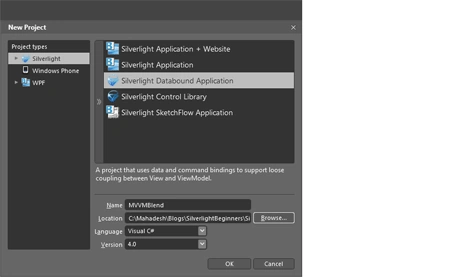
The Blend takes care of creating a MVVM Project Template for us as shown below :
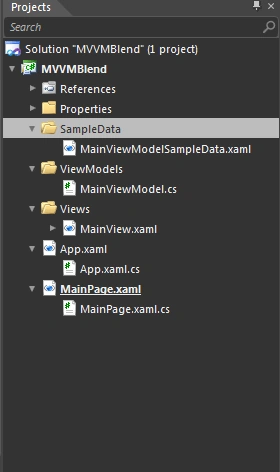
Lets take a deeper look at what Blend has created for us.
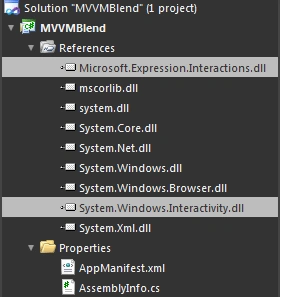
Make note that the Important DLLs are already added for us by Blend. In Visual studio we would have to do it Manually.
The ViewModel is created as shown below :
public class MainViewModel : INotifyPropertyChanged
{
public MainViewModel()
{
// Insert code required on object creation below this point.
}
private string viewModelProperty = "Runtime Property Value";
/// <summary>
/// Sample ViewModel property; this property is used in the view to display its value using a Binding.
/// </summary>
/// <returns></returns>
public string ViewModelProperty
{
get
{
return this.viewModelProperty;
}
set
{
this.viewModelProperty = value;
this.NotifyPropertyChanged("ViewModelProperty");
}
}
/// <summary>
/// Sample ViewModel method; this method is invoked by a Behavior that is associated with it in the View.
/// </summary>
public void ViewModelMethod()
{
if(!this.ViewModelProperty.EndsWith("Updated Value", StringComparison.Ordinal))
{
this.ViewModelProperty = this.ViewModelProperty + " - Updated Value";
}
}
#region INotifyPropertyChanged
public event PropertyChangedEventHandler PropertyChanged;
private void NotifyPropertyChanged(String info)
{
if (PropertyChanged != null)
{
PropertyChanged(this, new PropertyChangedEventArgs(info));
}
}
#endregion
}
Also creates a View named as MainView.xaml for us.
<UserControl
xmlns="http://schemas.microsoft.com/winfx/2006/xaml/presentation"
xmlns:x="http://schemas.microsoft.com/winfx/2006/xaml"
xmlns:d="http://schemas.microsoft.com/expression/blend/2008"
xmlns:mc="http://schemas.openxmlformats.org/markup-compatibility/2006"
xmlns:i="http://schemas.microsoft.com/expression/2010/interactivity"
xmlns:ic="http://schemas.microsoft.com/expression/2010/interactions"
xmlns:local="clr-namespace:MVVMBlend"
mc:Ignorable="d"
x:Class="MVVMBlend.MainView"
d:DesignWidth="640" d:DesignHeight="480">
<UserControl.Resources>
<local:MainViewModel x:Key="MainViewModelDataSource" />
</UserControl.Resources>
<Grid x:Name="LayoutRoot" DataContext="{Binding Source={StaticResource MainViewModelDataSource}}" d:DataContext="{d:DesignData
/SampleData/MainViewModelSampleData.xaml}">
<TextBlock Text="{Binding ViewModelProperty}" HorizontalAlignment="Center" VerticalAlignment="Center"/>
<Button Content="Update Value" Height="41" VerticalAlignment="Center" HorizontalAlignment="Center" Margin="0,125,0,0">
<i:Interaction.Triggers>
<i:EventTrigger EventName="Click">
<ic:CallMethodAction MethodName="ViewModelMethod" TargetObject="{Binding}"/>
</i:EventTrigger>
</i:Interaction.Triggers>
</Button>
</Grid>
</UserControl>
Just select the xaml view and move to the Properties Window , you would see somethng like this.
We need not touch the xaml all the modifications could be done from here.
The below highlighted area is the place to work.
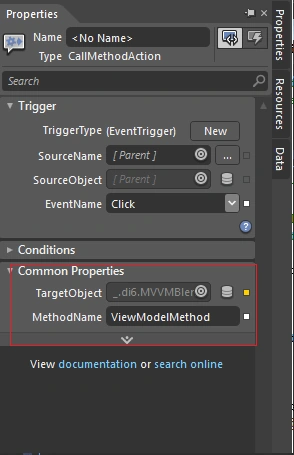
Click on the icon shown below:
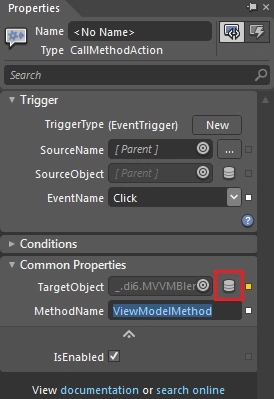
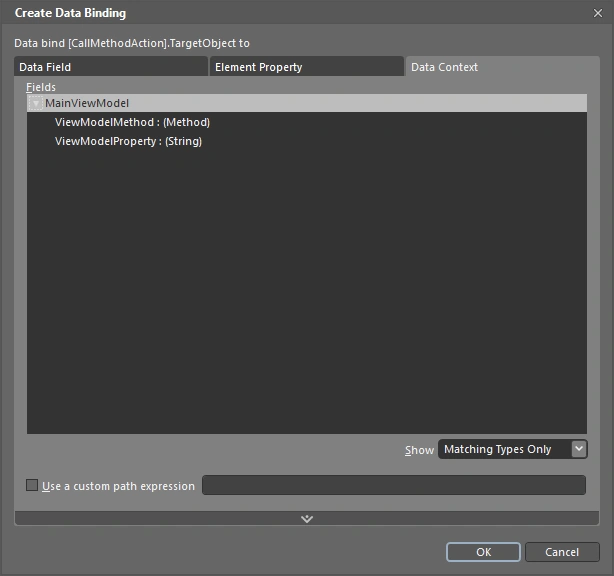
That would open a Create Data Binding dialog box. Modify it just like that and click ok. The xaml would be updated.
A Call is made for the MainView.xaml from the startup page MainPage.xaml.
<Grid x:Name="LayoutRoot" Background="White">
<local:MainView />
</Grid>
Lets not modify anything for now. Lets retain the code generated by Blend.
Lets give it a run.
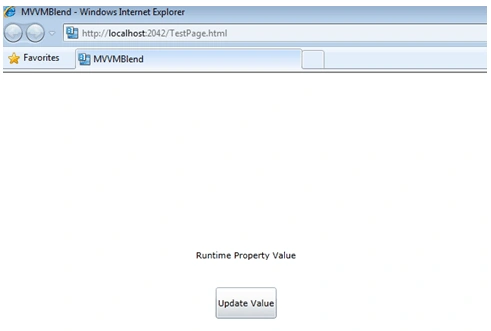
Hit the Buttoin Update Value.
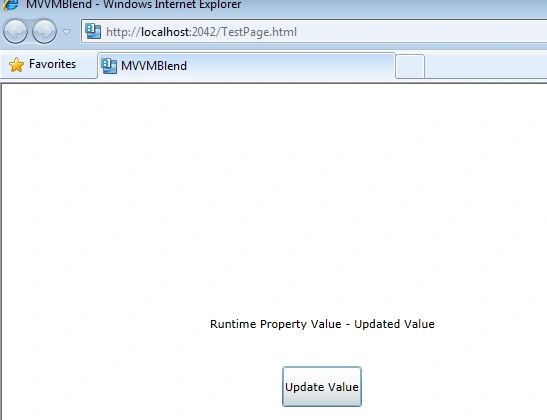
This is a very simple implementation of MVVM offereed by Blend.
In my next post regarding this topic I would describe what other features Expression Blend offers to the Developers and how we can create Business application using Blend. Till Then Happy Coding.
Sujit BhujbalPosted Nov 7, 2011, 1:13 AM
Hey Very Nice article on MVVM
Mike GoldPosted Aug 14, 2011, 12:02 AM
One of the things that bothers me about Blend is if you are a developer, you sometimes don't want to write code the way blend thinks it should be written. Here is one example. If you look at the Button code generated, I would much rather use the Command property of a button and bind to that in my ViewModel, rather than a trigger/action provided by blend. I do like the 'blendability' story it tries to provide though.