

Introduction
People talk a lot about what AI can do in theory. Agents that write code, debug tests, manage files, push commits — the list is exciting and also a little abstract until you actually sit down and try it yourself.
I’ve been using Claude for a while now. Web app, desktop app, the whole thing. And somewhere along the way, I started wondering: okay, but what happens when I give it something real to build? Not a toy example or a “hello world” prompt. An actual task that I would otherwise have to sit and do myself.
So I started with something that sounds simple on the surface but is genuinely annoying in practice: generating a production-ready HTML email template. If you’ve ever had to hand-code an email for Outlook, you already know why that’s not as easy as it sounds.
This article is about that first task. What I gave Claude, what it did with it, what permissions it asked for along the way, and what came out the other end.
The Task: What I Was Trying to Build
The goal was to generate a fully functional HTML email template for a healthcare brand — a patient communication email about insurance coverage.
This wasn’t a static, simple newsletter. The template had:
• A branded header with two logos
• A teal top bar and specific border styling
• Multiple conditional content sections (different insurance scenarios, different program eligibility checks)
• Merge field tokens like {{PatFirstName}}, {{InsurancePayerName}}, and conditional blocks
• Special symbols (™, ®) that need to render correctly in Outlook Windows
• Strict table-based layout — no flexbox, no grid, nothing that Outlook’s rendering engine will choke on
If you’ve worked in email development, you know that “works in Gmail” and “works in Outlook” are two different problem sets stitched together. It’s fiddly, it’s tedious, and it’s exactly the kind of thing I wanted to see Claude handle.
What I Gave Claude
I set up three inputs for Claude Code to work with:
• A sample PDF — the design source of truth. Layout, fonts, spacing, colors, content structure, all of it was in there.
• An _assets/ folder — containing all the images: logos, icons, and banners in 2x PNG format.
• A Version/ folder — reference HTML files from previous versions, used only for pattern-matching on special symbol handling, Outlook quirks, and email-safe styling practices.
Then I wrote a detailed prompt — the kind that doesn’t leave Claude guessing about anything. Let me show you what that looked like.
The Prompt
The prompt I wrote was structured as a technical brief. It told Claude exactly what role to play, what inputs to use, and what the output had to satisfy. Here’s the core of it:
“You are an expert HTML Email Template Engineer specializing in pixel-perfect, cross-client compatible email design (Outlook + Gmail). Generate a production-ready HTML email template based on the provided sample.pdf. Use this as the single source of truth for layout, fonts, spacing, styling, and content structure.”
I have attached the entire prompt within the article for your ready reference.
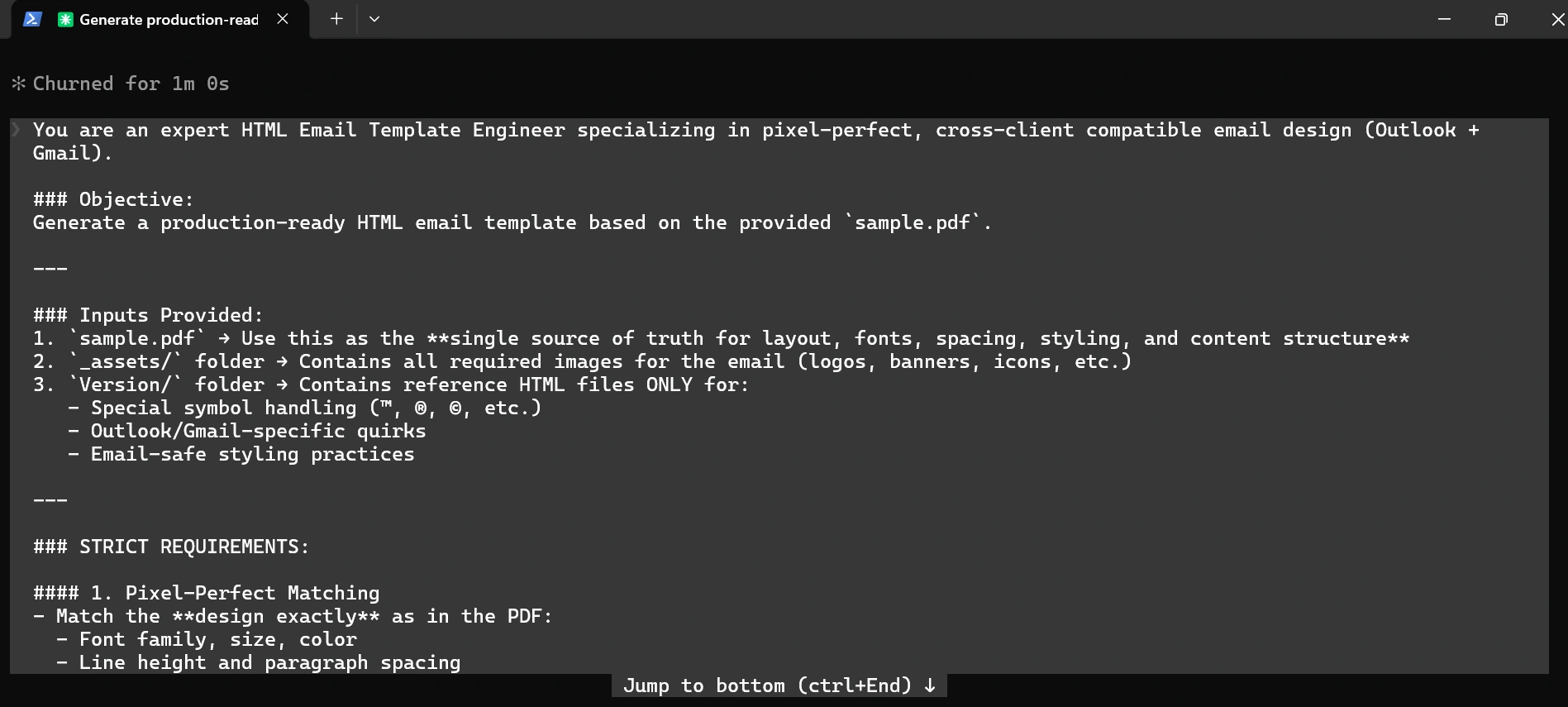
After that came the strict requirements — eight of them, each one specific:
• Pixel-perfect matching: match font family, size, color, line height, paragraph spacing, margins, padding, text alignment
• Email client compatibility: table-based layout only, inline CSS only, no flexbox, no grid, no external stylesheets
• Special symbol handling: ™, ®, © as HTML entities (™, ®, ©), following patterns from the Version folder only
• Image handling: images only from _assets/, with width/height attributes and alt text, no broken layouts in Outlook
• Generic reusable template: no hardcoded environment values, placeholders for variable content
• Outlook-specific fixes: conditional comments (<!--[if mso]>), mso-line-height-rule: exactly; where needed
• Code quality: clean indented HTML, no unnecessary tags, no external CSS or JS, fully self-contained
The prompt also included a validation checklist at the bottom — seven conditions that the output had to pass before it could be considered done.
This level of detail matters. The more specific your prompt, the less time Claude spends guessing and the less time you spend correcting.
Claude Gets to Work
Here’s where it gets interesting. I ran the prompt inside Claude Code, and the first thing Claude did was not start writing HTML. It started by understanding the problem.
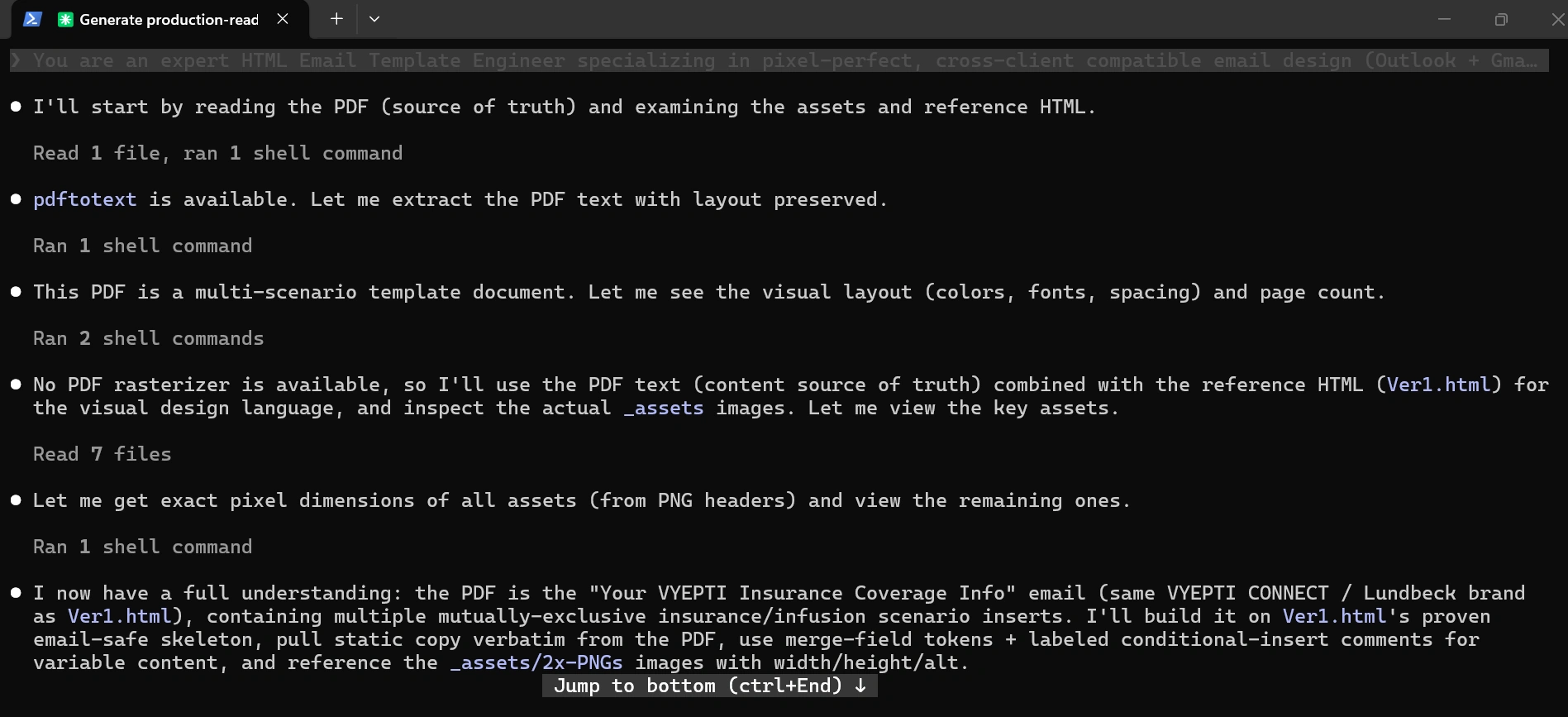
It read the PDF. Then it ran a shell command to check if pdftotext was available, because extracting the PDF content with layout preserved gives better accuracy than trying to infer layout from a rendered image. When it found the tool, it used it.
After extracting the text content, it examined the visual assets — reading the PNG headers to get exact pixel dimensions of every image in the _assets/ folder. It inspected the reference HTML files in the Version/ folder to understand which Outlook-specific patterns had already been established for this brand.
That summary before execution is one of the things I’ve come to appreciate about Claude Code. It doesn’t just run — it tells you what it’s about to do, and why. That’s useful when you’re working on something you care about getting right.
The Permissions Moment
This is something people don’t always mention when they write about Claude Code, but it’s worth talking about: Claude asks for permission before it does anything that touches your files.
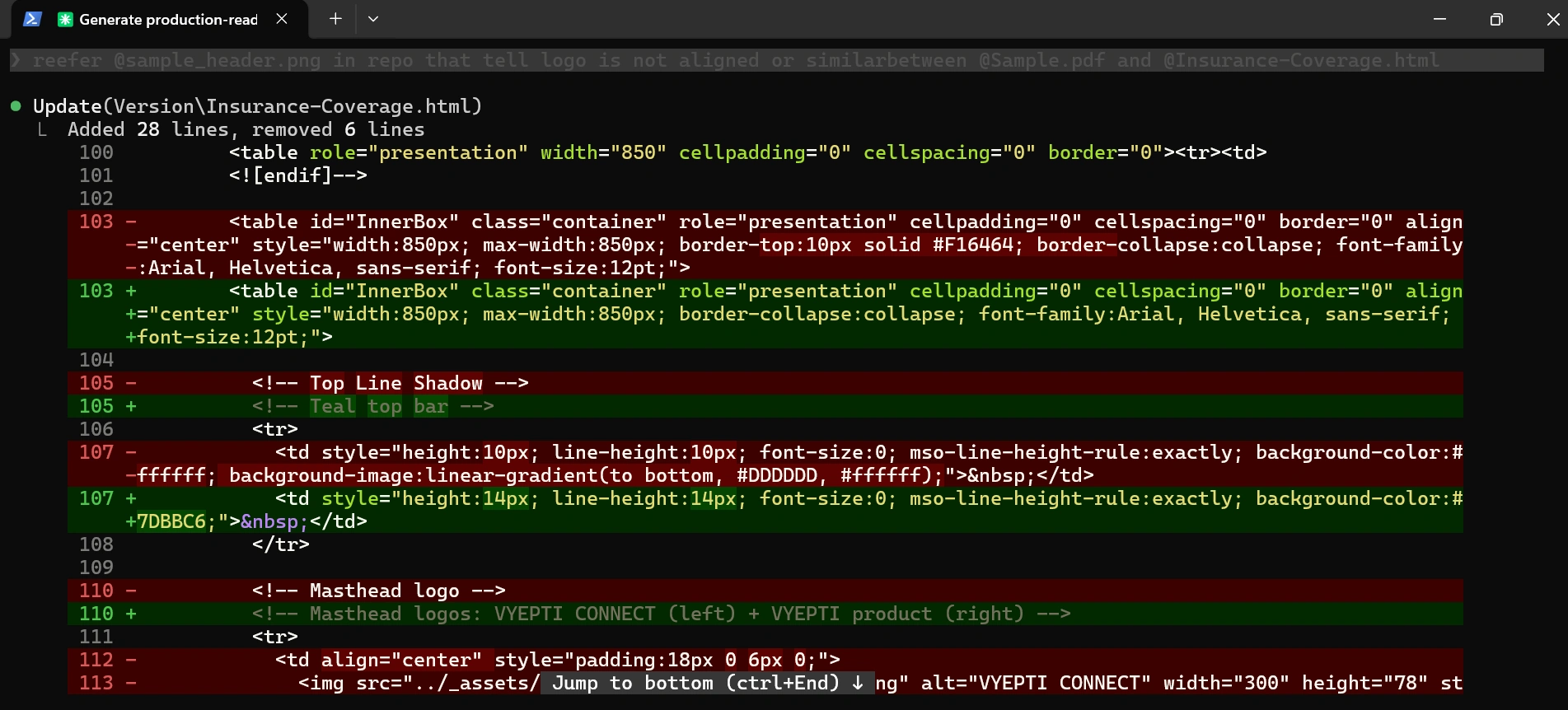
Before it wrote the HTML file, it asked to confirm that it was okay to create a new file in the project directory. Before it made edits to an existing reference file, it showed the proposed diff and waited for approval.
The permission model works like this in practice:
• Creating new files: asks once, creates on confirmation
• Editing existing files: shows the full diff (old lines in red, new lines in green), waits for your go-ahead
• Running shell commands: shows the exact command before executing it
• Destructive operations: always requires explicit confirmation, no exceptions
It’s actually a sensible workflow. You stay in control of what goes on disk, and Claude handles the cognitive load of figuring out what should go there.
What Came Out
The final output was a single, self-contained HTML file — clean, indented, and built entirely on table-based layout with inline CSS throughout.
A few things Claude got right that I was specifically watching for:
The teal bar and header structure. The original PDF had a thin teal line at the top of the email container. Claude correctly identified the hex color (#7DBBC6), set it as a solid background-color on a 14px-height spacer row, and used mso-line-height-rule: exactly to prevent Outlook from inflating it.
Dual-logo masthead. The header had the big logo on the left and a smaller product logo (with the eptinezumab-jjmr tagline) on the right. Claude placed these in a two-column table row with correct widths and alt text pulled from the design.
Conditional content blocks. Each insurance scenario section was wrapped in clearly labeled HTML comments, making it easy to find and toggle each section for different patient situations.
Special symbols. The ® in "Brand®" and ™ in relevant places were output as ® and ™ — not copy-pasted Unicode characters that can break in certain Outlook configurations.
Outlook conditional comments. The ghost table wrapper was in place, ensuring Outlook renders the layout correctly with the proper width constraints applied only where needed.
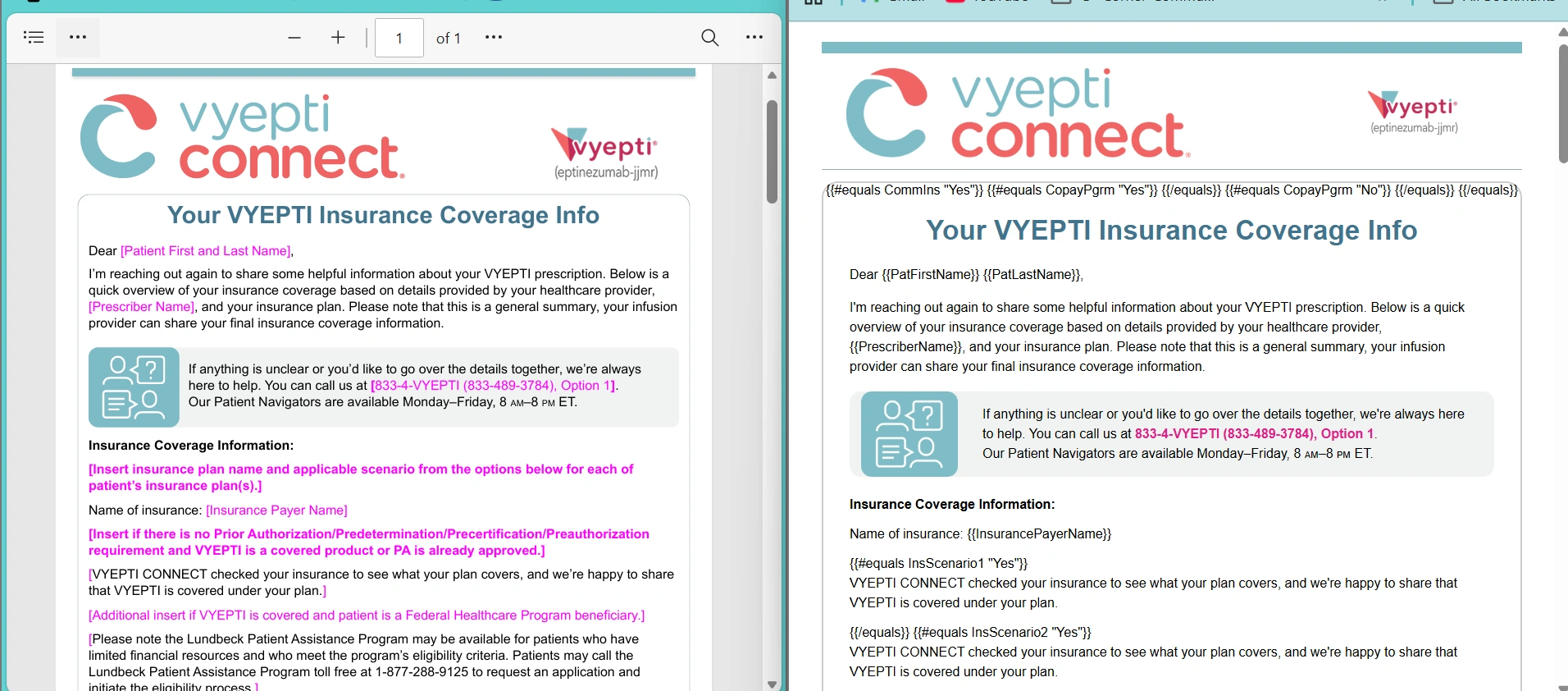
Looking at the side-by-side comparison from Image 1 — the PDF on the left, the rendered HTML on the right — the structural alignment is strong. Same header layout, same content hierarchy, same call-out box styling for the Patient Navigator section. The merge field tokens appear exactly where the placeholder text was in the PDF.
The Context Window:
At the end of the session, I ran /context inside Claude Code to see how much of the context window the task had consumed. The numbers were interesting.
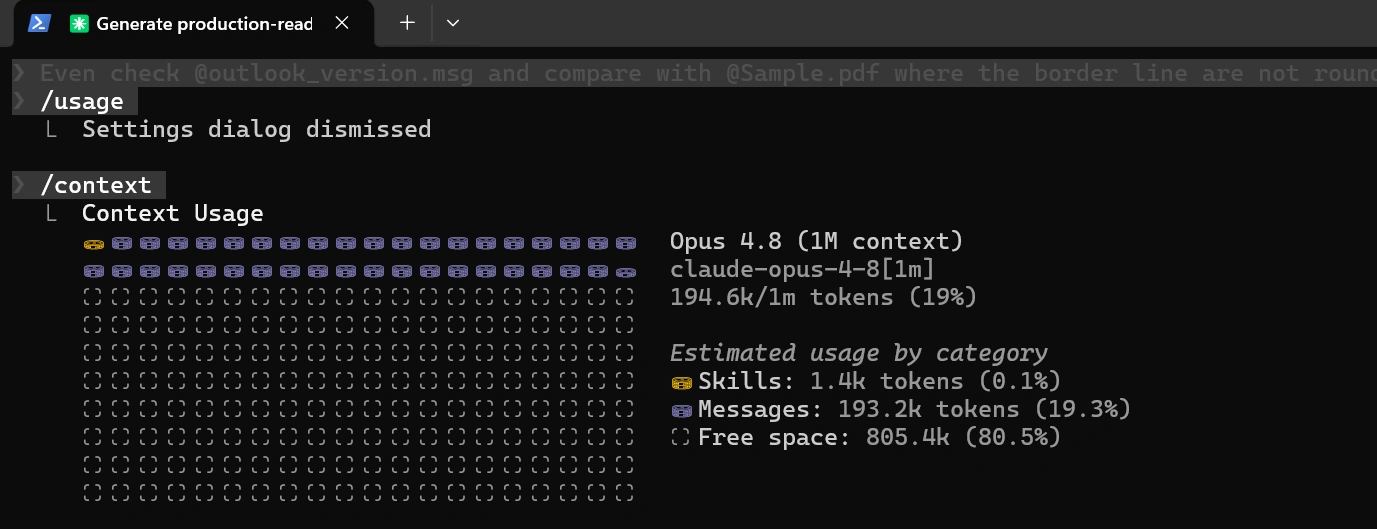
• Skills: 1.4k tokens (0.1%) — the internal skill definitions Claude loaded to guide its approach
• Messages: 193.2k tokens (19.3%) — the full conversation: the prompt, the PDF extraction, the asset metadata, the reference HTML files, the diffs, and every response
• Free space: 805.4k tokens (80.5%) — still available for further iterations or follow-up tasks
It also tells you something practical about how to scope your tasks. At 19% usage for a moderately complex template job, there’s a lot of headroom. You could add more reference files, more conditional scenarios, more assets — and still stay well within what Claude can handle in a single session.
Final Thoughts
I went into this wanting to see whether Claude Code could handle a real deliverable — not a “write me a sorting algorithm” prompt, but something with assets, reference files, client compatibility constraints, and conditional content logic.
It handled it well. The output wasn’t perfect out of the box (there were a couple of padding adjustments I made manually), but it was genuinely close. Close enough that the iteration time was a fraction of what it would have been starting from scratch.
For tasks like this — structured, constraint-heavy, reference-driven — Claude Code works well precisely because it can read your files, understand context, and follow a detailed brief. You’re not chatting with it. You’re briefing it, the same way you’d brief a developer.
That’s a useful thing to understand before you sit down to use it.
If you want to try something similar, start with a well-defined prompt and give Claude Code everything it needs to read upfront. It’ll do better work when it’s not guessing.
P.S: This is part of a series on using Claude Code for real-world development tasks. If you found this helpful, leave a comment or question below — happy to dig into the details.
Join the conversation! Your thoughts help the community grow.