Introduction
Performance is one of the crucial parts of the development. To improve performance, we need first to measure the code execution time and then optimize the code to improve code quality and performance.
In this article, we are going to discuss how to measure your code performance using Benchmark.Net.
We will cover
- What is Benchmark?
- Introduction BenchmarkDotNet library.
- A step-by-step guide to benchmarking .Net application.
- Analysis of Benchmarking Result
Before we start with Benchmarking, first let's discuss the performance of your code.
This article can be used by beginners, Intermediate, and professionals.
Prerequisites
- Visual Studio 2022
- .Net Core 6.0/7.0
- BenchmarkDotNet
What is Benchmark?
The software can be measured with its behavior while having a massive workload. Good software should work smoothly while having a heavy workload in your system.
Benchmarking is a technique to determine the performance of the pieces of code in the application. It helps you to identify the area of the code in your application that needs code optimizations.
Introduction of BenchmarkDotNet Library
BenchmarkDotNet is a lightweight, Open-source, and powerful library to track performance and shared tracked data.
Below are the details supported by the BenchmarkDotNet library.
| Runtimes |
Languges |
OS |
Architectures |
| .NET 5+, .NET Framework 4.6.1+, .NET Core 2.0+, Mono, NativeAOT |
C#, F#, Visual Basic |
Windows, Linux, macOS |
x86, x64, ARM, ARM64, Wasm and LoongArch64 |
Measured data by BenchmarkDotNet can be exported to different formats (md, html, csv, xml, json, etc.).
Below are a few important attributes you used.
- MemoryDiagnoser: Diagnosers are attached to the BenchmarkDotNet library to get more useful information. The MemoryDiagnoser is a diagnoser that, when attached to your benchmarks, provides additional information, such as the allocated bytes and the frequency of garbage collection.
[MemoryDiagnoser]
public class SampleMemoryDemo
{
//Code removed.
}
Sample code of the [MemoryDiagnoser] attributed.
- Benchmark: Benchmark the method
- GlobalSetup: Use to initialize the instance. E.g., HTTPClient
- GlobalCleanup: Use for cleaning up the logic
Let's create a sample application to understand BenchmarkDotNet.
A step-by-step guide to benchmarking .Net application
We will create a simple console application to compare the performance of String and StringBuilder.
Please follow the below steps to create a .Net project.
Step 1. Create a new console application named “BenchmarkingDemo.
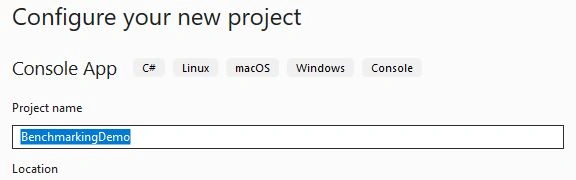
Click on the next button to select .Net framework on the next screen.
Step 2. Select .Net framework. We are going to use .Net core 7.0 in this project.
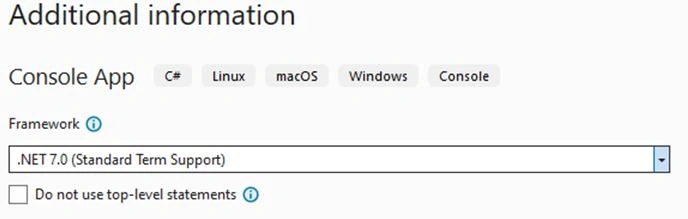
Click on the Next button. A console application will be created.
Step 3. Install BenchMarkingDotNet nugget package.
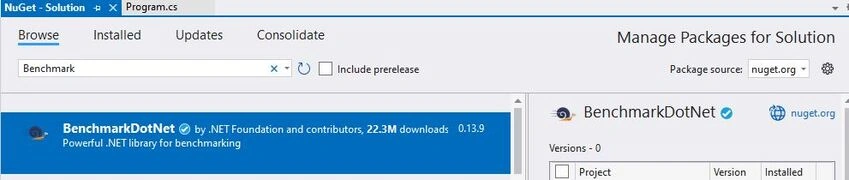
Step 4. Create a new class called the “StringCompareBenchmarkPerformance” class.
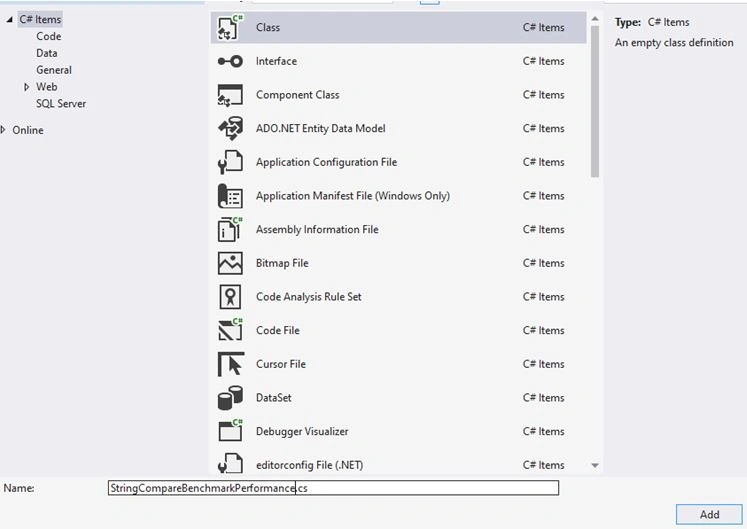
Click on Add to create a new class.
Step 5. Add the code below to the class.
using System.Text;
using BenchmarkDotNet.Attributes;

namespace BenchmarkingDemo
{

    [MemoryDiagnoser]
    public class StringCompareBenchmarkPerformance
    {
        public int number = 5;

        [Benchmark]
        public string WithStringBUilder()
        {
            // Create StringBuilder object
            StringBuilder output = new StringBuilder();

            for (int i = 0; i < number; i++)
            {
                output.Append("Kirtesh").Append(i);
            }
            return output.ToString();
        }

        [Benchmark]
        public string WithString()
        {
            string strOutput = string.Empty;
            for (int i = 0; i < number; i++)
            {
                strOutput = $"{strOutput}Kirtesh{i}";
            }
            return strOutput;
        }
    }
}
In the above code.
- The class has been decorated with [MemoryDiagnoser] to take benefit of Memory tracking/usage.
- We have taken the int variable globally and the assign value 5.
- We have added two methods, “WithStringBuilder” and “WithString”.
- Both methods return the string as the output.
- We have decorated both methods with the [Benchmark] attribute to add these methods to the monitor.
Step 6. Let’s add the below code to the Program.cs file.
// See https://aka.ms/new-console-template for more information
using BenchmarkDotNet.Running;
using BenchmarkingDemo;

var summary = BenchmarkRunner.Run<StringCompareBenchmarkPerformance>();
In the above code.
- We have used the "Run" method of the BenchmarkRunner to execute all the Benchmark methods in the “StringCompareBenchmarkPerformance” class.
- We need to run the program in “Release” mode. Please make sure that we don't have the “debug” mode, as the .Net core doesn't have optimization in place in "debug" mode.
Step 7. Let's execute the program and see the result in the output console.
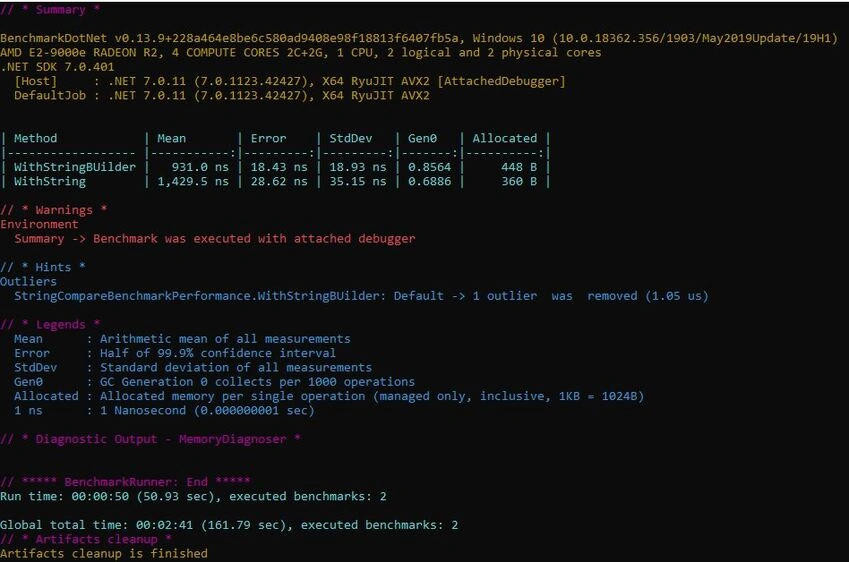
Analysed Benchmarking Result
Let's discuss the result in detail to get a better understanding.
- Method: Method name that has been benchmarked. In this case, “WithStringBuilder” and “WithString”.
- Mean: Shows the average execution of the methods. It shows that the “WithStringBuilder” method is faster than the “WithString”
- Error: Half of 99.9% confidence interval.
- StdDev: Standard Deviation of all the measurements. e.g., the extent to which the execution time deviated from the meantime.
- Gen0: Each set of 1000 operations.
- Allocated: Managed memory allocation for 1 single operation.
Benchmarking Results will be saved in the newly created folder called “Benchmark. Artifacts”. Let's move to the artifacts folder. Here we can see the result folder and output in the .txt file.

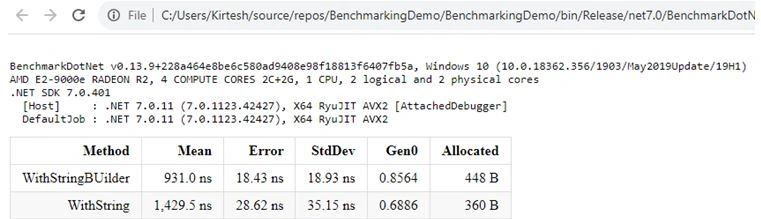
Let's click on the Result folder. We can have results in different formats like “.html”,”.csv” etc.

Let's click on the html file to see the result.
That’s all for this article. I hope you learned something new and enjoyed this article.


Join the conversation! Your thoughts help the community grow.