

Introduction
The .NET Core command-line interface (CLI) is a cross-platform for developing, building, running, and publishing .NET Core applications.
CLI commands
There are some commands which are installed by default:
| Command | Description |
| new | Initialize .NET projects. |
| restore | Restore dependencies specified in the .NET project. |
| build | Builds a .NET project. |
| publish | Publishes a .NET project for deployment (including the runtime). |
| run | Compiles and immediately executes a .NET project. |
| test | Runs unit tests using the test runner specified in the project. |
| pack | Creates a NuGet package. |
| migrate | Migrates a project.json based project to a msbuild based project |
| clean | Clean build output(s). |
| sln | Modify solution (SLN) files. |
| Project modification commands | |
| add | Add items to the project |
| remove | Remove items from the project |
| list | List items in the project |
| NuGet packages |
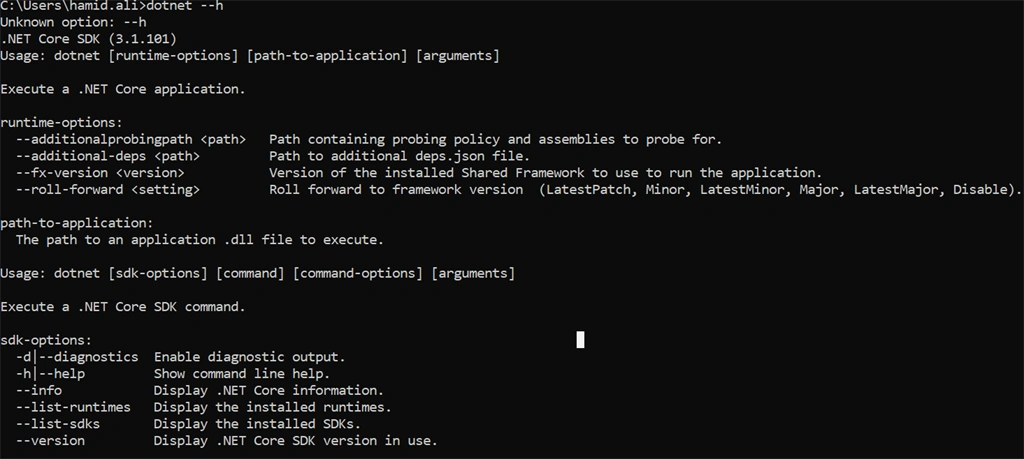
Now go to cmd command prompt and type dotnet --help and enter.
You will see the below details:
- C:\windows\system32>dotnet --help
- .NET Core SDK (3.1.101)
- Usage: dotnet [runtime-options] [path-to-application] [arguments]
- Execute a .NET Core application.
- runtime-options:
- --additionalprobingpath <path> Path containing probing policy and assemblies to probe for.
- --additional-deps <path> Path to additional deps.json file.
- --fx-version <version> Version of the installed Shared Framework to use to run the application.
- --roll-forward <setting> Roll forward to framework version (LatestPatch, Minor, LatestMinor, Major, LatestMajor, Disable).
- path-to-application:
- The path to an application .dll file to execute.
- Usage: dotnet [sdk-options] [command] [command-options] [arguments]
- Execute a .NET Core SDK command.
- sdk-options:
- -d|--diagnostics Enable diagnostic output.
- -h|--help Show command line help.
- --info Display .NET Core information.
- --list-runtimes Display the installed runtimes.
- --list-sdks Display the installed SDKs.
- --version Display .NET Core SDK version in use.
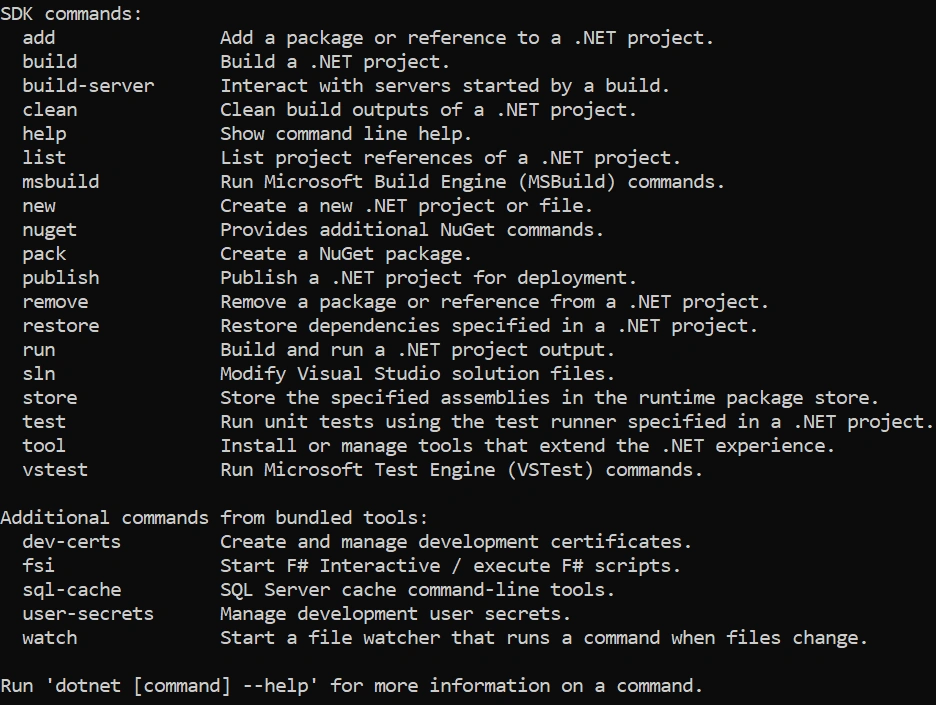
- SDK commands:
- add Add a package or reference to a .NET project.
- build Build a .NET project.
- build-server Interact with servers started by a build.
- clean Clean build outputs of a .NET project.
- help Show command line help.
- list List project references of a .NET project.
- msbuild Run Microsoft Build Engine (MSBuild) commands.
- new Create a new .NET project or file.
- nuget Provides additional NuGet commands.
- pack Create a NuGet package.
- publish Publish a .NET project for deployment.
- remove Remove a package or reference from a .NET project.
- restore Restore dependencies specified in a .NET project.
- run Build and run a .NET project output.
- sln Modify Visual Studio solution files.
- store Store the specified assemblies in the runtime package store.
- test Run unit tests using the test runner specified in a .NET project.
- tool Install or manage tools that extend the .NET experience.
- vstest Run Microsoft Test Engine (VSTest) commands.
- Additional commands from bundled tools:
- dev-certs Create and manage development certificates.
- fsi Start F# Interactive / execute F# scripts.
- sql-cache SQL Server cache command-line tools.
- user-secrets Manage development user secrets.
- watch Start a file watcher that runs a command when files change.
- Run 'dotnet [command] --help' for more information on a command.
Now let's do some practical example to create and build a new dotnet core application using dotnet core CLI (command-line interface)
create new application
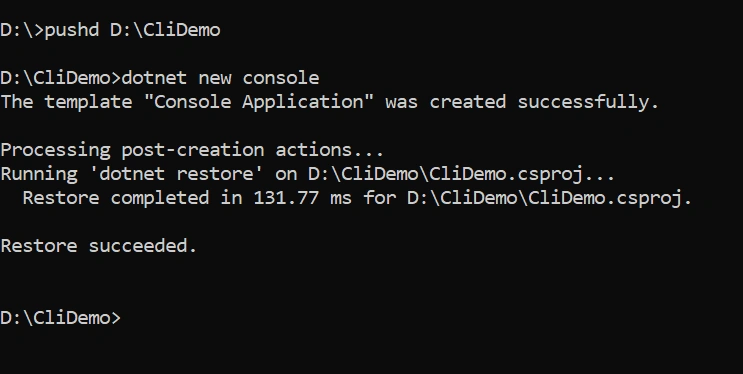
The dotnet new command creates a .NET Core project as expected in your command prompt, as shown below:
I have given the console project name inside CliDemo
- D:\>pushd D:\CliDemo
- D:\CliDemo>dotnet new console
The template "Console Application" was created successfully.
Processing post-creation actions...
Running 'dotnet restore' on D:\CliDemo\CliDemo.csproj...
Restore completed in 131.77 ms for D:\CliDemo\CliDemo.csproj.
Restore succeeded.
D:\CliDemo>
See the attached image:
Restore the Nuget package
We can restore all Nuget package, just enter the following command:
- dotnet restore
Build a Project
This following command needs to be entered:
dotnet build
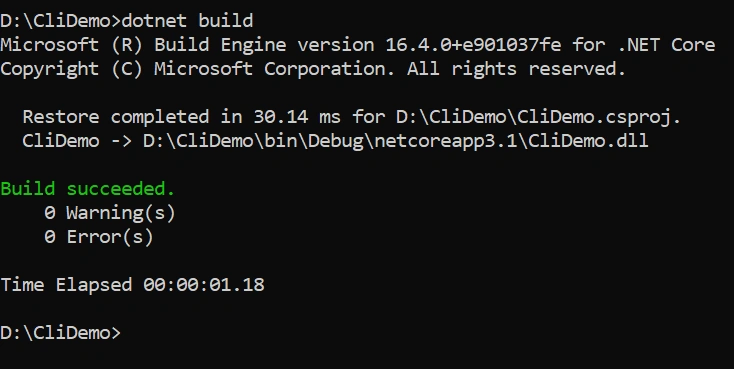
You will able to see as shown below:
- D:\CliDemo>dotnet build
Microsoft (R) Build Engine version 16.4.0+e901037fe for .NET Core
Copyright (C) Microsoft Corporation. All rights reserved.
Restore completed in 30.14 ms for D:\CliDemo\CliDemo.csproj.
CliDemo -> D:\CliDemo\bin\Debug\netcoreapp3.1\CliDemo.dll
Build succeeded.
0 Warning(s)
0 Error(s)
Time Elapsed 00:00:01.18
D:\CliDemo>
See the attached image:
Run an application
This following command needs to be entered:
dotnet run
You will be able to see hello world like this:
- D:\CliDemo>dotnet run
- Hello World!
- D:\CliDemo
Note
I have created a console application. But we can create a lot another project as well, for example, class library project, webapl, MVC, WPF, WCF, etc.. as listed below:
| Templates | Short name |
| Console Application | console |
| Class library | classlib |
| WPF Application | wpf |
| Windows Forms (WinForms) Application | winforms |
| Unit Test Project | mstest |
| NUnit 3 Test Project | nunit |
| xUnit Test Project | xunit |
| Razor Page | page |
| MVC ViewImports | viewimports |
| ASP.NET Core Empty | web |
| ASP.NET Core Web App (Model-View-Controller) | mvc |
| ASP.NET Core Web App | webapp, razor |
| ASP.NET Core with Angular | angular |
| ASP.NET Core with React.js | react |
| ASP.NET Core with React.js and Redux | reactredux |
| Razor Class Library | razorclasslib |
| ASP.NET Core Web API | webapi |
| ASP.NET Core gRPC Service | grpc |
Thank you for taking your valuable time to read the full article.
Shashi KumarPosted Aug 7, 2020, 8:04 AM
Thanks for sharing