


In this tutorial series, we will see how to use animations in .NET Multi-platform App UI (.NET MAUI), this animation classes target different properties of visual elements, with a typical introductory animation progressively changing a property from one value to another over a period of time.
Project Setup
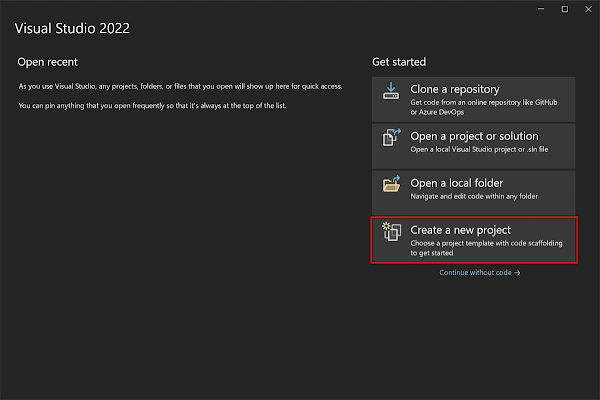
Launch Visual Studio 2022, and in the start, window click Create a new project to create a new project.
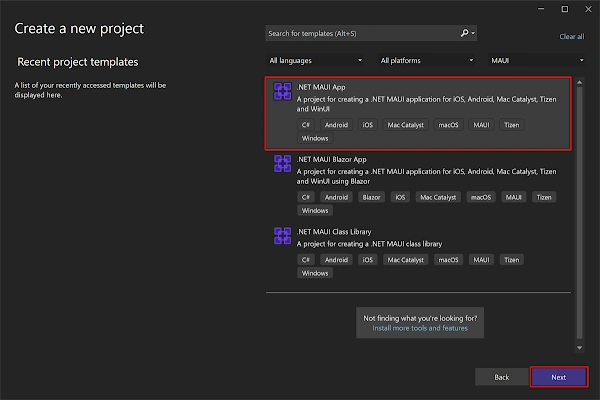
In the Create a new project window, select MAUI in the All project types drop-down, select the .NET MAUI App template, and click the Next button:
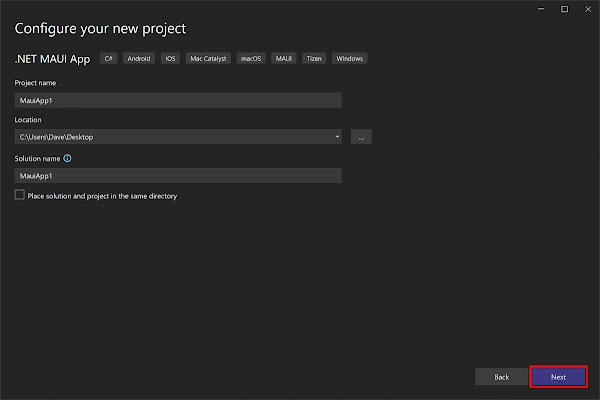
In the configure your new project window, name your project, choose a suitable location for it, and click the Next button:
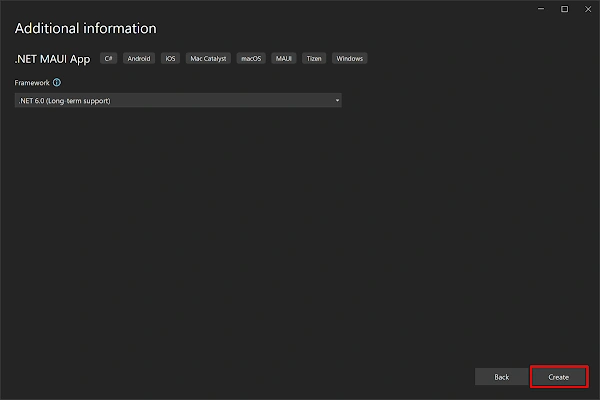
In the Additional information window, click the Create button:
Once the project is created, we can able to see the Android, iOS, Windows, and other running options in the toolbar. Press the emulator or run button to build and run the app

Implementation
- Basic animations can be created with extension methods provided by the ViewExtensions class, in Microsoft.Maui.Controls namespace, which operates on VisualElement objects.
- In Solution Explorer, click on MainPage.xaml. Add Title="Main Page" to ContentPage and replace the content of the page with what is shown below:
<?xml version="1.0" encoding="utf-8" ?> <ContentPage xmlns="http://schemas.microsoft.com/dotnet/2021/maui" xmlns:x="http://schemas.microsoft.com/winfx/2009/xaml" x:Class="MauiTutorial5.MainPage"> <ScrollView> <VerticalStackLayout Spacing="25" Padding="30,0" VerticalOptions="Center"> <Image Source="dotnet_bot.png" SemanticProperties.Description="Cute dot net bot waving hi to you!" HeightRequest="200" HorizontalOptions="Center" x:Name="image"/> <Button x:Name="AnimateBtn" Text="Click me" SemanticProperties.Hint="Counts the number of times you click" Clicked="OnCounterClicked" HorizontalOptions="Center" /> </VerticalStackLayout> </ScrollView> </ContentPage> - Open MainPage.xaml.cs file and the content of the page to what is shown below.
namespace MauiTutorial5; public partial class MainPage : ContentPage { int i = 0; Easing[] Easings = new Easing[] { Easing.Linear, Easing.SinOut, Easing.SinIn, Easing.SinInOut, Easing.CubicIn, Easing.CubicOut, Easing.CubicInOut, Easing.BounceOut, Easing.BounceIn, Easing.SpringIn, Easing.SpringOut, }; public MainPage() { InitializeComponent(); } private async void OnCounterClicked(object sender, EventArgs e) { await image.ScaleTo(2, 2000, Easings[i]); image.Scale = 1; i++; if (i >= Easings.Length) i = 0; } } - NET Multi-platform App UI (.NET MAUI) includes an Easing class that enables you to specify a transfer function that controls how animations speed up or slow down as they're running.
- The animation extension methods in the ViewExtensions class allow an easing function to be specified as the final method argument:
await image.TranslateTo(0, 200, 2000, Easing.BounceIn); await image.ScaleTo(2, 2000, Easing.CubicIn); await image.RotateTo(360, 2000, Easing.SinInOut); await image.ScaleTo(1, 2000, Easing.CubicOut); await image.TranslateTo(0, -200, 2000, Easing.BounceOut); - To know more about animations, please visit https://learn.microsoft.com/en-us/dotnet/maui/user-interface/animation/easing
Full Code
<?xml version="1.0" encoding="utf-8" ?>
<ContentPage xmlns="http://schemas.microsoft.com/dotnet/2021/maui"
             xmlns:x="http://schemas.microsoft.com/winfx/2009/xaml"
             x:Class="MauiTutorial5.MainPage">

    <ScrollView>
        <VerticalStackLayout
            Spacing="25"
            Padding="30,0"
            VerticalOptions="Center">

            <Image
                Source="dotnet_bot.png"
                SemanticProperties.Description="Cute dot net bot waving hi to you!"
                HeightRequest="200"
                HorizontalOptions="Center"
                x:Name="image"/>

            <Button
                x:Name="AnimateBtn"
                Text="Click me"
                SemanticProperties.Hint="Counts the number of times you click"
                Clicked="OnCounterClicked"
                HorizontalOptions="Center" />

        </VerticalStackLayout>
    </ScrollView>

</ContentPage>
namespace MauiTutorial5;

public partial class MainPage : ContentPage
{
    int i = 0;
    Easing[] Easings = new Easing[]
    {
        Easing.Linear,
        Easing.SinOut,
        Easing.SinIn,
        Easing.SinInOut,
        Easing.CubicIn,
        Easing.CubicOut,
        Easing.CubicInOut,
        Easing.BounceOut,
        Easing.BounceIn,
        Easing.SpringIn,
        Easing.SpringOut,
    };
    public MainPage()
    {
        InitializeComponent();
    }

    private async void OnCounterClicked(object sender, EventArgs e)
    {
        await image.ScaleTo(2, 2000, Easings[i]);
        image.Scale = 1;
        i++;
        if (i >= Easings.Length)
            i = 0;
    }
}
Download Code
You can download the code from GitHub. If you have any doubts, feel free to post a comment. If you liked this article, and it is useful to you, do like, share the article & star the repository on GitHub.
Join the conversation! Your thoughts help the community grow.