

Introduction
In a previous article, we explored how to format views in SharePoint Lists. In this guide, we will take things further by discussing the new Microsoft Lists forms experience in SharePoint. This new feature allows you to create and customize forms for SharePoint Lists, making it easier to collect data and enhance the user experience.
Previously, creating and sharing forms involved more complex steps. Now, SharePoint Lists make it simpler to create custom forms and allow for greater flexibility. You can show or hide specific fields, change the form's visual appearance using themes, and share the form quickly via a link.
Features of the New Forms Experience
- Customizable Forms: Discuss how forms can now be fully customized, including the ability to show or hide fields.
- Themes and UI: Mention that SharePoint now offers different themes and settings to make forms visually appealing and consistent with an organization’s branding.
- Preview and Share: Highlight the ability to preview the form before finalizing it and the option to easily share forms with users by copying a shareable link.
Steps to Create and Customize Forms
Step 1. Log in to SharePoint.
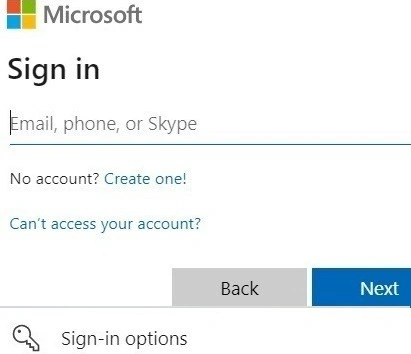
Explain how to log in to SharePoint (via Office 365 or directly through the SharePoint site).
Navigate to the SharePoint site where you want to apply the new form.
Step 2. Access List Settings.
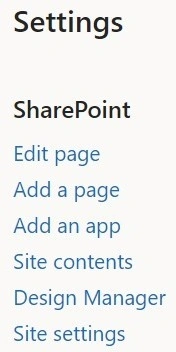
- Go to Site Contents and select the list where you wish to apply the form.
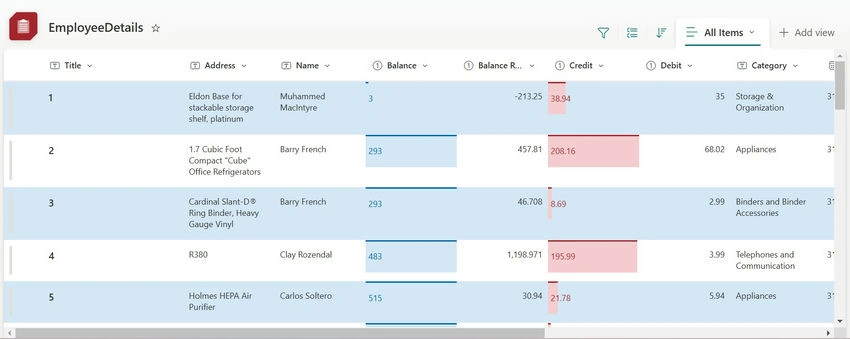
- Open the list by clicking on its name.
Step 3. Open the Forms.

On the top command bar of the list, find and click on the Forms menu.
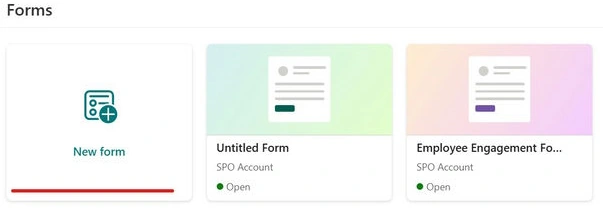
Choose the New Form option from the dropdown.
Step 4. Customize the Form.
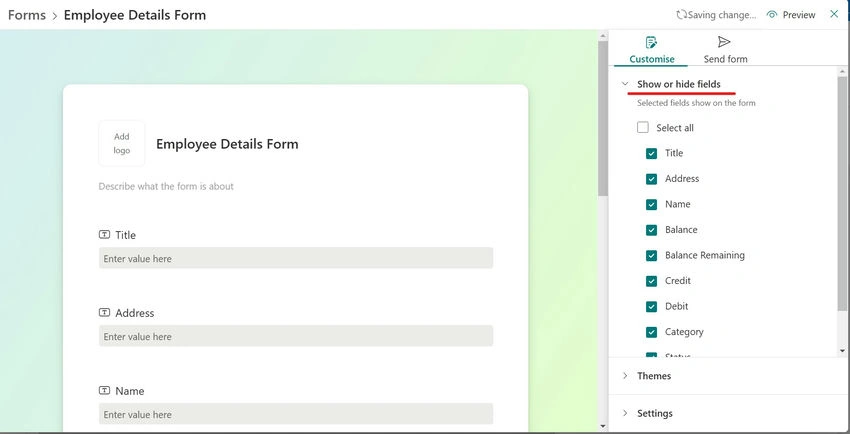
- Show or Hide Fields: Explain how users can toggle fields on or off based on what they need to display in the form. This allows you to tailor the form to the user's needs.
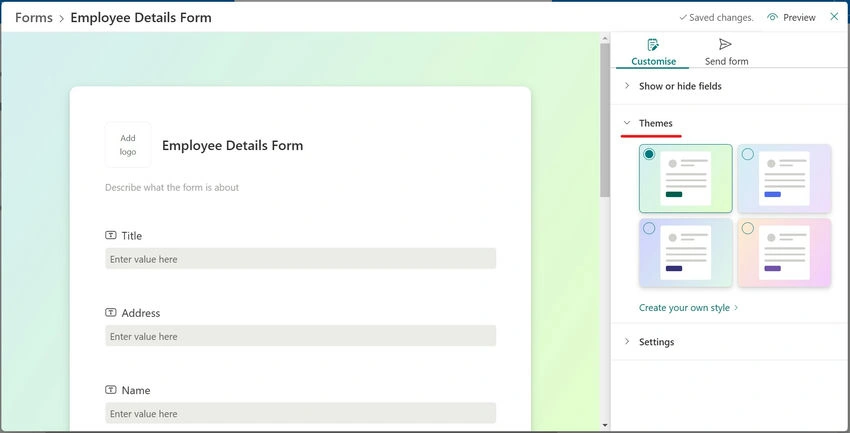
- Adjust Themes: Describe how to use the theme settings to change the visual appearance of the form. Share the options available, such as selecting different color schemes or branding options.
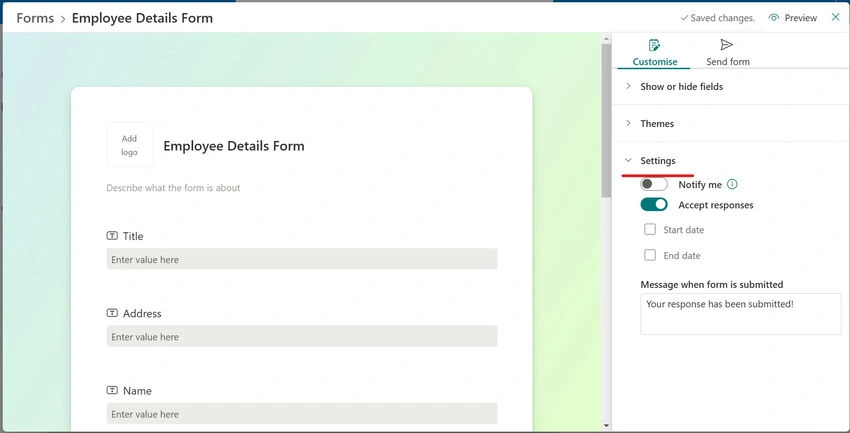
- Settings: Discuss other settings available for the form, such as adding descriptions to fields or adjusting text size and alignment.
Step 5. Preview the Form.
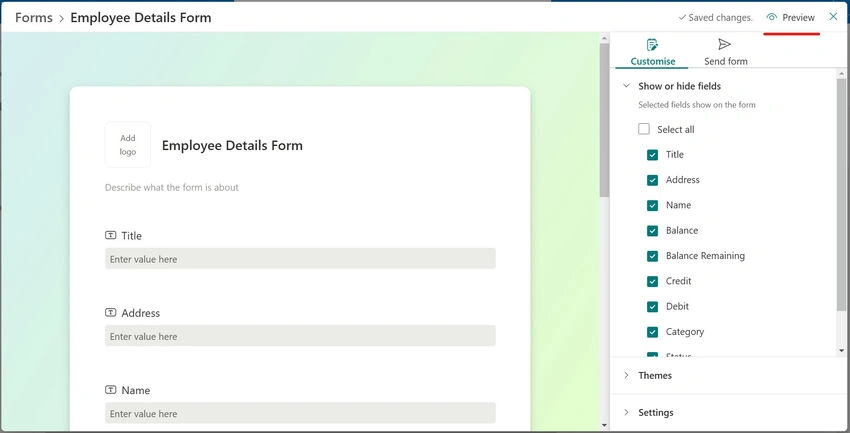
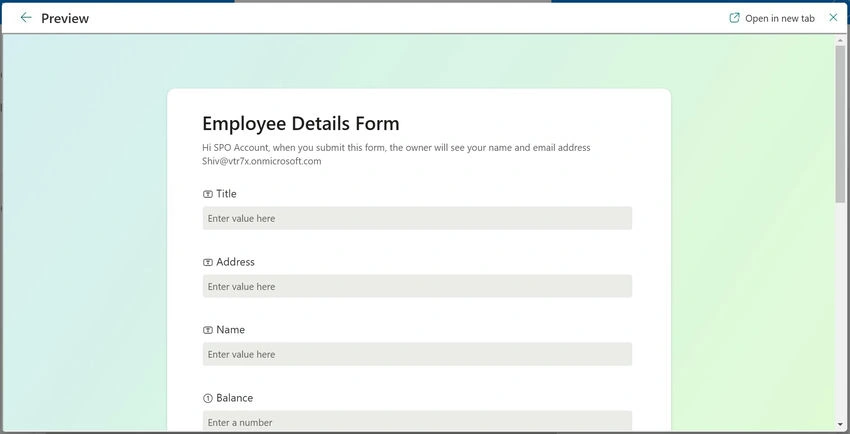
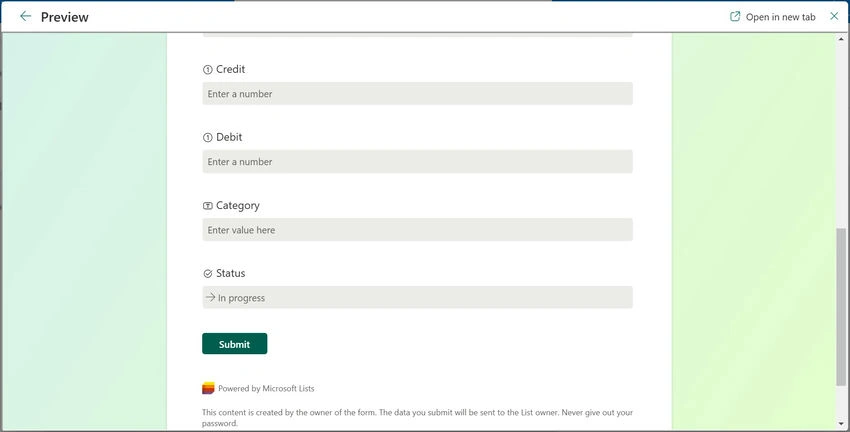
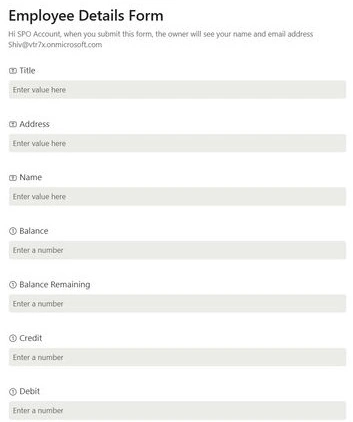
- Before finalizing, users can click on the Preview button to see what the form will look like when filled out.
- Explain that this allows them to check for any errors or formatting issues.
Step 6. Save and Share the Form.
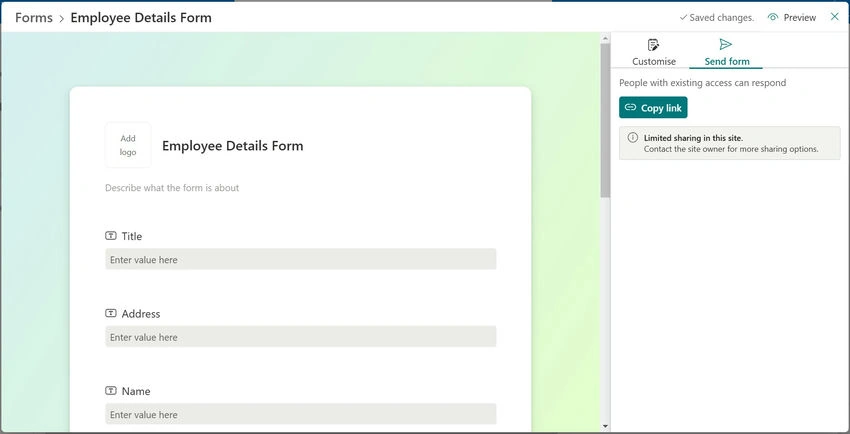
If everything looks good in the preview, the user can click Save.
Once saved, the user will see an option to Copy Link. This link can be shared with others for form submissions.
Advantages and Disadvantages of the New Forms Experience
Advantages
- User-Friendly: A modern interface that is easy to navigate.
- Customizable: Users can control which fields to display and choose from various themes.
- Integration: Submissions are automatically added to the SharePoint list, streamlining data collection and organization.
- Shareability: Forms can be easily shared via a link, making it convenient to collect data from anyone within the organization.
Disadvantages
- Limited for External Users: The form-sharing capability is mostly limited to internal users unless "Anyone" access is enabled.
- Fewer Advanced Features: While highly customizable, some advanced form features like branching or conditional logic are not as robust as those found in Microsoft Forms.
Conclusion
In this article, we walked you through the process of using the new Microsoft Lists forms experience in SharePoint. The ability to customize forms, apply themes, show or hide fields, and easily share the form link will significantly enhance your data collection processes. Whether you're managing a project, gathering feedback, or collecting other types of data, this new feature will streamline the process and make data management more organized.
Join the conversation! Your thoughts help the community grow.