

Prerequisites
Be sure you have installed the following components.
- Microsoft Visual Studio 2013 and the Microsoft Office Developer Tools for Visual Studio 2013.
- Word 2013.
Create a task pane app for Word 2013 using Visual Studio 2013:
1. Open Visual Studio 2013.
2. Click on File => New => Project.
3. Select “App for Office” from the installed templates, enter a name for the app and then click on the Ok button.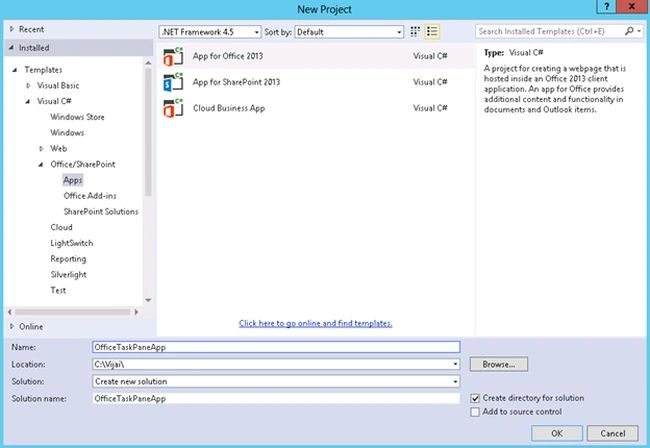
4. Select “Task pane app in: Word” and then click on the “Finish” button.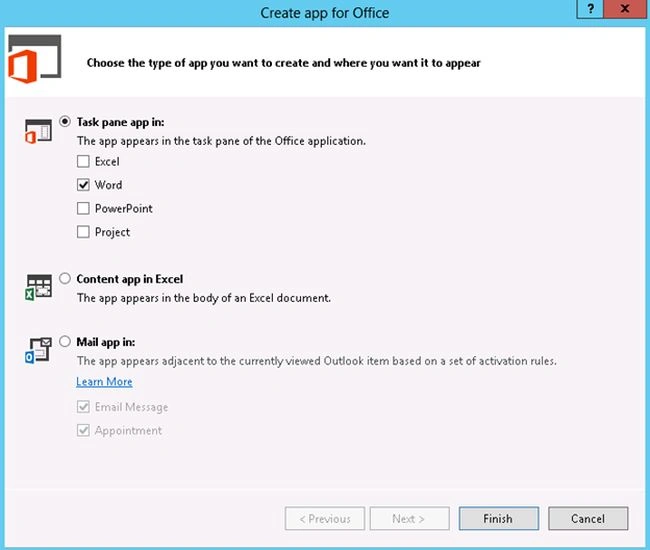
5. The following projects are created for an app. One project contains the manifest file for the app and the other one contains all the essential files required for the web application.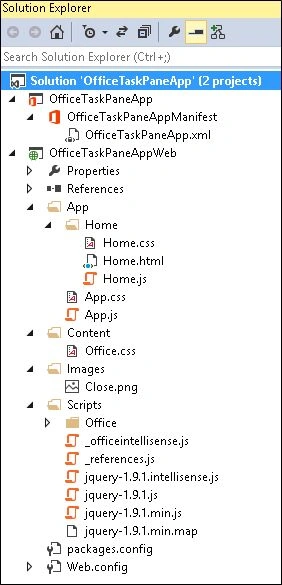
6. The Manifest XML file contains the following information.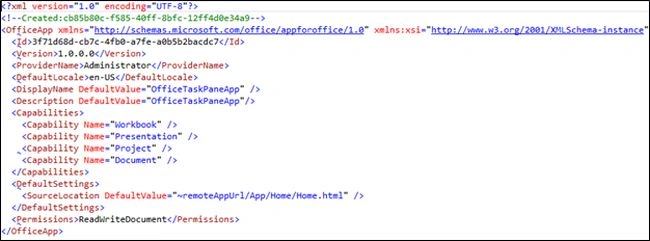
7. Home.html contains the complete HTML that will be rendered as an UI for the app.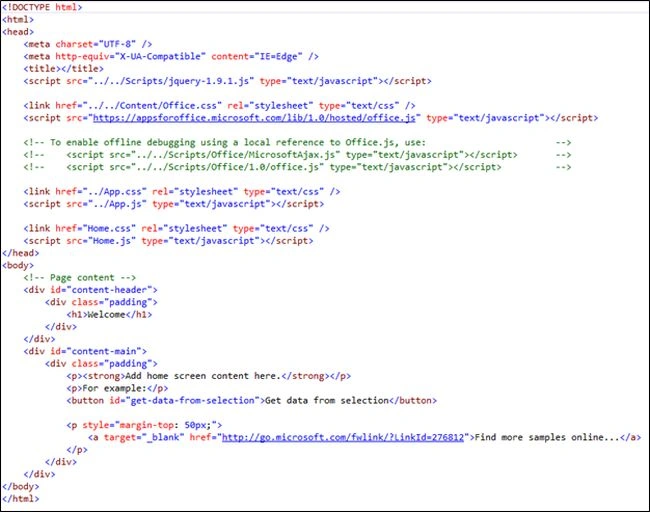
8. Home.js contains all the functions required for an app.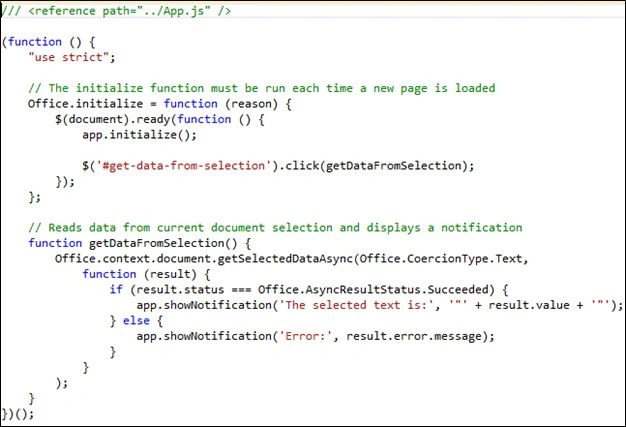
Test the app
- Hit F5 to run the application.
- A new Word document will be opened with the app installed on the task pane.
- Write some text in the Word document, select a text and then click “Get data from selection” button.
- Selected data will be displayed as shown below.
*Selected data
Summary
Thus in this article you saw how to create a task pane app for Word 2013 using Visual Studio 2013.
Vivek KumarPosted Apr 9, 2016, 4:27 PM
Good one
Sibeesh VenuPosted Feb 27, 2015, 3:26 AM
Nice one!!!
Prasham SabadraPosted Feb 26, 2015, 6:25 PM
Thanks for sharing!
Rahul Kumar SaxenaPosted Feb 26, 2015, 7:32 AM
Good Work...