

Sign up for an Office 365 Developer Site
Make sure you have access to an Office 365 Developer Site. Here are three ways to get one:
- Are you an MSDN subscriber? Visual Studio Ultimate and Visual Studio Premium with MSDN subscribers receive an Office 365 Developer Subscription as a benefit.
- Do you have one of the following Office 365 subscription plans?
- Office 365 Midsize Business
- Office 365 Enterprise E1, E3, E4, or K1
- Office 365 Education A2, A3, or A4
- Office 365 Government G1, G3, G4, or K1
- You can either start with a free 30-day trial, or buy an Office 365 developer subscription (with one user license for either option) using one of the following links. This subscription costs $99.00 per year.
Please refer https://msdn.microsoft.com/en-us/library/office/fp179924.aspx for more details.
Create an app for Outlook 2013 using Visual Studio 2013
- Open Visual Studio 2013.
- Click on File => New => Project.

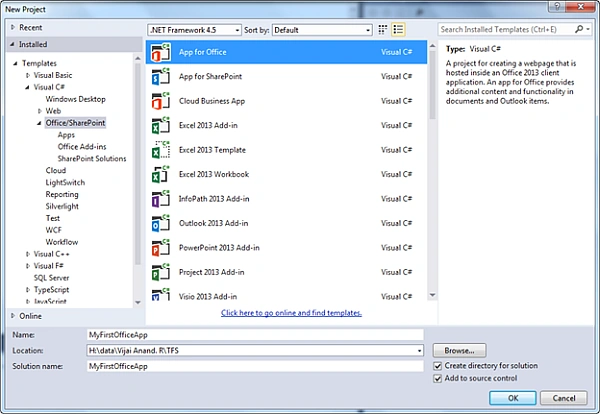
- Select “App for Office” from the installed templates, enter a name for the app and then click on the Ok button.
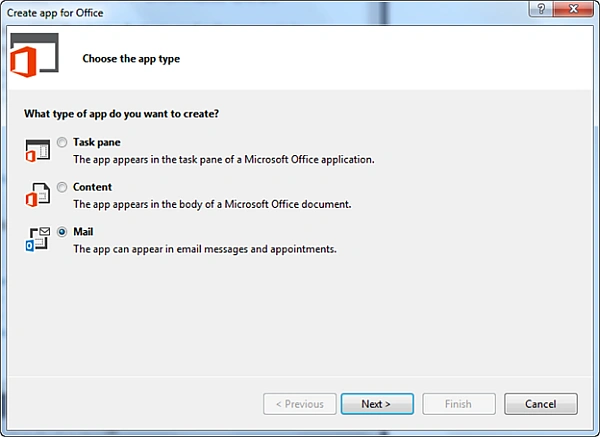
- Choose mail as the app type as shown below and then click on the “Next” button.
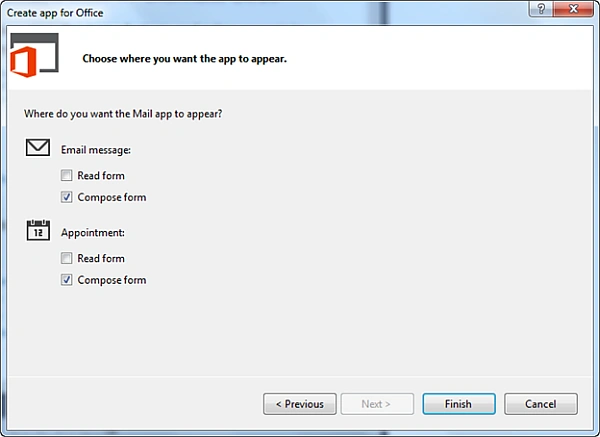
- Select the forms where you want the Mail app to appear as shown below. Click on the Finish button.
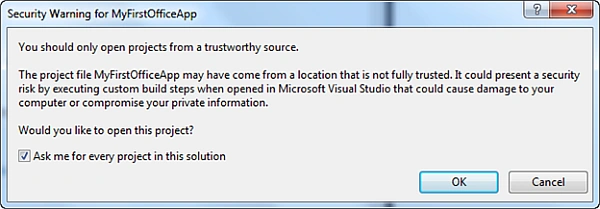
- Click on the Ok button for the following dialog box.
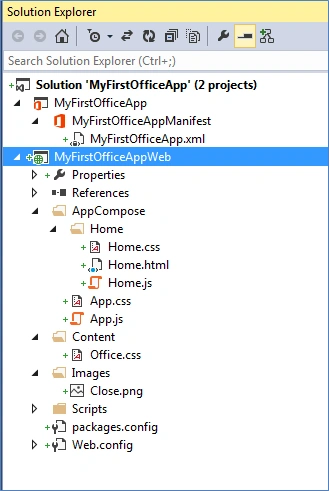
- The following projects are created for an app. One project contains the manifest file for the app and the other one contains all the essential files required for the web application.
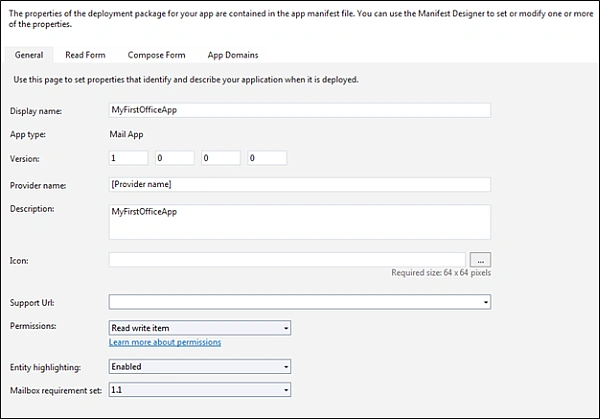
- The Manifest file contains the following information.
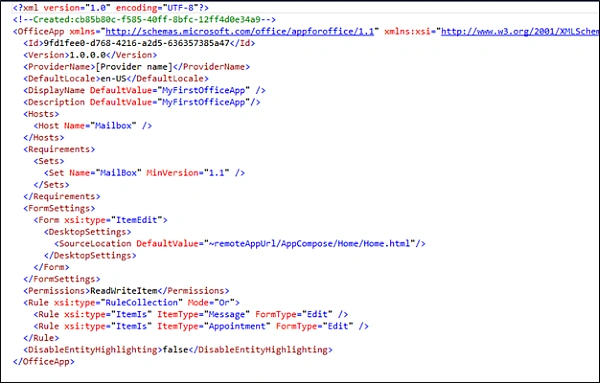
- MyFirstOfficeApp.xml
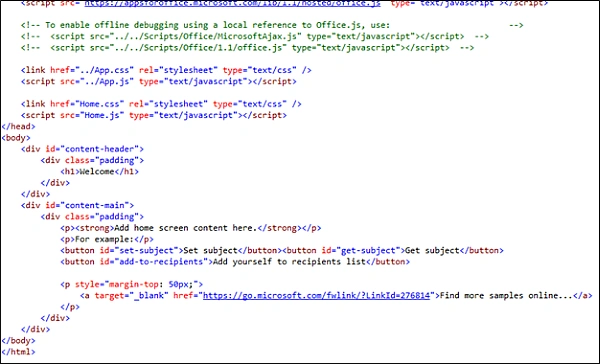
- Home.html contains the complete HTML that will be rendered as an UI for the app.
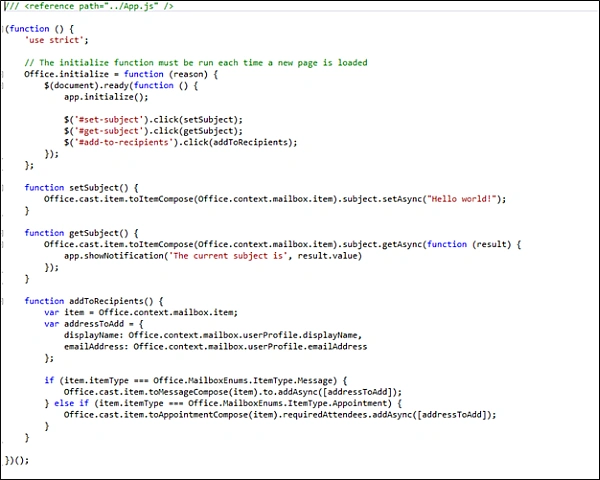
- Home.js contains all the functions required for an app.
Deploy the app
- Hit Ctrl+F5 to deploy the solution.
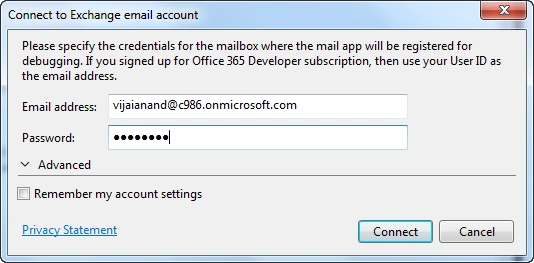
- A pop-up will open, enter the credentials and then click on Connect.
- The app will be installed successfully.
Test the app
- Navigate to Office 365 developer site. URL: https://portal.office.com/Home
- Click on Outlook.
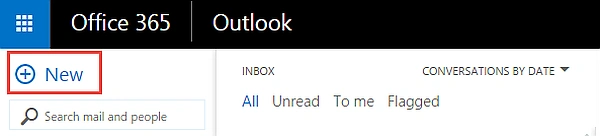
- Click on New link.
- A new message will be opened, click on the apps link. You will be able to see the new app that we installed as shown below.
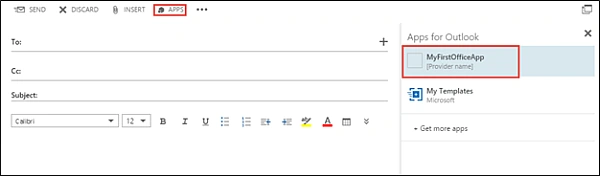
- Click on the “MyFirstOfficeApp” app. The HTML is rendered as shown below.
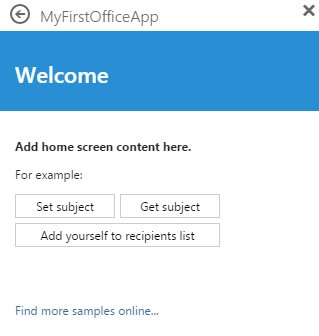
- Click on each button in the app.
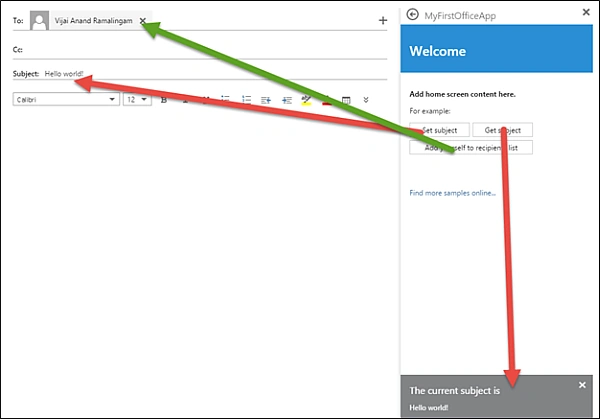
Summary
Thus in this article you have seen how to create an app for Outlook 2013 using Visual Studio 2013.
Rahul Kumar SaxenaPosted Feb 25, 2015, 11:56 AM
Great Show...
Sibeesh VenuPosted Feb 22, 2015, 7:29 AM
Good One.