

LinkedIn post a discussion is a new action introduced in NINTEX workflow for SharePoint 2013 that can be added from the NINTEX store. Using this action you will be able to post a discussion on LinkedIn. To explain this action I have created a custom list with the following columns.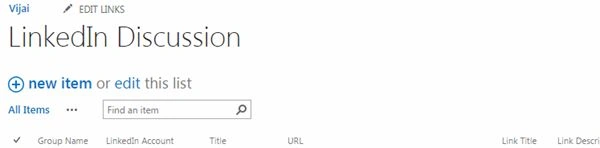
Workflow Design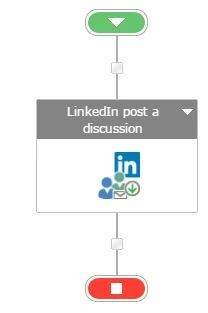
Create a LinkedIn something and post a discussion Workflow
The following describes how to create a LinkedIn something and post a discussion Workflow:
- Navigate to the Office 365 site.
- Click on the LinkedIn Discussion link in the quick launch bar. Click on the List tab and then click on the NINTEX Workflow button in the ribbon interface.

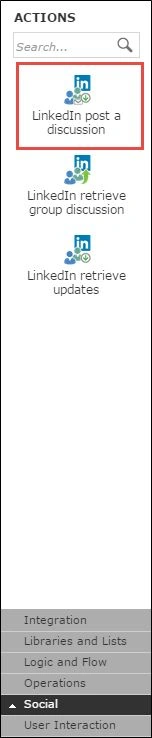
- Drag and drop a LinkedIn post a discussion action from the Social section.
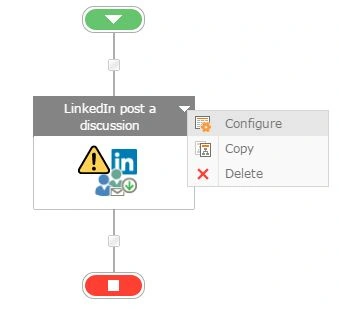
- Click on the down arrow and then click on Configure.
- Set all the following fields as specified below and then click on the Save button.
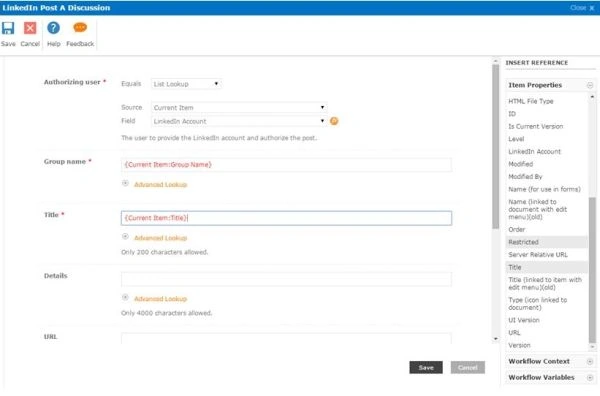
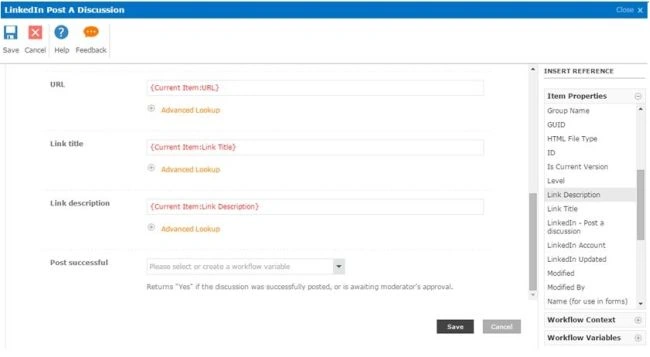
Publish the workflow
The following describes how to publish the workflow:
- Click on the Publish button in the ribbon interface.
- Ensure the Title is set; optionally you can set the values for Description. Select the Task List, History List and Start options.
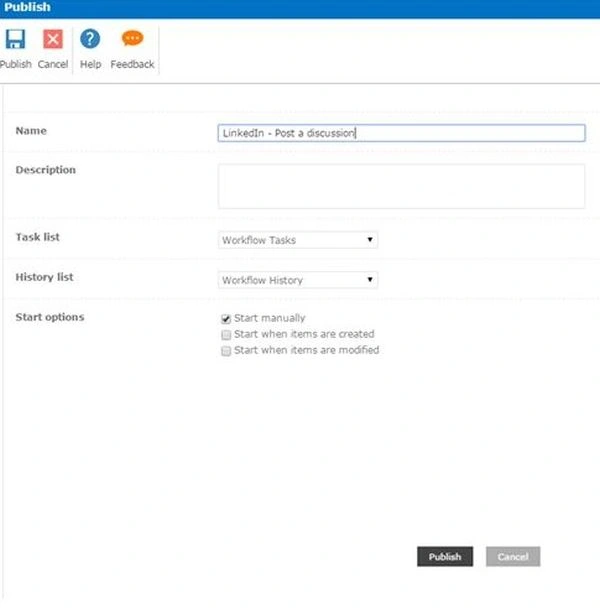
- Click on the Publish button. The Workflow will be validated.
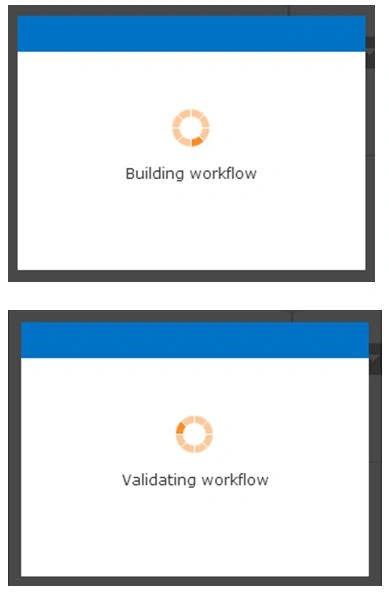
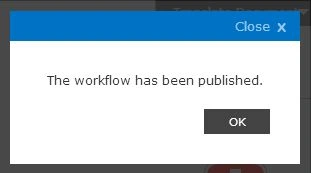
- The workflow is published successfully.
Test the workflow
The following describes how to test the workflow.
- Navigate to the LinkedIn Discussion list.
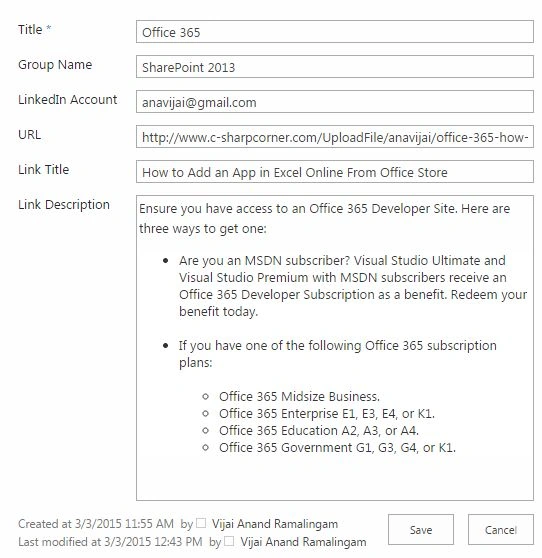
- Create a new item.
- Select the item and then click on Workflows in the ribbon interface.
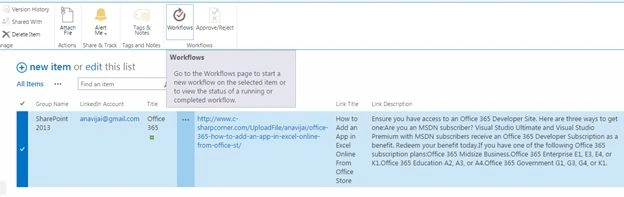
- Click on LinkedIn – Post a discussion Workflow and then click on the Start button.
- After a few minutes the discussion will be posted successfully on LinkedIn as shown below.

Summary
Thus in this article you saw how to post a discussion on LinkedIn using a NINTEX workflow in SharePoint 2013 Online.
SriramPosted Jul 2, 2015, 6:12 AM
Good....
Prasham SabadraPosted Mar 4, 2015, 8:01 AM
Hi Vijay, Thanks for sharing!