

While working with SharePoint online, most of the time, we need to perform some one-time batch operations like - associating content types to multiple lists, associating content type to list items, setting default content type for multiple lists, giving the permissions to multiple lists/sites, deleting the list items in list having some condition and this list is very large.
Also, there were no timer jobs available in SharePoint Online. So, the only option that remains is hosting the job in Azure but then it requires the extra cost of an Azure subscription. SharePoint Designer Workflow is another option but there are limitations, for some scenarios workflows doesn’t work either.
So in all those scenarios, CSOM is very helpful. We could easily write any kind of tool/application using CSOM and very easily perform such types of batch operations.
Here, I’ll be covering the first initial basic step - to connect the Office 365 / SharePoint online using CSOM.
Tools required
- Visual Studio (Here, I am using Visual Studio 2017) – We will create console application.
- SharePoint Client Object Model (CSOM) SDK– Microsoft.SharePointOnline.CSOM
- Office 365 details,
- SharePoint site URL to which we need to connect
- UserName and Password to connect the Office 365 / SharePoint online
Detailed Steps
- Open Visual Studio.
- Create new project of type “Console App (.NET Framework)” say “CSOM-ConnectToO365”.
- To connect to SharePoint Online, we will require SharePoint Client Object Model (CSOM) SDK. With the help of NuGet Manager, we will add SharePoint Client Object Model SDK to our solution.
- Right click on Project in “Solution Explorer” and click on “Manage NuGet Packages…” as shown in below figure 1.
Note
In Visual Studio 2017, NuGet Package Manager is automatically installed. For more details on NuGet please have a look at NuGet Documentation.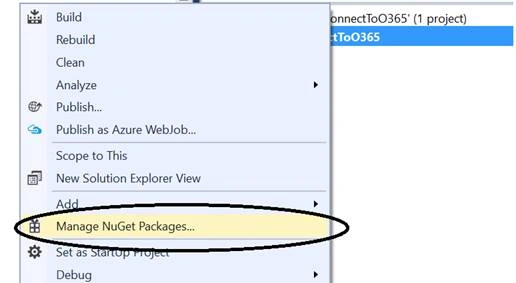
Figure 1: NuGet manager option in Visual Studio
- Right click on Project in “Solution Explorer” and click on “Manage NuGet Packages…” as shown in below figure 1.
- Once you've clicked on the above link “NuGet UI” opens, by default “Installed” tab is selected and shows the currently referenced packages in the solution.
- To install SharePoint online client SDK first time, click on “Browse” tab and in search box put the text like “SharePoint online client sdk 2016”, here we will get result as
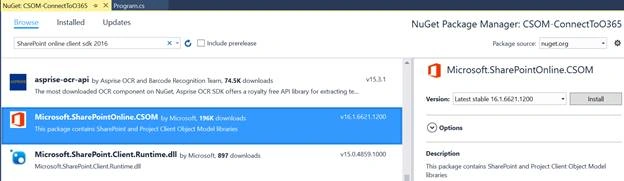
Figure 2: Installing SharePoint online SDK - Version 16
- Install the package as shown in above figure 2. Make sure you selected version 16 since there is version 15 also available for SharePoint on premises environment.
- Once installation started press “OK” button for “Preview” dialog box as
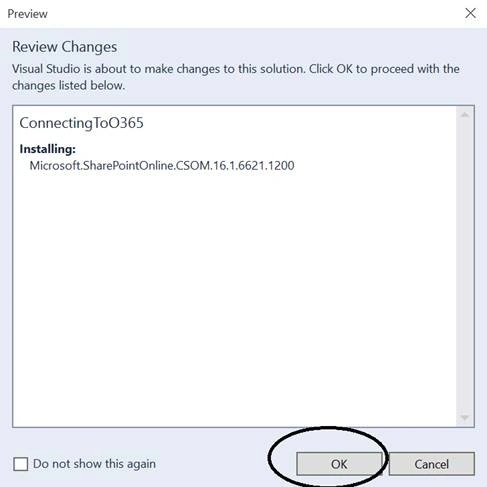
Figure 3: Preview dialog while installing NuGet package - SharePoint online CSOM SDK
- And accept the License on “License Accept” dialog as
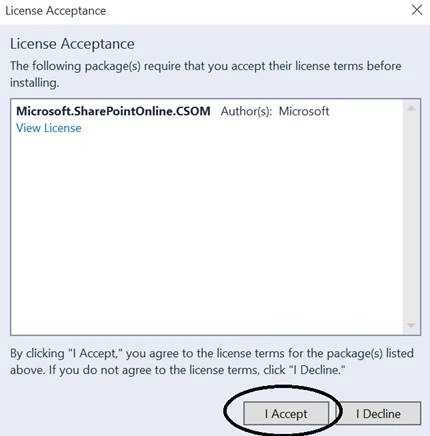
Figure 4: License Acceptance dialog while installing NuGet package - SharePoint Online CSOM SDK
- Once this package is installed successfully, in references we will see the following new libraries are getting added
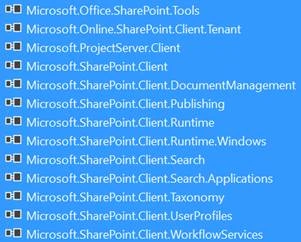
Figure 5: New SharePoint online libraries are getting added after installing SharePoint online CSOM SDK
- In solution “packages.config” file get added with following details
- <packages>
- <package id="Microsoft.SharePointOnline.CSOM" version="16.1.6621.1200" targetFramework="net452" />
- </packages>
- Also, in folder structure parallel to our project file “packages” folder gets created (if no other package previously installed) and under which there is a folder with the name =>packagename + version is getting created, so in this case it is “Microsoft.SharePointOnline.CSOM.16.1.6621.1200” and underneath in lib folder, folders with specific frameworks are getting created and in these folders all dlls or respective files get copied.
So here folder structure is as follows,
\visual studio 2017\Projects\CSOM-ConnectToO365\packages\Microsoft.SharePointOnline.CSOM.16.1.6621.1200\lib\ and under lib folder, respective framework folders as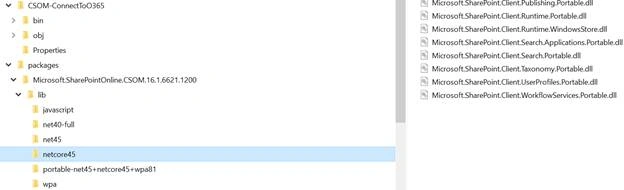
Figure 6: Folder structure for NuGet files under \visual studio 2017\Projects\CSOM-ConnectToO365\packages\Microsoft.SharePointOnline.CSOM.16.1.6621.1200\lib\
- Once we have references to client libraries, we can now use API and connect to the SharePoint Online site. For connecting to SharePoint online site we will require “Site URL, UserName and Password”. Here we are storing these details in App.Config file as
- <appSettings>
- <add key="siteURL" value="sharepointonlinesiteurl"/>
- <add key="userName" value="username"/>
- <add key="password" value="password"/>
- </appSettings>
- In Main method of our console application , read the above settings as,
- #region Site Details - Read the details from config file
- string siteURL = ConfigurationManager.AppSettings["siteURL"];
- string userName = ConfigurationManager.AppSettings["userName"];
- string password = ConfigurationManager.AppSettings["password"];
- #endregion
- From site URL , we will create ClientContext object and assign the credentials as
- //Create the client context object and set the credentials
- ClientContext clientContext = new ClientContext(siteURL);
- SecureString securePassword = new SecureString();
- foreach(char c in password.ToCharArray())
- securePassword.AppendChar(c);
- clientContext.Credentials = new SharePointOnlineCredentials(userName, securePassword);
In above example, SharePointOnlineCredentials class requires secured string. For more details on SecureString class please have a look once here.
Complete Code
- using Microsoft.SharePoint.Client;
- using System;
- using System.Configuration;
- using System.Security;
- namespace ConnectingToO365 {
- /// <summary>
- ///
- /// </summary>
- public class Program {
- static void Main(string[] args) {#region Site Details - Read the details from config file
- string siteURL = ConfigurationManager.AppSettings["siteURL"];
- string userName = ConfigurationManager.AppSettings["userName"];
- string password = ConfigurationManager.AppSettings["password"];
- #endregion
- #region ConnectTo O365
- //Create the client context object and set the credentials
- ClientContext clientContext = new ClientContext(siteURL);
- SecureString securePassword = new SecureString();
- foreach(char c in password.ToCharArray()) securePassword.AppendChar(c);
- clientContext.Credentials = new SharePointOnlineCredentials(userName, securePassword);
- //Load the web
- Web web = clientContext.Web;
- clientContext.Load(web);
- clientContext.ExecuteQuery();
- Console.WriteLine(web.Title);
- Console.ReadKey();
- #endregion
- } //Main
- } //cs
- } //ns
Thanks!
Enjoy Reading :)
As usual, any feedback / query / suggestions are most welcome!!!
Phillip SimbaoPosted Oct 27, 2021, 1:30 PM
This is a very good article, but I find some of the instructions rather vague, and one to spend time figuring out a step. case in point, you can't search for the SDK with -SharePoint online client sdk 201- and I spent a lot of time on this until I just tried -CSOM-. I now have an issue with packages.config as I don't see anywhere in the solution and am not sure how to manually create one.
Neha NayyarPosted Sep 20, 2018, 4:28 AM
I am getting the issue- sign in username or password is not in the microsoft account. I am the SCA of the sharepoint site. Do I need to be the tenant admin ?
Nitin ChandraPosted Sep 12, 2018, 7:53 AM
Hi, thanks for the code. I tried the above code and got the error : "Identity Client Runtime Library (IDCRL) encountered an error while talking to the partner STS". My framework is 4.0.
Sandro NakaPosted May 14, 2018, 8:05 PM
Thanks for the article. It was very helpful. I tried to retrieve all tasks for one MS Project's project and the time it took to retrieve 525 lines of tasks and its properties took more than 1 hour! How can we improve that? It seems there are a lot of people complaining about how sluggish CSOM is right now in the internet. Is there any way to improve that? - Sorry for being off-topic.
Karanvir VermaPosted Jan 2, 2018, 12:44 PM
Hi There, its a vrey usefull post, But I am looking to get the username of the logged in user in sharepoint online. When I try getting the username it gets me the username of the credentials I am passing in. I want to use the functionality to get the logged in user in sharepoint, independent of the credentials i am passing in.
Piyush WattamwarPosted Jul 27, 2017, 3:12 AM
Using PNP library connection to sharepoint online quite easy
Sumit DeshmukhPosted Jul 20, 2017, 3:22 AM
Nice Sharing Sir.Thanks a lot