

Introduction
Recently, we were working with the O365 application. One thing we noticed is that Microsoft introduced a new OOTB Hero web part. Personally, I like that web part very much, so I explored the WP in-depth and thought it would be good to share it.
Details
In Communication sites, the Hero web part is included by default and the web part is pre-populated with default images, text and links that can be modified later for our needs. The default Hero web part comes in a tiled layout with five tiles.
Creating a Communication Site, from <SharePoint Admin site>/_layouts/15/online/AdminHome.aspx#/siteManagement
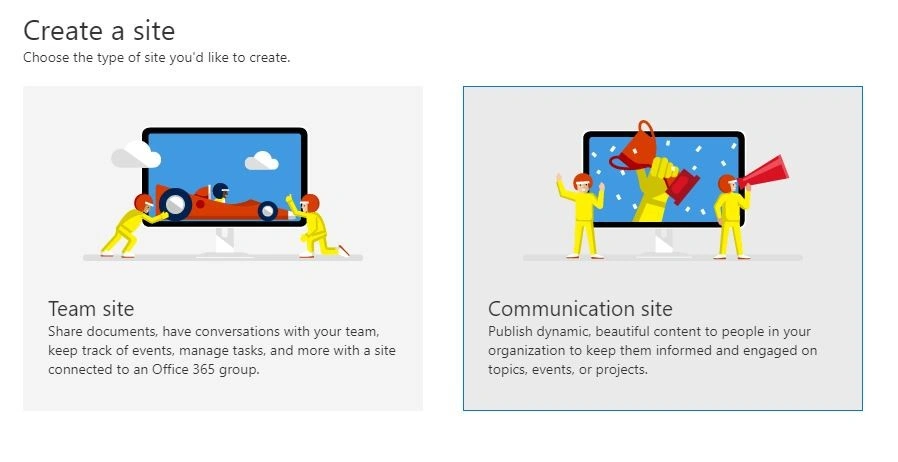
Figure 1:Office 365 – SharePoint Online – Creating a communication site
Choosing a Site Design while Creating a Communication Site
There are 3 types of Site Design you can choose while creating a new communication site:
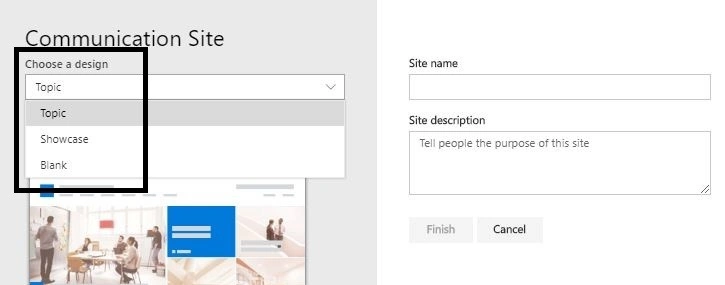
Figure 2: O365 – SharePoint Online – Choosing site design while creating Communication Site
Topic Communication Site design
In a communication site, when we choose a Site design as a Topic, then by default, the Hero WP comes with a tiled layout with five tiles (this can change from one to five) and is pre-populated with default images, text, and links that can be modified later according to your needs.
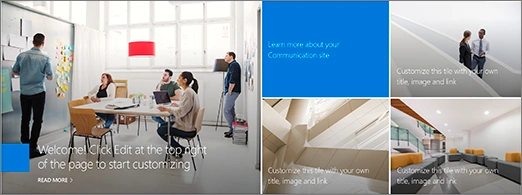
Figure 3: Office 365 – SharePoint Online – Hero WP from Topic site design – Tiled layout
Showcase Communication Site design
In the communication site, when you select choose a Site design as Showcase, then by default Hero WP comes with a vertical layout with three layers (this can change from one to five) and is pre-populated with default images, text, and links that can be modified later according to your needs.
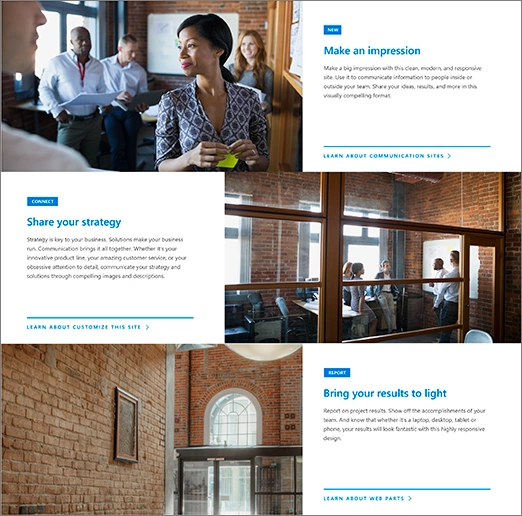
Figure 4: Office 365 – SharePoint Online – Hero WP from Showcase site design – Vertical layout with three layers
Blank Communication Site design
In the communication site, when you select to choose a Site design as Blank, then by default there is no Hero WP added in the page.
Steps to add and modify Hero WP on page
- Click page edit button in a page
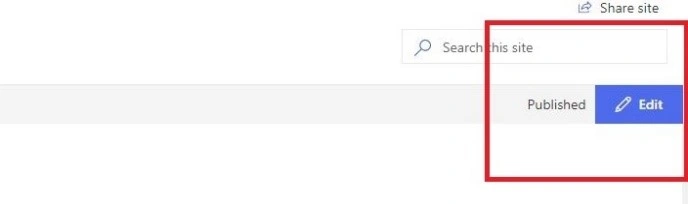
Figure 5: Office 365 – SharePoint Online -Adding / Updating Hero WP on the page
- Click on the add button and find HERO WP
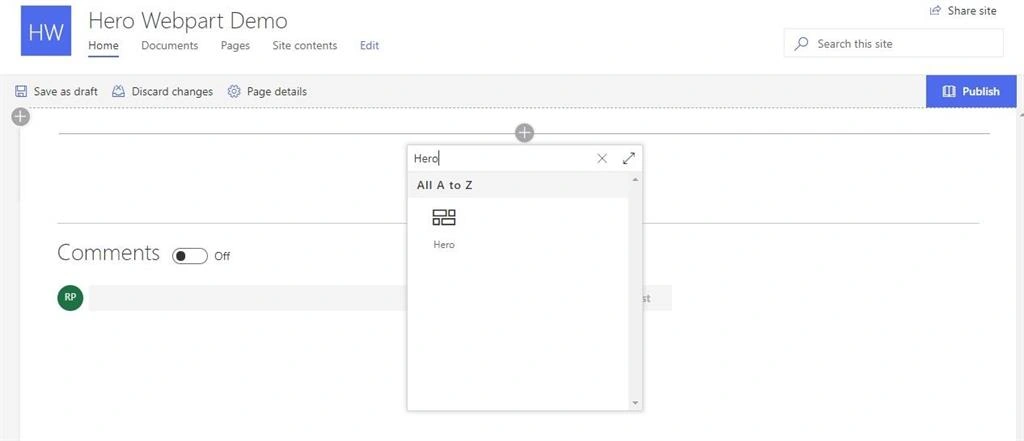
Figure 6: Office 365 – SharePoint Online -Adding / Updating Hero WP on the page
- After adding web part, you will get following default layout depending on the Communication Site design selected. The following layout is for the Communication Topic site design.
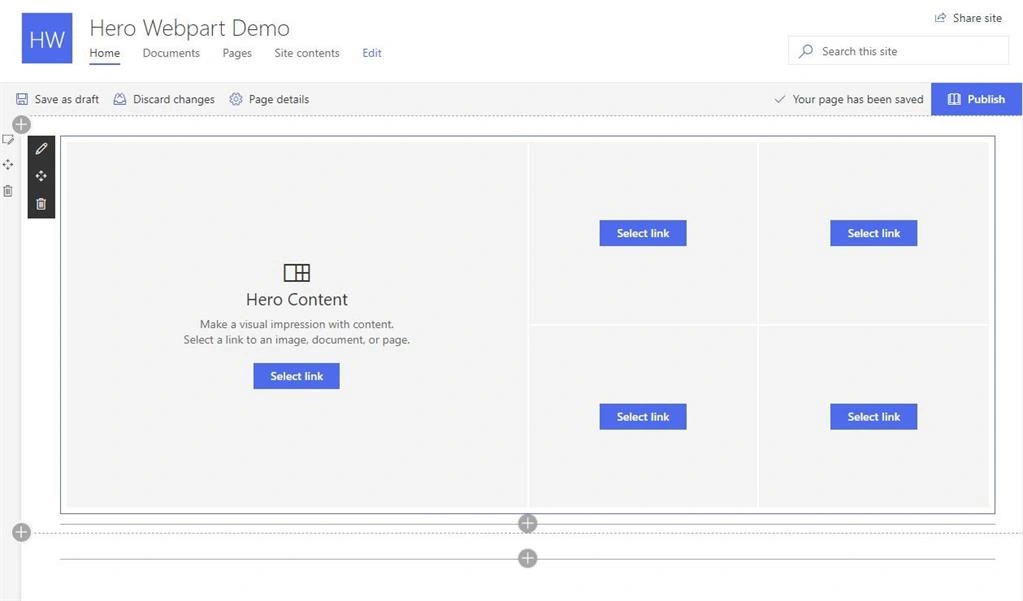
Figure 7 : Office 365 – SharePoint Online -OOB Hero WP added on the page
- To edit the layout, click on the edit button.
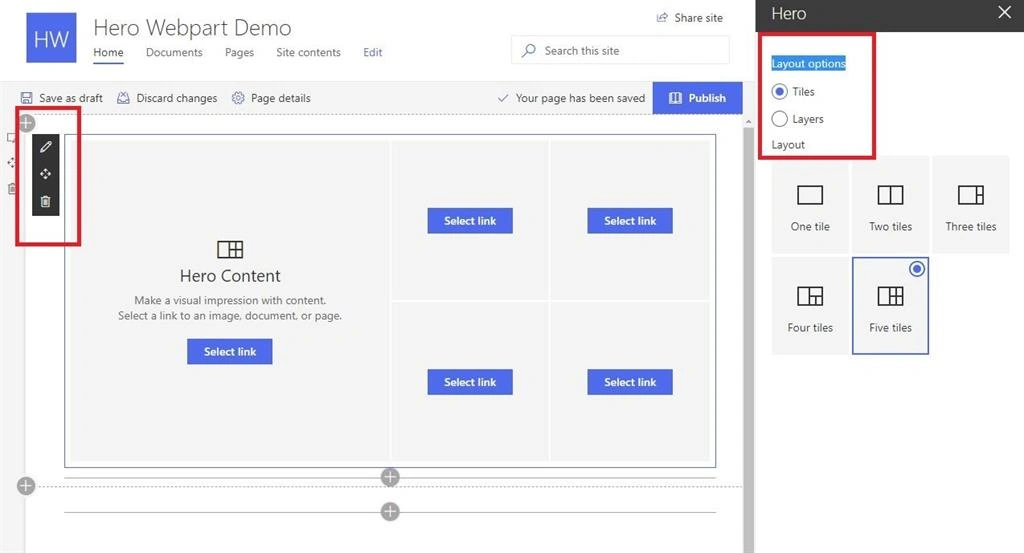
Figure 8: Office 365 – SharePoint Online – editing OOB Hero WP
There are 2 types of layout options:
- Tiles
- Layers
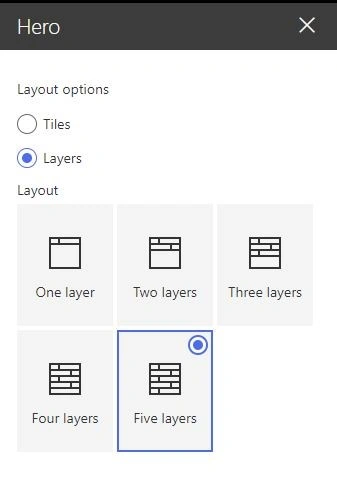
Figure 9: Office 365 – SharePoint Online – Hero WP – Layout options – Layers
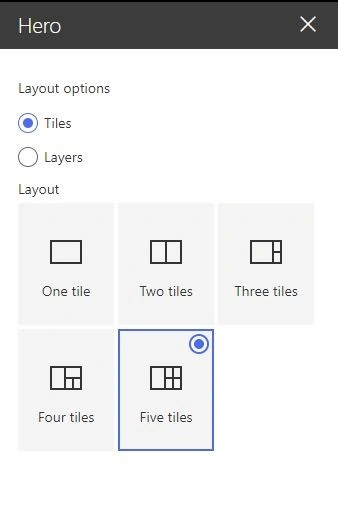
Figure 10 : Office 365 – SharePoint Online – Hero WP – Layout options -Tiles
- Click on the select link for adding an image or link:
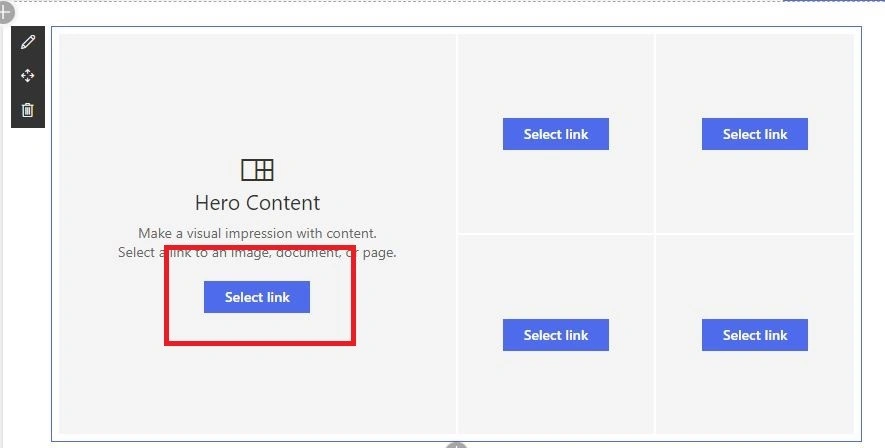
Figure 11: Office 365 – SharePoint Online – Adding image or link to OOB Hero WP
- After clicking on Select link, the following popup will appear, we can select an image or link from the following options.
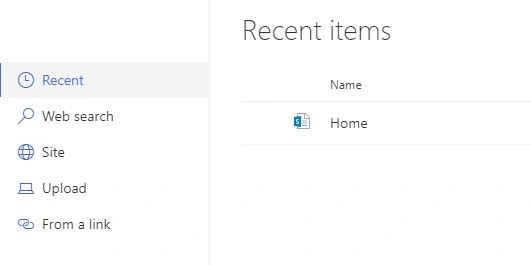
Figure 12: Office 365 – SharePoint Online – Image popup
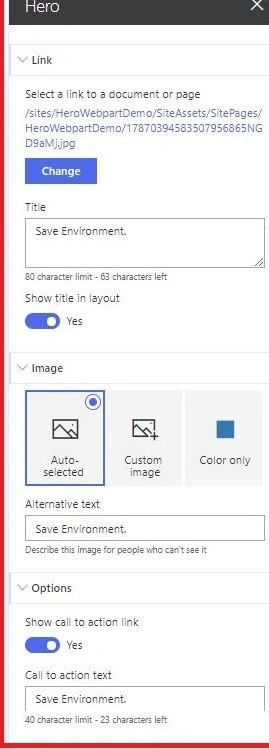
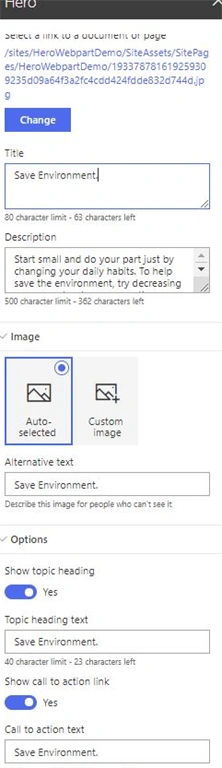
- After selecting an image, the following options will ask for an edit.
- Link
Guest UserPosted Jul 29, 2020, 12:16 PM
Hi, do you know if you can change the layout of the hero tiles? For example, if I wanted to use the 5 tiles but wanted the large tile on the right and four small tiles to the left, is that possible? Thanks!
Sagar PardeshiPosted May 6, 2020, 1:16 AM
A good one keeps it up...