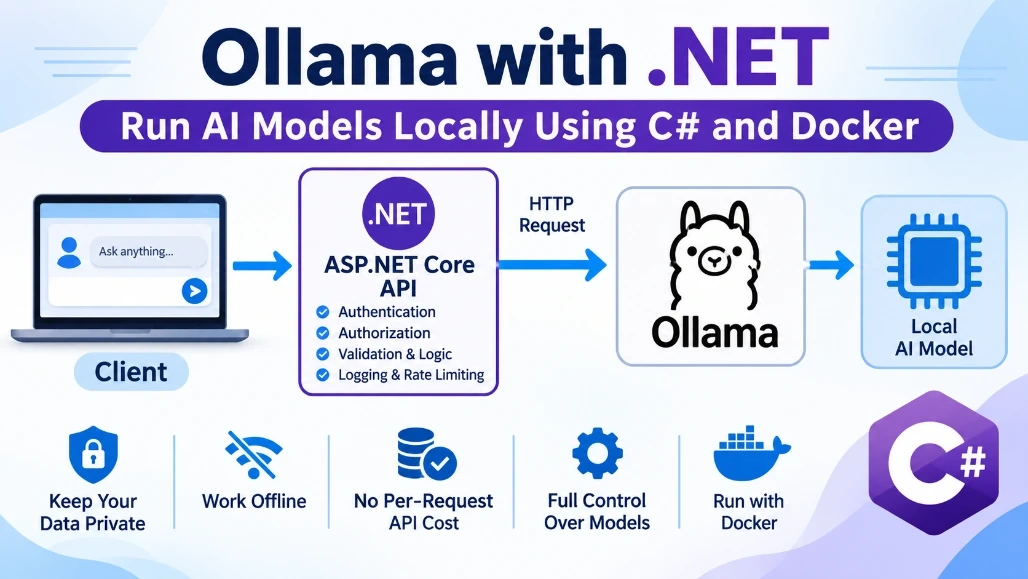
Artificial intelligence features are increasingly being added to business applications, customer-support systems, document processors, developer tools, and internal automation platforms. Most AI applications communicate with cloud-hosted models, but sending every request to an external service is not always appropriate.
Some applications need:
Better data privacy
Offline AI capabilities
Predictable infrastructure costs
Lower network dependency
Full control over the selected model
A local development environment without cloud API keys
Ollama provides a convenient way to download and run AI models locally. It exposes an HTTP API that can be called from practically any programming language, including C# and ASP.NET Core. The default local API endpoint is: http://localhost:11434
The Ollama API includes endpoints for chat generation, regular text generation, embedding, model management, structured responses, tool calling, and streaming.
In this article, we will build an ASP.NET Core API that sends prompts to a locally running Ollama model.
What is Ollama?
Ollama is a runtime for running large language models, or LLMs, on your own computer or server. It handles several low-level responsibilities for you, including:
Downloading model files
Storing models locally
Loading models into memory
Running inference on a CPU or GPU
Managing the model lifecycle
Exposing models through a local HTTP API
Instead of integrating directly with a model-specific runtime, a .NET application can send a standard HTTPrequest to Ollama.
The basic architecture looks like this:
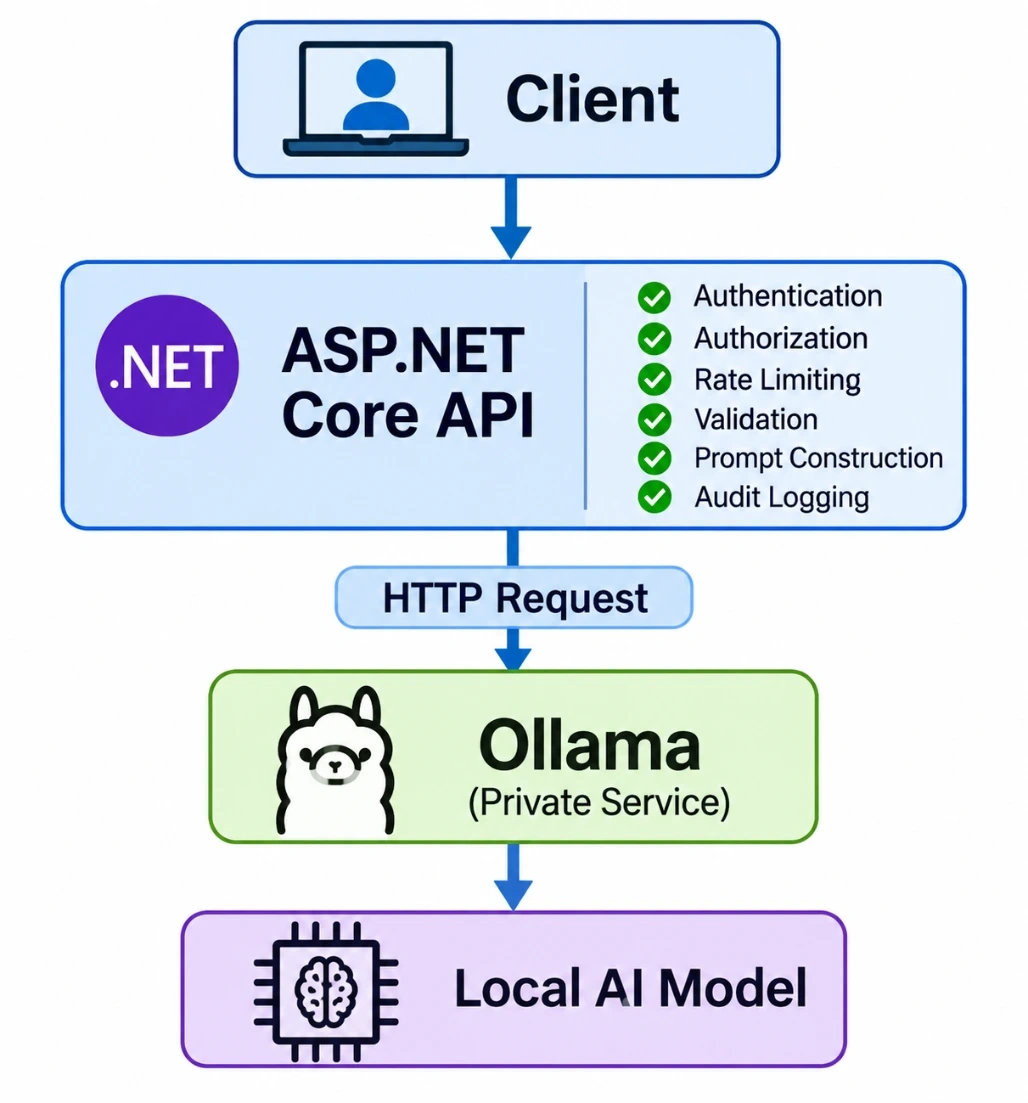
The ASP.NET Core API remains responsible for authentication, authorization, request validation, application logic, logging, rate limiting, and storing conversation history. Ollama is responsible for running the model and generating the response.
Why run an AI model locally?
Running a model locally has several advantages.
Data privacy
Prompts can remain within your own machine or network. This can be valuable when processing internal documents, source code, customer information, or other sensitive data.
However, running a model locally does not automatically make the entire application secure. You must still protect logs, databases, API endpoints, backups, and network access.
No per-request API charge
A local model does not normally have a token-based cloud charge. You still pay for the hardware, electricity,maintenance, and infrastructure required to run it.
Offline operation
After the required model has been downloaded, the application can generate responses without depending on an external AI API.
Model control
You decide which model and version to run. You can also control runtime options such as temperature,context length, token limits, and model keep-alive duration.
Development convenience
Developers can test AI integrations locally without sharing API credentials or consuming a cloud account’s quota.
Limitations of local AI models
Local execution also introduces trade-offs.
A local model may be:
Slower than a cloud-hosted model
Less capable than a large proprietary model
Limited by system RAM or GPU memory
Expensive to operate at high concurrency
Difficult to scale across many users
Unsuitable for very large context windows
Model quality and speed depend heavily on model size, quantization, CPU performance, available RAM,GPU support, prompt size, and the number of concurrent requests.
For many development systems, internal assistants, summarization tools, classification workflows, and private proof-of-concept applications, these limitations may be acceptable.
Prerequisites
For the example in this article, install:
Docker Desktop or Docker Engine
.NET 8 SDK or later
A code editor such as Visual Studio, Visual Studio Code, or JetBrains Rider
At least several gigabytes of free disk space
Enough RAM to run the selected model
Verify the installations:
docker --version
dotnet --version
Step 1: Run Ollama using Docker
Ollama provides an official Docker image named: ollama/ollama
Run the following command:
docker run -d
    --name ollama
    -p 11434:11434
    -v ollama-data:/root/.ollama
    ollama/ollama
For Windows PowerShell:
docker run -d `
        --name ollama `
  -p 11434:11434 `
        -v ollama-data:/root/.ollama `
  ollama/ollama
This command:
Creates a container named: ollama
Runs the container in the background
Maps host port 11434 to the Ollama container
Creates a persistent Docker volume named ollama-data
Stores downloaded model data in /root/.ollama
The volume is important because model files can be several gigabytes. Without persistent storage,recreating the container could require downloading the models again.
Ollama’s Docker documentation uses the same container image, port, and model-volume location. It also provides separate configurations for supported NVIDIA, AMD, Vulkan, and Jetson environments.
Check that the container is running:
docker ps
Test the Ollama API:
curl http://localhost:11434/api/tags
The /api/tags endpoint returns the models currently available in Ollama.
Step 2: Download a model
A model must be downloaded before it can be used locally.
For this example, pull a relatively small model:
docker exec -it ollama ollama pull llama3.2:3b
You may use another supported model, but remember to update the model name in the C# code.
List installed models:
docker exec -it ollama ollama list
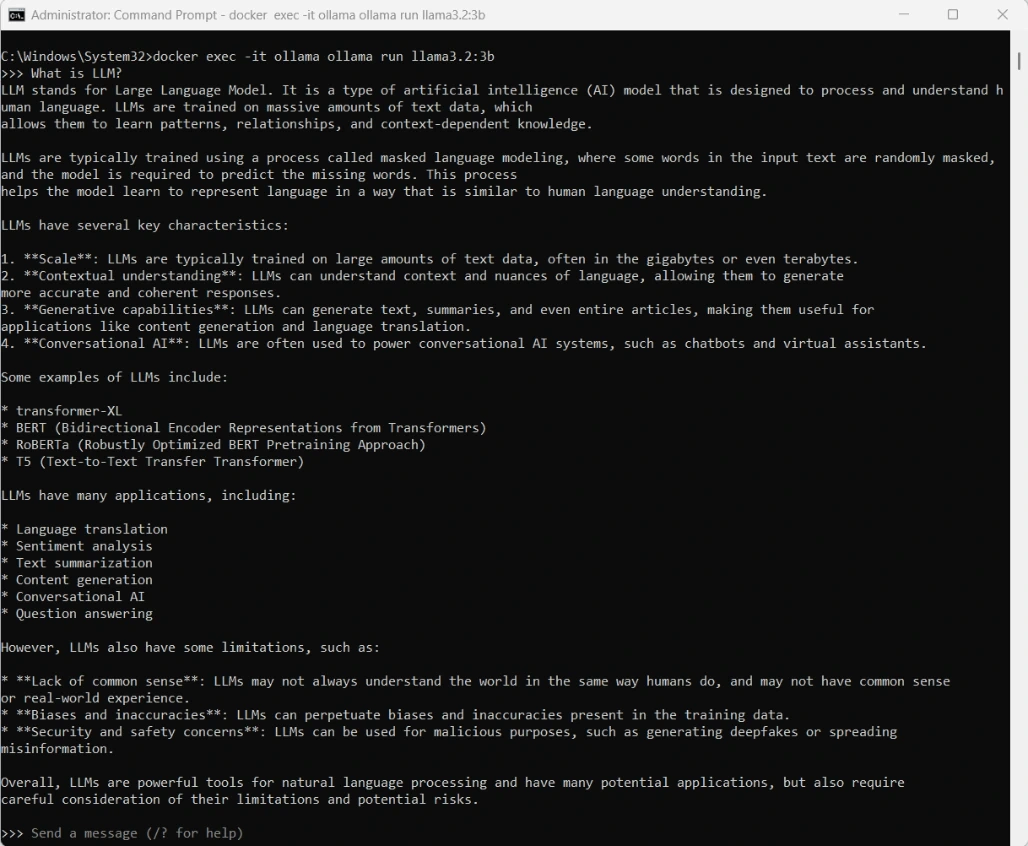
You can also test the model interactively:
docker exec -it ollama ollama run llama3.2:3b
Enter a prompt: "Explain dependency injection in C#."
Type '/bye' to exit the interactive session.
Model names and tags can change, so confirm the exact identifier available in your Ollama installation before deploying an application.
Step 3: Understand the Ollama chat API
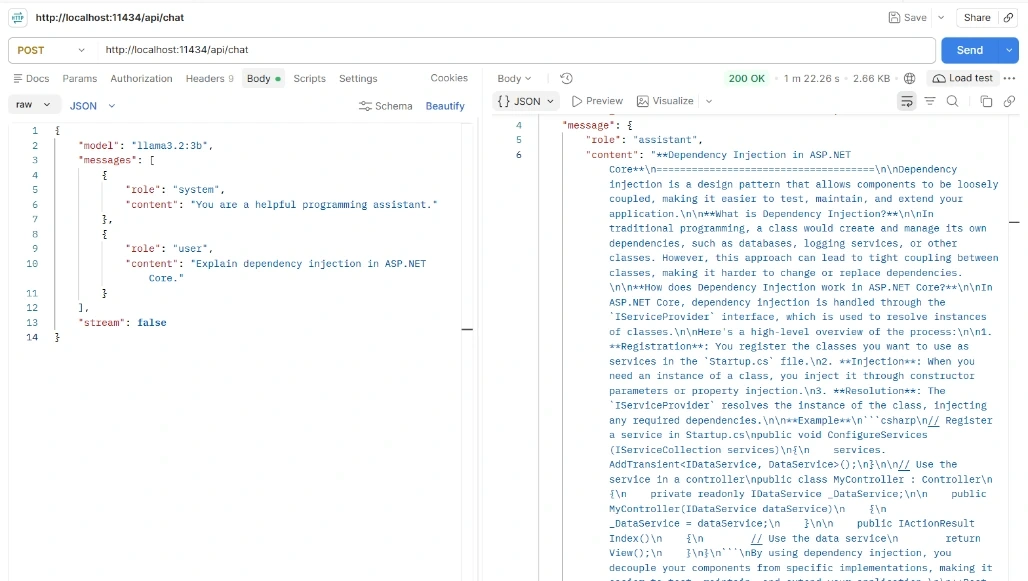
Ollama provides a chat endpoint:
POST /api/chat
A basic request looks like this:
{
    "model": "llama3.2:3b",
    "messages": [
        {
            "role": "system",
            "content": "You are a helpful programming assistant."
        },
        {
            "role": "user",
            "content": "Explain dependency injection in ASP.NET Core."
        }
    ],
    "stream": false
}
The model property identifies the model that should process the request.
The messages collection contains the conversation. Common roles include:
system : Defines instructions or behavior for the assistant
user: Contains the user’s message
assistant: Contains a previous model response
The stream property controls how the response is returned.
When stream is false, Ollama waits for generation to finish and returns one JSON object. When streaming is enabled, Ollama returns partial response objects while text is being generated. Ollama enables streaming by default, while non-streaming responses are simpler for short requests and structured processing.
A simplified non-streaming response looks like this:
{
    "model": "llama3.2:3b",
    "message": {
        "role": "assistant",
        "content": "Dependency injection is..."
    },
    "done": true
}
Step 4: Create the ASP.NET Core project
Create a new minimal ASP.NET Core Web API:
dotnet new webapi -n LocalAiApi
cd LocalAiApi
Run the application once to verify the project: dotnet run
Stop it using Ctrl+C.
We will create the following structure:
LocalAiApi/
├── Models/
│ └── OllamaModels.cs
├── Services/
│ └── OllamaService.cs
├── Program.cs
├── appsettings.json
├── Dockerfile
└── LocalAiApi.csproj
Step 5: Create the request and response models
Create a folder named Models, and then create: Models/OllamaModels.cs
Add the following code:
using System.Text.Json.Serialization;
namespace LocalAiApi.Models;

public sealed record ChatInput(stringMessage);

public sealed record ChatResult(stringResponse);

public sealed class OllamaChatRequest
{
	[JsonPropertyName("model")]
	public required string Model {get; init;}

	[JsonPropertyName("messages")]
	public required IReadOnlyList<OllamaMessage> Messages {get; init;}

	[JsonPropertyName("stream")]
	public bool Stream {get; init;}
}

public sealed class OllamaMessage
{
	[JsonPropertyName("role")]
	public required string Role {get; init;}

	[JsonPropertyName("content")]
	public required string Content {get; init;}
}

public sealed class OllamaChatResponse
{
	[JsonPropertyName("model")]
	public string Model{get; init;} = string.Empty;

	[JsonPropertyName("message")]
	public OllamaMessage? Message{get; init;}

	[JsonPropertyName("done")]
	public bool Done{get; init;}

	[JsonPropertyName("done_reason")]
	public string? DoneReason{get; init;}

	[JsonPropertyName("total_duration")]
	public long TotalDuration{get; init;}

	[JsonPropertyName("load_duration")]
	public long LoadDuration{get; init;}

	[JsonPropertyName("prompt_eval_count")]
	public int PromptEvalCount{get; init;}

	[JsonPropertyName("eval_count")]
	public int EvalCount{get; init;}

	[JsonPropertyName("eval_duration")]
	public long EvalDuration{get; init;}
}
The JsonPropertyName attributes map the C# properties to the JSON property names used by Ollama.
The response also includes useful performance measurements such as model load duration, input token count, output token count, and generation duration. Ollama reports its timing values in nanoseconds.
Step 6: Create the Ollama service
Create Services/OllamaService.cs
Add the following code:
using System.Net.Http.Json;
using LocalAiApi.Models;
namespace LocalAiApi.Services;

public sealed class OllamaService
{
    private readonly HttpClient _httpClient;
    private readonly IConfiguration _configuration;
    private readonly ILogger < OllamaService > _logger;

    public OllamaService(HttpClient httpClient, IConfiguration configuration, ILogger < OllamaService > logger)
	{
        _httpClient = httpClient;
        _configuration = configuration;
        _logger = logger;
    }

    public async Task < string > ChatAsync(string userMessage, CancellationToken cancellationToken = default)
	{
        if (string.IsNullOrWhiteSpace(userMessage))
		{
            throw new ArgumentException("The user message cannot be empty.", nameof(userMessage));
        }

        var model = _configuration["Ollama:Model"] ??
            throw new InvalidOperationException("The Ollama model is not configured.");

        var request = new OllamaChatRequest
	{
            Model = model,
	    Stream = false,
	    Messages = [
				new OllamaMessage {
					Role = "system",
					Content = "You are a helpful assistant. " + "Provide clear and accurate answers."
				},

				new OllamaMessage {
					Role = "user",
					Content = userMessage
				}
			]
        };

        _logger.LogInformation("Sending chat request to Ollama using model {Model}", model);

        using var response = await _httpClient.PostAsJsonAsync("/api/chat", request, cancellationToken);

        if (!response.IsSuccessStatusCode)
		{
            var errorBody = await response.Content.ReadAsStringAsync(cancellationToken);
            _logger.LogError("Ollama returned status {StatusCode}: {ResponseBody}", response.StatusCode, errorBody);
            throw new HttpRequestException($"Ollama returned HTTP status " + $ "{(int)response.StatusCode}.");
        }

        var result = await response.Content.ReadFromJsonAsync < OllamaChatResponse > (cancellationToken: cancellationToken);
        var generatedText = result?.Message?.Content;

        if (string.IsNullOrWhiteSpace(generatedText))
		{
            throw new InvalidOperationException("Ollama returned an empty response.");
        }

        if (result is not null)
		{
            var generationSeconds = result.EvalDuration / 1_000_000_000 d;
            var tokensPerSecond = generationSeconds > 0 ? result.EvalCount / generationSeconds : 0;
            _logger.LogInformation("Ollama generated {TokenCount} tokens at " + "{TokensPerSecond:F2} tokens per second", result.EvalCount, tokensPerSecond);
        }

        return generatedText;
    }
}
This service performs five main operations:
Validates the user’s message.
Reads the model name from configuration.
Creates an Ollama chat request.
Sends the request to /api/chat.
Extracts and returns the generated assistant message.
The service receives HttpClient through constructor injection. ASP.NET Core can create and configure this client using IHttpClientFactory.
Using IHttpClientFactory provides centralized client configuration, dependency-injection integration, logging, and management of the underlying HTTP handlers. This avoids the problems associated with repeatedly constructing and disposing independent HttpClient handlers.
Step 7: Configure the application
Replace appsettings.json with:
{
	"Ollama": {
		"BaseUrl": "http://localhost:11434",
		"Model": "llama3.2:3b"
	},
	"Logging": {
		"LogLevel": {
			"Default": "Information",
			"Microsoft.AspNetCore": "Warning"
		}
	},
	"AllowedHosts": "*"
}
The endpoint works when:
Later, when both services run in Docker, the URL will be changed through an environment variable.
Step 8: Register the service and create an APIendpoint
Replace Program.cs with:
usingLocalAiApi.Models;
usingLocalAiApi.Services;

var builder = WebApplication.CreateBuilder(args);

var ollamaBaseUrl =
	builder.Configuration["Ollama:BaseUrl"]
	?? "http://localhost:11434";

builder.Services.AddHttpClient<OllamaService>(client =>
{
	client.BaseAddress = new Uri(ollamaBaseUrl);
	client.Timeout = TimeSpan.FromMinutes(5);
});

builder.Services.AddOpenApi();

var app = builder.Build();

if(app.Environment.IsDevelopment())
{
	app.MapOpenApi();
}

app.MapGet("/",() => Results.Ok(new
{
	service = "Local AI API",
	status = "running"
}));

app.MapPost(
	"/api/chat",
	async(
		ChatInput input,
		OllamaService ollamaService,
		CancellationToken cancellationToken) =>
		{
			if(string.IsNullOrWhiteSpace(input.Message))
			{
				returnResults.BadRequest(new
				{
					error = "Message is required."
				});
			}
			try
			{
				var response = await ollamaService.ChatAsync(input.Message, cancellationToken);
				returnResults.Ok(newChatResult(response));
			}
			catch(OperationCanceledException)
			{
				returnResults.Problem(
					title: "Request cancelled",
					detail: "The AI generation request was cancelled.",
					statusCode:StatusCodes.Status408RequestTimeout
				);
			}
			catch(HttpRequestExceptionexception)
			{
				returnResults.Problem(
					title: "Ollama is unavailable",
					detail: exception.Message,
					statusCode: StatusCodes.Status503ServiceUnavailable
				);
			}
			catch(Exceptionexception)
			{
				return Results.Problem(
					title: "AI generation failed",
					detail: exception.Message,
					statusCode: StatusCodes.Status500InternalServerError
				);
			}
		}
	);
app.Run();
ASP.NET Core includes a built-in dependency-injection container. The framework resolves OllamaService and its dependencies when the endpoint is executed.
The timeout is set to five minutes because local model loading and generation can take significantly longer than a normal database or HTTP request, particularly on the first request.
Step 9: Run and test the application
Make sure the Ollama container is running: docker start ollama
Run the .NET application: dotnet run
The terminal will display the available application URL, for example: http://localhost:5000
Send a request using cURL:
curl -X POST http://localhost:5000/api/chat
	-H "Content-Type: application/json"
	-d "{\"message\":\"Explain middleware in ASP.NET Core.\"}"
A response should look similar to:
{
	"response": "Middleware in ASP.NET Core is a component..."
}
In PowerShell, you can use:
Invoke-RestMethod `
	-Method Post `
	-Uri "http://localhost:5000/api/chat" `
	-ContentType "application/json" `
	-Body '{"message": "Explain middleware in ASP.NET Core."}'
The first request may take longer because Ollama may need to load the model into memory. Ollama supports preloading a model by sending an empty request to /api/chat or /api/generate.
Step 10: Containerize the ASP.NET Core application
Create a file named Dockerfile in the project directory:
FROM mcr.microsoft.com/dotnet/sdk:8.0 AS build

WORKDIR /src

COPY ["LocalAiApi.csproj", "./"]
RUN dotnet restore "LocalAiApi.csproj"

COPY..

RUN dotnet publish "LocalAiApi.csproj"
	-c Release
	-o /app/publish
	/p:UseAppHost=false

FROM mcr.microsoft.com/dotnet/aspnet:8.0 AS runtime

WORKDIR /app

COPY --from=build/app/publish.

EXPOSE 8080

ENTRYPOINT ["dotnet", "LocalAiApi.dll"]
This is a multi-stage Docker build.
The first stage uses the .NET SDK image to:
The second stage uses the smaller ASP.NET Core runtime image to run the published application.
Step 11: Run .NET and Ollama with Docker Compose
Create docker-compose.yml in the directory above the project or adjust its build path to match your folder structure.
services:
    ollama:
        image: ollama/ollama
        container_name: ollama
        ports:
            - "11434:11434"
        volumes:
            - ollama-data:/root/.ollama
        restart: unless-stopped
    api:
        build:
            context: ./LocalAiApi
            dockerfile: Dockerfile
        container_name: local-ai-api
        ports:
            - "8080:8080"
        environment:
            ASPNETCORE_URLS: `http://+:8080`
            Ollama__BaseUrl: http://ollama:11434
            Ollama__Model: llama3.2:3b
        depends_on:
            - ollama
        restart: unless-stopped
volumes:
    ollama-data:
Start both services:
docker compose up -d --build
Download the model into the Ollama container:
docker compose exec ollama ollama pull llama3.2:3b
Test the containerized API:
curl -X POST http://localhost:8080/api/chat
    -H "Content-Type: application/json"
    -d "{\"message\":\"Write a C# record for a customer.\"}"
Why 'localhost' does not work between containers
This is one of the most common Docker networking mistakes.
Inside the ASP.NET Core container: http://localhost:11434 means port 11434 inside the ASP.NET Core container itself. It does not refer to the host machine or the Ollama container.
Docker Compose creates a network and provides DNS resolution based on service names. Therefore, the API must use: http://ollama:11434
Here, ollama is the service name defined in docker-compose.yml.
ASP.NET Core configuration converts double underscores in environment-variable names into nested configuration separators. Therefore: Ollama__BaseUrl overrides:
{
	"Ollama": {
		"BaseUrl": "..."
	}
}
This allows the same application to use: http://localhost:11434 during local development and: http://ollama:11434 inside Docker Compose.
The previous example waits for Ollama to generate the complete answer. For chat interfaces, streaming often provides a better experience because users see the response as it is generated.
Set: Stream=true
Ollama then returns newline-delimited JSON objects.
A simplified streaming method could look like this:
using System.Net.Http.Json;
using System.Runtime.CompilerServices;
using System.Text.Json;
using LocalAiApi.Models;

public async IAsyncEnumerable<string> StreamChatAsync (stringuserMessage, [EnumeratorCancellation] CancellationToken cancellationToken = default)
{
	var request = new OllamaChatRequest
	{
		Model = "llama3.2:3b",
		Stream = true,
		Messages= [
			new OllamaMessage
			{
				Role = "user",
				Content = userMessage
			}
		]
	};

	using var httpRequest = new HttpRequestMessage(HttpMethod.Post,"/api/chat")
	{
		Content = JsonContent.Create(request)
	};

	using var response = await_httpClient.SendAsync(httpRequest, HttpCompletionOption.ResponseHeadersRead, cancellationToken);
	response.EnsureSuccessStatusCode();

	await using var stream = await response.Content.ReadAsStreamAsync(cancellationToken);
	using var reader = new StreamReader(stream);

	while(!reader.EndOfStream)
	{
		varline=awaitreader.ReadLineAsync(cancellationToken);

		if(string.IsNullOrWhiteSpace(line))
		{
			continue;
		}

		var chunk = JsonSerializer.Deserialize<OllamaChatResponse>(line);

		var content = chunk?.Message?.Content;

		if (!string.IsNullOrEmpty(content))
		{
			yield return content;
		}

		if (chunk?.Done==true){
			yield break;
		}
	}
}
HttpCompletionOption.ResponseHeadersRead prevents HttpClient from buffering the complete response before returning control to the application.
Streaming is especially useful for:
Non-streaming mode remains simpler for background tasks, classification, short answers, and structured JSON processing.
Maintaining conversation history
The current example sends only the system prompt and the latest user message. Therefore, Ollama does not know anything about previous requests.
To preserve a conversation, resend the prior messages:
var messages = new List<OllamaMessage>
{
	new() { Role = "system", Content = "You are a helpful assistant." },
	new() { Role = "user", Content = "My name is Amit." },
	new() {Role = "assistant", Content = "Nice to meet you, Amit."},
	new() {Role = "user", Content = "What is my name?" }
};
The application not Ollama should normally manage the conversation state.
Conversation messages can be stored in:
Be careful with unlimited chat history. Each message consumes context space and increases processing time. A production application may need to:
Retain only recent messages
Summarize older messages
Set a token budget
Remove irrelevant history
Store complete history but send only selected messages
Requesting structured JSON output
Free-form model text can be difficult to process reliably. For example, an application might need a response containing:
{
	"category": "technical_support",
	"priority": "high",
	"summary": "The customer cannot access their account."
}
Ollama supports structured output by accepting either "json" or a JSON schema rough the request’s format property. Structured output can improve consistency when responses must be parsed by application code.
A request class could include:
[JsonPropertyName("format")]
public object? Format { get; init; }
The request can then define a schema:
var request = new
{
    model = "llama3.2:3b",
    prompt = "Classify this customer message: 'I cannot sign in to my account.'",
    stream = false,
    format = new
    {
        type = "object",
        properties = new
        {
            category = new { type = "string" },
            priority = new { type = "string", @enum = new[] { "low", "medium", "high" } },
            summary = new { type = "string" }
        },
        required = new[] { "category", "priority", "summary" }
    }
};
Even with structured output, validate the response before saving it or using it for important business decisions.
GPU acceleration
Large language model inference is computationally expensive. A supported GPU can significantly improve generation speed.
For a supported NVIDIA setup, the Docker command can include:
docker run -d
  --gpus all
  --name ollama
  -p 11434:11434
  -v ollama-data:/root/.ollama
  ollama/ollama
Ollama also documents configurations for supported AMD GPUs and other acceleration environments. GPU support depends on the operating system, drivers, Docker runtime, device model, Ollama version, and selected model.
A GPU is not mandatory. Smaller models can run on a CPU, although responses will generally be slower.
Production considerations
Running the example successfully is only the first step. A production deployment requires additional controls.
Do not expose Ollama directly
Your frontend should normally communicate with your ASP.NET Core API, not directly with Ollama.
Recommended architecture:
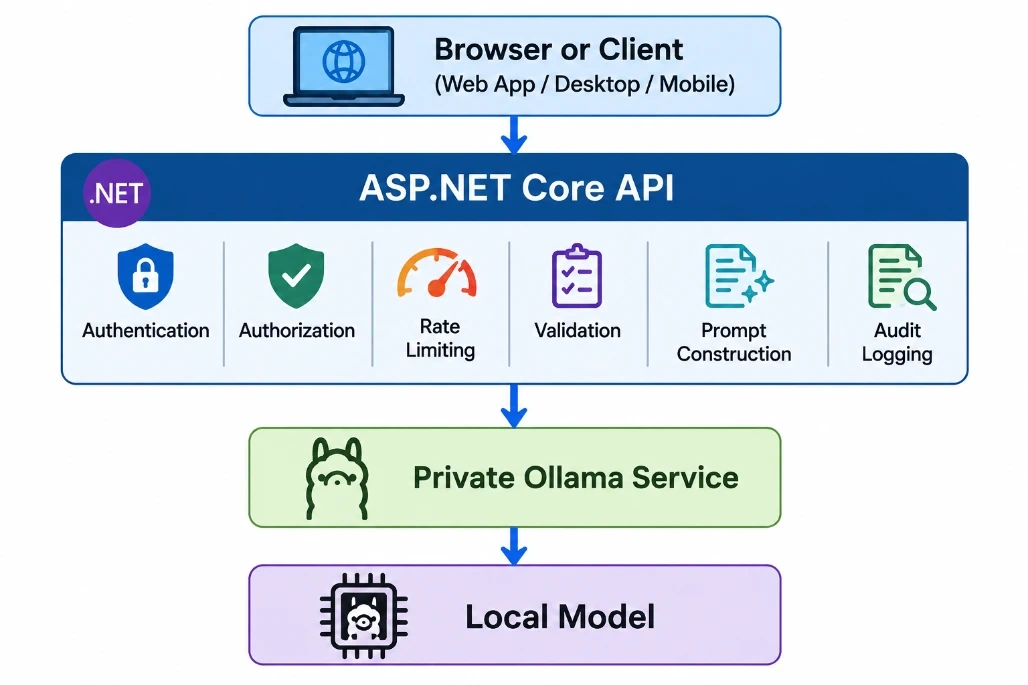
The Ollama OpenAPI specification lists the local server as http://localhost:11434 and does not define mandatory security for ordinary local API requests. Cloud and private model operations have separate authentication requirements.
Do not publicly expose port 11434 without an appropriate security layer.
Add request limits
Users should not be able to submit unlimited text. Validate:
A local GPU or CPU may not efficiently handle many simultaneous generations.
Possible controls include:
private static readonly SemaphoreSlim ModelSemaphore = new (initialCount: 2, maxCount: 2);
Before calling Ollama:
await ModelSemaphore.WaitAsync(cancellationToken);
try
{
    return await CallOllamaAsync(cancellationToken);
}
finally
{
    ModelSemaphore.Release();
}
For larger systems, use a bounded queue or background worker.
Use cancellation tokens
If a client disconnects or cancels a request, the application should stop unnecessary processing where possible.
ASP.NET Core automatically provides a request cancellation token to minimal API handlers.
Monitor performance
Ollama returns metrics including:
These values can be recorded in application metrics and logs. Ollama reports duration values in nano seconds.
Tokens per second can be calculated as:
double seconds =
	response.EvalDuration / 1_000_000_000d;
double tokensPerSecond =
	seconds > 0
		? response.EvalCount / seconds
		:0;
Handle model warm-up
The first request can be slow because the model must be loaded into memory.
Ollama allows applications to preload a model by sending an empty request. For example:
curl http://localhost:11434/api/chat
	-d' {"model":"llama3.2:3b"}'
Do not trust model output automatically
An LLM can return incomplete, incorrect, unsafe, or fabricated information.
Model output should not directly execute:
SQL statements
Shell commands
Financial transactions
Account changes
File deletions
Administrative actions
Use validation, authorization, allow lists, approval workflows, and normal application security controls around AI-generated decisions.
Common errors
Connection refused
Example: Connection refused localhost:11434
Possible causes:
Ollama is not running
Docker port 11434 is not mapped
The API URL is incorrect
A firewall is blocking the connection
The .NET application is in another container and is incorrectly using localhost
Check:
docker ps
curl http://localhost:11434/api/tags
Model not found
Example: model "llama3.2:3b" not found
Pull the model: docker exec -it ollama ollama pull llama3.2:3b
Confirm the installed name: docker exec -it ollama ollama list
Request timeout
Possible reasons:
The selected model is too large
The machine has insufficient RAM
CPU inference is slow
The model is loading for the first time
Too many requests are running simultaneously
Use a smaller model, increase the timeout carefully, enable GPU acceleration, preload the model, or reduce concurrency.
Docker container exits
Inspect the logs: docker logs ollama
For the ASP.NET Core application: docker logs local-ai-api
Out-of-memory errors
Use:
A smaller model
A more heavily quantized model
A shorter context
Fewer concurrent requests
A machine with more RAM or GPU memory
When should you use Ollama with .NET?
Ollama is a strong option for:
Internal company assistants
Private document summarization
Local coding assistants
Development and AI prototyping
Text classification
Data extraction
Offline desktop applications
Private question-answering systems
Small-scale retrieval-augmented generation
Applications with strict data-location requirements
A cloud AI platform may be more appropriate when you need:
Very high concurrency
Globally distributed inference
Managed availability
Large context windows
Access to the most capable models
Minimal infrastructure maintenance
Enterprise support and service guarantees
A hybrid architecture is also possible. The application can use Ollama for private or low-cost workloads and call a cloud model only when additional capability is required.
Conclusion
Ollama makes it possible to run AI models locally without requiring a cloud model API for every request.Because it provides an HTTP interface, integration with ASP.NET Core is straightforward.
The complete workflow is:
Run Ollama using Docker.
Download a suitable model.
Create an ASP.NET Core application.
Configure an HttpClient for Ollama.
Send chat messages to /api/chat.
Return the generated response through your own API.
Use Docker Compose to run both services together.
Add security, validation, monitoring, and concurrency controls before production deployment.
The central design principle is to treat Ollama as an internal inference service. Your .NET application should remain the secure application layer responsible for users, permissions, data, business rules, and operational controls.
With this architecture, you can build private chat assistants, local automation tools, document processors,coding assistants, classification services, and other AI-powered .NET applications while maintaining control over the model and infrastructure.


Join the conversation! Your thoughts help the community grow.