

Inspiration Behind the Article
This article builds upon my previous guide on developing cross-platform apps with .NET MAUI Blazor Hybrid. If you’re new to .NET MAUI or Blazor Hybrid, I highly recommend reading that guide first to grasp the foundational concepts and set up your development environment.
In this article, we’ll focus on creating a real-time currency converter app, an excellent practical use case for cross-platform applications. You’ll learn how to design and develop an app that not only fetches live exchange rates but also delivers a consistent user experience across mobile, web, and desktop platforms, all while leveraging a single UI framework: Blazor.
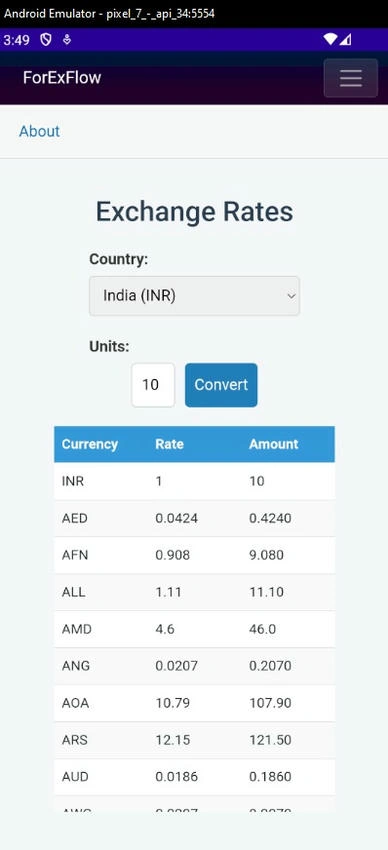
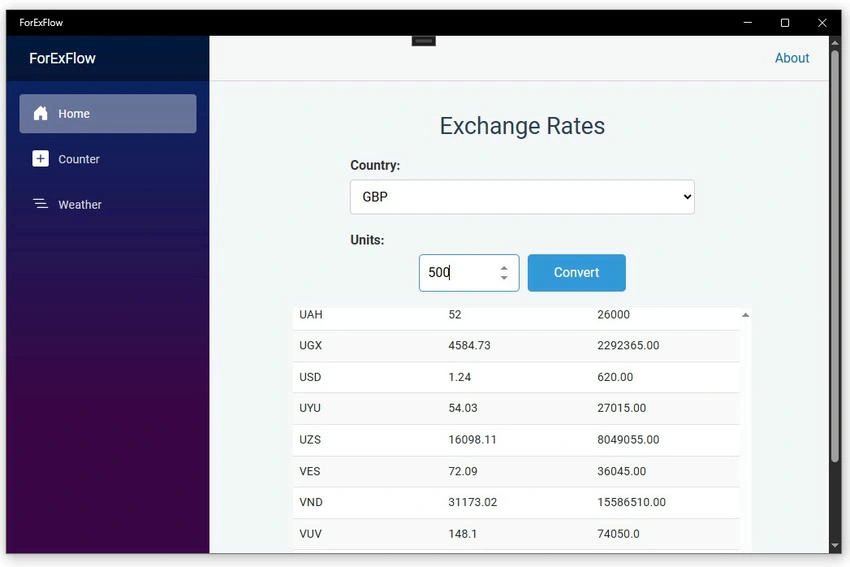
Here’s a preview of the app running on all three platforms web, mobile, and desktop.

Image 1. Currency Converter on Desktop, Web, and Mobile
SRS for Currency Converter UI
- Currency Selection: A dropdown menu with INR set as the default currency.
- User Input: A numeric input field for entering the number of units.
- Convert Button: Triggers conversion based on the user input and exchange rates.
- Exchange Rates Table: Displays the currency, exchange rate, and converted amount.
- Loading Indicator: Appears while fetching exchange rates.
- UI Requirements: Left-aligned, responsive, and consistent design across platforms.
- Performance: Ensures efficient updates without unnecessary API calls.
Before we start building the currency converter app, it’s essential to understand how to create a Blazor Hybrid app. I covered this in my previous article, [Building Cross-Platform Apps with .NET MAUI Blazor Hybrid], so I recommend reviewing it to get started.
For this project, I have named the app ForExFlow. After creating the solution, you will have the following three projects.
- ForExFlow: The platform-specific project for Desktop and Mobile.
- ForExFlow.Shared: The shared project contains UI components and business logic.
- ForExFlow.Web: The web-specific project for running the Blazor Web app.

Image 2: Solution Explorer - Project Name: ForExFlow
The Service
Create a new folder named "Services" in the "ForExFlow.Shared" project and add the following interface, IForexRateService, and the class, ForexRateService.
IForexRateService: Service interface
Let's start with the service interface. It's quite simple; all we need is a single method that takes a currency as input and returns a dictionary containing country names and their respective exchange rates.
public interface IForexRateService
{
    Task<Dictionary<string, decimal>> GetExchangeRatesAsync(string inputCurrency);
}
Code Snippet 1. Service Interface - IForexRateService.
ForexRateService Class: Fetching Exchange Rates via API
The ForexRateService class is an implementation of the IForexRateService interface, we need this class to fetch the live exchange rates from an API (https://api.exchangerate-api.com/v4/latest).
1. Private Field
- A private instance of RestClient from RestSharp is used to send HTTP requests.
- This client will be initialized once and reused for making API calls.
Code Snippet 2. REST Clientpublic class ForexRateService : IForexRateService { private readonly RestClient _client; }
2. Constructor
- The constructor initializes _client with the base URL of the exchange rate API.
- All requests will be appended with the specific currency to fetch exchange rates accordingly.
Code Snippet 3. Initialization of REST Client.public ForexRateService() { _client = new RestClient("https://api.exchangerate-api.com/v4/latest/"); }
3. GetExchangeRatesAsync
- This async method takes a base currency (e.g., "USD", "EUR") and retrieves exchange rates relative to it. Returns a Dictionary<string, decimal>, mapping currency codes (like "INR", "GBP") to their exchange rates.
- Appends the baseCurrency to the base API URL (e.g., "https://api.exchangerate-api.com/v4/latest/USD").
- Creates a RestRequest using RestSharp and sends a GET request asynchronously.
- Uses System.Text.Json to deserialize the API response into a C# object (ExchangeRateResponse - code snippet 5).
Code Snippet 4. GetExchangeRatesAsync: Fetching Exchange Rates from API.public async Task<Dictionary<string, decimal>> GetExchangeRatesAsync(string baseCurrency) { var url = $"{baseCurrency}"; var request = new RestRequest(url, Method.Get); var response = await _client.ExecuteAsync(request); if (!response.IsSuccessful) { throw new Exception($"Failed to fetch exchange rates"); } var options = new JsonSerializerOptions { DefaultIgnoreCondition = System.Text.Json.Serialization.JsonIgnoreCondition.WhenWritingNull, PropertyNamingPolicy = JsonNamingPolicy.CamelCase }; var data = JsonSerializer.Deserialize<ExchangeRateResponse>(response.Content, options); if (data == null || data.Rates == null) { throw new Exception("No exchange rates found in the response."); } return data.Rates; }
4. ExchangeRateResponse: Mapping API Response.
- This class represents the structure of the API response.
- The most important field is Rates, a dictionary storing currency rates.
Code Snippet 5. class ExchangeRateResponse.private class ExchangeRateResponse { public string Base { get; set; } public string Date { get; set; } public Dictionary<string, decimal> Rates { get; set; } public string Provider { get; set; } public string WarningUpgradeToV6 { get; set; } public string Terms { get; set; } public int TimeLastUpdated { get; set; } }

Join the conversation! Your thoughts help the community grow.