

In this article, we learn how to connect an Oracle database with a .Net project. These days I am doing my summer training at CDAC Jaipur. My field is Oracle Database. A few days ago I tried to connect my Oracle database with an ASP.Net project. I found many methods to connect an Oracle database with an ASP.Net project but nothing worked correctly. But finally, I was successful in connecting my Oracle database with my ASP.Net project. So I decided to write an article on this topic. It may be possible that this article will help other people to solve the same problem that I encountered.
Now we learn how to connect our Oracle database with a .Net project.
Prerequisites
- Microsoft Visual Studio 2008 or higher version.
- Oracle Database.
If we want to connect your Oracle database with a .Net project then you need some assembly files. For the installation of these assembly files, Oracle provides the Oracle Data Access Component (ODAC).
You can download this ODAC from the link Oracle Data Access Component (ODAC)
First, download and install the ODAC. After a successful installation, we can connect to the Oracle database.
With our project.
First, we create a project:
- Go to the File menu and select the Website.
- Now select ASP.NET Empty Website.
- Now we add a web form.
- In this web form, we use one GridView and one button.
After doing all that we will now add the Oracle assemblies to our project as in the following:
- Go to Solution Explorer.
- Right-click and select Add Reference.
- Click on Extensions.
- Select the following assembly files and click on the OK button.
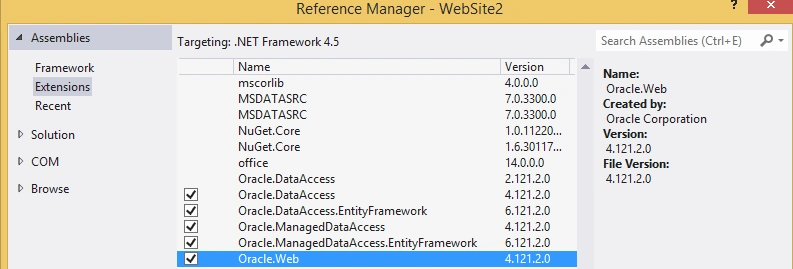 Figure 1: Assembly Files
Now we find that a Bin folder is created automatically and this folder contains all the required assembly files.
For more confirmation, we can check our Web.Config file. If we check our web.config then we will find the following code.

Figure 2: WebConfig file
- First, we need to add the namespace "using Oracle.DataAccess.Client;" on our aspx.cs page.
- Now we require a TNS entry. The TNS is the .Net configuration file that defines database addresses for establishing a connection with an Oracle database.
The following is a sample of how to create a TNS:
- "Data Source=(DESCRIPTION =" + "(ADDRESS = (PROTOCOL = TCP)(HOST = HOST_NAME)(PORT = 1521))" + "(CONNECT_DATA =" + "(SERVER = DEDICATED)" + "(SERVICE_NAME = ORCL)));" + "User Id= User_ID;Password=******"
Before making a connection with the Oracle database using TNS entries we should have the following information in the TNS.
- HOST Provider: You can use the following command to get the Host Name:
Example
- SELECT SYS_CONTEXT ('USERENV', 'SERVER_HOST') FROM DUAL;
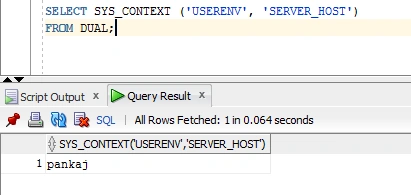 Figure 3: Dual Table
 - Service Name: To determine your Service Name you can use the following procedure.
- Press Window + R.
- Now enter Services.msc and press Enter.
- Now search for your Oracle Service. At the last of the service, you can find your service name.
 Figure 4:Oracle ServiceHere my Oracle Service name is “ORCL”.
3. User Id and Password: Provide the User id and Password that you set during installation.
After providing all that information we can make our connection.
The following is the source code of the Aspx.cs file:
- using System;
- using System.Collections.Generic;
- using System.Linq;
- using System.Web;
- using System.Web.UI;
- using System.Web.UI.WebControls;
- using Oracle.DataAccess.Client;
- using System.Data;
- public partial class _Default: System.Web.UI.Page
- {
- string TNS = "Data Source=(DESCRIPTION =" +
- "(ADDRESS = (PROTOCOL = TCP)(HOST = pankaj)(PORT = 1521))" +
- "(CONNECT_DATA =" +
- "(SERVER = DEDICATED)" +
- "(SERVICE_NAME = ORCL)));" +
- "User Id= hr;Password=hr";
- OracleConnection Con;
- protected void Page_Load(object sender, EventArgs e)
- {
- OracleConnection Con = new OracleConnection(TNS);
- Con.Open();
- Response.Write("Connected to Oracle " + Con.ServerVersion);
- Con.Close();
- Con.Dispose();
- Response.Write(" Disconnected");
- }
- protected void Submit_Click(object sender, EventArgs e)
- {
- OracleConnection Con = new OracleConnection(TNS);
- Con.Open();
- DataTable tab = new DataTable();
- OracleDataAdapter da = new OracleDataAdapter("select * from JOBS", Con);
- da.Fill(tab);
- GridView1.DataSource = tab;
- GridView1.DataBind();
- Con.Close();
- Con.Dispose();
- }
- }
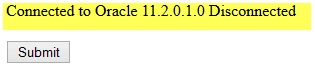
Figure 5: Run
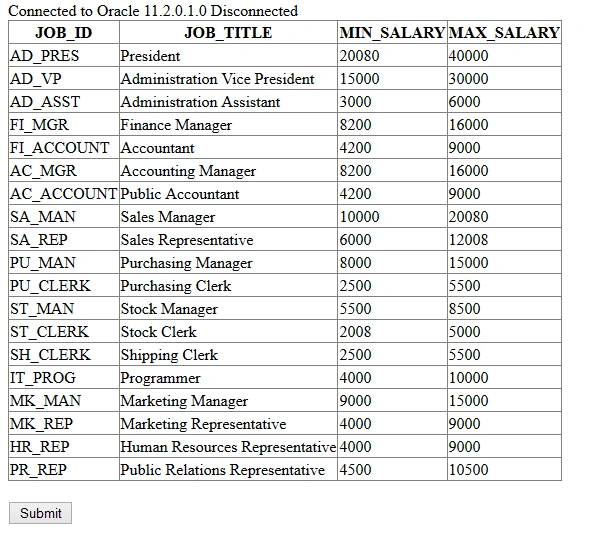
Figure 6: GridView
Bharati TPosted Oct 25, 2021, 9:42 AM
Thanks Pankaj ,its really helpfull
clyde correaPosted Jul 25, 2019, 2:37 AM
Shitty shitty shitty shitty shitty shitty shitty shitty shitty
Pankaj Kumar ChoudharyPosted Jul 11, 2015, 5:58 AM
Thanks Santhakumar Sir.........
Santhakumar MunuswamyPosted Jul 11, 2015, 3:06 AM
Good article! Thanks for sharing
Pankaj Kumar ChoudharyPosted Jul 10, 2015, 1:32 AM
Thanks Rahul.........
Manoj KulkarniPosted Jul 10, 2015, 1:30 AM
Nice article. Thank you for sharing.
Nilesh JadavPosted Jul 10, 2015, 12:08 AM
Now this is really nice sharing from you sir ! thank you for sharing
Rahul PrajapatPosted Jul 9, 2015, 11:12 PM
nice article pankaj sir
Neeraj KumarPosted Jul 9, 2015, 5:18 PM
Good Article Pankaj
RakeshPosted Jul 9, 2015, 2:00 PM
Good one
Pankaj Kumar ChoudharyPosted Jul 9, 2015, 12:49 PM
yes we use this method with Visual studio 2008 and higher versions...........
Vilas ShendePosted Jul 9, 2015, 11:56 AM
Dear Pankaj Kumar Choudhary , can we done this with Visual Studio 2010 Express Edition?
Debasis SahaPosted Jul 9, 2015, 10:15 AM
Nine One..
Rakesh KalluriPosted Jul 9, 2015, 10:04 AM
Good one Pankaj.Thanks for sharing . you are writing some good articles..you have bright career..